Script Planner Assistant▸
 AI Apps
 AI News

Product AnyShoot: AI-Powered Product Display for Any Item
Product AnyShoot: AI-Powered Product Display for Any ItemIntroduction
What is Product AnyShoot?
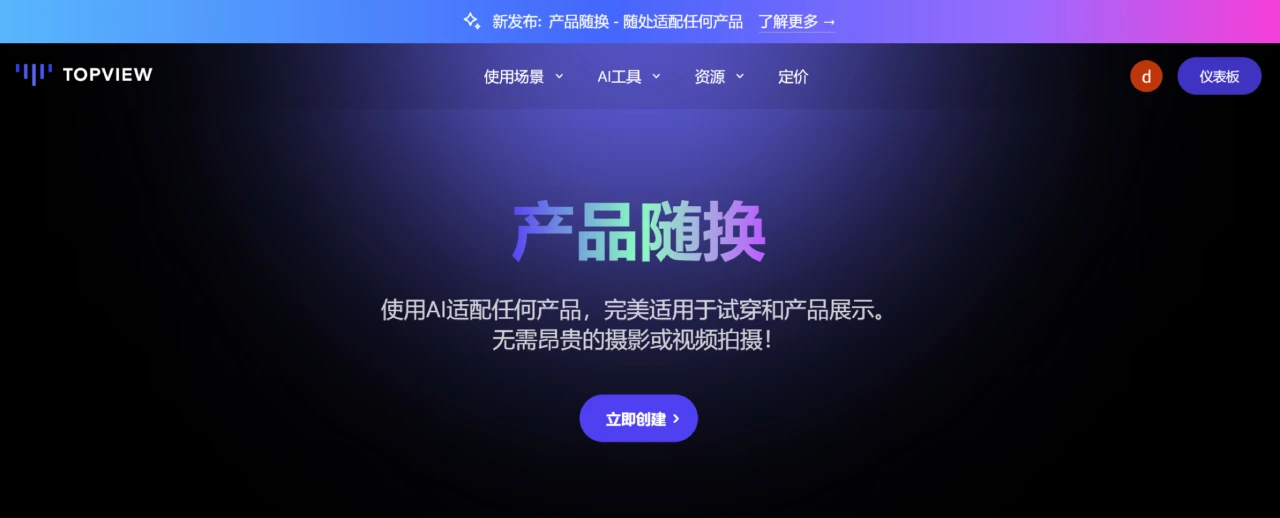
Product AnyShoot is an AI-powered product showcase tool provided by TopView AI. Users simply upload a product image, choose a suitable template, and the product can be seamlessly placed in a variety of virtual environments. The product image can then be quickly turned into a realistic showcase video—no complex shooting or post-production required. It's especially well-suited for e-commerce sellers, brand marketers, and social media creators.
Product AnyShoot Features
Virtual Showcase
Users simply upload a product image and choose a suitable template to seamlessly place the product in a variety of virtual environments (such as indoor, outdoor, commercial scenes, etc.) and generate realistic showcase effects.
Supports multiple product types, including clothing, accessories, electronics, home goods, and more.
No Real Models Required
No need for expensive photo or video shoots, and no need to hire real models—saving significant time and cost.
AI-generated virtual models or scenes deliver realistic, natural-looking results.
Fast Video Generation
Leverages AI technology to quickly generate high-quality product showcase videos, suitable for marketing on e-commerce platforms, social media, and other channels.
Supports multiple video formats for easy use across different platforms.
Diverse Templates
Provides a wide range of product templates, allowing users to choose the right one based on product type and showcase needs.
The template library is continuously updated to meet the demands of different industries and scenarios.
Smart Editing Features
Offers simple editing tools that let users adjust the product's position, angle, size, and other parameters as needed.
Supports adding text, music, effects, and other elements to enhance the video's appeal.
Multi-Platform Support
Supports exporting the generated videos to major e-commerce platforms (such as Taobao, JD, Amazon, etc.) and social media platforms (such as TikTok, Xiaohongshu, Facebook, etc.).
Product AnyShoot Use Cases
E-commerce Product Showcase
Helps e-commerce sellers quickly produce product showcase videos, boosting the appeal of product pages and increasing purchase intent.
Suitable for a wide range of product types, including clothing, accessories, electronics, and home goods.
Social Media Marketing
Provides brands and creators with a convenient video production tool for crafting eye-catching social media content.
Ideal for short-form video marketing on platforms like TikTok, Xiaohongshu, and Instagram.
Virtual Try-On
Suitable for virtual try-on scenarios for clothing, accessories, and similar products, allowing users to see how the product looks when worn at a glance.
Enhances the user experience and reduces return rates.
Product Promotion
Used to create product promotional videos that showcase the product's features and highlights.
Suitable for brand promotion, new product launches, and other scenarios.
Ad Production
Provides advertising agencies and marketing teams with an efficient video production tool to quickly generate ad creatives.
Suitable for various advertising channels, including TV ads, online ads, and more.
How to Use Product AnyShoot
1. Sign Up and Log In
Visit the Product AnyShoot page on the TopView official website.
Register an account and log in (you can log in using your email or a Google account).
2. Upload Product Images
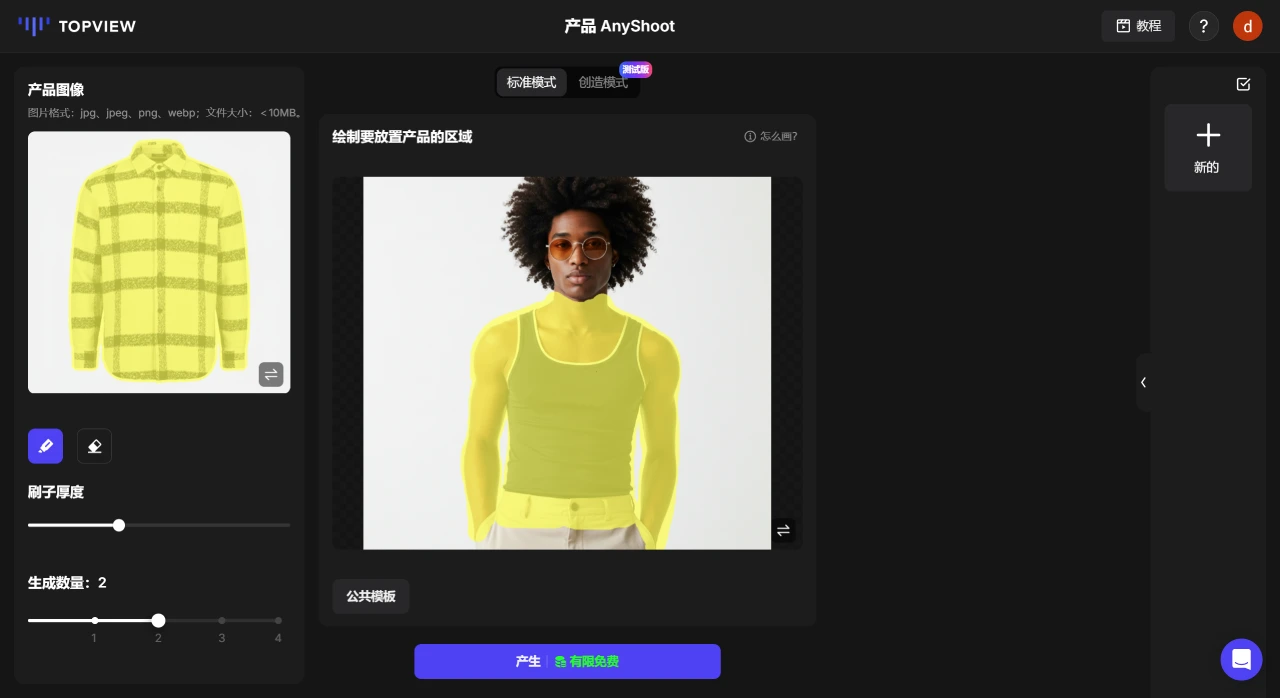
Click "Create Now" on the homepage.
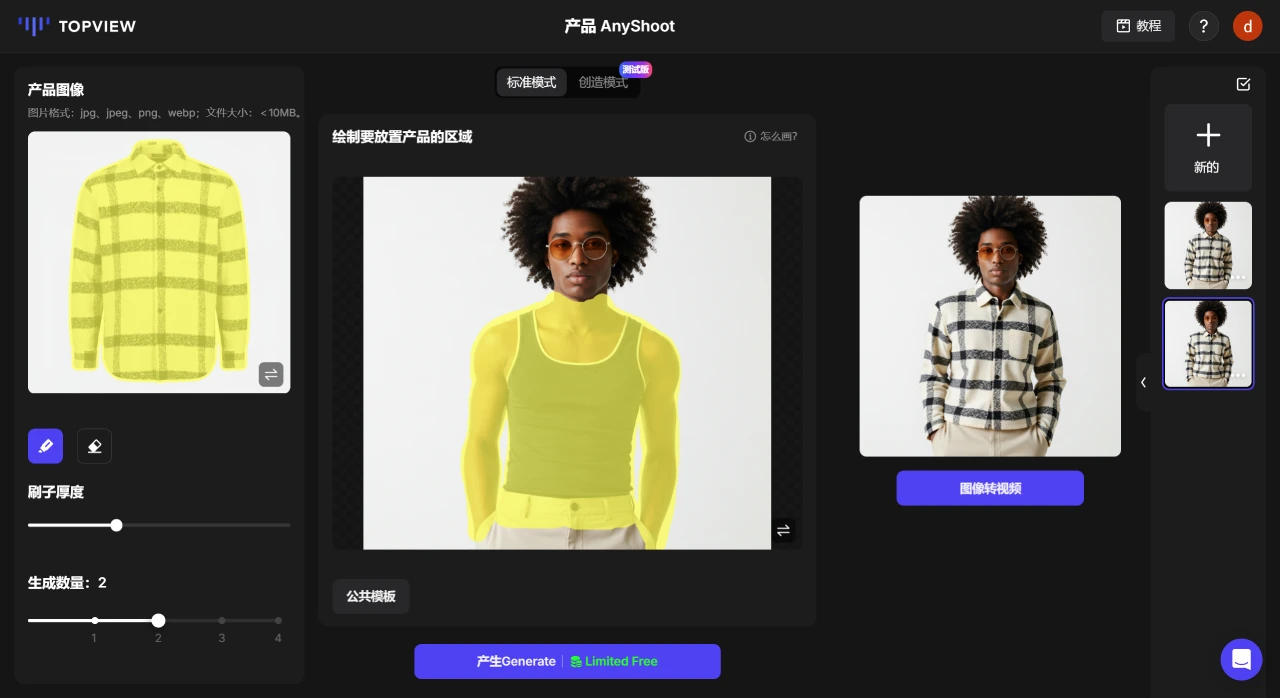
Select the images you want to showcase in the product image and target image areas respectively. Below the product image upload, there are different product category icons—you can select your product category to upload.
3. Choose a Template
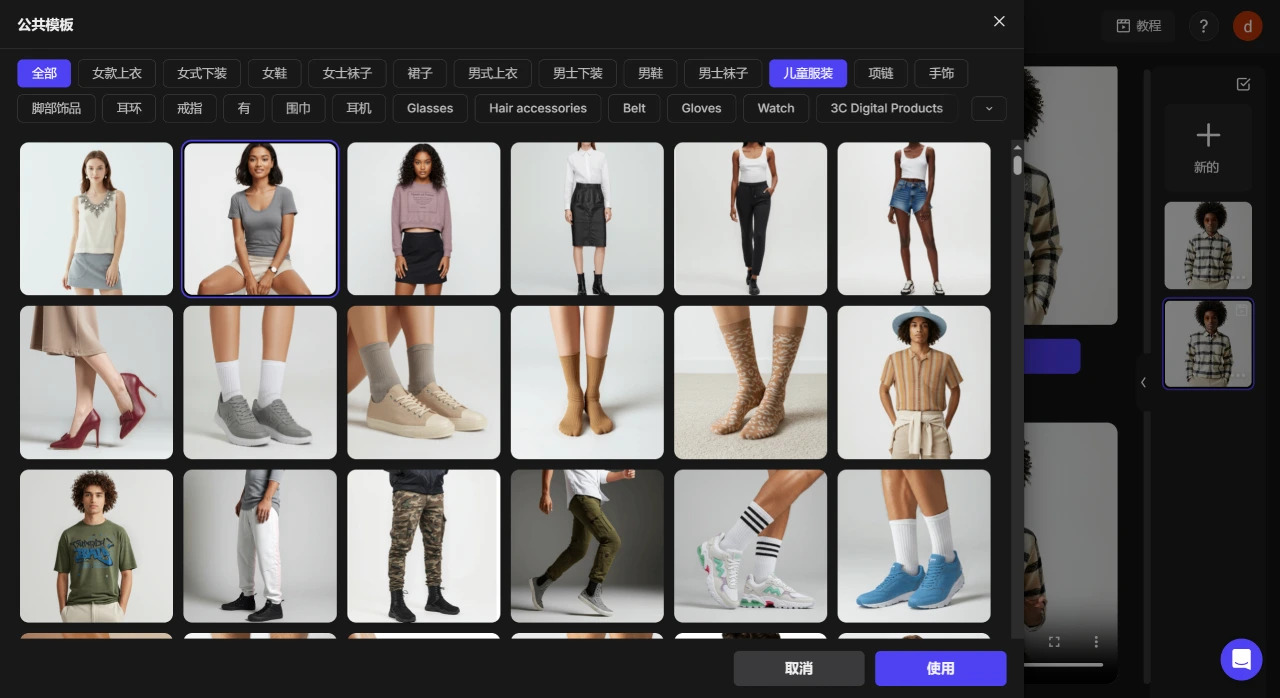
The system provides a variety of preset templates for users to choose from.
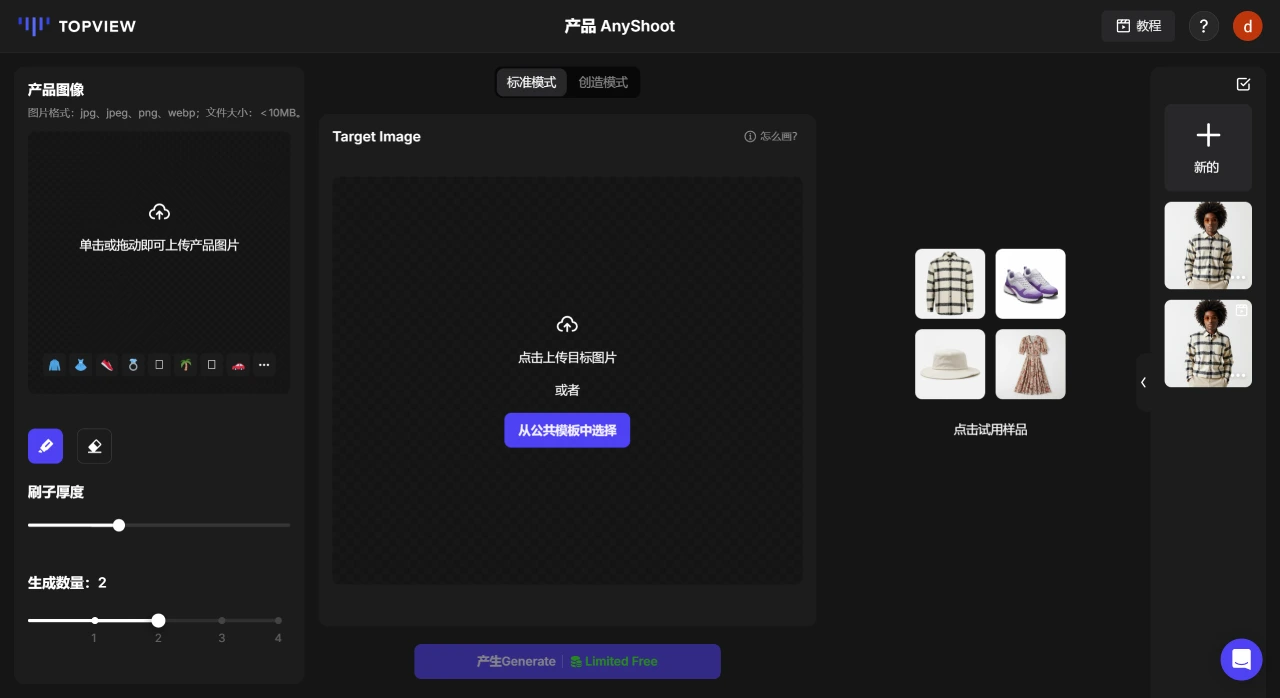
Choose a suitable template based on your product type and showcase needs. For example, for clothing you can pick a virtual try-on template, and for electronics you can choose a desktop display template.
Use the brush to mask the areas that will change after the product swap; the masked area's shape will be replaced by your uploaded product.
4. Generate Video
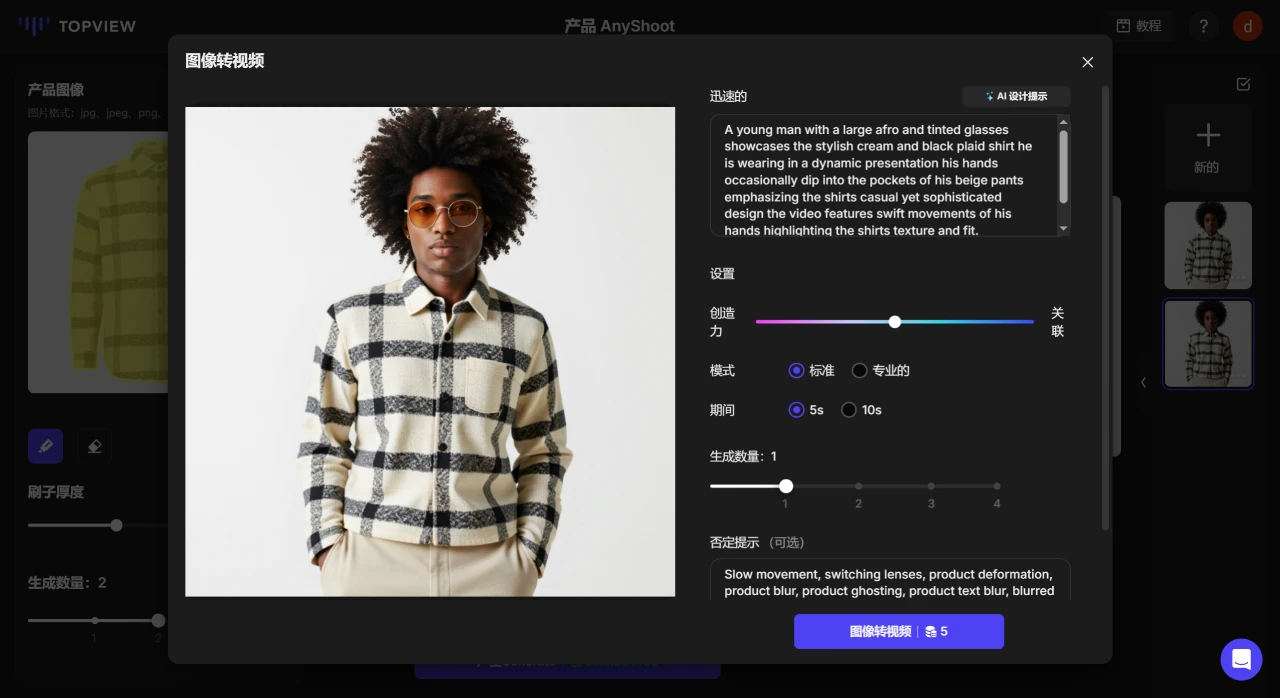
Click the "Image to Video" button, and the system will automatically use AI technology to combine the product image with the template to generate a product showcase video.
The generation process usually takes 5-10 minutes, depending on image quality and template complexity.
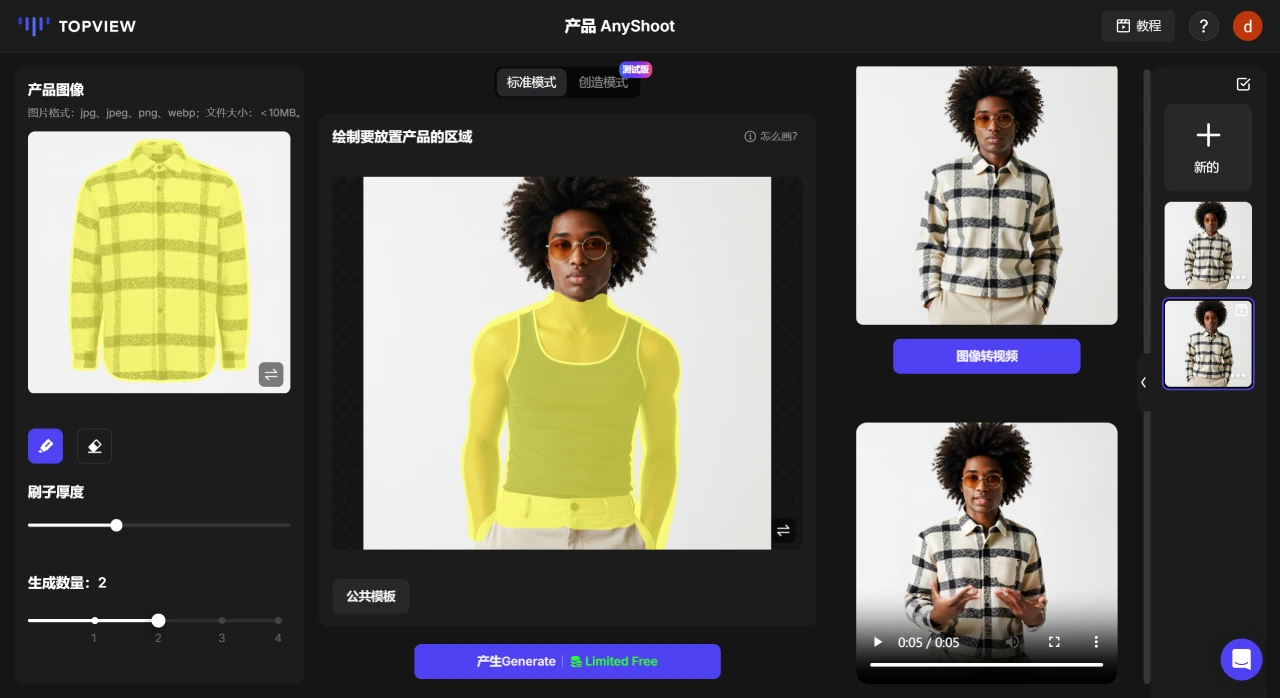
5. Download Video
Once the video is ready, click the "Download" icon on the video to save it locally; the video format is MP4.