Script Planner Assistant▸
 AI Apps
 AI News

Huiwa AI Multi-Image to Video: An AI Image-to-Video Tool by Alibaba
Huiwa AI Multi-Image to Video: An AI Image-to-Video Tool by AlibabaIntroduction
What is "Multi-Image to Video" in Huiwa AI?
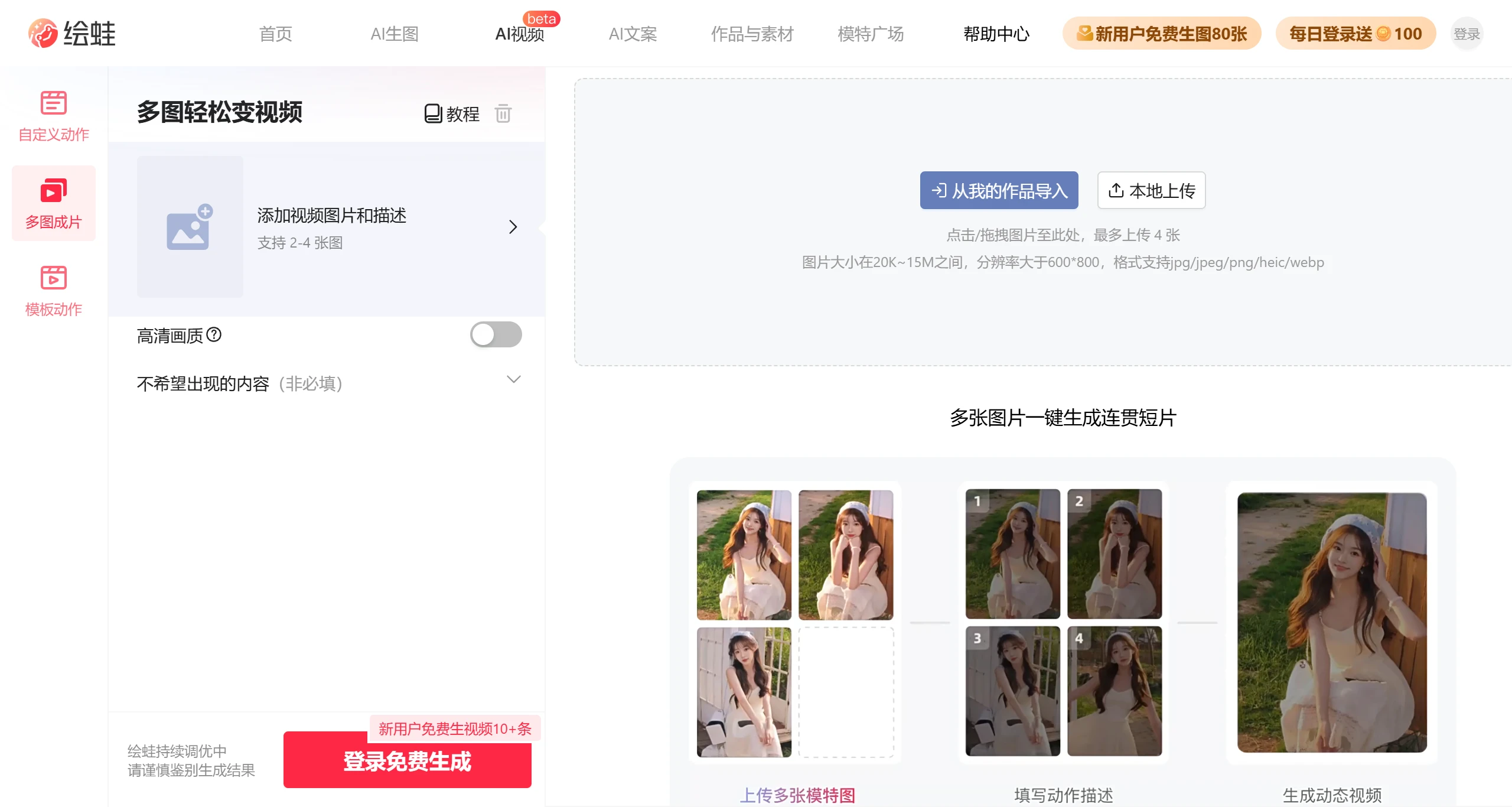
Huiwa AI's "Multi-Image to Video" is an AI video generation tool launched by Alibaba. Users simply need to upload 2-4 coherent images along with a text description to quickly generate a smooth and natural video. The Multi-Image to Video feature is part of Huiwa AI and is suitable for various scenarios such as e-commerce, advertising, and social media. It can automatically stitch multiple images into short videos, enhancing visual impact. In addition, it supports diverse transition effects and background music options, allowing users to easily create professional-grade video content.
Features of Huiwa AI "Multi-Image to Video"
Image Upload and Processing
Support for multiple image uploads: Users can upload 2-4 coherent images, which will be processed by AI to generate a video.
Smart cropping and adaptation: Even if the uploaded images have inconsistent aspect ratios, the AI will automatically crop and adapt them to a unified video ratio.
Flexible image requirements: Supports multiple formats (such as jpg, png, webp, etc.), with sizes ranging from 20KB to 15MB and resolution greater than 600×800.
Text Description Guidance
Smart copywriting generation: The AI can intelligently generate copy based on the uploaded images, tailored to the video content.
Custom descriptions: Users can input text descriptions to guide the video generation, preventing the generated content from deviating from expectations. For example, users can describe the subject's actions, scene details, etc.
Video Generation
Multiple video sizes: Supports a variety of common video sizes, including 3:4, 9:16 (portrait), 1:1 (square), 16:9 (landscape), etc., to meet the needs of different scenarios.
HD quality options: Users can choose whether to generate high-definition videos to balance different quality and speed requirements.
Coherence and smoothness: The AI generates coherent videos through consistent image sets, ensuring the video content is natural and fluid.
Content Control
Exclude unwanted content: Users can specify content they do not want to appear in the video, such as "distortion," "lighting changes," "blurry zoom," etc., to optimize the generation results.
Stable generation time: Video generation is expected to take 5-6 minutes to complete, with a relatively stable generation time.
Application Scenarios of Huiwa AI "Multi-Image to Video"
E-commerce Marketing
Product showcase: Combine product images into videos to enhance appeal.
Promotional campaigns: Quickly generate promotional videos to boost campaign effectiveness.
Social Media
Short video creation: Generate video content suitable for platforms like TikTok, Xiaohongshu, Weibo, etc.
Recommendations and promotion: Quickly create recommendation videos paired with copywriting.
Advertising Production
Ad videos: Quickly generate advertising materials, saving production costs.
Brand promotion: Showcase brand image or story.
Personal Life Recording
Travel and life records: Combine photos into videos to share beautiful moments.
Memorial videos: Generate memorial videos for important occasions.
Corporate Promotion
Company introduction: Showcase corporate culture or team.
Product launch: Highlight product features.
Cross-border E-commerce
Product showcase: Generate product videos suitable for overseas platforms.
Brand promotion: Showcase brand stories to attract overseas users.
Creative Design
Artwork showcase: Display the creative process or details of the work.
Creative materials: Inspire design ideas.
News and Media
News reporting: Quickly generate news videos.
Feature videos: Enhance the visual impact of news.
How to Use Huiwa AI "Multi-Image to Video"?
1. Visit the Official Website
Go to the official website of Huiwa AI, register, and log in to your account.
2. Prepare Image Materials
Select 2-4 images that are coherent or share a consistent theme.
Image upload tips and requirements:
Size should be between 20KB and 15MB, with resolution greater than 600×800.
Supported formats include jpg/jpeg/png/heic/webp.
The face must be visible, with a single person and full body shown. It is recommended to upload images with simple backgrounds and consistent aspect ratios for the best results. If the aspect ratios are inconsistent, they will be cropped to the same ratio.
3. Upload Images
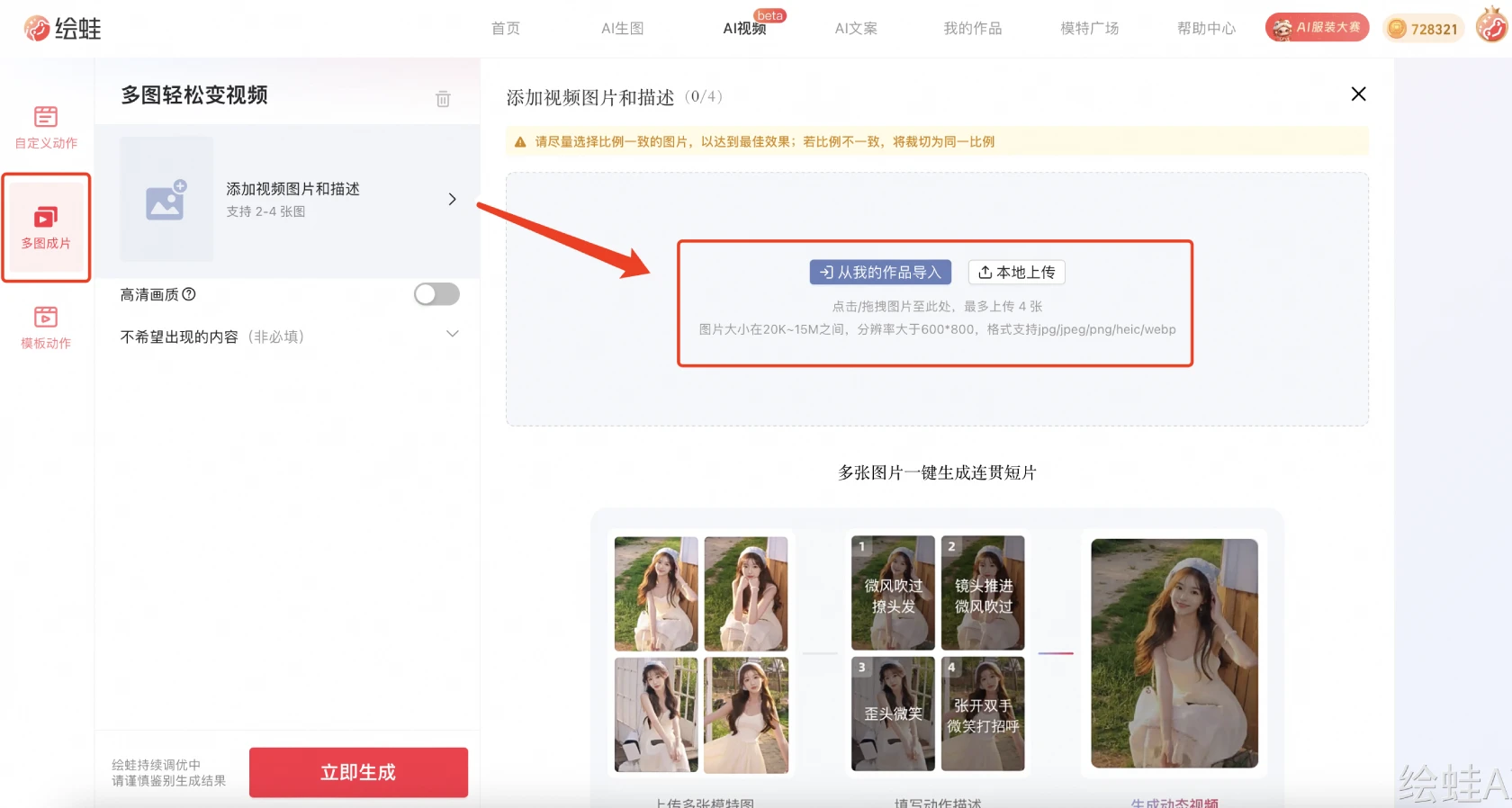
Click the "Upload Image" button to select images from your local computer, or import image sets from existing works.
4. Add Image Description (Optional)
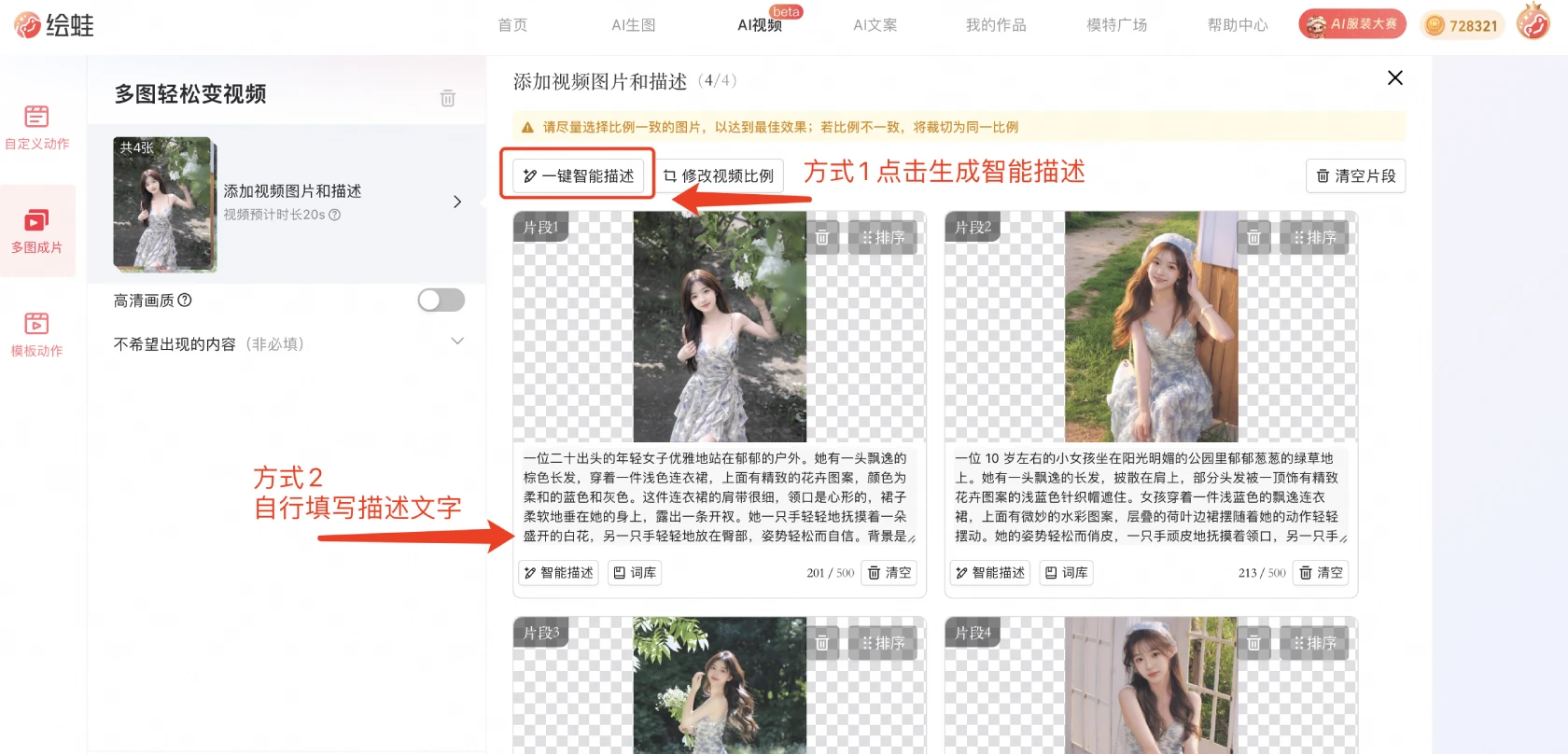
Smart description: Click "One-click Image Recognition," and the system will automatically analyze the image content to generate a smart description.
Manual input: Enter descriptions of subject actions, scene changes, etc., based on the video needs. For example, "The model walks by the sea, with waves rolling behind her."
Description format: It is recommended to write in the form of "subject + action, background + action, other details." Example: "The model stands by the roadside showcasing her coat, walks forward in a model's stride, with a car passing behind her."
5. Choose Video Resolution
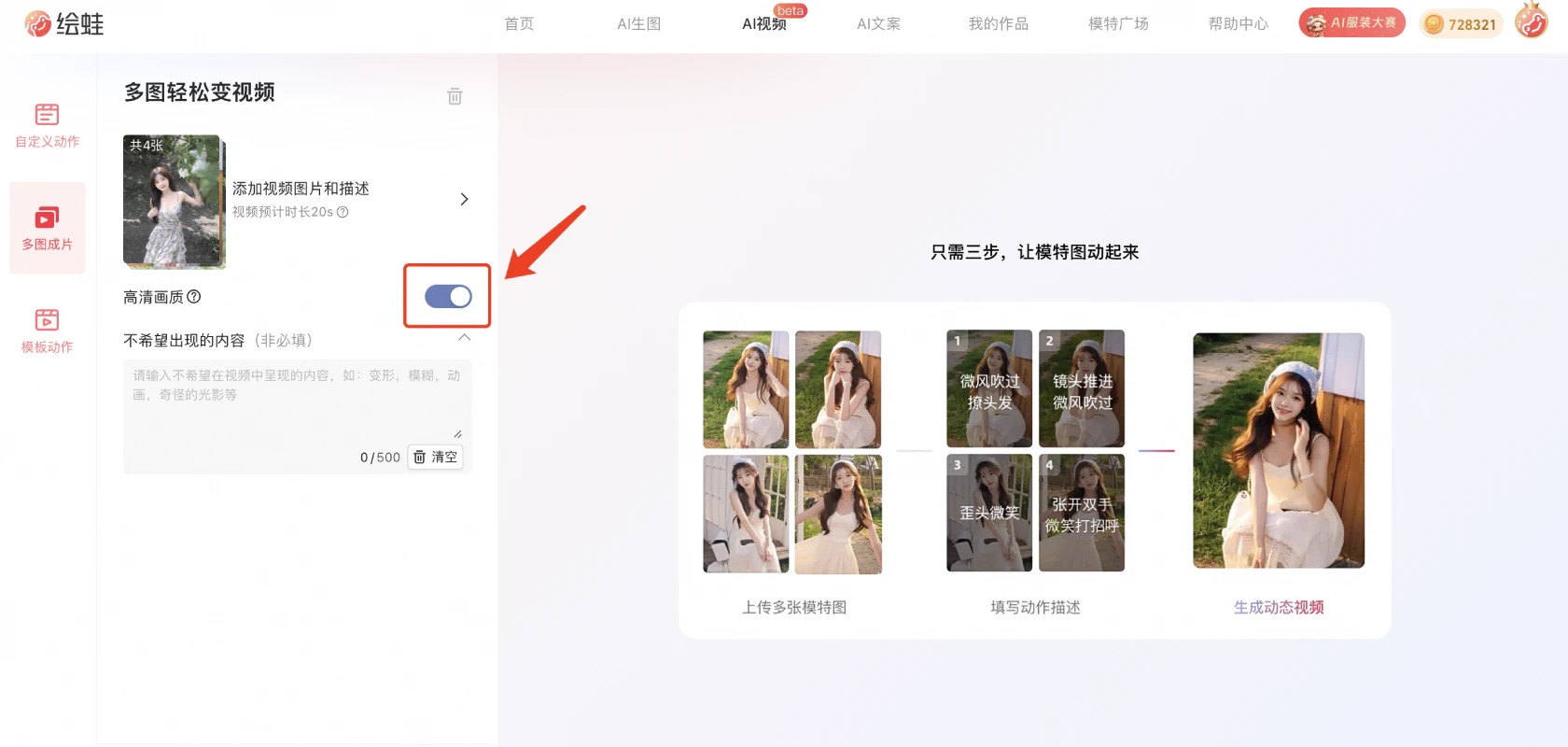
Select "HD Quality" or the default quality, balancing based on your needs and generation speed.
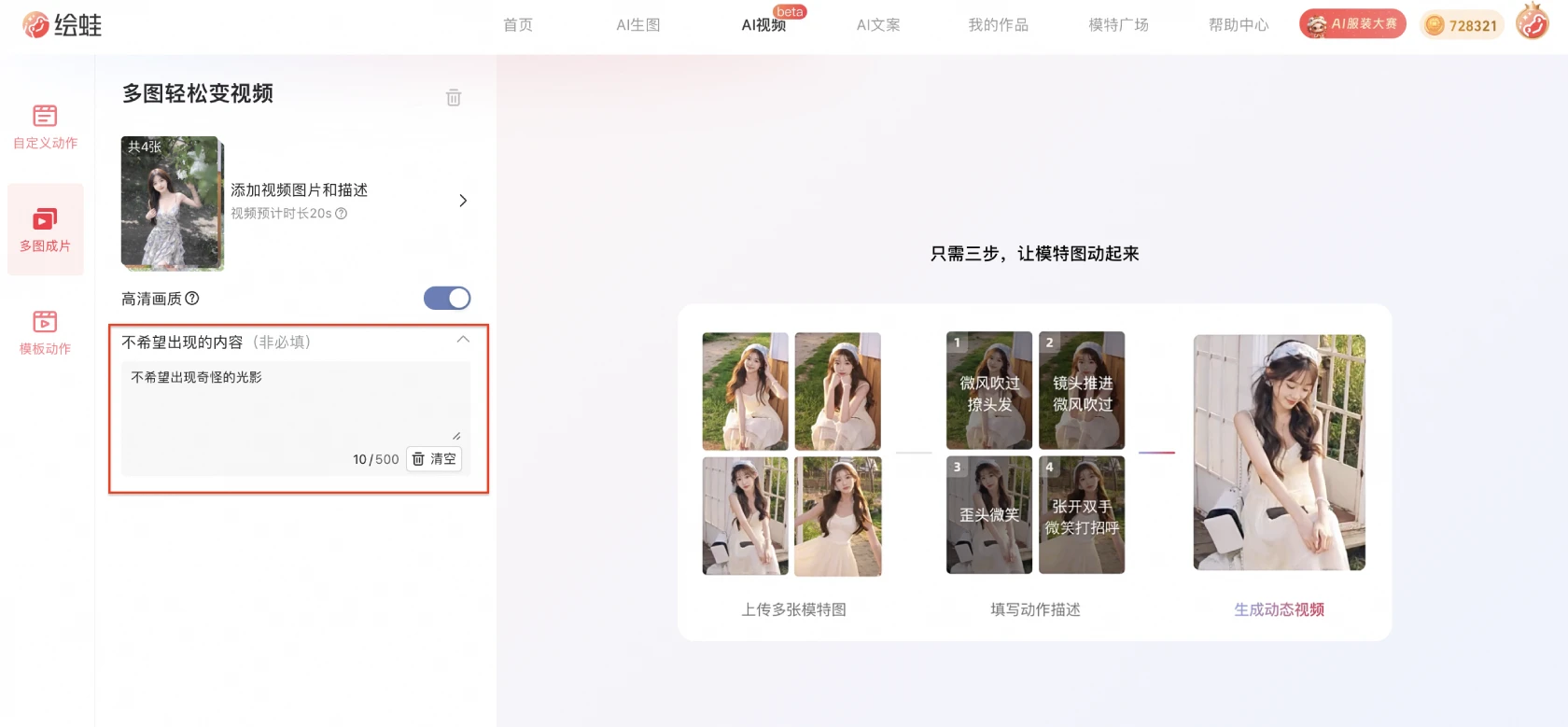
6. Fill in "Unwanted Content" (Optional)
If you have special requirements for the generated result, fill in the content you do not want to appear, such as "distortion," "lighting changes," "blurry zoom," etc.
7. Click Generate
Generation time: Video generation is expected to take 5-6 minutes to complete, please be patient~
Generation count: A single task supports generating one video only. When exceeded, a new task must wait until the current task in progress is completed before continuing.
8. View the Generated Result
Once the video generation is complete (estimated 5-6 minutes), view the generated video content on the page. If you are not satisfied with the result, you can adjust the description or images and regenerate. If generation fails, please contact customer service for a solution.
9. Download and Use
After confirming that the video content is satisfactory, save the video to your local device. It can be used in scenarios such as social media, advertising promotion, or content creation.