Script Planner Assistant▸
 AI Apps
 AI News

CursorFul: A Free Screen Recorder with Auto Zoom
CursorFul: A Free Screen Recorder with Auto ZoomIntroduction
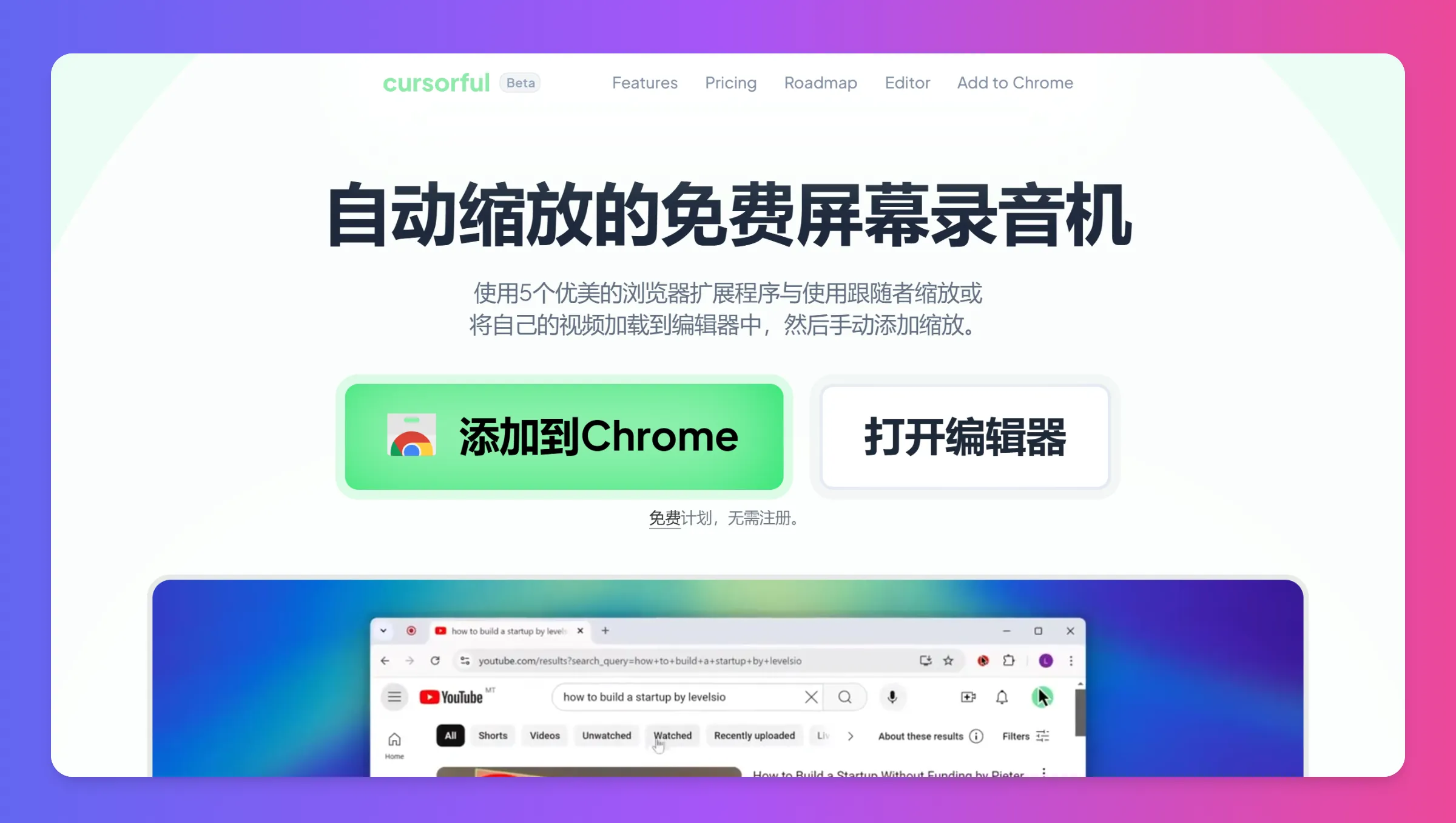
Cursorful is a free Chrome-based screen recording tool with automatic zoom functionality. It supports automatic mouse-following zoom, panning, and other features, making the recording process smoother. Users can create high-quality screen videos with Cursorful, making it ideal for product demos and operation guides. Cursorful not only supports recording of web content but can also capture the entire screen, and is compatible with major browsers such as Chrome, Edge, and Brave.
Cursorful Features:
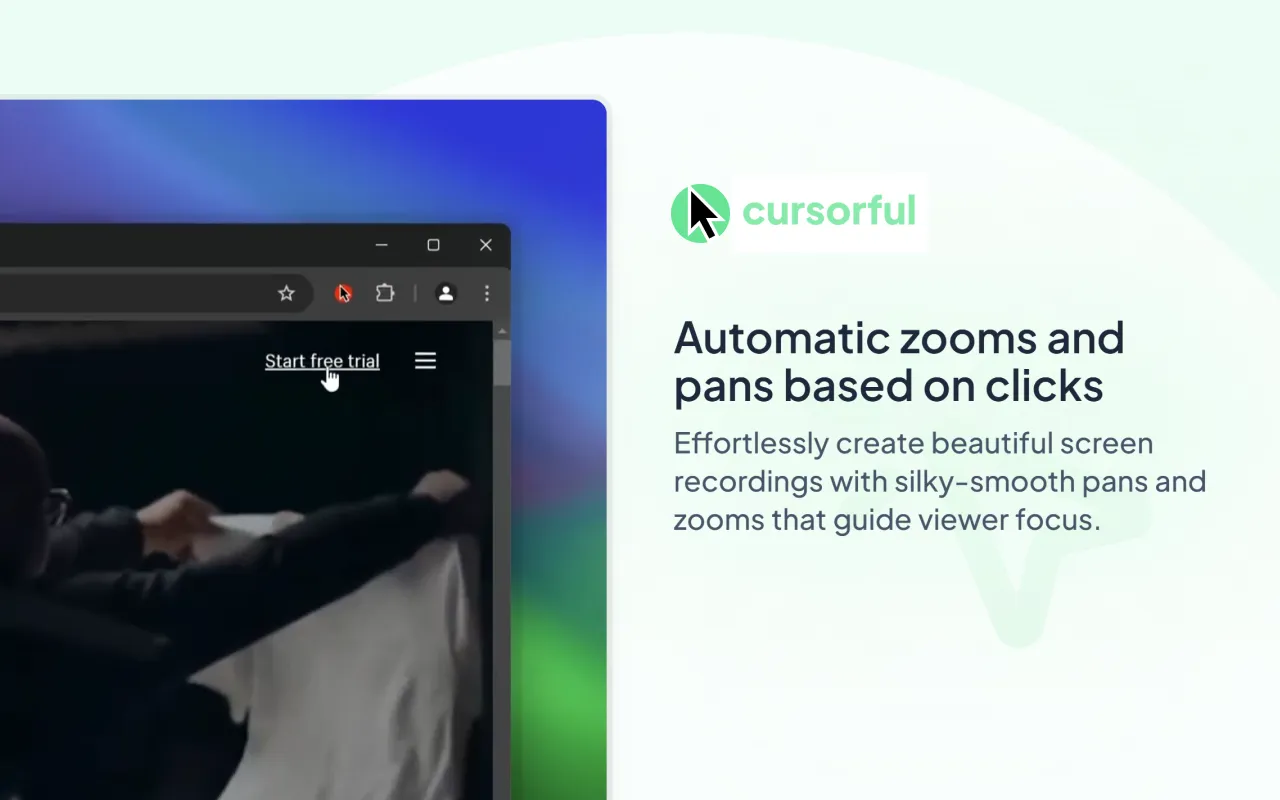
Automatic Zoom and Follow: One of the highlights of Cursorful is its automatic zoom feature, which can adjust the view based on mouse movement, zooming in on key areas while maintaining recording smoothness, allowing viewers to capture operational details more clearly.
Browser Compatibility: Cursorful supports major browsers such as Chrome, Edge, and Brave.
Free and Efficient: Compared to some professional but expensive screen recording software, Cursorful is completely free.
Smart Panning: In addition to zooming, Cursorful can also automatically pan the view, ensuring that important content remains in the center of vision even during large-screen operations.
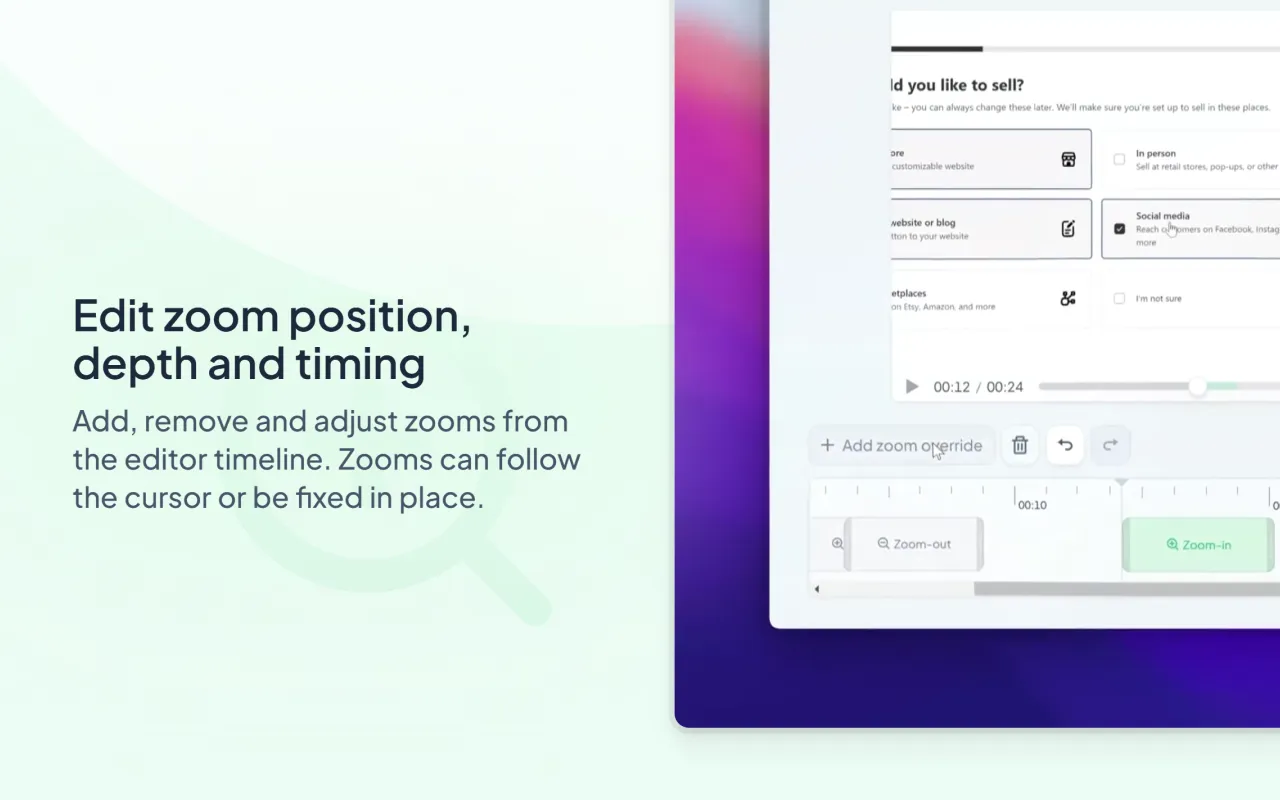
Editing Features: Although earlier versions may have basic features, Cursorful provides simple video editing options, allowing users to perform basic editing after recording, such as adjusting zoom points or deleting unwanted sections.
Local Offline Rendering: Users can render videos locally, ensuring data security and avoiding privacy risks associated with cloud uploads.
Multiple Export Formats: Users can export recorded videos in a variety of mainstream video formats for easy post-editing and sharing.
Customizable Shortcuts: Supports user-customizable shortcuts for quick start, pause, and stop recording, improving efficiency.
High-Resolution Recording: Supports HD recording, ensuring clear and lossless video quality suitable for professional needs.
Cursorful Use Cases
CursorFul is not only suitable for recording software operations, but can also be used for teaching demonstrations, technical support videos, and more.
Online Education: Teachers and educational content creators can use Cursorful to create clear tutorial videos, highlighting key points of explanation.
Product Demonstrations: Software developers and product managers can use it to showcase product features. With automatic zoom and follow features, demonstrations become more intuitive.
Personal Sharing: Bloggers and content creators can easily record operational processes, increasing the interactivity and educational value of their content.
How to Use Cursorful
Install the Extension: Users need to search for CursorFul in the Chrome Web Store and install the extension. The extension address can be found here.
Set Recording Parameters: After installation, users can configure recording resolution, frame rate, and other parameters through the extension settings.
Start Recording: Click the extension icon and select the "Start Recording" option. CursorFul will automatically begin screen recording.
Stop Recording: After recording is complete, users can click the extension icon and select "Stop Recording," and the video will be automatically saved locally.
Edit and Adjust: Users can use CursorFul's built-in editing tools to perform simple editing and processing on recorded videos.
CursorFul plans to release more features, such as system audio recording, webcam and microphone support, offline audio transcription, and more.
Related News: