Script Planner Assistant▸
 AI Apps
 AI News

OBS Studio: Free Open-Source Software for Video Recording and Live Streaming
OBS Studio: Free Open-Source Software for Video Recording and Live StreamingIntroduction
OBS Studio (Open Broadcaster Software) is a free and open-source video recording and live streaming software. It supports multiple platforms including Windows, macOS, Linux, and BSD. With OBS Studio, you can stream video to platforms such as Twitch and YouTube. Users can build scenes composed of multiple video sources to perform video capture, compositing, encoding, and recording.
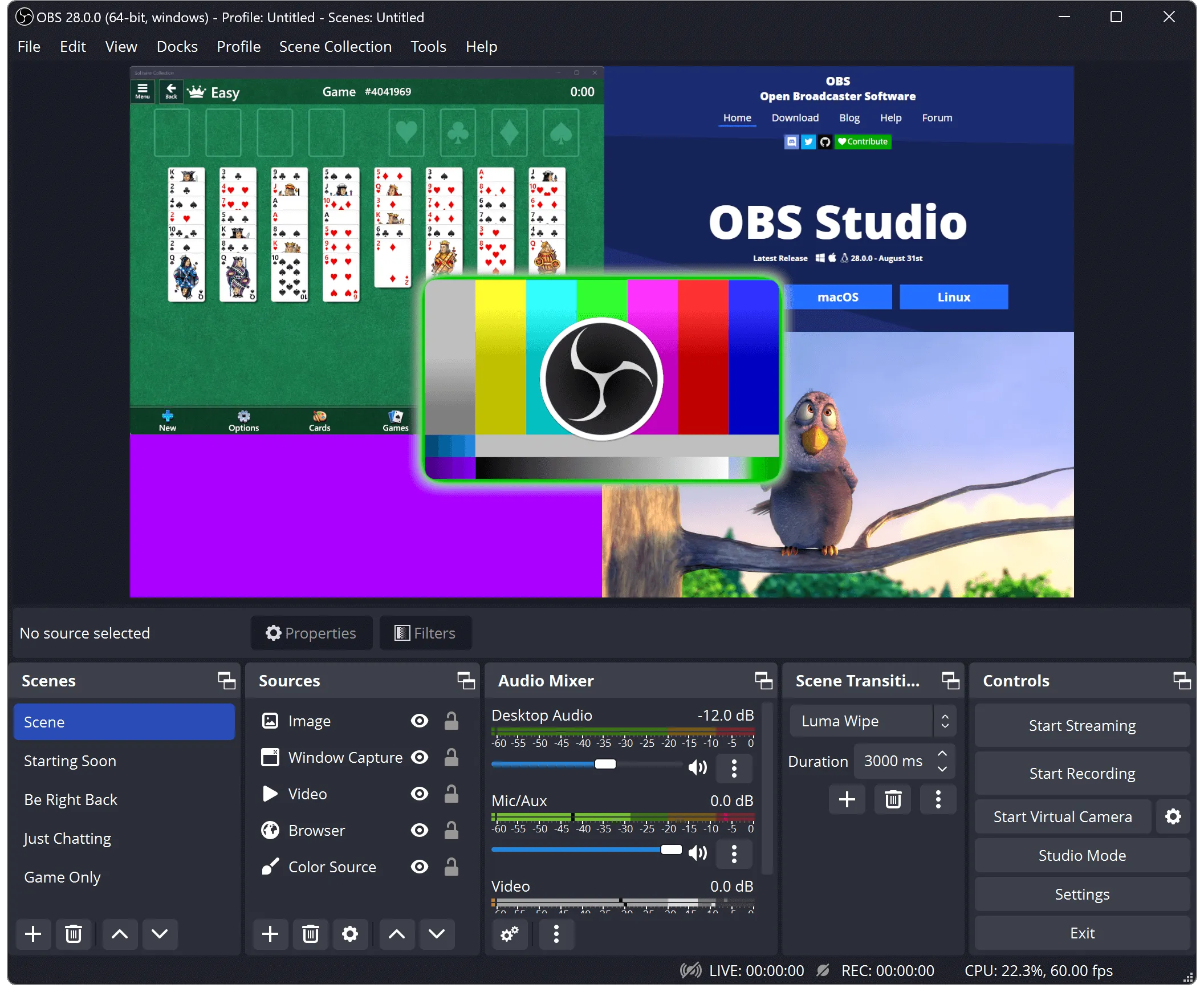
Main Features of OBS Studio:
Multi-source video capture: Users can create multiple scenes and combine different video sources, such as webcams, screen captures, images, and text, flexibly arranging them to meet various streaming needs.
Real-time video editing: OBS Studio offers real-time video editing features, allowing users to add effects, transitions, and audio mixing during the live stream to enhance stream quality.
High-performance encoding: Supports multiple encoding formats. Users can choose the appropriate encoder based on their needs to optimize video quality and smoothness.
Filters designed for video sources, such as image masking, color correction, chroma/color keying, and more.
Plugin support: OBS Studio has a rich plugin ecosystem. Users can extend the software's functionality by installing plugins, such as adding virtual cameras, real-time chat windows, and more.
Multi-platform streaming: Users can push their live stream content to multiple platforms simultaneously, such as Twitch, YouTube, Facebook, etc., making it easier to interact with viewers.
Real-time, high-performance video/audio capturing and mixing, with unlimited scene modes that let you achieve seamless transitions through customization.
An intuitive audio mixer with per-source filters such as noise gate, noise suppression, and gain. Full support for VST plugins.
Powerful and easy-to-use configuration options. Add new sources, duplicate existing ones, and effortlessly adjust their properties.
A streamlined settings panel for quickly configuring your stream or recording. Easily switch between different configurations.
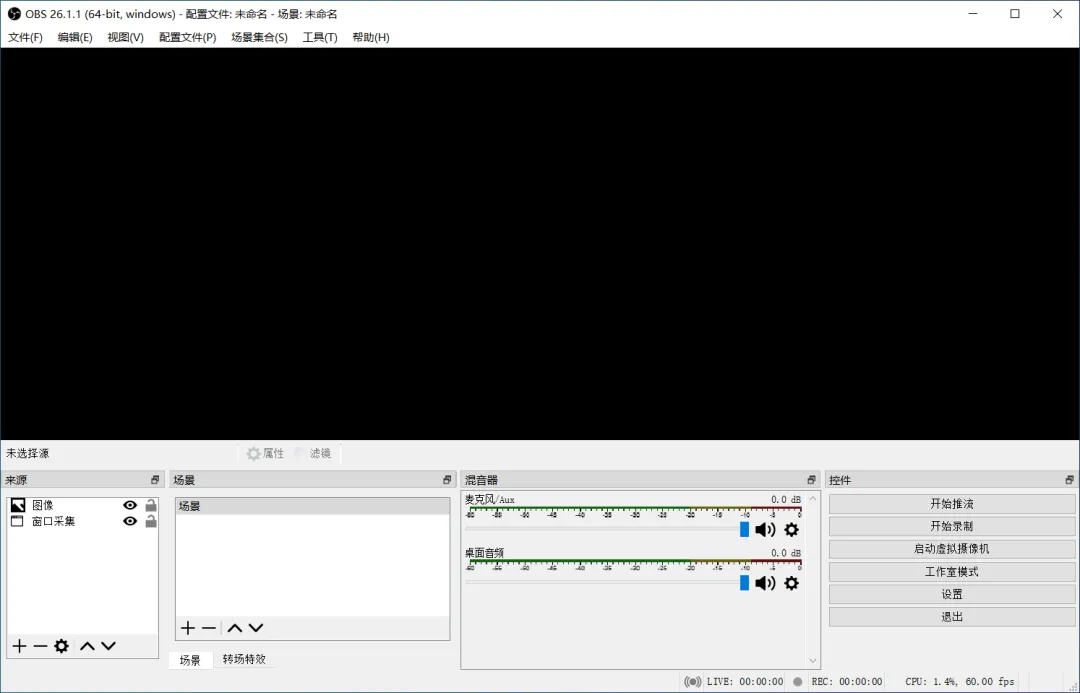
How to Use OBS Studio:
Open OBS Studio, click the "+" button to add a new scene, and give it a name.
Click the "+" button in the "Sources" area and select a source type, such as "Window Capture".
Select the window you want to record, adjust the frame size, and complete the window capture setup.
Click the "Start Recording" button in the "Controls" area to begin recording your window.
Once recording is complete, click "Stop Recording".
As a highly professional screen recording and live streaming software, OBS Studio is extremely useful for gamers, educators, and business users alike.
Finally, a friendly note! OBS Studio is free open-source software, and the official version of OBS Studio supports Simplified Chinese. The so-called "OBS Chinese version" or "free version" on many software download sites are made up — don't be fooled, and beware of bundled downloads.