Script Planner Assistant▸
 AI Apps
 AI News

GoFullPage: One-Click Full Webpage Screenshot Tool
GoFullPage: One-Click Full Webpage Screenshot ToolIntroduction
GoFullPage is a screenshot plugin designed specifically for capturing entire web pages in Google Chrome and Microsoft Edge browsers, allowing users to capture the full view of a webpage with a single click, regardless of how long the page is. It supports saving screenshots in PNG, JPEG, or PDF format, making it easy for users to save and share. The operation is simple—you just need to click once to easily capture a complete screenshot of the current page, with no additional permissions required.
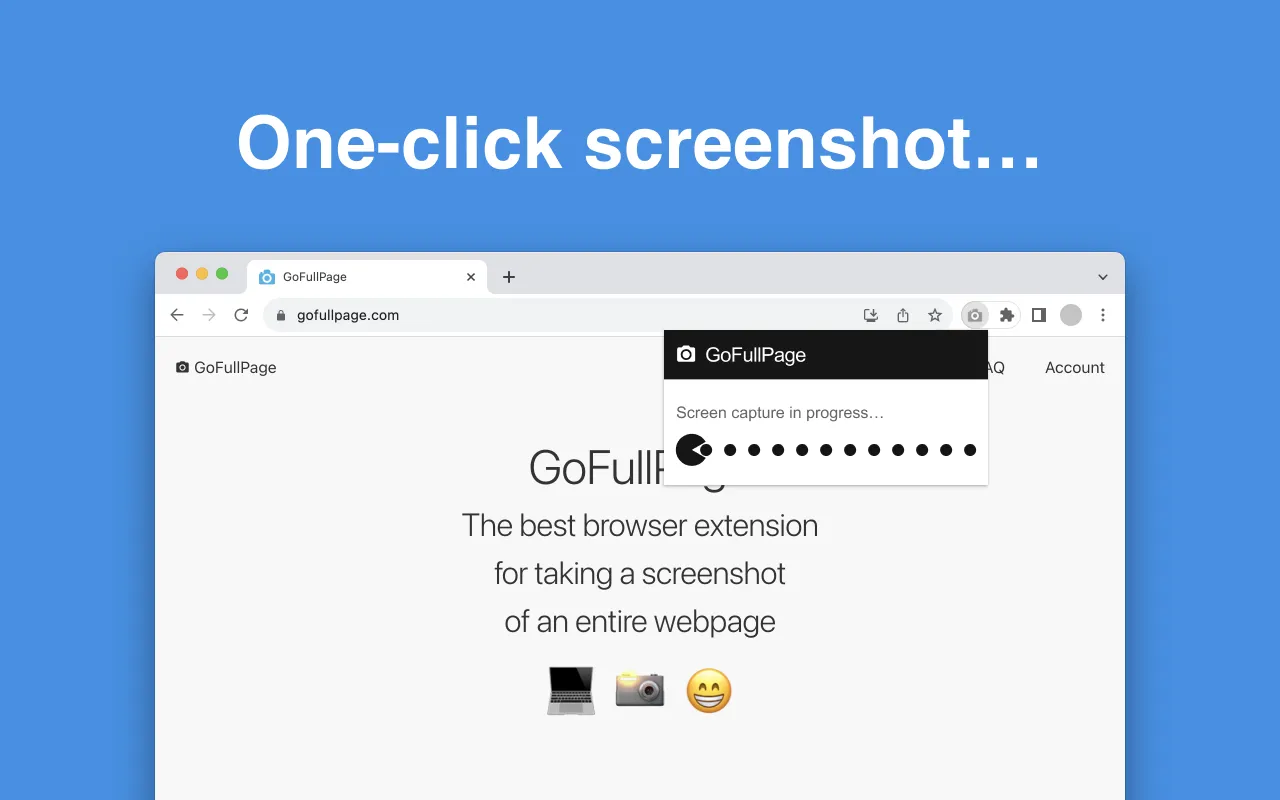
GoFullPage Key Features:
Full-Page Screenshots: Users only need to click the GoFullPage icon in the browser's tool bar or use the shortcut key (typically Alt+Shift+P), and the plugin will automatically scroll and capture an image of the entire webpage.
Region Screenshot Options: In addition to full-page screenshots, GoFullPage also offers the ability to select specific areas for capture, allowing users to target a particular section of a webpage.
Editing and Annotation: Provides basic editing functions such as cropping and annotation.
Quick Sharing: Easily save screenshots to your computer or share them directly to social networks.
No Extra Permissions: GoFullPage does not require additional permissions during use, making it perform well in terms of privacy protection.
Multiple Export Formats: After the screenshot is taken, users can choose to save it in PNG or PDF format for convenient future use and sharing.
Compatibility: GoFullPage supports not only the Google Chrome browser but can also be used in the Microsoft Edge browser, with the features and operations essentially consistent.
GoFullPage Use Cases
Web Page Saving: Users can save important webpage content as images or PDFs for easy future reference.
Content Sharing: On social media or at work, users can quickly share the full view of a webpage, improving the efficiency of information delivery.
Design and Development: Designers and developers can use GoFullPage to capture web design effects, making it easier to review and modify.
GoFullPage Installation and Usage
Install via the Chrome Web Store
Open the Chrome browser and click the settings icon in the upper right corner.
In the settings menu, select "More Tools" > "Extensions".
On the Extensions page, click "Open Chrome Web Store".
Search for "GoFullPage" in the store.
After finding the GoFullPage plugin, click the "Add to Chrome" button and follow the prompts to complete the installation.
Offline Installation
Visit GoFullPage's official website or related resources to download the plugin's installation package (usually a ZIP file).
Open the Chrome browser's Extensions interface: Enter chrome://extensions/ in the address bar and press Enter.
In the upper right corner of the Extensions page, enable "Developer mode".
Drag and drop the downloaded ZIP file onto the Extensions page to complete the installation.
Usage Method
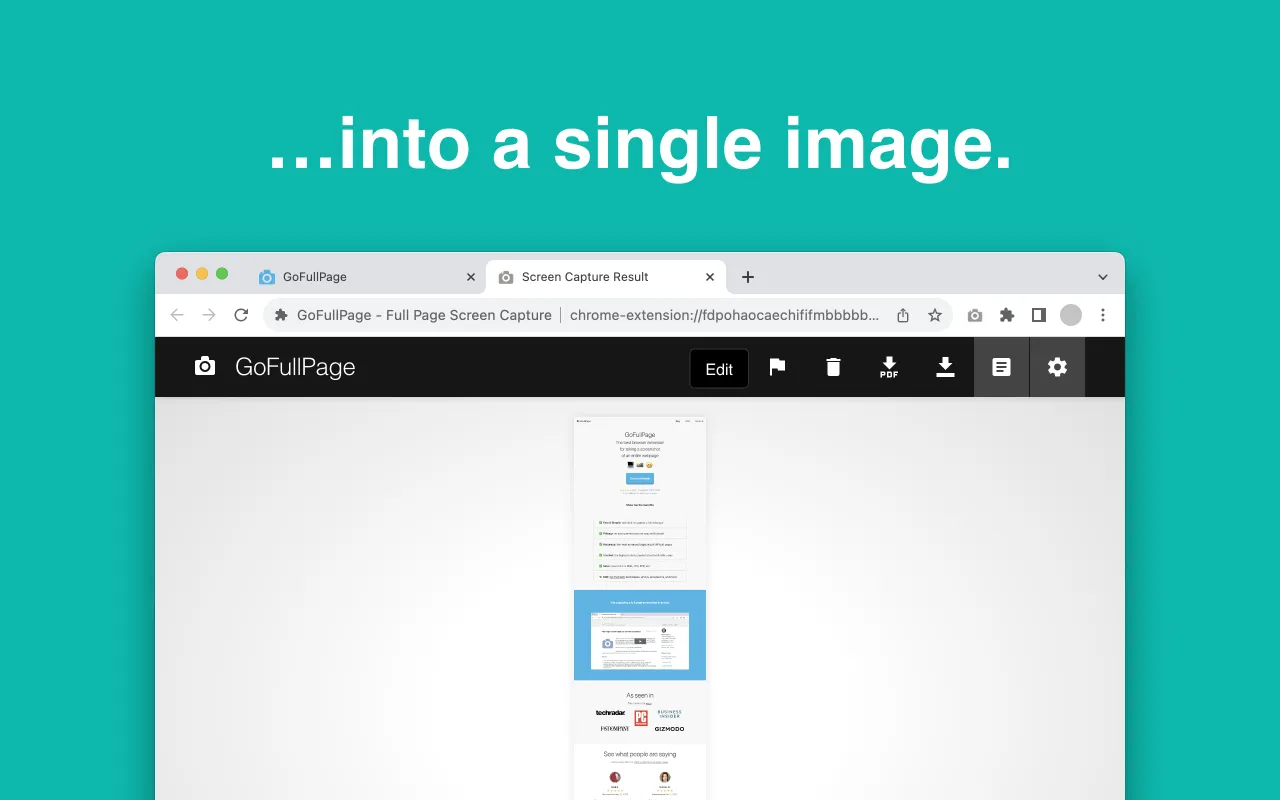
After installation, click the GoFullPage icon in the upper right corner of the browser. The plugin will automatically scroll and capture the entire webpage, and the result will be displayed in a new tab when complete. Users can choose to save it as an image or PDF, or share it directly to other social platforms.
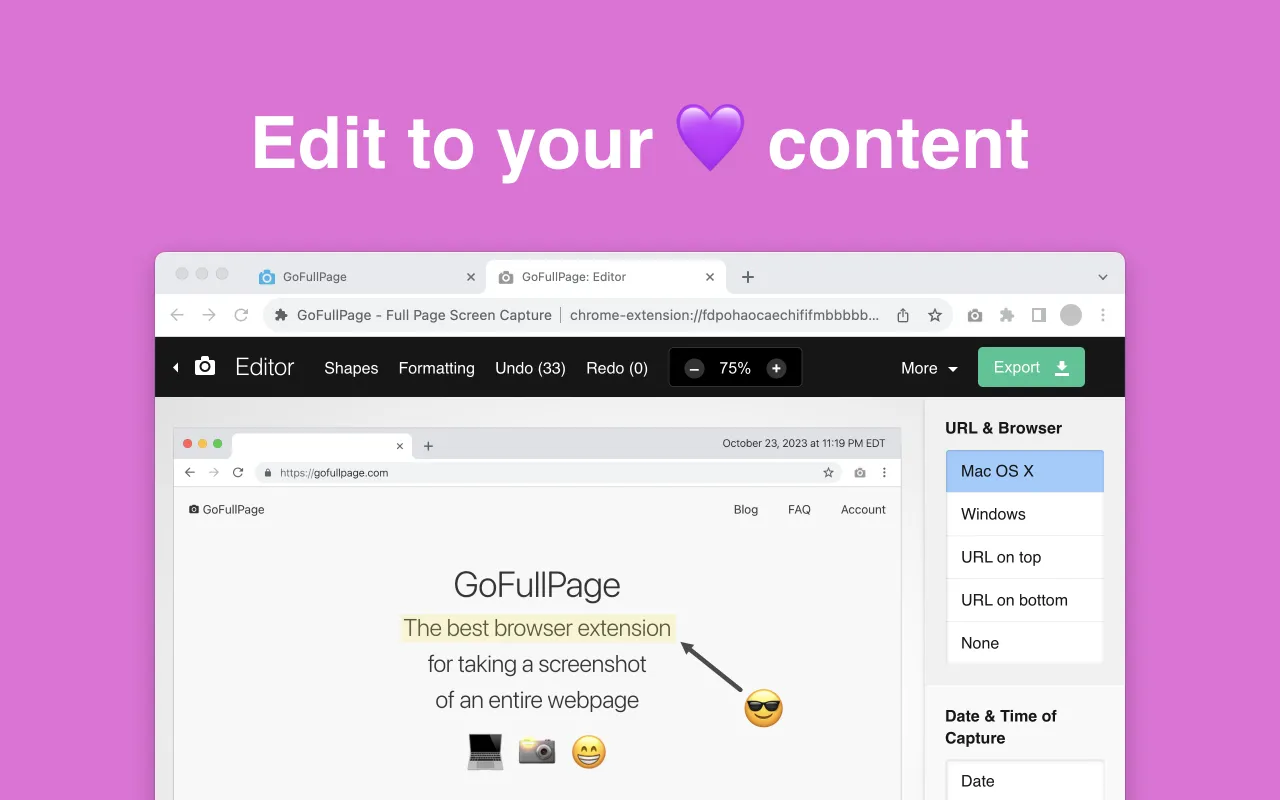
GoFullPage also offers editing and annotation features, allowing users to crop, edit, and add annotations on screenshots to better convey information. In addition, GoFullPage supports copying screenshots directly to the clipboard, making it convenient for users to quickly paste and use them in other applications.
Related Information: