Script Planner Assistant▸
 AI Apps
 AI News

FireShot – Webpage Screenshot Browser Extension
FireShot – Webpage Screenshot Browser ExtensionIntroduction
FireShot is a powerful webpage screenshot browser extension that supports multiple browsers including Chrome, Firefox, and Edge. Users can use FireShot to capture the entire webpage, the visible portion, or a selected area, and save the screenshots in formats such as PDF, JPEG, GIF, PNG, and BMP. Users can also edit and annotate screenshots, adding text, graphics, or other marks, and print them — no website login required.
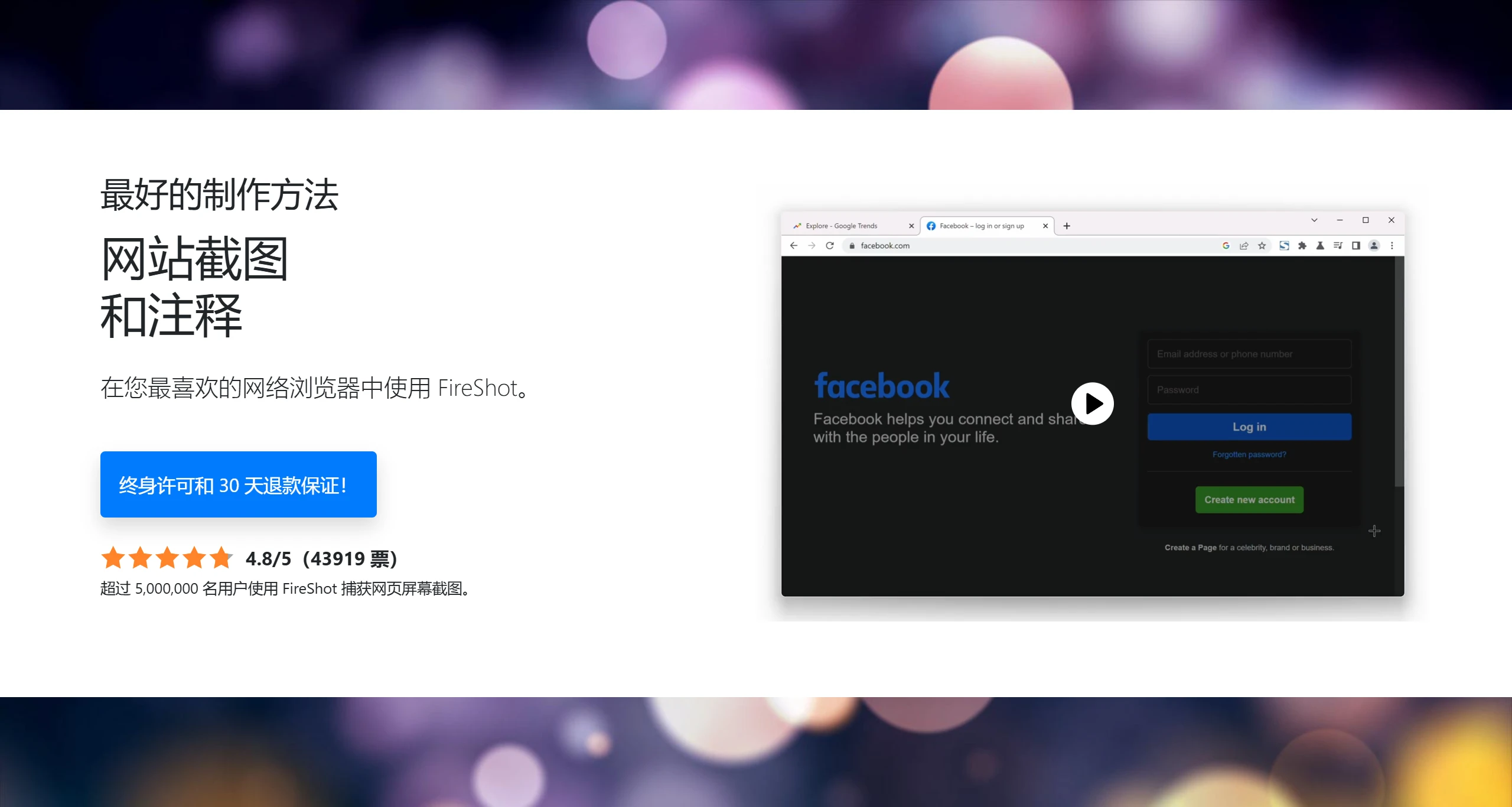
What can you do with FireShot's webpage screenshots?
Capture the entire webpage
Capture only the visible portion of a page
Capture a selection
Save screenshots to disk as PDF, PNG, and JPEG
Copy screenshots to the clipboard
Print screenshots
Use Cases for FireShot
Academic research: Capture webpage content for easy later citation.
Work reports: Organize webpage information into reports or presentations.
Personal use: Save interesting webpage content or shopping information.
How to Use FireShot
Using FireShot is very simple. Users just need to install the extension in the Chrome browser, click the extension icon, and select the desired screenshot mode. For long webpages, FireShot can automatically scroll and capture the entire page, ensuring no content is missed.
Steps for using FireShot to take webpage screenshots:
Install the FireShot extension:
For Chrome, open the Chrome Web Store and install the FireShot extension.
For Edge, open the Edge browser, go to the FireShot extensions page, click 【Get】 to install, or enable Developer Mode and drag the FireShot CRX file to install it.
Taking screenshots with FireShot:
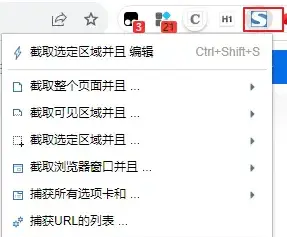
After installation, click the FireShot icon in the upper right corner of the browser.
Select "Capture entire page" to screenshot the entire webpage, or select "Capture visible portion" or "Capture selection area" to take a screenshot.
Edit and save screenshots:
After the screenshot is taken, FireShot will automatically jump to a new page displaying the complete webpage screenshot.
On that page, you can click the "Save as Image" or "Save as PDF" buttons to save the screenshot.
FireShot paid version features:
Advanced editing: Provides cropping, drawing, adding text, patterns, and more.
Pro features: Purchase the Pro version to unlock all features.
Output formats: Supports saving and exporting screenshots in more formats.
Enhanced features: Such as doodling, effects application, and more.
FireShot also supports Safari, Firefox, Edge, Opera, Vivaldi, Internet Explorer, SeaMonkey, and other browsers.
Related Information: