Script Planner Assistant▸
 AI Apps
 AI News

Shotcut:一个免费开源跨平台视频编辑器_云技派,专注ai人工智能!
Shotcut:一个免费开源跨平台视频编辑器_云技派,专注ai人工智能!Introduction
Shotcut is a free, open-source, cross-platform video editor for Windows, Mac, and Linux. It supports hundreds of audio and video file formats as well as a range of different codec features, making it suitable for users ranging from beginners to professionals. Shotcut was founded by Dan Dennedy in 2011 and has gained popularity among users for its ad-free, watermark-free experience.
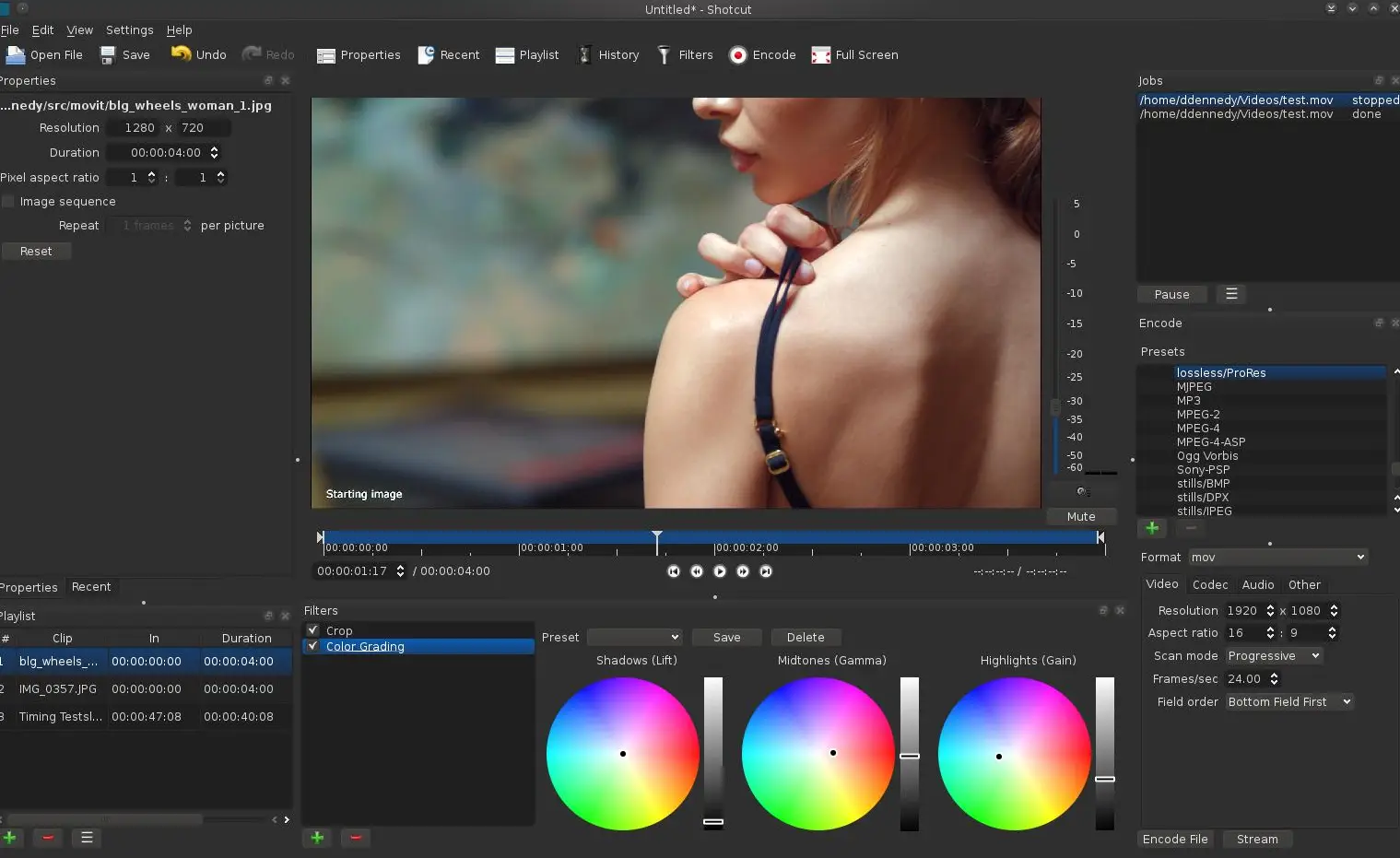
Key Features of Shotcut:
Multi-track editing: Users can edit across multiple tracks, facilitating complex project management.
Audio editing: Shotcut not only excels at video editing but also offers powerful audio editing capabilities, including audio scopes, equalizer, reverb, compressor, and many other filters for fine-grained audio adjustments.
Video editing features: Supports basic to advanced editing tasks, including cutting, merging, speed adjustment, adding subtitles, keyframe animation, color correction, and more.
Effects and transitions: Comes with a large number of built-in video and audio effects, such as brightness adjustment, blur, sharpening, particle effects, and transitions (such as dissolve, push, etc.), which users can adjust and apply as needed.
Format support: One of Shotcut's highlights is its extensive format support, including support for 4K and 8K videos, as well as web streaming formats. It enables native timeline editing without importing, and supports Lottie, rawr, Rive, and After Effects animations.
How to Edit Videos in Shotcut?
1. Open the Video File
First, launch the Shotcut software, click the "Open File" button, and select the video file you want to edit. Once imported, the video will appear on the timeline.
2. Select the Filters Panel
On the right side of the interface, locate and click the "Filters" panel. If you don't see the panel, you can click the "View" option in the top menu and select "Filters" to display it.
3. Add a Filter
In the Filters panel, click the "+" button at the bottom left to open the filter list. Here you can browse through various available filters, such as blur, sharpen, color correction, etc. Select the filter you want to add and click on it to apply it to the video.
4. Adjust Filter Parameters
After adding a filter, you can see the filter's settings options in the Filters panel. Adjust the parameters as needed, such as intensity, color, contrast, etc., to achieve the desired effect. Since the parameter settings differ for each filter, you can make adjustments according to your specific requirements.
5. Preview the Effect
After adjusting the filter parameters, you can preview the effect by playing the video. If you're not satisfied, you can return to the Filters panel at any time to make modifications.
6. Apply Multiple Filters
Shotcut allows you to apply multiple filters to the same video. Simply repeat the above steps to add more filters and adjust their parameters. You can change the order of application by dragging the filters, which may affect the final result.
7. Export the Video
Once editing is complete, click "File" > "Export" in the top menu, choose your export settings (such as selecting a different format and resolution), and then save your edited video.
Shotcut is suitable for both beginners and advanced users. By offering professional-grade features and robust format support, it is an excellent free and open-source choice without sacrificing functionality.