Script Planner Assistant▸
 AI Apps
 AI News

CocoCut: Browser Extension for Downloading Online Videos or Music
CocoCut: Browser Extension for Downloading Online Videos or MusicIntroduction
CocoCut is a browser extension for Google Chrome and Microsoft Edge that can be used to download online videos or music, and also supports downloading HLS / M3U8. When you open a webpage, it automatically detects available videos and music, and you can start downloading with just a click on the extension icon. (Note: some webpages require you to play the video/audio first to help CocoCut find it.)
The core working method of CocoCut is to intelligently identify and extract cached video fragments on the user's local computer, then use safe and compliant technical means to organize these scattered video fragments in an orderly manner, and finally combine them into a complete MP4 file. The entire process takes place only in the local environment of the user's personal computer device.

Advantages of CocoCut:
Full-featured: supports 99% of video formats. Also supports HLS and Live video.
Ultra-fast: since it only needs to process cached video data, the video saving speed is very fast.
CocoCut supports downloading mp4, mp3, aac, and video and music files in almost all formats. Simply open the video/music playback page, and when a video/music file is detected, a number will be displayed. Click the extension icon to see the file list, and click the "download icon".
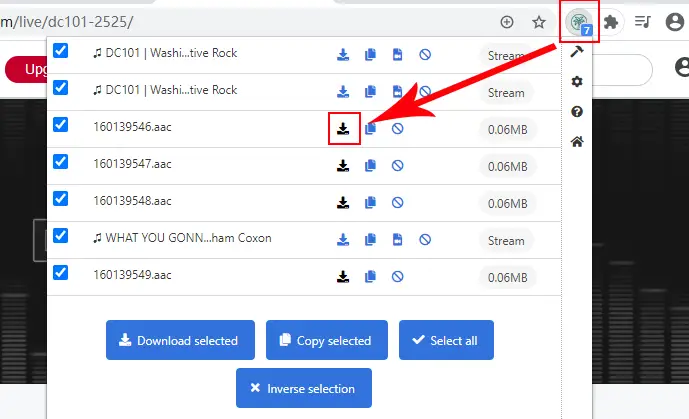
CocoCut also supports downloading streaming videos (HLS/M3U8). Open the video playback page, and when a video is detected, a number will be displayed. Click the extension icon to see the file list, and click the "download icon". (See the image above.)
How to use the CocoCut extension?
CocoCut is a versatile video saver extension that supports saving video and music files in various formats. Whether it's MP4, MP3, AAC, or any other format, CocoCut can help you save them easily.
Saving video and music files
To start saving a video or music file, simply open its playback page. Once the file is detected, CocoCut will display a number indicating its availability.
Click the CocoCut extension icon located on the browser tool bar.
A file list will appear.
Find the file you need and click the "Download" icon to start the saving process.
Saving streaming videos (HLS/M3U8)
CocoCut also allows you to save streaming videos, especially those in HLS/M3U8 format.
Open the playback page of the streaming video you want to save.
Once the video is detected, CocoCut will display a number indicating its availability.
Click the CocoCut extension icon on the browser toolbar.
A file list will appear showing all available video options.
Find the video you need and click the "Save" icon to start the saving process.
Save progress and control
Once the video saving starts, it will open in a new tab. You will be able to monitor the saving progress and control it using the provided options.
Please note that once saving has started, you can close the video playback page, but the saving page must remain open for the process to continue.
Download and install CocoCut:
CocoCut is a comprehensive video saver extension for Chrome and Edge browsers that allows you to easily save your favorite videos and music.