Script Planner Assistant▸
 AI Apps
 AI News

Fideo: Easy-to-Use Live Stream Recording Software
Fideo: Easy-to-Use Live Stream Recording SoftwareIntroduction
Fideo, a free and open-source live streaming recording software built on React, Ffmpeg, Electron, and Shadcn, allows you to capture highlights from major live streaming rooms with a single click. It supports real-time monitoring of live rooms and detects resolution changes, automatically restarting recording instantly to ensure consistently excellent recording quality. Fully compatible with both Mac and Windows systems, Fideo offers you a smooth and convenient recording experience.
Fideo supports both Mac and Windows, and can record live streams from multiple platforms, such as YouTube, Twitch, and Bilibili. Its standout feature is real-time monitoring of live rooms, automatic detection of resolution changes, and re-recording to ensure recording quality.
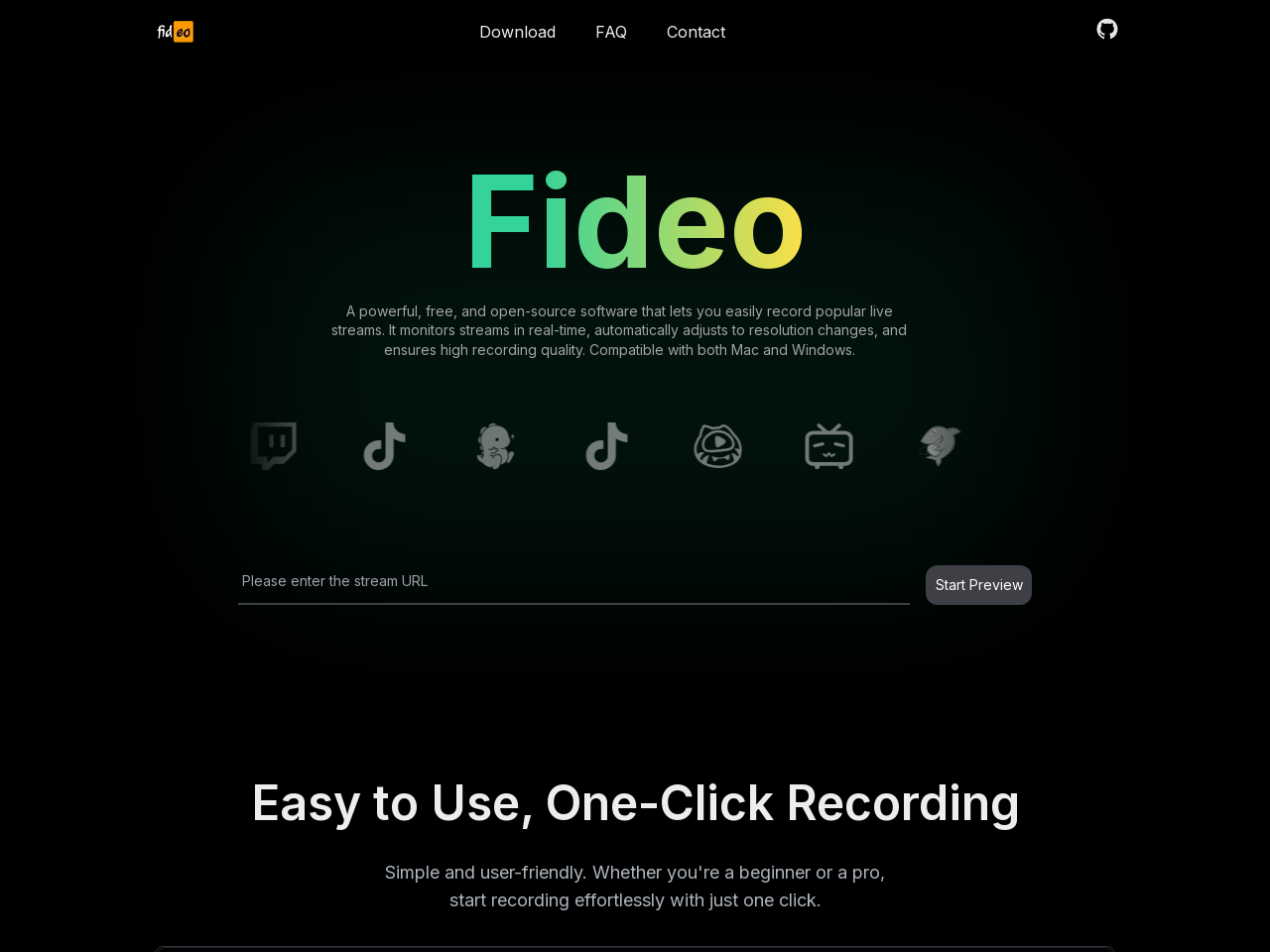
Fideo Features:
Simple and Convenient, One-Click Recording: Fideo is extremely simple and convenient to use, requiring only one click to start recording. Whether you are a beginner or an experienced user, you can quickly get started and easily capture every exciting moment in a live stream.
Real-Time Monitoring, Automatic Recording: Supports real-time monitoring of live rooms and detects resolution changes, automatically restarting recording instantly to ensure consistently excellent recording quality.
Precise Detection, Clear Picture: Capable of detecting resolution, completely solving the issue of distorted screens. It delivers clear and smooth recorded footage, making you feel as if you are right there, providing the ultimate visual experience.
Fideo Highlights:
Compatibility: Fideo fully supports multiple operating systems, including Mac, Windows, and Linux, ensuring it meets the needs of users across different platforms.
Platform Support: Fideo supports multiple live streaming platforms, such as Bilibili, Douyu, Huya, YouTube, TikTok, Kuaishou, and even live content on social media and e-commerce platforms like Weibo, Taobao, and JD.com, offering broad coverage.
Functional Features:
Real-Time Monitoring: Fideo can monitor live room activity in real time, automatically adapting to resolution changes to ensure the quality of the recorded video.
Automatic Recording: Once configured, Fideo can automatically start and stop recording, making it ideal for long-duration live streams.
Audio and Video Quality: Supports high-quality audio and video recording. Users can customize the clarity and format of the recording, which is typically saved in MP4 format for easy sharing and playback.
Fideo FAQ:
Which version should I download?
Apple M-series chip users should download the arm64.dmg version, while other users should download the x64.dmg version. Windows users should download the .exe version.
How do I record a live room and what do the configurations mean?
Click Start Recording, enter the live room URL, and click Start Preview to begin recording.
What should I do if Windows reports a virus?
Simply ignore it. Fideo is open-source and free and will not cause any impact on your system.
Fideo Installation Steps:
Download Fideo: First, visit Fideo's official website or its GitHub page to download the latest version of the installation package.
Extract the Installation Package: Extract the downloaded compressed file into a new folder, ensuring the folder name does not contain spaces or special characters.
Install Dependencies: Depending on your needs, you may need to install some dependencies. Typically, you can navigate to Fideo's folder via the command line and run the relevant installation commands, such as using pip install -r requirements.txt to install Python dependencies (if applicable).
Configure the Software: After launching Fideo, you need to perform some basic configurations based on your needs, such as selecting the live streaming platform you want to record (e.g., Douyin, Kuaishou).
Start Recording: Select the live content you want to record in the main interface and click the one-click recording button to start recording.
Save the Recording: Once recording is complete, the software saves the video in MP4 format for easy subsequent use and sharing.
Fideo Open-Source GitHub Address:https://github.com/chenfan0/fideo-live-record