Script Planner Assistant▸
 AI Apps
 AI News

Imageye: Bulk Image Downloader
Imageye: Bulk Image DownloaderIntroduction
Imageye is a browser extension designed to sniff, analyze, and batch-download images from web pages. It is specifically built for downloading images from websites. With simple operations, users can quickly find and download all images on a page. Imageye supports batch downloading and image filtering, and is available for Chrome and Firefox browsers.
Imageye Features:
Image Search & Download: Users can find all images on a web page through Imageye and selectively download the ones they need.
Filtering Options: Users can filter images based on pixel width and height, URL, and other conditions, making it easy to select the appropriate images for download.
Batch Download: Supports downloading all images on a web page at once, saving time and effort.
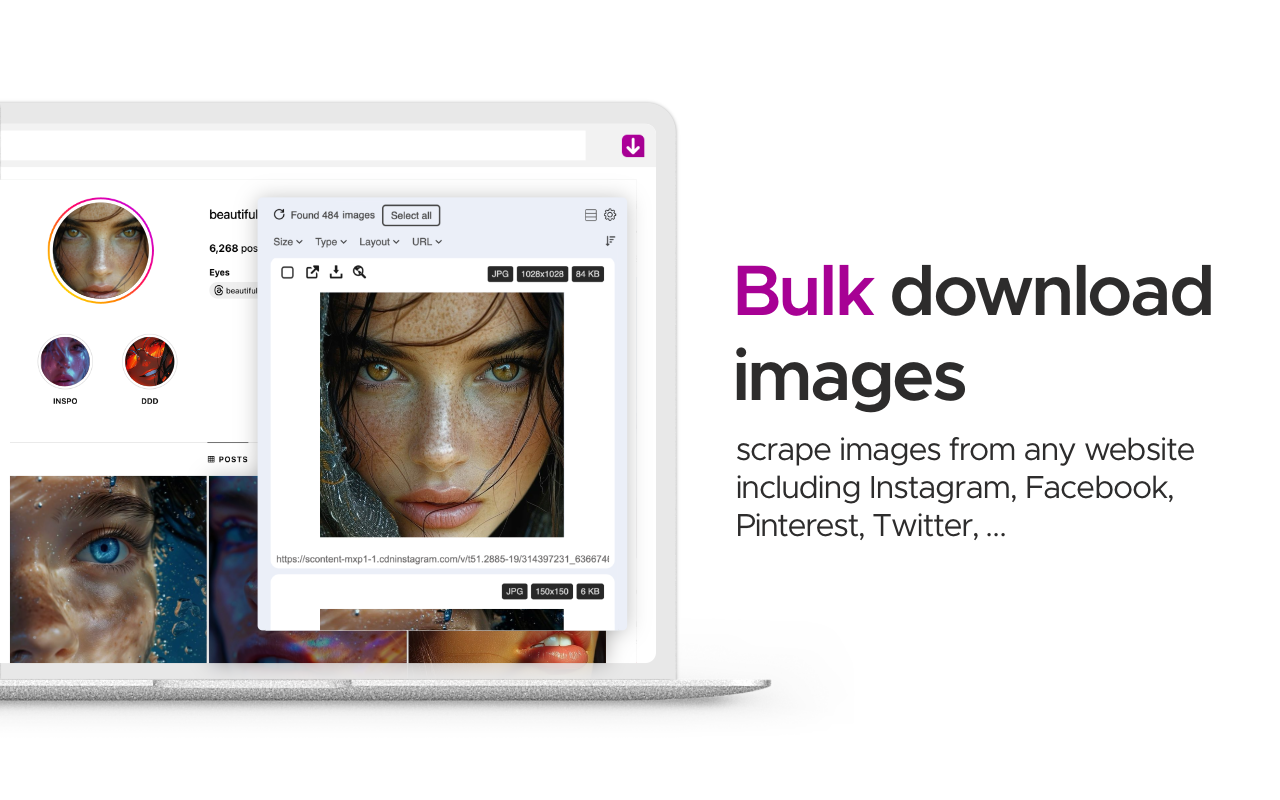
Supports Multiple Websites: Compatible with major platforms such as Instagram, Facebook, and Twitter, capable of handling image download needs on these platforms.
Format Conversion: Can convert .webp images to .jpg format, or convert any type of image to webp, jpg, or png format, suitable for developers.
Using Imageye Batch Image Downloader, you can find, browse, and download all images on a web page. In addition, you can also:
Filter by pixel width and height
Filter by URL
Download all images at once
Select the images you want to download
Check the size of each image
Copy the URL of the original image
Choose from various layout options
Supports all major websites (Instagram, Facebook, Twitter...)
Perform reverse image search
Convert .webp to .png (beta)
How to Use Imageye:
Step 1: Open the Chrome or Firefox browser.
Step 2: Visit the browser extension store.
Step 3: Search for Imageye and click Add.
Step 4: Confirm the installation and add the extension.
Step 5: Use the Imageye icon in the tools bar to start downloading
Imageye - Batch Image Downloader is a tool that helps you find images published on web pages. Images may be copyright-protected, and you should always assume they are. Before reusing an image, make sure you check its license and the specific terms of reuse. Do not use any image, illustration, or photograph before first researching its copyright status.