Script Planner Assistant▸
 AI Apps
 AI News

Drawio: Now Renamed to Diagram
Drawio: Now Renamed to DiagramIntroduction
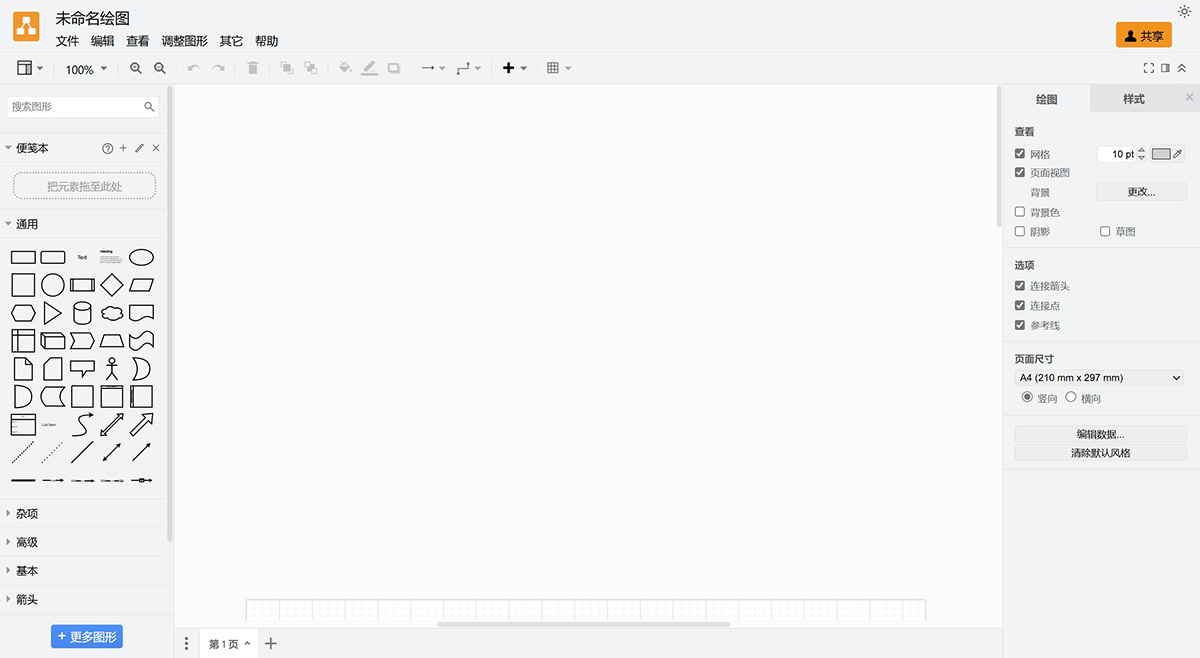
drawio (now renamed to Diagram) is a free and open-source mind mapping and flowchart creation software that allows users to create and share various diagrams, including flowcharts, organizational charts, UML diagrams, network diagrams, and more. Drawio supports Windows, macOS, and Linux platforms. The Drawio interface is clean and intuitive, allowing even beginners to get started quickly, while for experienced users, Drawio offers a wealth of customization options and advanced features to meet more complex diagramming needs.
Main Features of Drawio (now renamed to Diagram) Mind Mapping:
Multi-functional Templates and Shape LibraryDraw.io provides a variety of templates specifically designed for mind mapping. Users can start from these templates and customize them according to their own needs. The shape library includes advanced shapes customized for mind mapping, such as sub-topic and branch shapes, which can be easily dragged and dropped onto the canvas.
Easy-to-Use and Intuitive InterfaceThe draw.io user interface is designed intuitively, suitable for both beginners and experienced users. The drag-and-drop functionality allows users to quickly add and connect shapes, making the process of creating mind maps simple and efficient.
Customizable ElementsDraw.io allows extensive customization of mind maps. Users can change colors, shapes, and fonts to suit their preferences or organizational branding. This feature is particularly useful for visually distinguishing different branches or topics within a mind map.
Collaboration FeaturesDraw.io supports real-time collaboration, which is essential for team-based brainstorming sessions. Multiple users can work on the same mind map simultaneously, and all collaborators will see changes immediately.
Integration with Other ToolsDraw.io integrates seamlessly with various platforms such as Confluence and Jira, making it easy to embed mind maps into project management tools. This integration ensures that mind maps become part of a broader workflow and can be accessed within the tools teams are already using.
Advanced Editing FeaturesUsers can disable the connection feature on shapes to avoid accidental connections, use keyboard shortcuts to easily add child nodes and branches, and even make containers invisible while preserving their functionality. These advanced editing features help maintain clear and organized mind maps.
AI-Generated DiagramsThe smart templates feature in draw.io uses AI to generate diagrams based on user input. By providing a starting point that can be further customized, this can significantly speed up the creation process.
Support for Text-Based Mind MapsFor users who prefer to work with text lists, draw.io supports creating mind maps from text using PlantUML. This feature allows users to input text descriptions, which are then automatically converted into visual mind maps.
Auto-Save FeatureThe auto-save feature ensures that no work is lost during the creation process. This feature is particularly useful when working on complex mind maps that require significant time investment.
High Security StandardsFor enterprises dealing with sensitive data, draw.io ensures a high level of security without retaining or tracking any external data. Diagrams are securely stored in the user environment, complying with existing access permissions.
How to Create a Mind Map with Drawio (now renamed to Diagram)?
1. Open the draw.io website: Visit the draw.io website.
2. Create a new file: In the menu bar at the top of the page, select "File" and click "New".
3. Choose a template: In the pop-up window, select the "Mindmap" template.
4. Add a central node: Click and drag on the canvas to create a central node (usually the theme or central concept).
5. Add child nodes: Click on the central node, then press the "Enter" key to add child nodes. You can continue adding child nodes to build the structure of your mind map.
6. Use connecting lines: Use connecting lines to link different nodes to show relationships between them.
7. Edit text content: You can edit text content by double-clicking on a node, and use options on the toolbar for formatting, such as changing fonts, colors, etc.
8. Save and export: After finishing the mind map, you can select "File" and click "Save" to save it on your computer or cloud storage. You can also choose to export the mind map to different formats, such as images, PDF, etc.
As a diagram and flowchart software, draw.io supports the creation of multiple types of diagrams, including flowcharts, organizational charts, UML diagrams, network diagrams, mind maps, etc., suitable for software engineers, market analysts, educators, and anyone who needs to visualize information.