Script Planner Assistant▸
 AI Apps
 AI News

ShotEasy: A Lightweight and Handy Screenshot Tool
ShotEasy: A Lightweight and Handy Screenshot ToolIntroduction
ShotEasy is a free online screenshot tool. Not only can it quickly take screenshots, but it also beautifies and edits them.
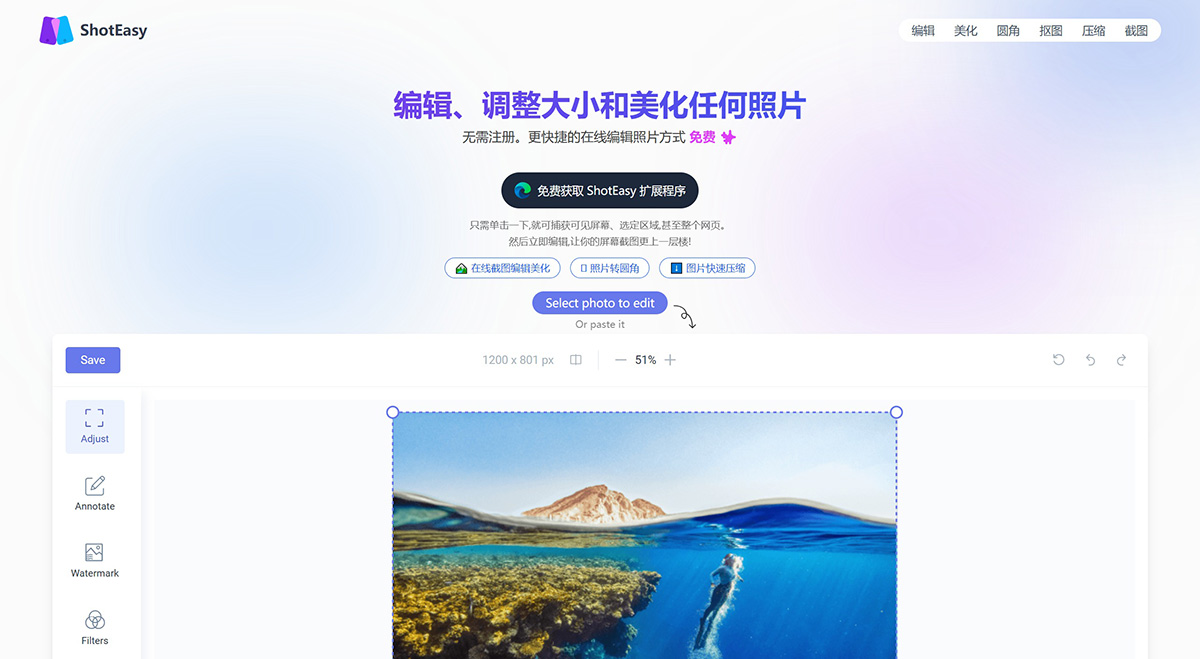
ShotEasy Features:
Screenshot: Use the ShotEasy browser extension to capture the visible screen, a selected area, or even an entire webpage with a single click. Or upload images from local disk and clipboard. Or write content using Markdown.
More beautiful editing: Use our tools to easily upgrade screenshots into engaging visual effects. With just a few clicks, you can add custom backgrounds, borders, shadows, and watermarks to create a professional and interesting look.
Easy cropping and resizing: Cropping and resizing have never been easier. Adjust the composition, size, and focus of the image for the best presentation.
Easy watermarking: Want to protect your images? Add a subtle logo, image, or simple text as a watermark. The position and orientation of the watermark are up to you.
Seamless annotation: Add annotations and collaborate directly on the media, making it easy to track changes and ideas.
ShotEasy Screenshot and Capture Features:
Capture a full webpage; no matter how long the webpage is, it can be turned into a single image for easy editing and sharing.
Select a portion of the screen to capture.
Screenshot the visible part of the screen.
Screenshot other desktop windows.
Delayed screenshot for capturing prompts that require operations or mouse hover to display.
Edit and beautify local images.
ShotEasy Feature TODO:
Image annotation
Modify size, preset size templates for publishing on various social media platforms
Pointers of various sizes such as boxes, circles, arrows, Emoji, etc.
Image compression
Text to image, suitable for Xiaohongshu posts
Code beautification tool
Screen recording & video online editing
How to take screenshots online with ShotEasy?
Press the screenshot button.
Select the window/browser tab you want to screenshot.
Click the grid button to display the screenshot image with background.
Click the crop button to crop the screenshot image.
Click the apply button to apply the cropped screenshot image.
Press the save button to save the screenshot image.
Press the copy button to copy the screenshot image.