Script Planner Assistant▸
 AI Apps
 AI News
QuickRecorder: Open-Source macOS Screen Recorder
QuickRecorder: Open-Source macOS Screen RecorderIntroduction
QuickRecorder, a lightweight screen recording tool based on ScreenCapture Kit for macOS / a versatile, lightweight, high-performance open-source macOS screen recording tool powered by ScreenCapture Kit.
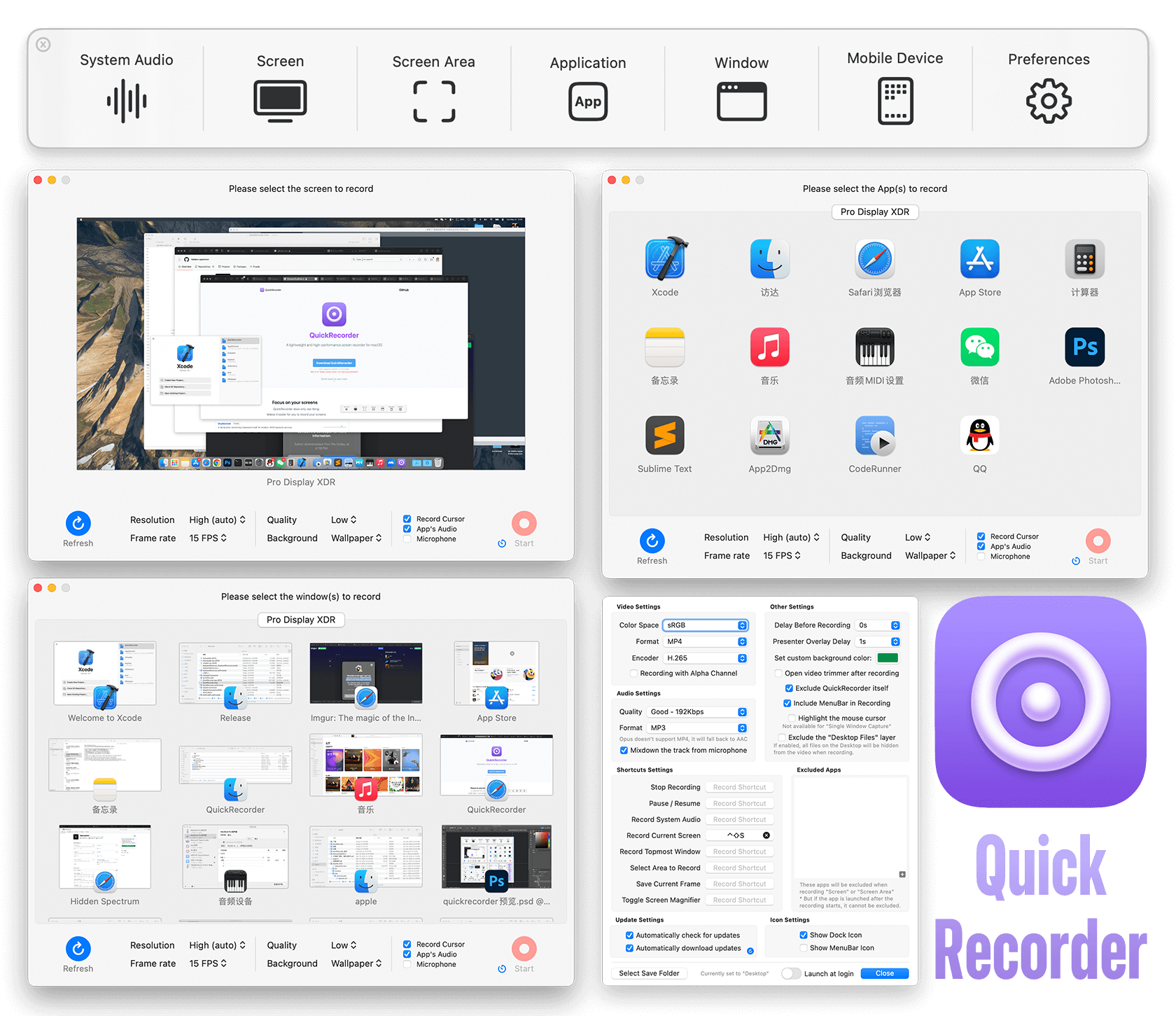
QuickRecorder Features:
Focused on screen recording: QuickRecorder is inherently simple and pure, dedicated to screen recording. Less is more—we only give you the best.
Record whatever you want: Leveraging the powerful capabilities provided by the ScreenCapture Kit API, you can freely record screens, apps, windows, and more.
Capture both audio and video: Enjoy seamless driver-free internal recording of system audio, free from driver hassles (driver-free audio internal recording is only supported on macOS 13 or later).
Always the focus, on camera anytime: Using the new "Presenter Overlay" feature introduced in macOS 14, you can real-time key out and superimpose your webcam feed onto the recording (on macOS 12/13, only a regular webcam floating window is available).
Dual-screen multi-tasker: QuickRecorder can simultaneously record Mac and iOS devices, handling multiple screens at once—let your creativity shine (this feature is not available in single-window recording mode).
QuickRecorder Highlights / Use Cases:
You can use QuickRecorder to record your screen, windows, applications, mobile devices, and more.
QuickRecorder supports driver-free audio loopback recording, mouse highlighting, screen zoom, and many other useful features.
QuickRecorder fully supports "Presenter Overlay" newly added in macOS 14, allowing you to superimpose your webcam feed in real time onto your recording content (on macOS 12/13, only a webcam floating window is available).
QuickRecorder can record HEVC with Alpha video format, and the output file can include an Alpha channel (currently only supported by iMovie and FCPX).
QuickRecorder FAQ
1. Where can I reopen the main panel after closing it?
Click the QuickRecorder Dock tile or the menu bar icon to reopen the main panel at any time.
2. Why isn't QuickRecorder a sandboxed application?
QuickRecorder has no plans to be uploaded to the App Store, so it does not need to be designed as a sandboxed application.
3. How can I independently control the volume of system audio and microphone audio in other video editors?
By default, QuickRecorder merges the microphone input audio into the main track after recording. If you need to edit the video, you can disable the "Mix Track from Microphone" option in the settings panel. Once disabled, system audio and microphone audio will be recorded as two separate tracks, which can be edited independently.
QuickRecorder GitHub Source Download Link:https://github.com/lihaoyun6/QuickRecorder