Script Planner Assistant▸
 AI Apps
 AI News

1688 Live Companion: Live Streaming Tool for the 1688 Platform
1688 Live Companion: Live Streaming Tool for the 1688 PlatformIntroduction
1688 Live Companion is a software for live streaming and pushing streams on PC. It is a live streaming tool provided by Alibaba Group for merchants on the 1688 platform, helping merchants easily set up HD live streaming rooms and start streaming with one click. Leveraging the high-definition capture of cameras and the high-speed processing capabilities of PCs, it provides HD live streaming push and a variety of interactive features. Currently, the software supports mac / Windows 10 and above operating systems, laptops, and desktops.
1688 Live Companion Features:
One-Click Streaming: Users only need to download 1688 Live Companion and obtain streaming permissions to easily start their live streaming journey, without complicated steps.
Clear Display of Public Screen Information: Live Companion can clearly display public screen information and gift records, helping streamers better manage the live streaming room.
Ambient Sound Control: During the live stream, you can manually turn on or off the recording of the surrounding environment by clicking the microphone icon.
Playback Recording Function: Users can use 1688 Live Companion to select previous live stream replays for playback recording. Follow the steps below:
Open the Companion—Log in to your account—Enter the main interface.
Click Start Playback Recording—Enter the playback recording list.
Select a replay and click to record the playback.
System Compatibility: 1688 Live Companion supports Windows 7, Windows 8, Windows 10, and Mac operating systems, and can create HD live streaming rooms.
1688 Live Companion Applicable Scenarios:
1. When streaming on a mobile phone with unstable wireless network, you can use a computer with a wired network for live streaming, which provides a more stable network and effectively avoids stream lag.
2. During the live stream, the computer live streaming software can process audio and video, adding more fun elements.
3. When you are not satisfied with ordinary mobile phone shooting equipment and have better shooting equipment for filming.
4. For long-duration streaming, issues such as mobile phone overheating and insufficient battery can cause stream lag or interruption, but these problems do not exist when streaming from a computer.
1688 Live Companion Recommended Device Configuration
Computer: Genuine Windows 10 system (please upgrade from Win7 to Win10). It's best to use a high-performance laptop or a desktop for streaming. Lightweight laptops are not recommended. Processor: Intel i5 or above, preferably i7; dedicated graphics card; solid-state drive. (Note: If the computer hardware configuration is too low, it may cause video lag or audio-video desynchronization)
Shooting Equipment: Supports most video shooting devices, plug and play:
Recommended Logitech Pro C920, C925e, C1000e and other camera models.
Audio Equipment: Supports various audio devices. It's best to equip an external microphone (under normal circumstances, the microphone built into the Logitech camera can fully meet the needs of live streaming, no additional microphone is required)
For ultra-HD live streaming, please check whether your DSLR device has the corresponding computer driver. In addition, it is recommended to equip a capture card for DSLR streaming.
1688 Live Companion Usage:
1. Download Live Companion
Go to the 1688 Live Companion official website to download. Currently, two versions are available: Windows and Mac (please download the Mac version from the Q&A group)
Or directly download the Windows version here: 1688 Live Companion Windows Download Here
2. Windows Installation
After downloading, double-click the file and click Install
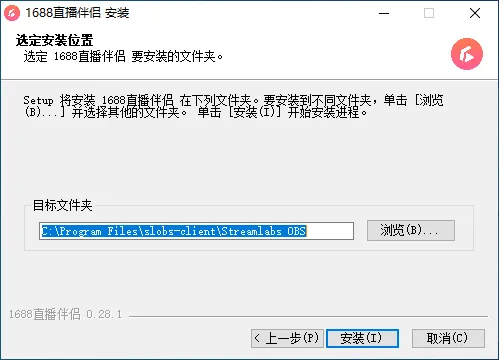
Note:
The path of the target folder must be in English, please avoid using Chinese paths
If 360 or other antivirus software prompts a risk warning, please select "Allow"
If you are prompted to "Restart the computer" after installation, please restart before use
If you still cannot install, please close 360 or other antivirus software, restart the computer, and then use it
3. Start Streaming and Settings
1. Log in
Password login or QR code login (recommended)
2. Create a Live Stream or Announcement
After creation, click the refresh button, and the live stream session will appear.
Select the streaming session
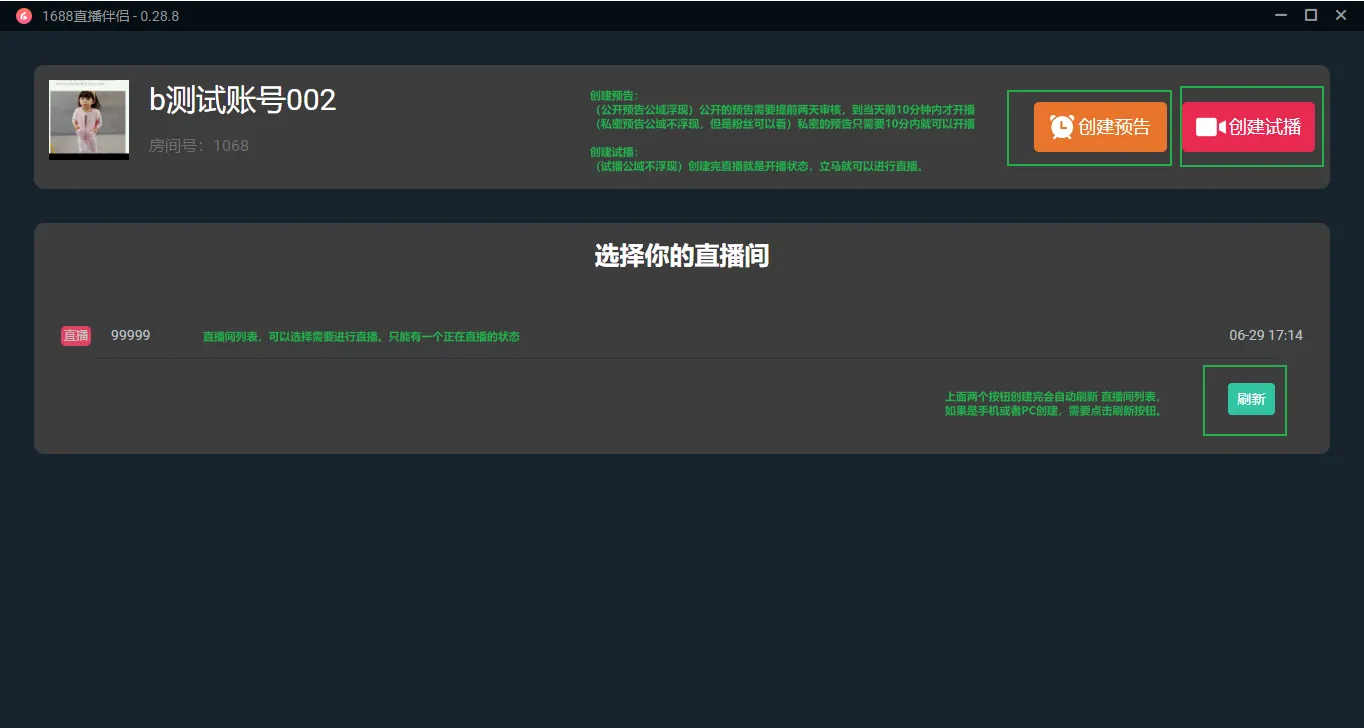
After selecting to start streaming, the interface is as shown. At this point, the stream has started but since streaming push has not been initiated, the live streaming room will show a black screen. The video will be visible after streaming push begins.
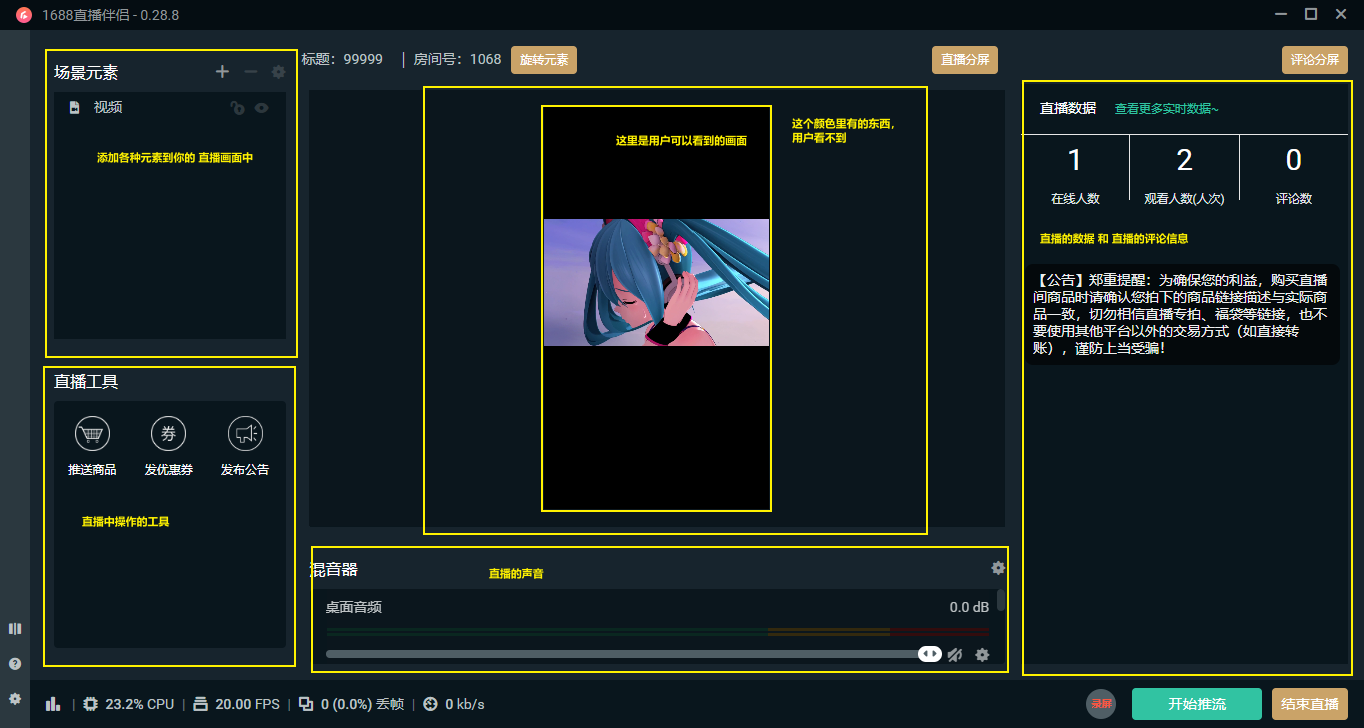
3. Configuration and Start Streaming
Add Materials
1. Click the "+" button in the red area on the top left to add various types of materials, the "-" button to remove materials, and "⚙" to set material properties
Materials include: Image, Text, Video, Display, Window, Camera
(Before adding a camera, please place the camera vertically first)
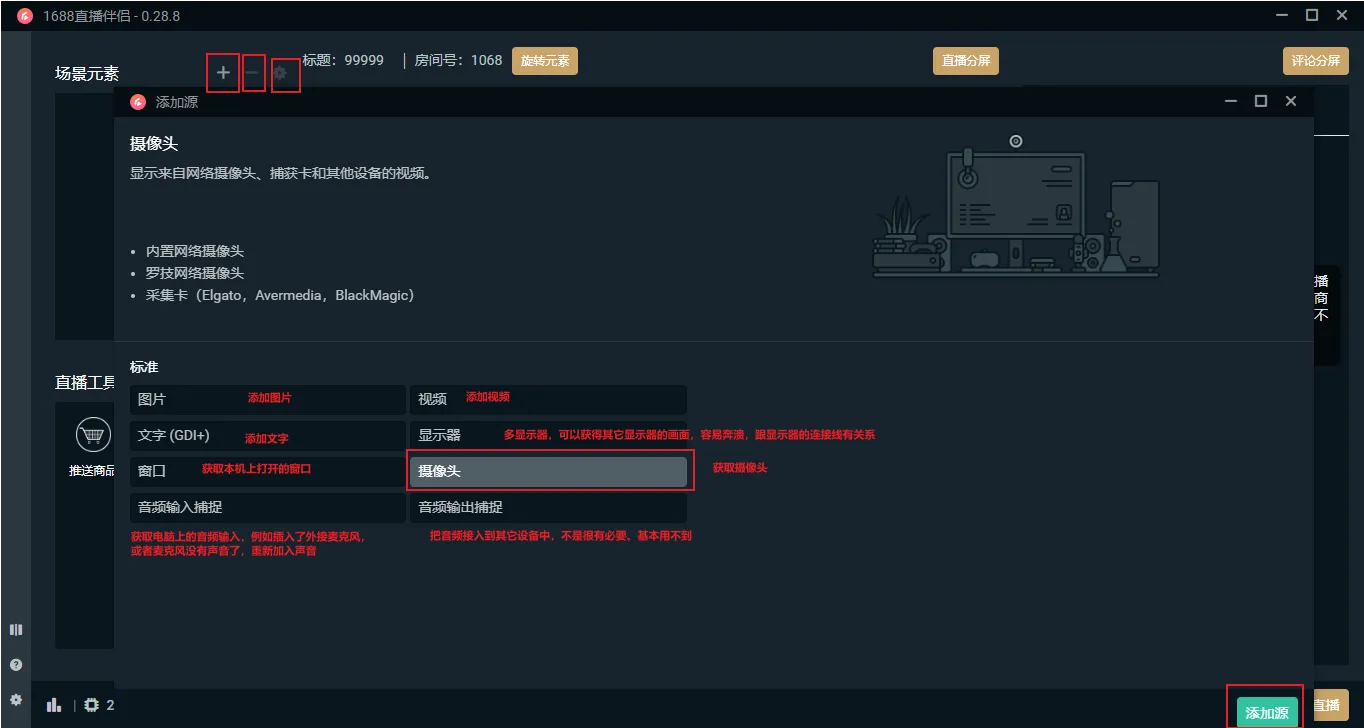
2. Select the materials you want to add and capture as needed
3. After successful addition, you can see the captured content in the left and center preview areas
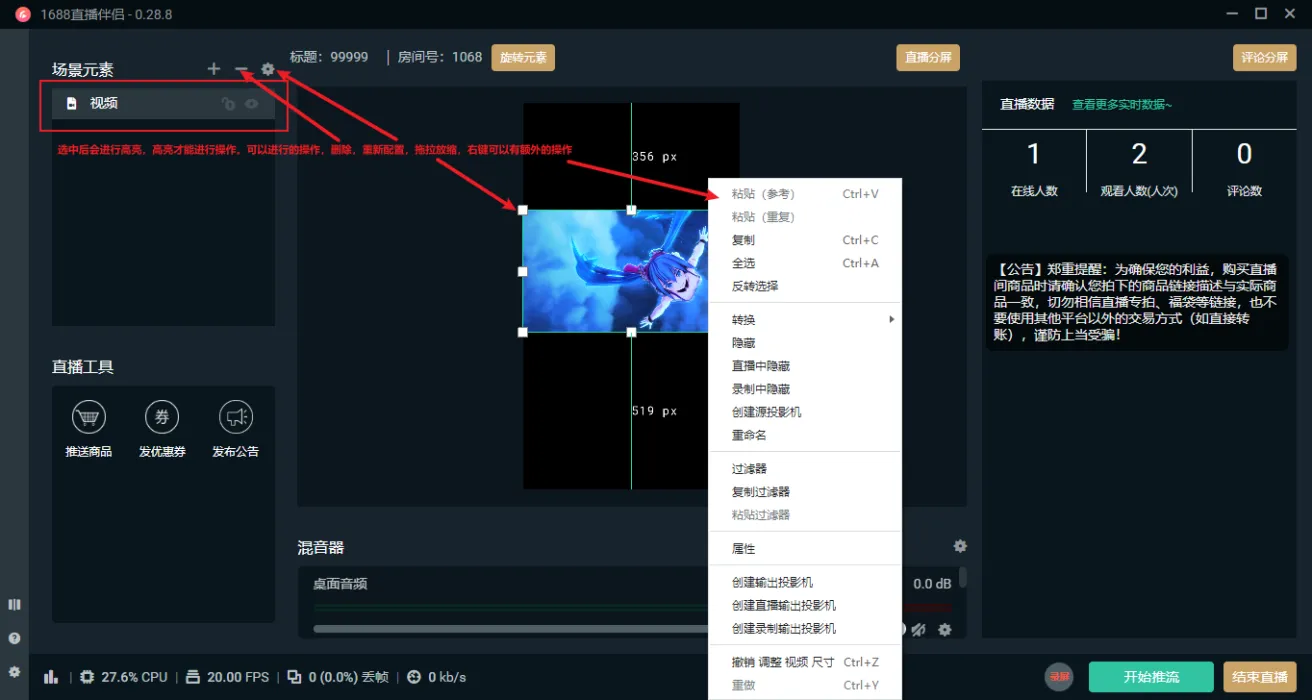
4. You can drag materials to adjust their positions
5. You can drag the 8 control anchor points around the material to adjust the material size
6. Right-click on the material to bring up the operation menu, where you can rotate, transform, set, delete, and other operations
7. After the live streaming room is configured, click Push Stream to start pushing the video.
8. End Streaming
If there is a problem with the live streaming room, you can directly close the software and restart. If you only want to end the live stream, you can click the End Stream button.