Script Planner Assistant▸
 AI Apps
 AI News
ImageFX: Google's Generative AI Image Tool
ImageFX: Google's Generative AI Image ToolIntroduction
ImageFX is a new image generation tool that users can use to generate images from text, just like using any other AI model (such as DALL-E 3).
Unlike other Google AI image experiments, including Bard, Duet AI in Workspace, and SGE (Generative AI Search Results), ImageFX focuses solely on creating images. ImageFX is powered by Imagen 2, the latest and most powerful text-to-image model created by DeepMind scientists.
Platforms supported by ImageFX:
Bard--Google's first AI tool, Bard, similar to Microsoft's Bing AI. You can chat + generate images (image generation requires English and does not support Chinese).
Vertex AI--An enterprise-level option or for advanced players, it can be accessed via API, allowing you to develop apps to integrate it.
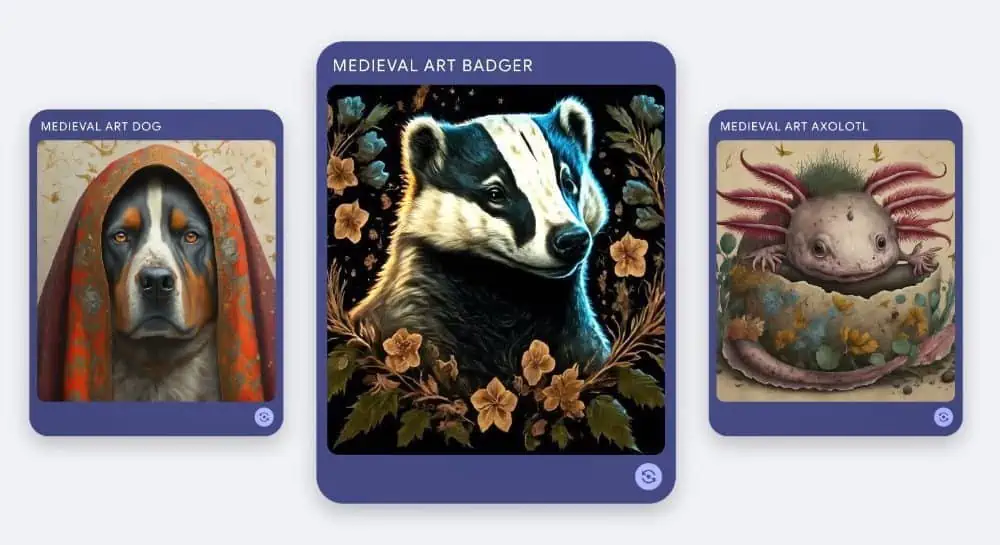
How to use ImageFX:
1. Connect to ImageFX and sign in
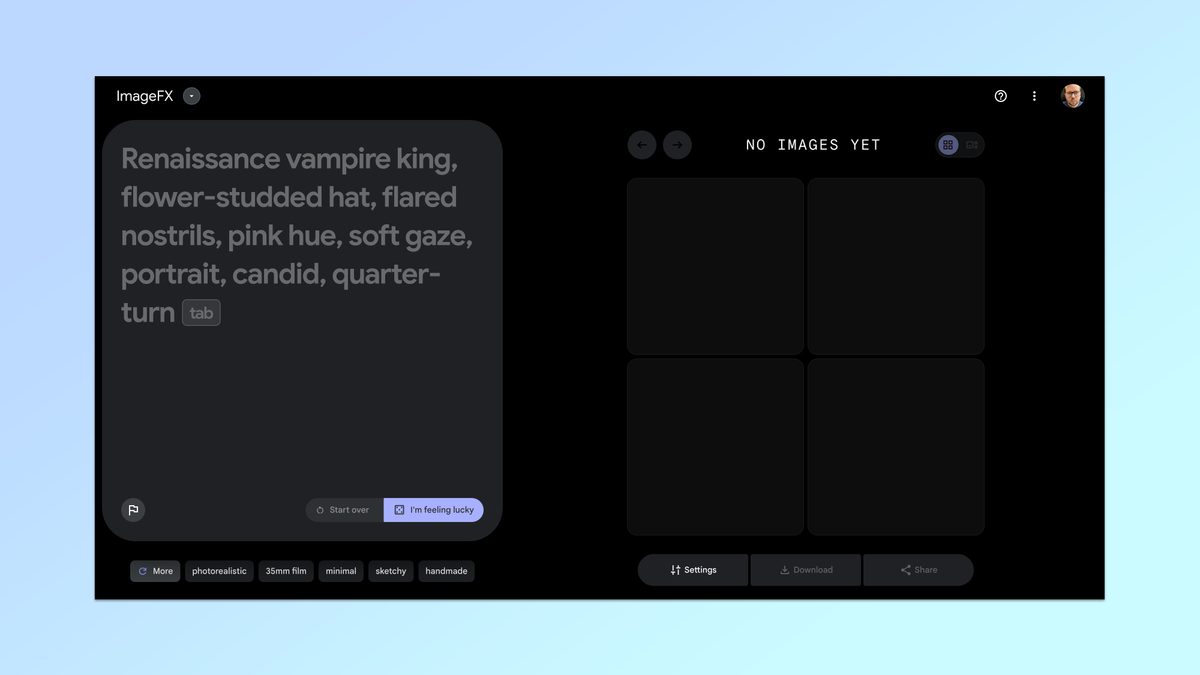
When you click on Google Labs' ImageFX service for the first time, the system will ask you to sign in with a Google account. This must be a personal account, not a company account.
2. Start with default configuration
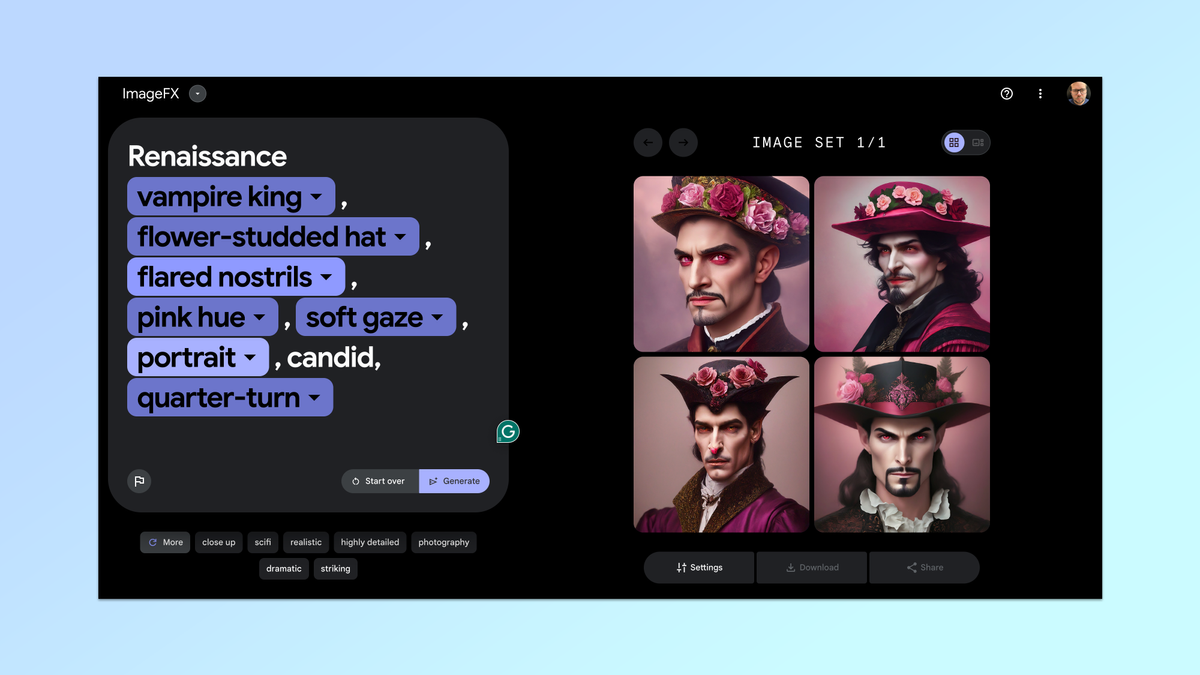
A good starting point is to accept the default image suggestions in the left window. It provides a descriptive phrase and a "tab" button. Simply click on this view, press the tab key on your keyboard, and then click generate.
In my case, the default prompt was: "Renaissance vampire king, flower-encrusted hat, trumpet-shaped nostrils, pink tones, gentle gaze, portrait, candid, quarter turn."
3. Adjust the chips
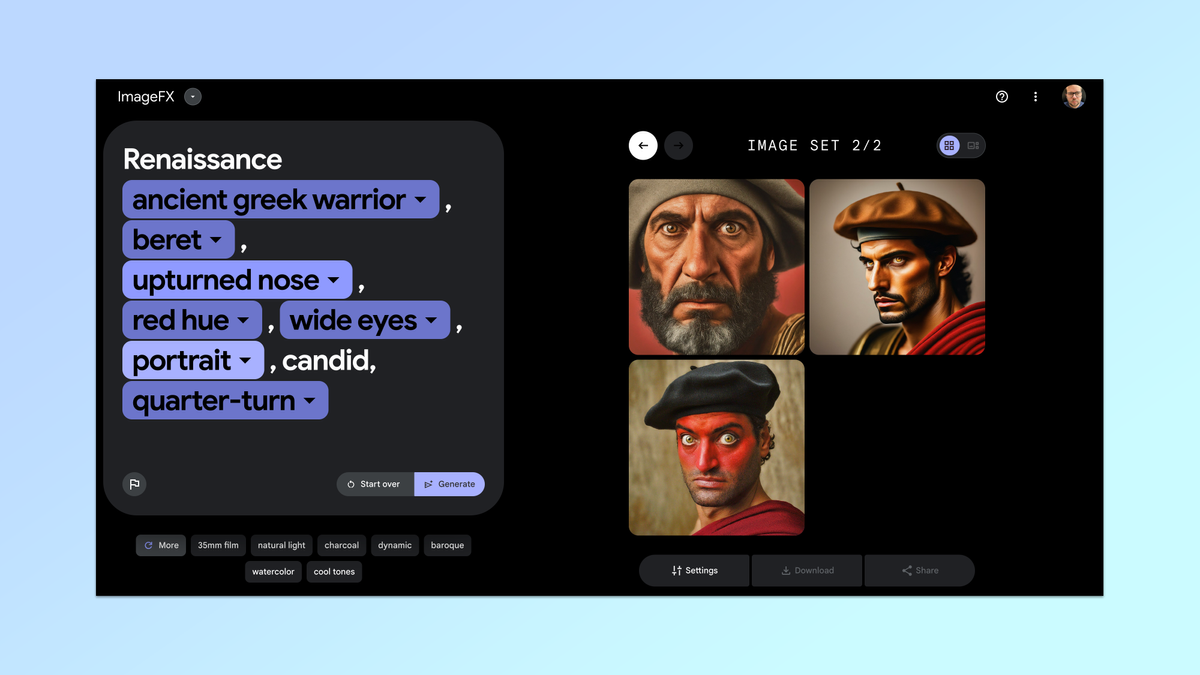
Here, you will see what makes ImageFX stand out. In addition to generating four images, it also converts keywords into "chips" that you can easily modify to create alternative versions of the image.
To change its appearance, simply select any chip and change it to one of the suggested alternatives, or just delete and overwrite it. Then, simply click "Generate" again to see the changes.
4. Try your own prompts
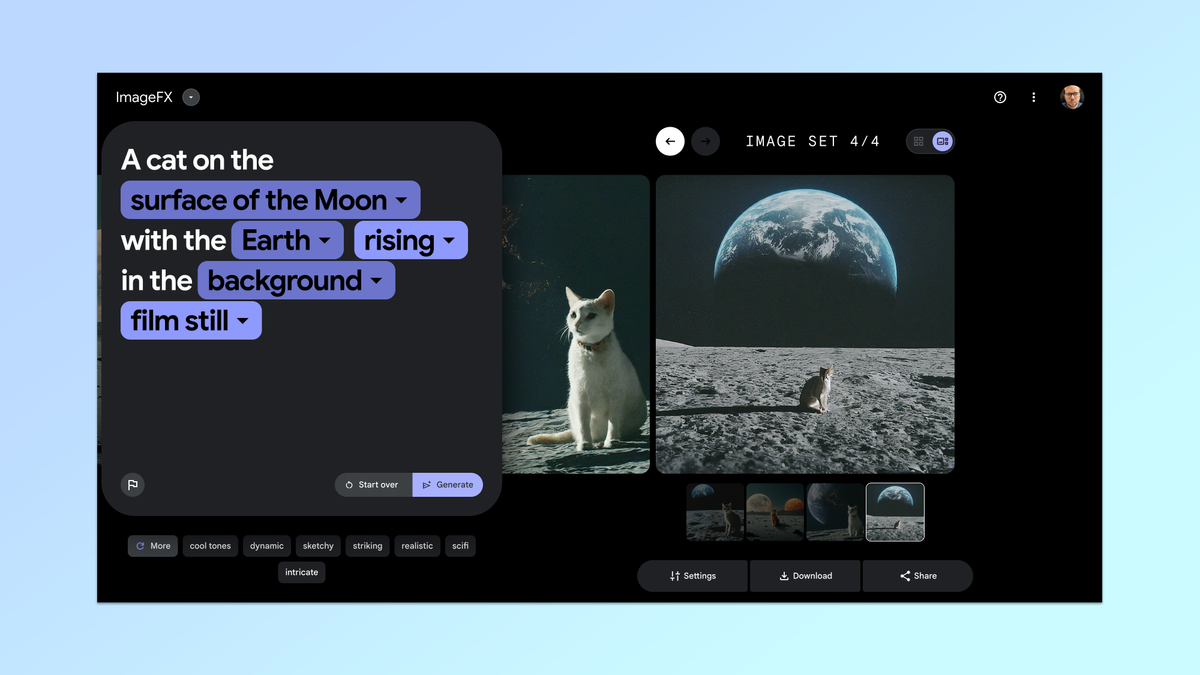
You can also remove all chips and try your own custom prompts. I tried "a cat on the lunar surface with an earthrise in the background," and ImageFX highlighted surface, moon, earth, rising, and background as chips.
To use your own prompt, simply type your phrase or words into the box on the left, then click generate.
5. Other suggested keywords
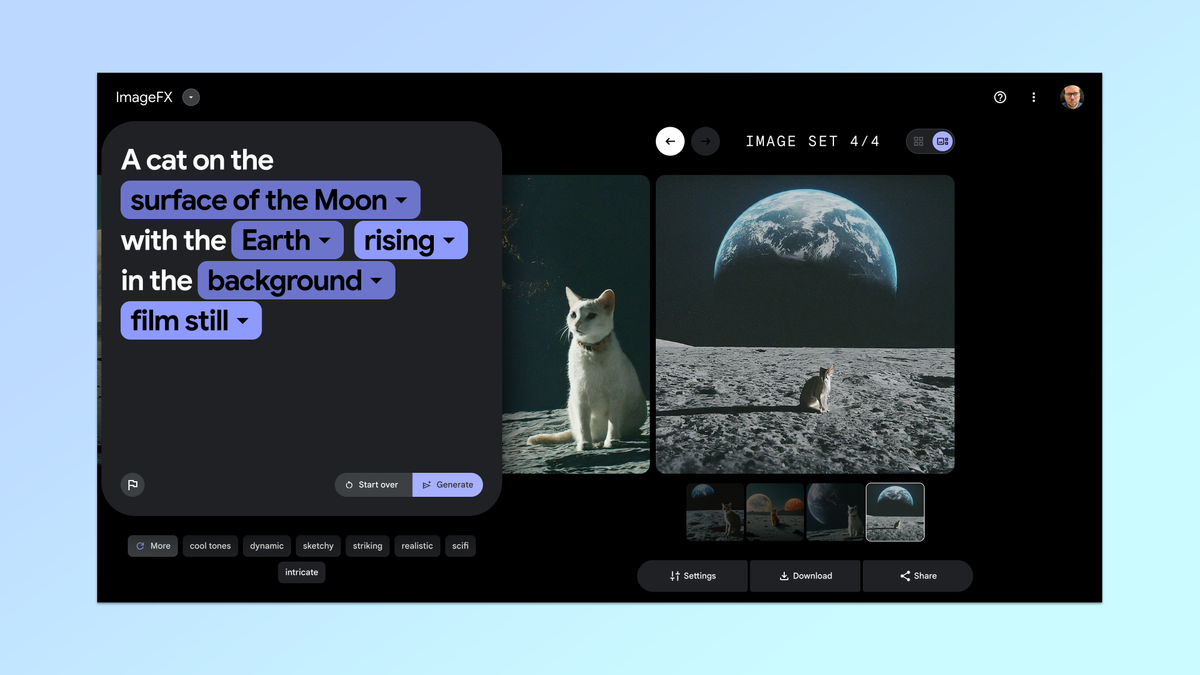
In addition to the chips, ImageFX also provides a series of keywords below the input box. For the cat on the moon, it offered me stylized, striking, and others. You can click on any one or all of these to customize your image in that style.
ImageFX automatically converts any new keywords into chips. Click generate again to see the new keywords added to your generated image.
6. Browse image sets
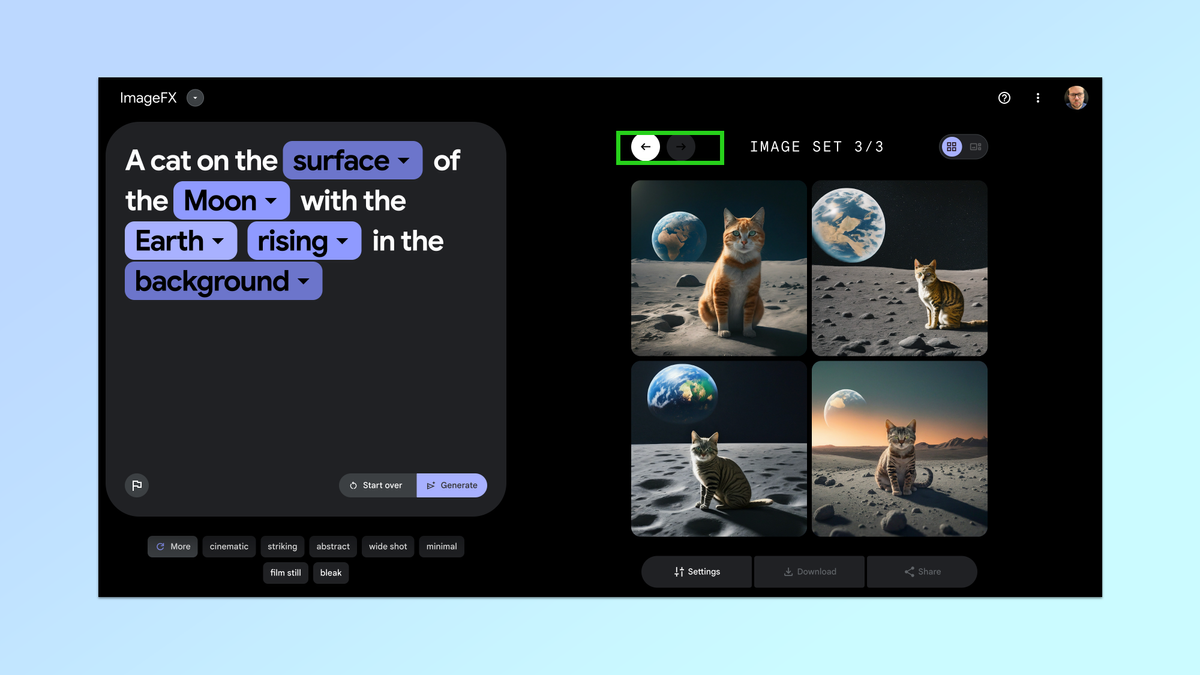
Each time a new set of images is generated, it is added to the gallery on the right. You will receive between one and four images each time, and they will always be in square format. To view previous generations, simply click on the arrow.
7. View images in more detail
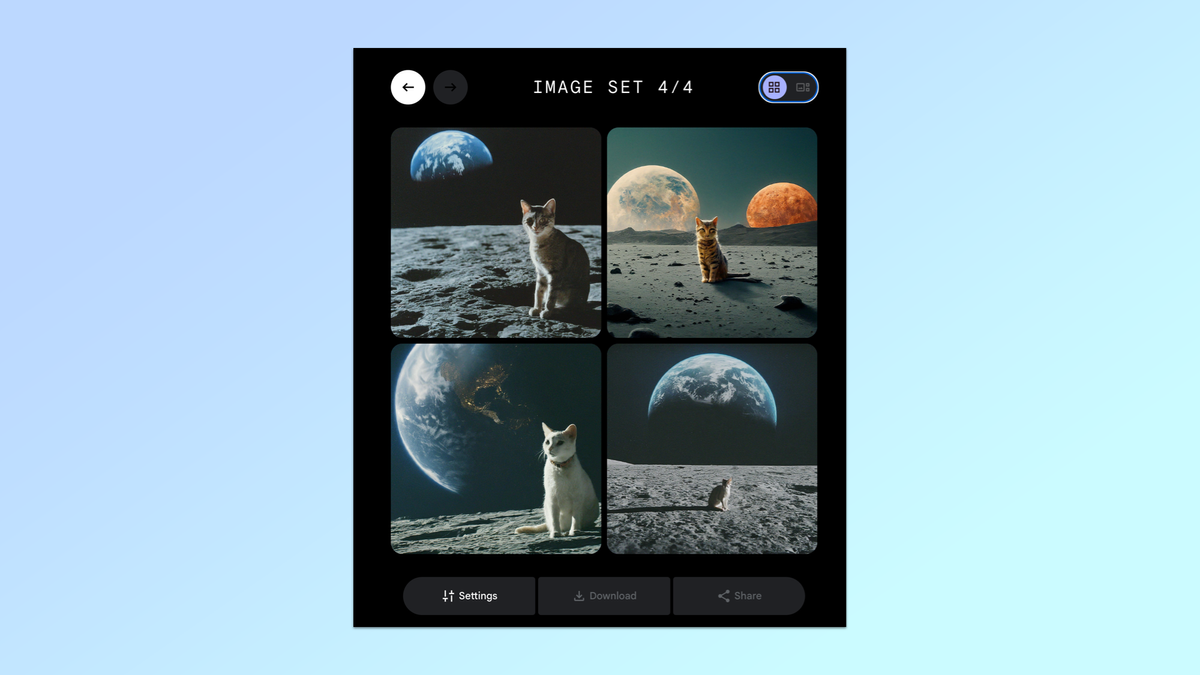
To view any image in more detail, simply click on it. This will change the view and highlight the selected image. Here, you can view the seed, download the image, or copy the prompt.
8. Download or copy the image
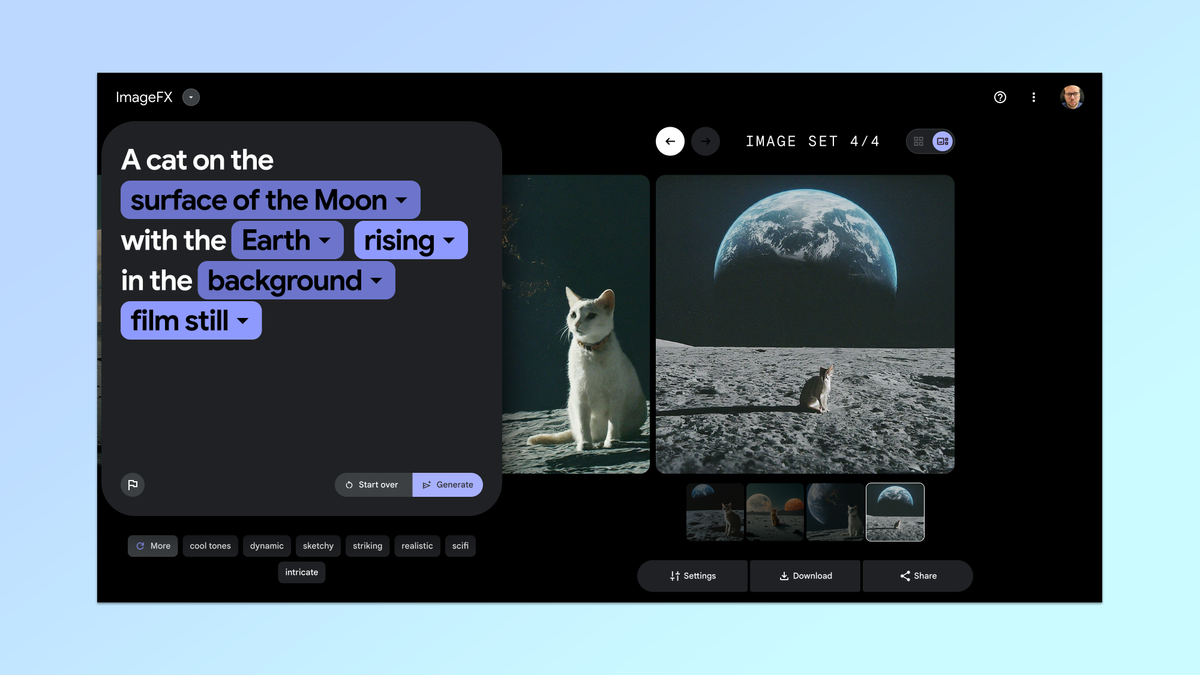
When you have the full view loaded, you have more options. To download the image, simply click the download button. For more options, hover over the image. To copy it to the clipboard, click "Copy Image," or to copy the prompt used to create the image, click "Copy Prompt."
9. Add text to the image
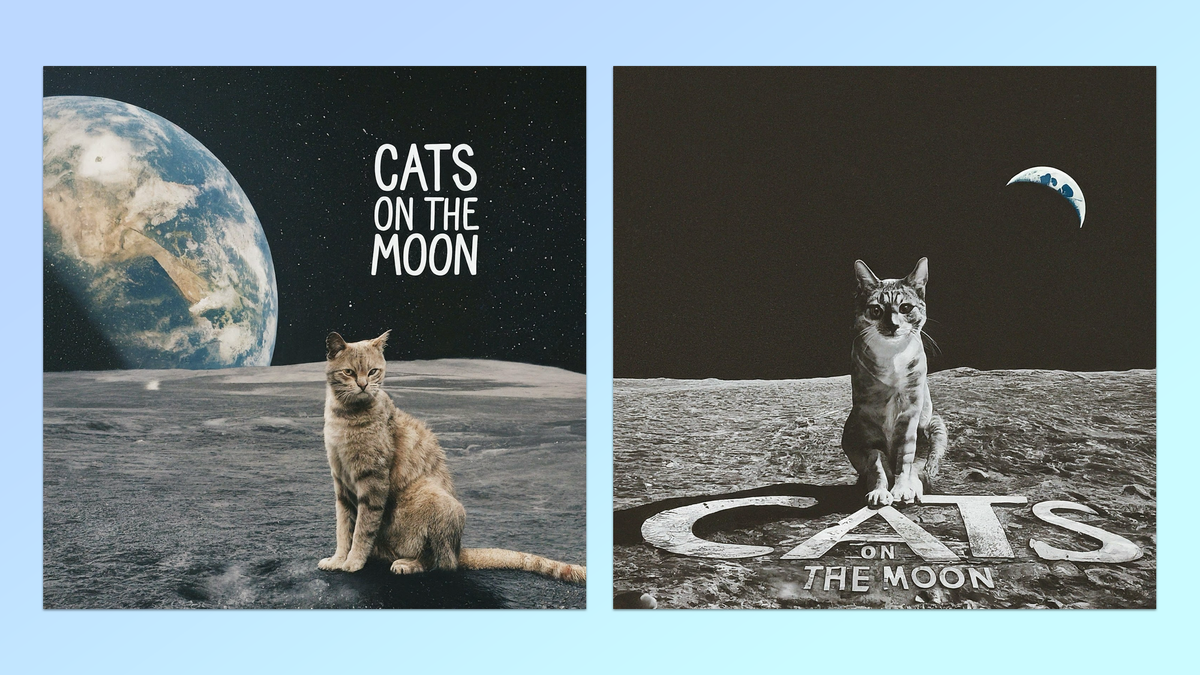
Using the same prompt you have already created, you can add text to the picture image. In my case, I wanted the words "Cat on the Moon" to appear. Simply write something like "with the words......" and then click generate.
ImageFX is currently available only in English and in a few countries/regions, including the United States, Australia, New Zealand, and Kenya. It works similarly to Google's MusicFX experiment, using "prompts" and keywords to refine the prompt.