Script Planner Assistant▸
 AI Apps
 AI News
Recraft: AI Vector Image Generator
Recraft: AI Vector Image GeneratorIntroduction
Artify is a versatile online platform designed to help users generate and edit vector art, icons, 3D images, and illustrations. It offers a variety of styles suitable for websites, print, and marketing purposes. With its intuitive interface and powerful tools, Artify empowers users to unleash their creativity and design visually stunning graphics.
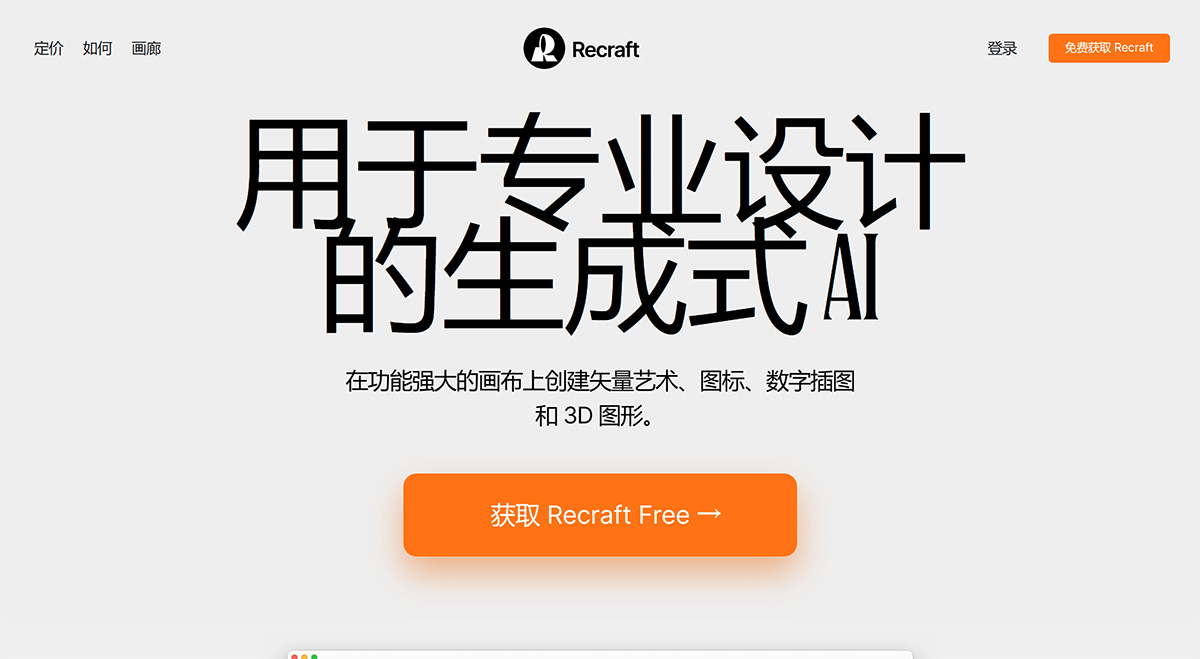
Recraft is easy to use—simply enter the text description you want, and it will automatically generate two versions for you to choose from. If you're only dissatisfied with a certain part of the generated image, you can regenerate that specific part. In addition, the website provides editing tools that allow you to manipulate shapes, colors, textures, and effects to achieve the desired aesthetic. You can also import and edit existing artwork or choose from a library of pre-designed templates. Artify offers multiple export options, allowing you to save your designs in formats suitable for websites, print, and marketing materials.
Core features of Recraft.ai:
Generate and edit vector art
Create and customize icons
Design and manipulate 3D images
Illustrate using a variety of styles
Intuitive interface for easy use
Rich shape manipulation, color editing, and effects tools
Import and edit existing artwork
Library of pre-designed templates
Multiple export options for websites, print, and marketing
How to use Recraft?
1. Go to the Recraft website, click "Get Recraft Free" in the upper right corner, and sign in with your Google account.
2. Click "Create new project" in the upper left to create a new project.
Click "Create new project" in the upper left corner of Recraft AI to create a new project.
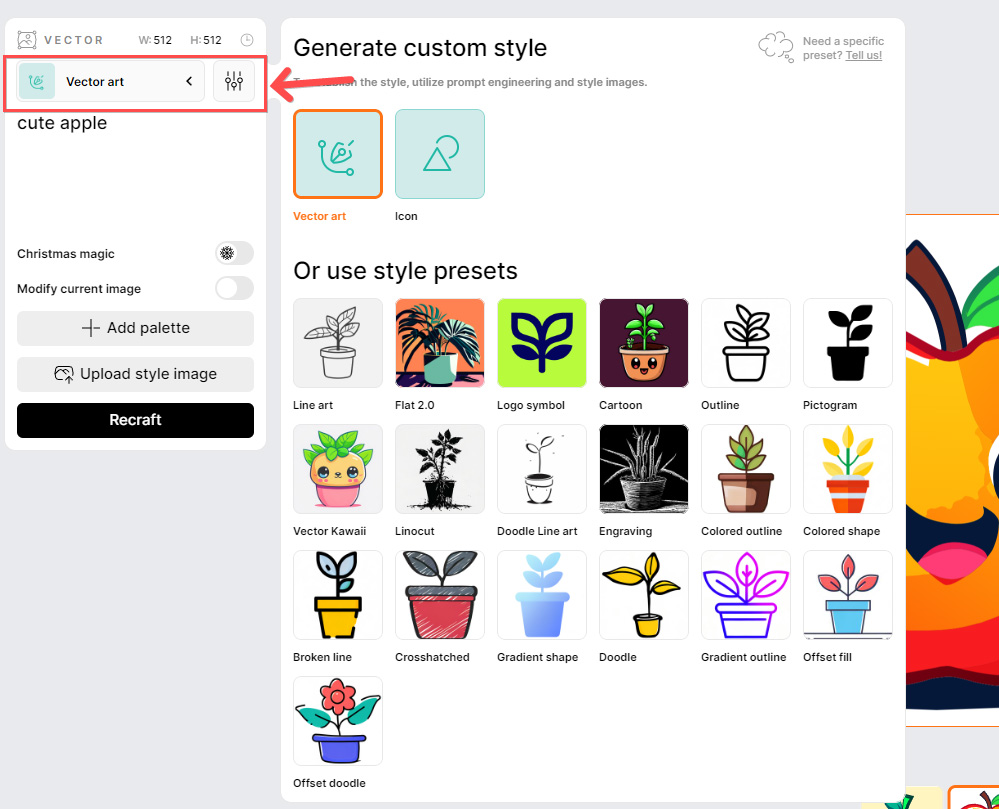
3. Click the "Vector Art" option in the upper left to choose between Vector Art or Icon. Additionally, Recraft offers multiple styles such as Vector, Line Art, Outline, Doodle, and Illustration.
In Recraft AI, click the "Vector Art" option in the upper left corner to select "Vector Art" or "Icon". It also offers multiple styles such as Line Art, Outline, Doodle, and Illustration.
4. After selecting a style, enter a text description, then click "Enter" to generate an image or vector graphic.
After selecting a style in Recraft AI, enter a text description, then click "Enter" to generate an image or vector graphic.
5. The toolbar at the top allows you to edit the image, for example, adding layers, removing the background, Repaint, adding text, etc. The operation is similar to other image editing tools.
The toolbar at the top of Recraft AI allows you to edit images, for example, adding layers, removing the background, Repaint, adding text, etc. The operation is similar to other image editing tools.
6. Once finished, click "Export" in the upper right corner. Based on the image style, Recraft allows users to download in PNG, JPG, SVG, or LOTTIE format.
Recraft offers both a free version and a paid version, and images generated with either version can be used for commercial purposes.