Script Planner Assistant▸
 AI Apps
 AI News

Pikaso: Free Real-Time AI Sketch-to-Image Tool
Pikaso: Free Real-Time AI Sketch-to-Image ToolIntroduction
Pikaso, a free online real-time doodle-to-image tool, allows users to create any image they can imagine by quickly sketching. It is powered by Freepik and offers the ability to turn every gesture into a masterpiece. Users can effortlessly generate AI art within seconds by mixing simple sketches with text. The suite of features also allows users to leverage libraries of icons, shapes, and elements to bring their imagination to life. Pikaso provides users with a platform to create and edit images in real time through simple drawing capabilities.
Pikaso Official Website:https://www.freepik.com/pikaso
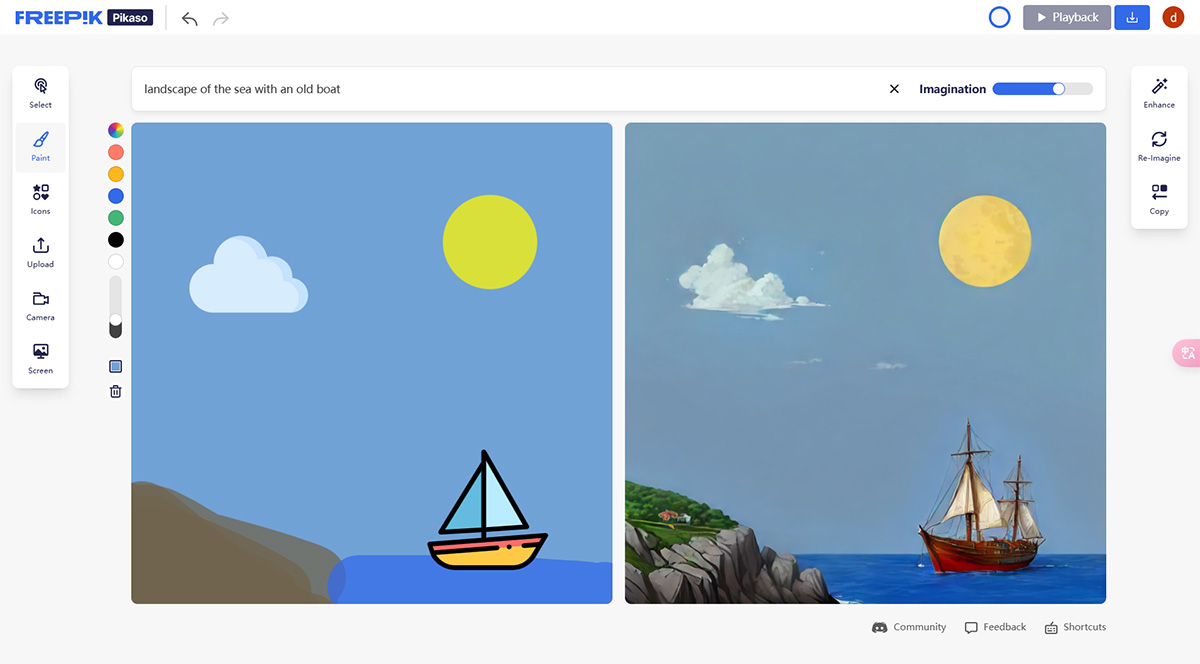
Want to learn how to create AI drawings and illustrations? With our Pikaso AI generator, you will experience the magic of art and AI—turning every gesture into a masterpiece. Generate AI art in seconds—mix simple sketches with simple text!
Pikaso Toolbar:
In the Pikaso tool interface, you can see a toolbar on the left side containing various drawing and editing tools, such as:
Selection Tool: Used to select and move layers or objects
Brush Tool: Used to draw free-form curves or straight lines
Eraser Tool: Used to erase brush strokes.
Text Tool: Used to add and edit text.
Shape Tool: Used to draw various basic or custom shapes.
Crop Tool: Used to crop the size or shape of an image.
Transform Tool: Used to adjust the rotation, scaling, skewing, etc. of layers or objects.
Fill Tool: Used to fill layers or objects with color or gradients
Filter Tool: Used to apply various filter effects to images, such as blur, sharpen, black and white, etc.
Adjustment Tool: Used to adjust the brightness, contrast, saturation, etc. of images
Layer Tool: Used to manage layer order, visibility, opacity, etc.
You can select the tool you want by clicking on the icon on the Pikaso toolbar, then operate on the canvas. You can also bring up tool options by right-clicking or double-clicking, such as brush size, shape, hardness, etc., or text font, size, color, etc.
Using Pikaso:
1. Write a descriptive prompt, including features such as scenery, lighting, style, and color.
2. The AI art generator will start working—now it's your turn to draw your design.
3. Use brushes and all colors, harnessing the power of AI to turn your drawing into an image.
4. Leverage our libraries of icons, shapes, and elements to turn your imagination into reality.
5. Use the enhance button to create smoother designs.
6. Download your final image, or download a video of the entire process.
We don't expect Pikaso or other quick image-generation tools to produce particularly high-quality images, but using them to improve work efficiency and precisely control composition can indeed optimize our image-generation workflow.