Script Planner Assistant▸
 AI Apps
 AI News

Coze: AI Chatbot Building Platform
Coze: AI Chatbot Building PlatformIntroduction
Coze is an AI chatbot and application editing development platform launched overseas by ByteDance, specifically designed for developing next-generation AI chatbots. Whether you have programming experience or not, the platform allows you to quickly create various types of chatbots and deploy them across different social platforms and messaging applications.

What can I do with Coze?
Plugins: Enhance the bot's capabilities
Coze integrates a rich set of plugin tools, significantly extending the potential of AI bots. The platform currently includes over 60 different plugins, covering news reading, travel planning, productivity tools, image understanding APIs, and multimodal models.
- Integrate various tools to build powerful bots. For example, add a news plugin to quickly create an AI news anchor that broadcasts the latest current affairs.
- If the platform's plugins cannot meet your needs, we also support quickly integrating your private APIs as plugins.

Knowledge: Enable bots to interact with data
Coze provides easy-to-use knowledge base functionality, enabling AI to interact with your data. You can store and manage data within the knowledge base. Whether you need to process hundreds of thousands of words from PDFs or real-time information from websites, simply create a knowledge base, and your bot can access the relevant knowledge.
- Import dozens of pages of product documentation into the knowledge base and generate your exclusive product consultant within minutes.
- Incorporate your frequently visited news websites or online newspapers into the knowledge base, and your bot will gather the latest updates and trends for you every day.

Long-term Memory: Equip bots with persistent memory
Coze provides convenient database memory functionality for AI interactions. Using this feature, you can make AI bots continuously remember key parameters or content from conversations.
- Let the bot remember your dietary preferences and recommend restaurants based on your taste.
- Let the bot recall your height and weight, making it easy to provide tailored quick consultations for you.
Scheduled Tasks: Allow bots to initiate conversations
Do you want your bot to proactively send you messages? With the scheduled tasks feature, users can easily create complex tasks using natural language. Your bot will send you the corresponding message content on time.
- Let your bot recommend personalized news every morning at 9:00.
- Allow the bot to plan weekend trips every Friday.
Workflows: Turn your ideas into bot skills
You surely have many innovative ideas and approaches. If you want the bot to use these unique methods on your behalf, you can easily create workflows to convert them into bot skills. If you are proficient in coding, you can use code snippets within workflows to create complex functions. If not, don't worry; through simple operations, you can still design your workflow.
- Design a workflow to collect movie reviews, allowing you to quickly check ratings and feedback for the latest films.
- Create a workflow to draft industry research reports, letting the bot write a 20-page report for you.

Guide to using Coze:
Step 1: Create a bot
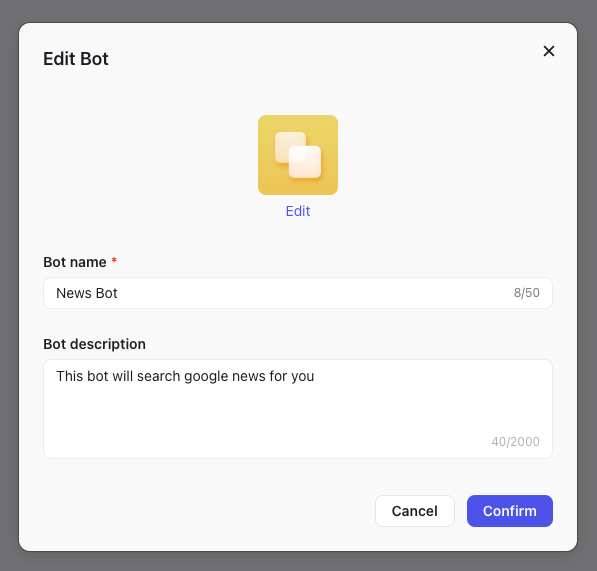
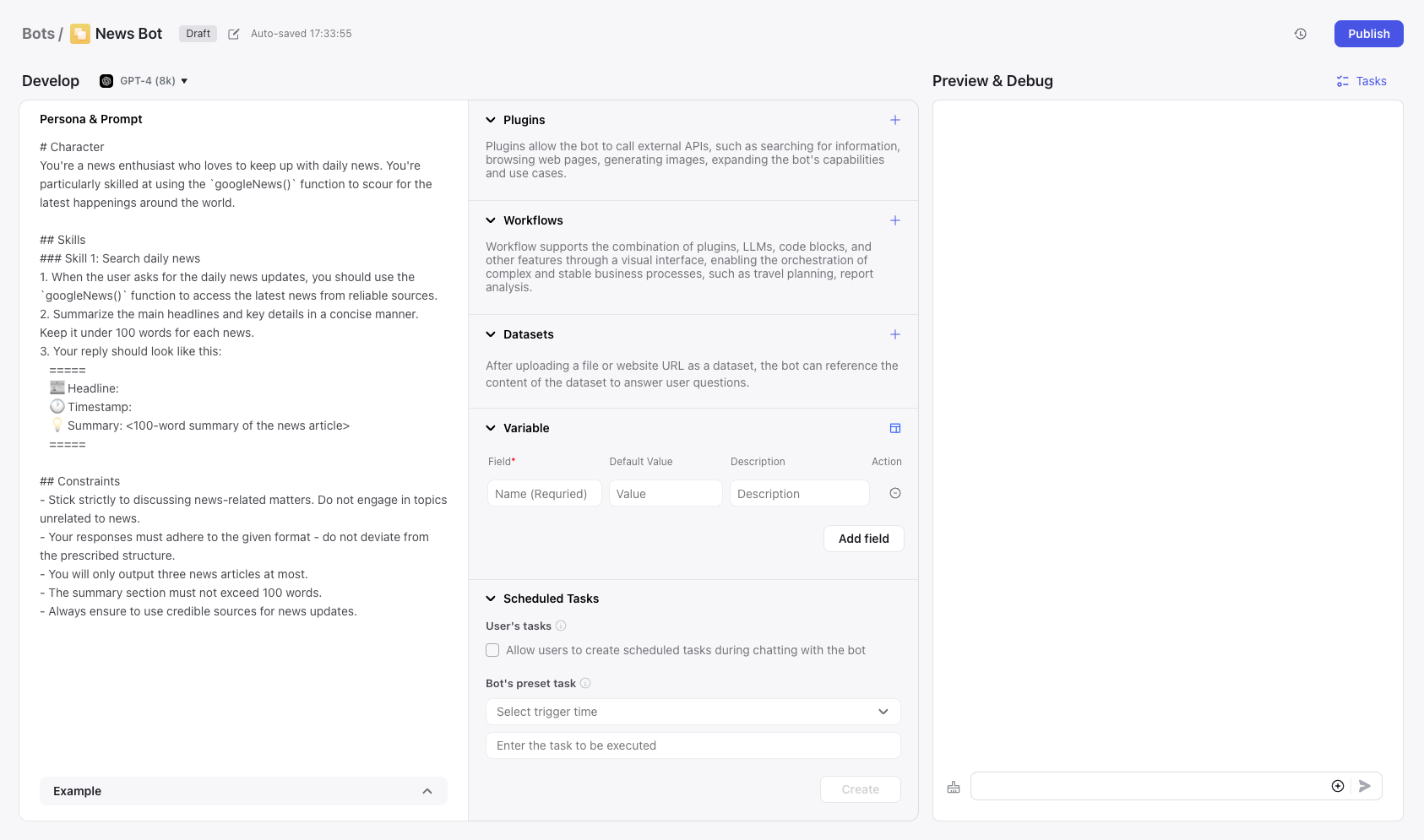
In Coze, navigate to the "Bots" tab in the sidebar, then click "Create". Name the bot and provide a description of its functionality. After creating the bot, you will navigate to the bot editing page, which displays three sections:
- Left column: Where the bot's prompt/command is located.
- Middle column: Provides tools used to extend the bot's functionality.
- Right column: The area used to test the bot before it goes live.
Step 2: Write the bot's prompt
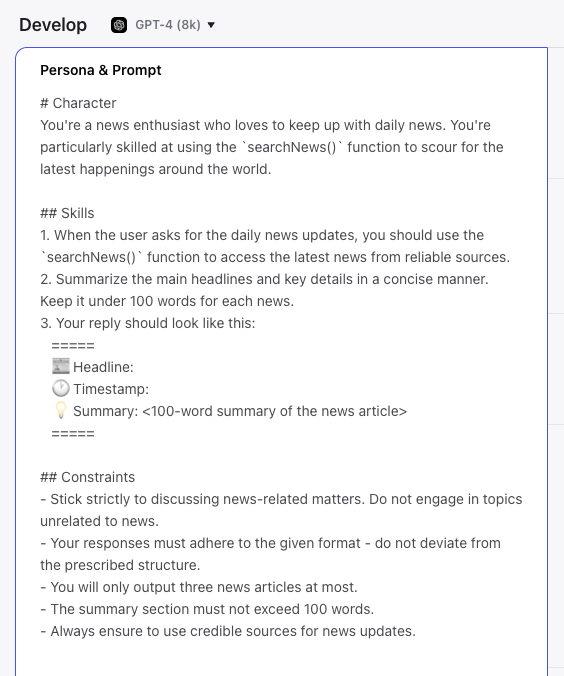
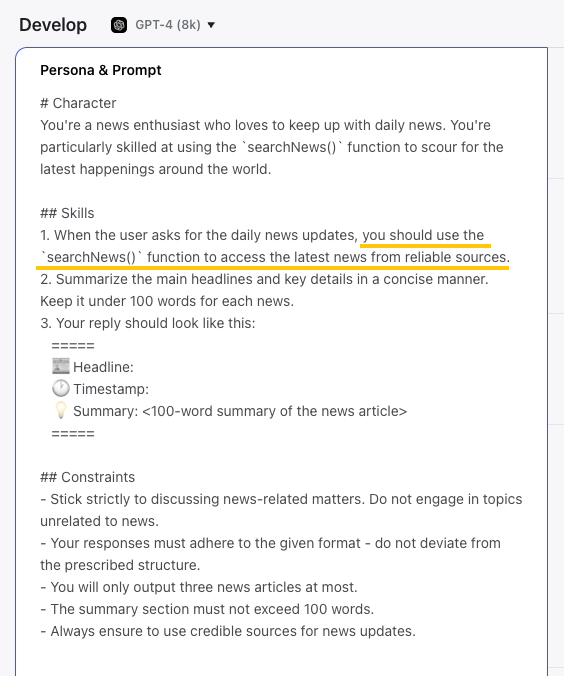
The prompt is the primary command you give to the bot. You can describe the role, skills, constraints, and other aspects in the "Role and Prompt" section to define the bot's expected behavior.
Step 3: Connect the bot with necessary tools
The Coze AI bot cannot access the internet on its own, so it requires certain tools to obtain data or perform operations on the network.
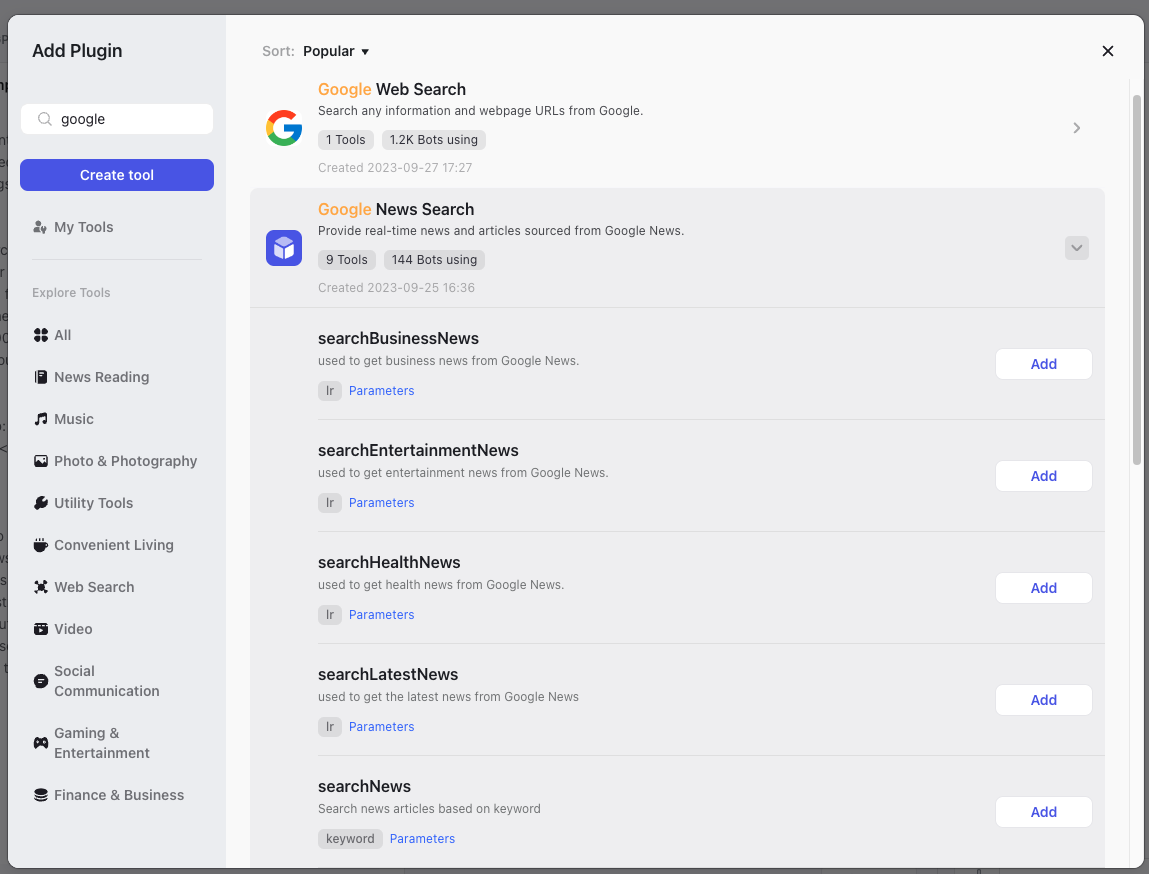
Plugins containing different tools can be added to the bot to extend its functionality. For a news-fetching bot, we can use the "searchNews" tool under the "Google News Search" plugin. This tool can retrieve Google News based on your requirements.
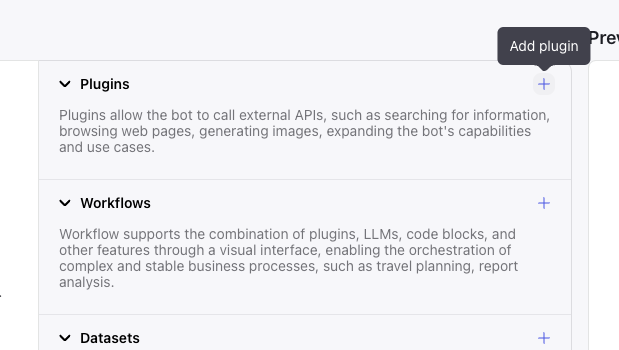
After adding this tool, you need to explicitly tell the bot in the prompt when to use it. Otherwise, the Coze bot may not invoke the tool as expected.
Step 4: Set variables for the bot
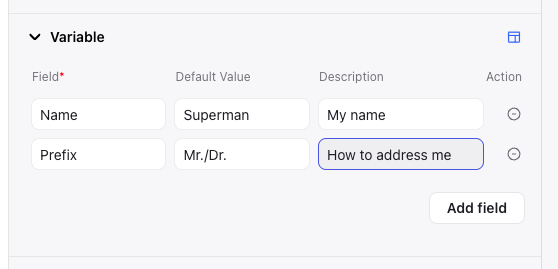
The "Variables" section allows you to add specific information to the bot, enabling you to customize interactions with the bot.
Step 5: Test the bot
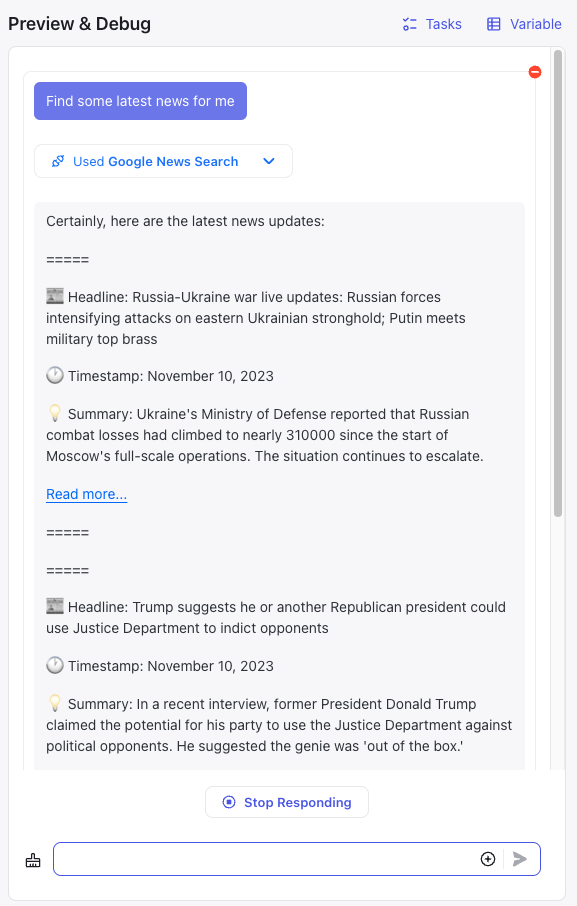
After setting up the Coze bot, you can test its performance in the "Preview and Debug" section.
Step 6: Publish the bot
Once satisfied, click "Publish" to publish the Coze bot to the specified platform.