Script Planner Assistant▸
 AI Apps
 AI News

Deepfakes Creator_云技派,专注ai人工智能!
Deepfakes Creator_云技派,专注ai人工智能!Introduction
Deepfakes Creator can generate realistic talking real-person videos through text input. Users only need to upload a photo of the person they want to emulate, write a script, and the tool can create a realistic avatar video that simulates the person speaking. What's more, Deepfakes Creator also supports multiple languages and enables real-time Q&A interactions.
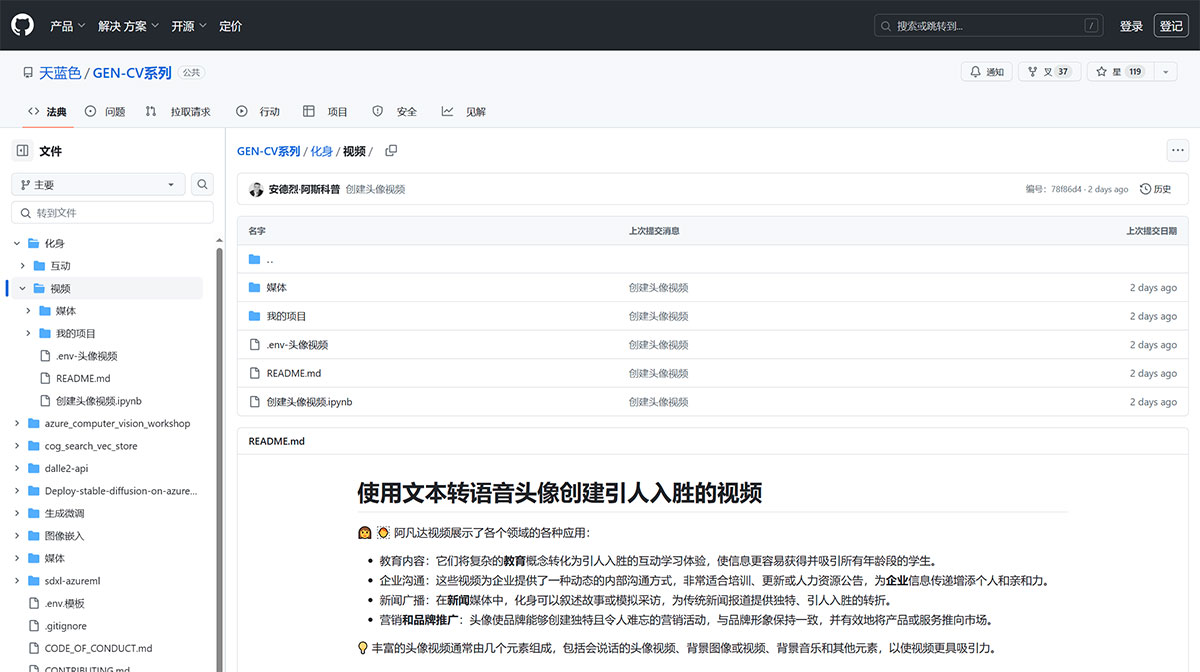
Deepfakes Creator Applications:
Educational content: Deepfakes Creator transforms complex educational concepts into engaging interactive learning experiences, making information more accessible and appealing to students of all ages.
Corporate communication: Videos created by Deepfakes Creator provide businesses with a dynamic way to communicate internally, perfect for training, updates, or HR announcements, adding a personal and approachable touch to corporate messaging.
News broadcasting: In news media, Deepfakes Creator avatars can narrate stories or simulate interviews, offering a unique and engaging twist to traditional news reporting.
Marketing and branding: Deepfakes Creator avatars enable brands to create unique and memorable marketing campaigns that align with the brand image and effectively promote products or services.
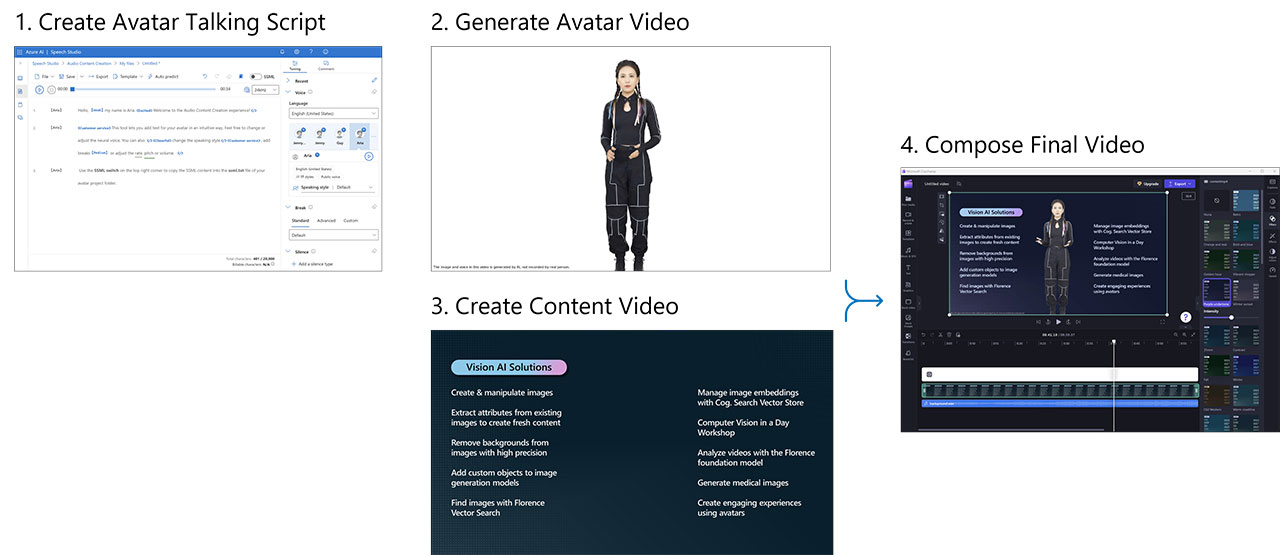
Deepfakes Creator Usage Steps:
We will guide you through the following steps to create your own video:
1. Start with a speaking script in plain text format or in Speech Synthesis Markup Language (SSML). SSML allows you to fine-tune the avatar's voice, including pronunciation and the expression of special terms (such as brand names), as well as avatar gestures like waving or pointing at objects.
2. Once your speaking script is ready, you can use the Azure TTS 3.1 API to synthesize the video. In addition to SSML input, you can also specify the character and style of the avatar (such as standing or sitting) and the desired video format.
In many cases, you may want to add content images or videos with text, illustrations, and animations to the final video. To do this, you can export an animated PowerPoint presentation as a high-resolution video.
3. Finally, combine the avatar video, content, and optional elements such as background music to compose your rich video experience. This can be done using the FFmpeg tool or a video editor like ClipChamp for more control. Using a video editor provides an intuitive way to fine-tune the video's timing and add engaging effects and animations.