Script Planner Assistant▸
 AI Apps
 AI News

AG Smart Assistant
AG Smart AssistantIntroduction
AG Smart Assistant can chat with you, help you draw high-quality images, help you summarize articles and write content for Xiaohongshu, summarize Bilibili video content, and answer any of your questions... Use AG to inject the power of AI into your browser.
Getting Started Tip: Click the AG extension icon or press Ctrl+Q to wake up AG's sidebar and start chatting with ChatGPT or let AG help you with writing.
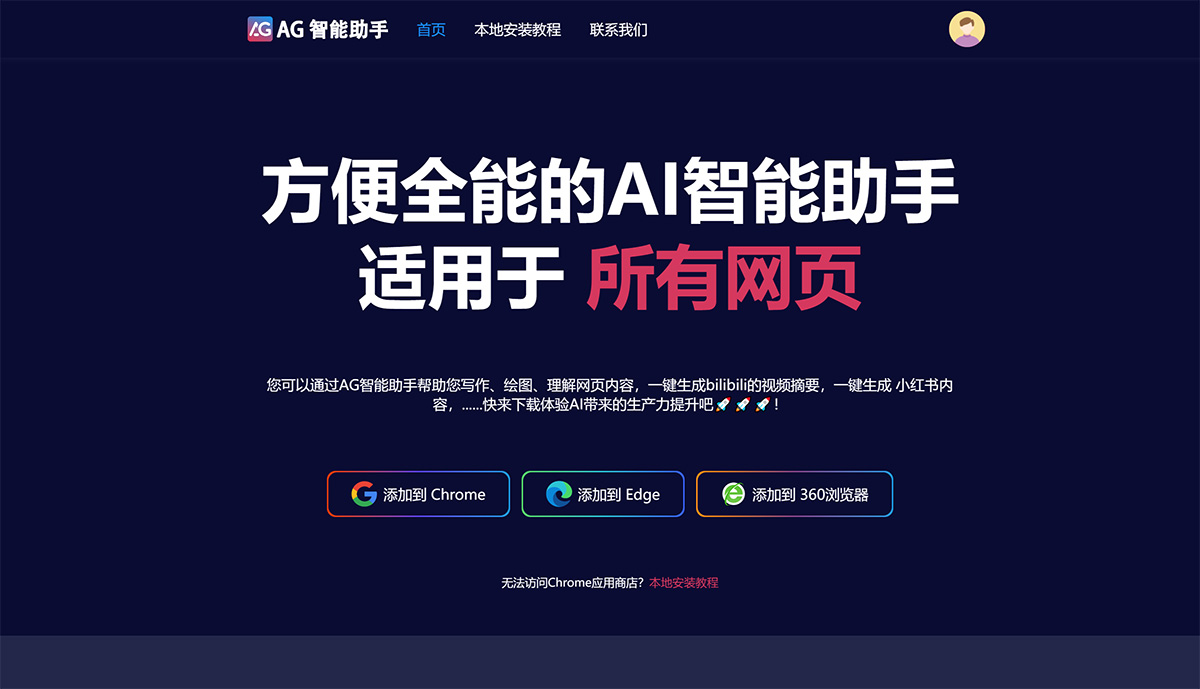
AG Smart Assistant Features:
Chat & More Than Chat
Freely switch between multiple AI models including GPT 3.5, GPT4-Turbo, Gemini Pro, Wenxin Yiyan 4.0, and more.
Real-time internet access for the latest information.
Barrier-free chatting in both Chinese and English, tailored to the characteristics of different models.
A massive library of chat prompt examples allows AG Smart Assistant to instantly give you a professional assistant for any industry.
Image Generation
Let Midjourney and Dall·E3 draw whatever you imagine
Try out different AI image generation tools without signing up for any other membership or account.
AI Text & PDF Analysis
You can quickly summon AG Smart Assistant by double-clicking the Shift key.
Quickly generate long-form content such as notes for you.
You can also chat with AG about the PDF files you upload
Understand the key points of a file without having to read through its entire content.
Assisted Search & Quick Commands
On search pages of sites like Google and Baidu, you can get GPT's answer with a single click.
Select any text on a webpage to use quick commands such as explain or translate.
Of course, AG Smart Assistant also supports image understanding, not just text.
AG Smart Assistant Plugin Installation Instructions:
1. Open Chrome's extension manager by clicking the three dots on the far left, then select [More Tools] — [Extensions] from the pop-up menu,
or you can type chrome://extensions/ directly into the address bar.
2. After entering the Extensions page, check the Developer mode box.
3. Finally, drag the extracted crx file into the browser to complete the installation.
4. If the file cannot be added to your personal directory, right-click the crx file and select [Take Ownership as Administrator], then try reinstalling.
5. Once installed, you can start using AG Smart Assistant.