Script Planner Assistant▸
 AI Apps
 AI News

Tensor.Art_云技派,专注ai人工智能!
Tensor.Art_云技派,专注ai人工智能!Introduction
Tensor.Art is a free online image generation and AI painting model hosting website. It uses advanced image generation technology like Stable Diffusion, which can generate high-quality images of various styles and themes based on text prompts entered by users. Users do not need to pay any fees to use Stable Diffusion technology on Tensor.Art to generate images.
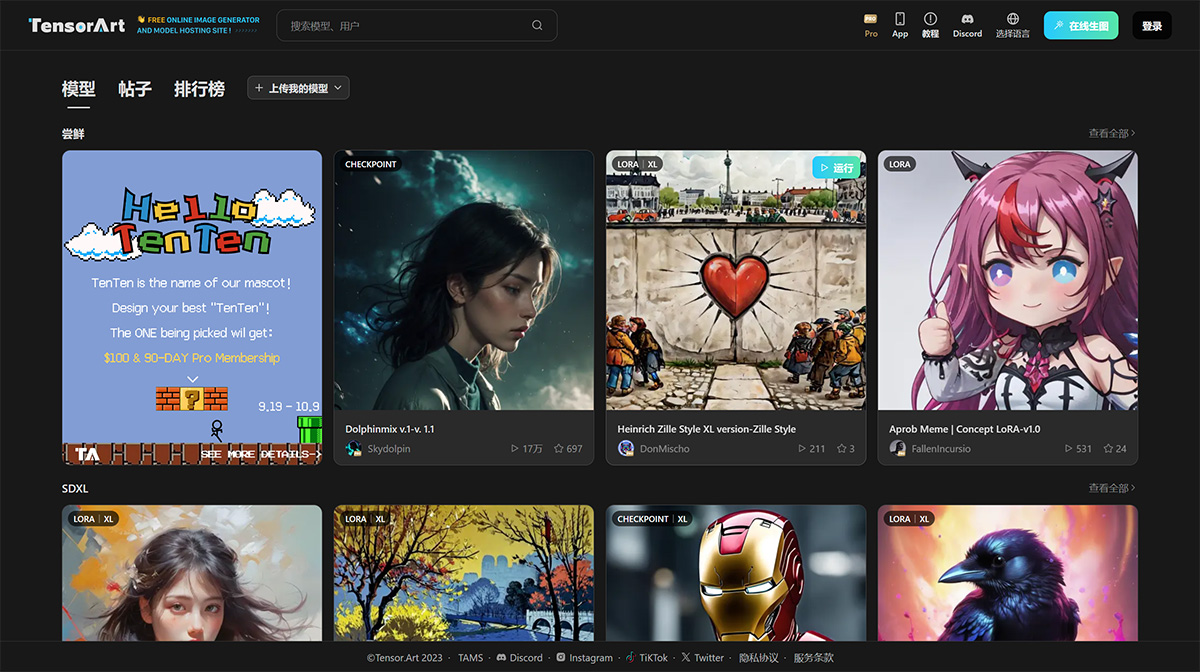
Tensor.Art currently supports multiple languages including Chinese, English, Japanese, Korean, French, German, Spanish, etc. Users can choose different language versions based on their country.
Tensor.Art Features:
Stable Diffusion image generation technology: Stable Diffusion is a deep learning-based image generation technology that can progressively generate clear and realistic images at different scales based on text prompts input by users. Tensor.Art provides a variety of categories and tags, allowing users to choose different types and styles of models to generate images based on their interests. For example, users can choose categories such as animals, plants, food, architecture, abstract, etc., or tags such as cartoon, realistic, oil painting, watercolor, sketch, etc.
Online model hosting service: Tensor.Art provides an online model hosting service. Users can browse and use models created and shared by others on Tensor.Art, or upload and publish their own trained models.
Community exchange platform: Tensor.Art provides a community exchange platform where users can share and comment on images generated by themselves or others, and participate in various community activities.
Tensor Art Tutorial
To use Tensor Art to generate images, you can follow the steps below:
Log In
Visit the Tensor Art official website and click the "Sign in" button in the upper right corner. There are three login methods available: Google account, Discord account, and email login.
Generate Artwork
After successful login, click the "Workspace" button in the upper right corner to enter the image generation interface. Here, you can select different models to generate images. Click "Add Lora" to add Lora models.
Switch Models
To switch models, click the tab under the base model bar. Among the models displayed at the bottom, click the "Select" button in the lower right corner of the model you want to switch to.
Using Lora Models
When using Lora models in the Stable Diffusion web interface, you need to enter the model name in the prompt box. However, in Tensor Art, you just need to select the model and use it directly without any additional operations.
Recommended VAE Models
It is recommended to use the VAE models "yozora.vae.pt" and "kl-f8-anime", which perform better.
About Prompt
The Prompt is where you input the theme of the image you want to generate. For ease of generation and understanding, it is recommended to place spaces between words. For example, if you input "city", an image without a city scene will be generated. You can also use embedded semantics by checking the icon to the right of the negative prompt.
Using img2img
If you want to generate an image with the same characteristics as the reference image, you can do so by clicking or dragging the reference image into the img2img project. After uploading, you can select an appropriate value for "Denoising Strength". The smaller the value, the more similar the generated image will be to the reference image; the larger the value, the greater the difference from the reference image.
Adjusting Parameters
In img2img, you can change the aspect ratio of the image. By changing the image size, you can generate images in different styles. You can also select different sampling methods, each of which has a different impact on denoising and image quality.
Setting the Seed Value
By setting the seed value, you can generate images with the same or similar characteristics as before. Click the dice icon to the right of the seed to delete the seed value and set it to a random number.
High-Resolution Fix
If you want to generate high-resolution images, you can use the high-resolution fix feature. By using hires.fix, the resolution of the image will be increased, showing more details.