Script Planner Assistant▸
 AI Apps
 AI News

VAS Video Subtitle Adder
VAS Video Subtitle AdderIntroduction
VAS Video Subtitle Adder, generates video subtitles with one click. It uses AI to extract audio dialogue content and then translates it to generate subtitle files. Supports ChatGPT translation, GPU acceleration (doubled speed), multi-file upload, external subtitle files (VR supported), subtitle fine-tuning & editing, a large number of languages, resume from breakpoint, real-time preview and more.
VAS Video Subtitle Adder features:
ChatGPT Translation: Greatly improved subtitle translation accuracy, more humanized with contextual awareness.
GPU Acceleration: Supports NVIDIA / AMD cards. A 1-hour video can be completed in 10 minutes on a 3060 GPU.
Vocal Separation: For audio and video with continuous noise, vocal separation allows accurate extraction.
Smart Enhancement Algorithm: An exclusive optimization solution with subtitle accuracy greater than that of vocal separation!
Generate External Subtitles (VR Supported): Upload a video, then select the video source language and the desired subtitle language, and generate subtitles automatically with one click.
Subtitle Editing: Secondary editing of subtitle translation results (timing and content).
Multi-task Queue: Batch upload multiple videos at once, and the queue automatically executes tasks in order for hassle-free background processing.
Resume from Breakpoint: Subtitle extraction progress is saved in real time. Progress is not lost after closing the client and can be continued.
Privacy: All operations are performed locally, no cloud upload required. No more worries about privacy leaks.
How to use VAS Video Subtitle Adder:
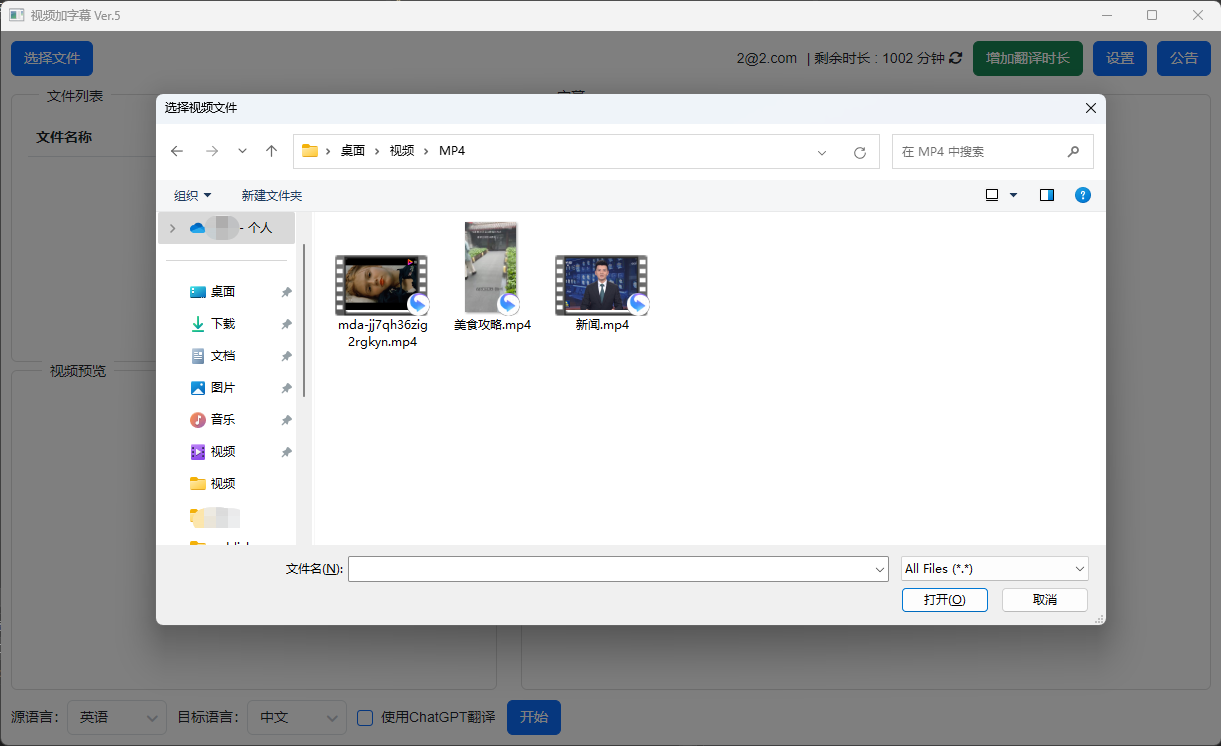
1. Select Files
Select video files, multiple selections allowed. They will be processed automatically one by one after running.
2. Select Language
Source Language: The original language of the video / Target Language: The language of the subtitles to be generated

3. Click "Start"!
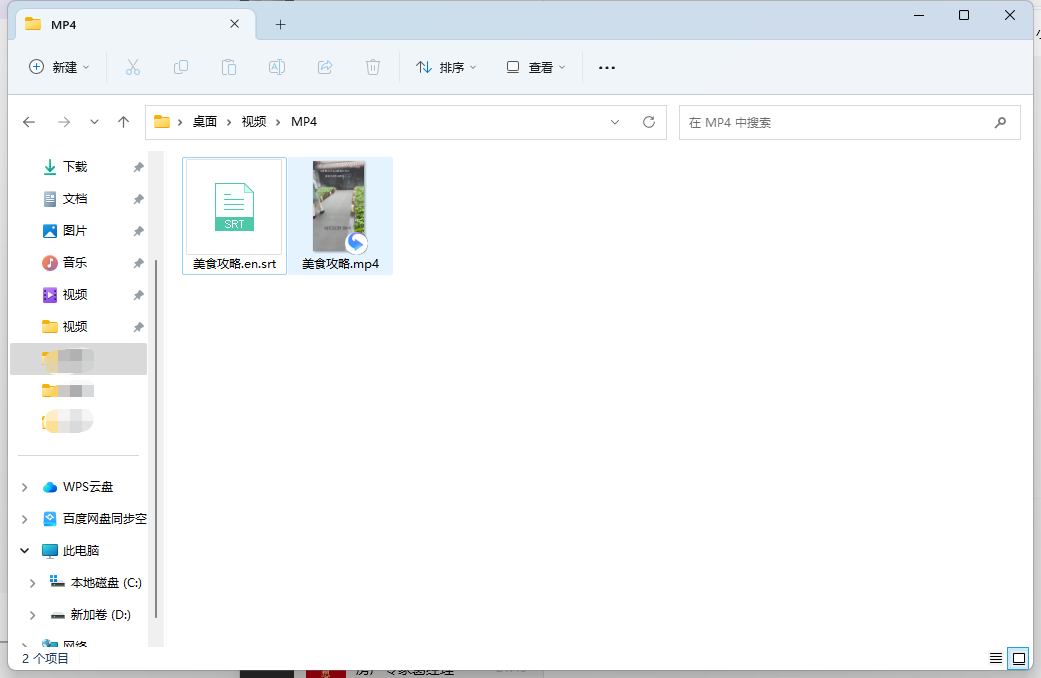
After completion, a ".srt" subtitle file will be generated in the same directory as the video. The player will automatically load the subtitle file when playing the video. If it is not loaded, you can manually load the subtitle file in "Settings" - "Subtitles".
4. Advanced - "Subtitle Editing"
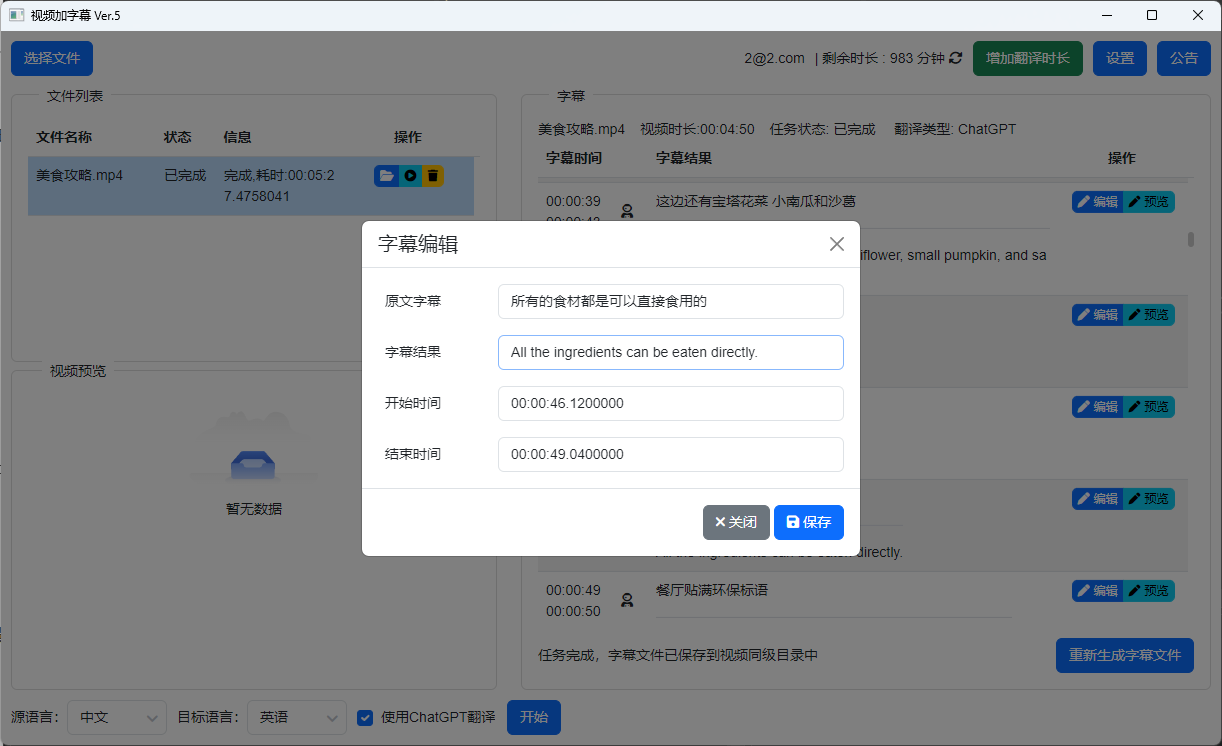
If you are not satisfied with the subtitle results or the end time of subtitles, you can edit them individually. After editing, click "Regenerate Subtitle File" in the lower right corner.
Advanced - "ChatGPT Translation"
VAS Video Subtitle Adder uses machine translation by default. If you require higher translation accuracy, it is recommended to enable this feature, which will greatly improve translation precision!

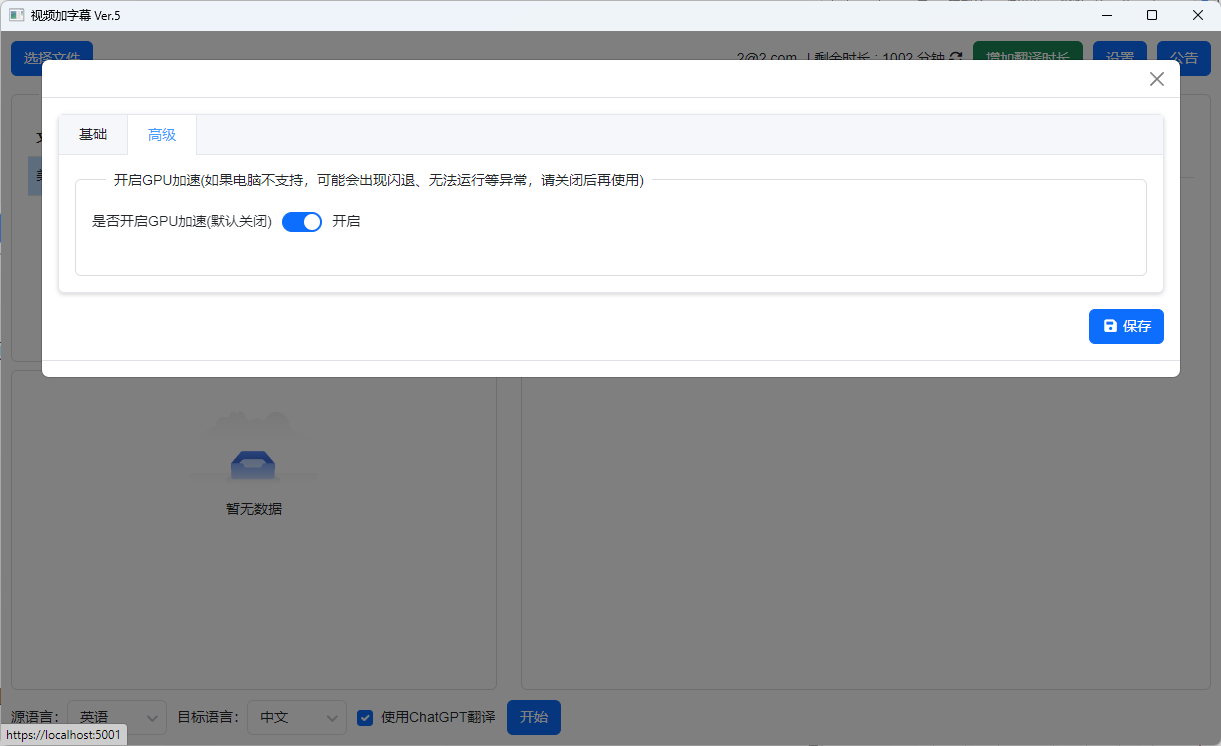
5. Advanced - "GPU Acceleration"
Top right corner "Settings" - "Advanced" - "Enable GPU Acceleration". If you have a dedicated graphics card, it is highly recommended to enable this feature, which will reduce running time exponentially!
6. Advanced - "Multiple Subtitle File Output"
Top right corner "Settings" - "Basic" - "Select Output Subtitle Type". You can simultaneously output three types of subtitle files: "Source Language Subtitles", "Target Language Subtitles", and "Bilingual Subtitles". Select according to your needs.
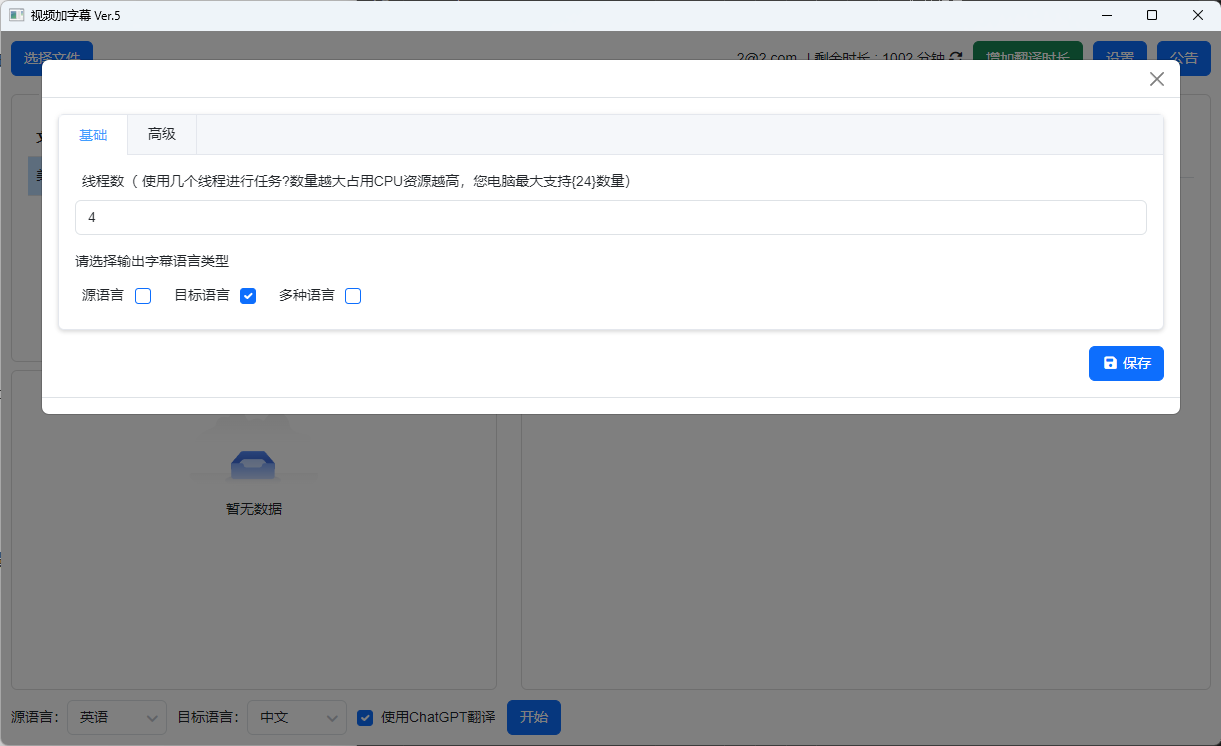
7. Advanced - "Thread Count"
Top right corner "Settings" - "Basic" - "Thread Count". You can increase the number of threads used to improve running speed. Setting it to the maximum value does not necessarily mean it will be the fastest.