Script Planner Assistant▸
 AI Apps
 AI News

Kujiale AI
Kujiale AIIntroduction
Kujiale AI is a AI model-based 3D cloud design application. It is mainly designed for home design scenarios, focusing on "image-to-image" and "text-to-image" capabilities. It can generate decoration renderings from real-life photos, create creative plans from floor plans, and replace product scenes with a single AI click, meeting the needs of three major scenarios: homeowners, designers, and in-store sales associates. It is also an AIGC product in the 3D cloud design track, supporting both PC and mobile devices.
Currently, "Kujiale AI" has opened access on the PC and mini-program platforms. Its AI capabilities will be further embedded into more sub-sectors and multiple scenarios of Kujiale. Going forward, "Kujiale AI" will also launch customized style models for designers and enterprises.
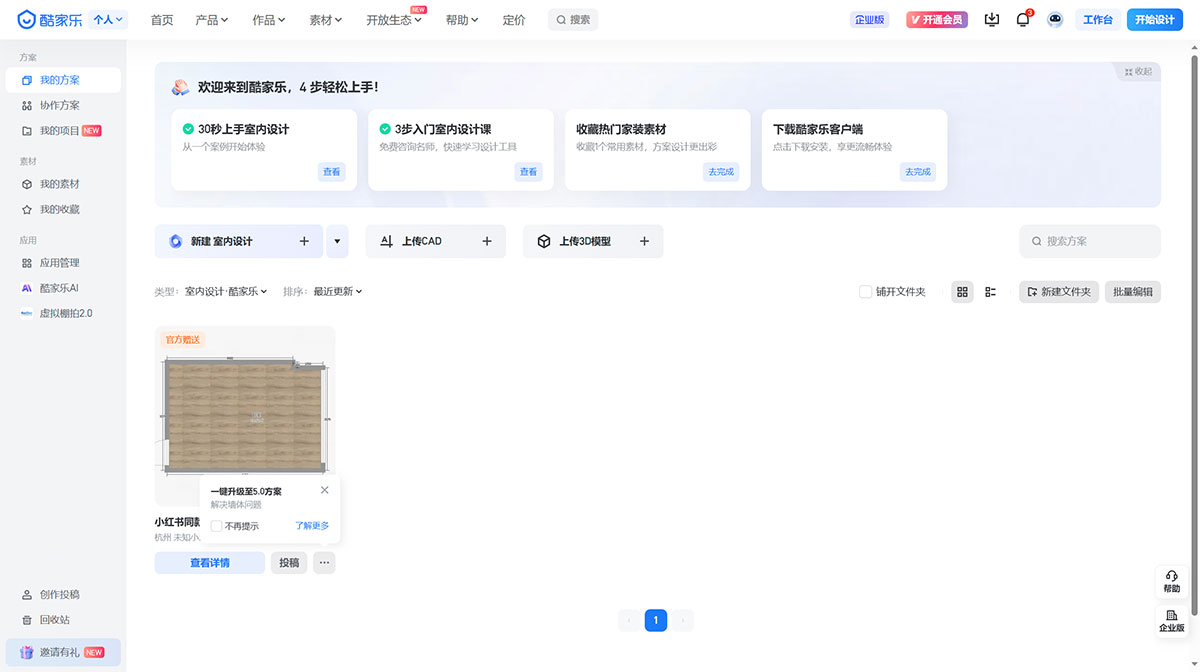
Kujiale AI Features:
1. Full Image Creation
Upload a photo, select a model, and AI can quickly generate renderings!
2. Partial Modification
(1) Partial Repaint
Whether you're a homeowner who wants to see the effect of a partial renovation, or a client who is not satisfied with your design and wants you to quickly modify the image on the spot, Kujiale AI can meet your needs! Steps are as follows:
Step 1: Upload the image to be modified: After "Select Reference Image," click "Partial Repaint."
Step 2: Select the area to repaint: Click the "Brush" button and completely paint over the area you want to modify on the image.
Step 3: Describe the scene: Click the "Style" model, select the "Keywords," and finally click Generate Now.
(2) Background Repaint
Want to create several different style background pairing images for furniture so clients can see the effect? Kujiale AI Background Repaint can help! Steps are as follows:
Step 1: Upload the image to be modified: After "Select Reference Image," click "Background Repaint."
Step 2: Select the furniture to keep: Manually click to select the furniture you want to keep, then click the "Finish Selection" button to complete the furniture-keeping operation.
Step 3: Describe the scene: Click the "Style" model and select the "Keywords" to generate various backgrounds.
(3) Image Expansion
Not enough space in the rendering? Kujiale AI's Image Expansion lets you see a more complete effect! Steps are as follows:
Step 1: Upload the image to be modified: After "Select Reference Image," click "Image Expansion."
Step 2: Control the expansion ratio: Drag the expansion size control bar to adjust the image's expansion ratio, up to a maximum of 200%.
Step 3: Describe the scene: Click the "Style" model, select the "Keywords," and finally click Generate Now.