Script Planner Assistant▸
 AI Apps
 AI News

Changci: AI Video Subtitle Maker
Changci: AI Video Subtitle MakerIntroduction
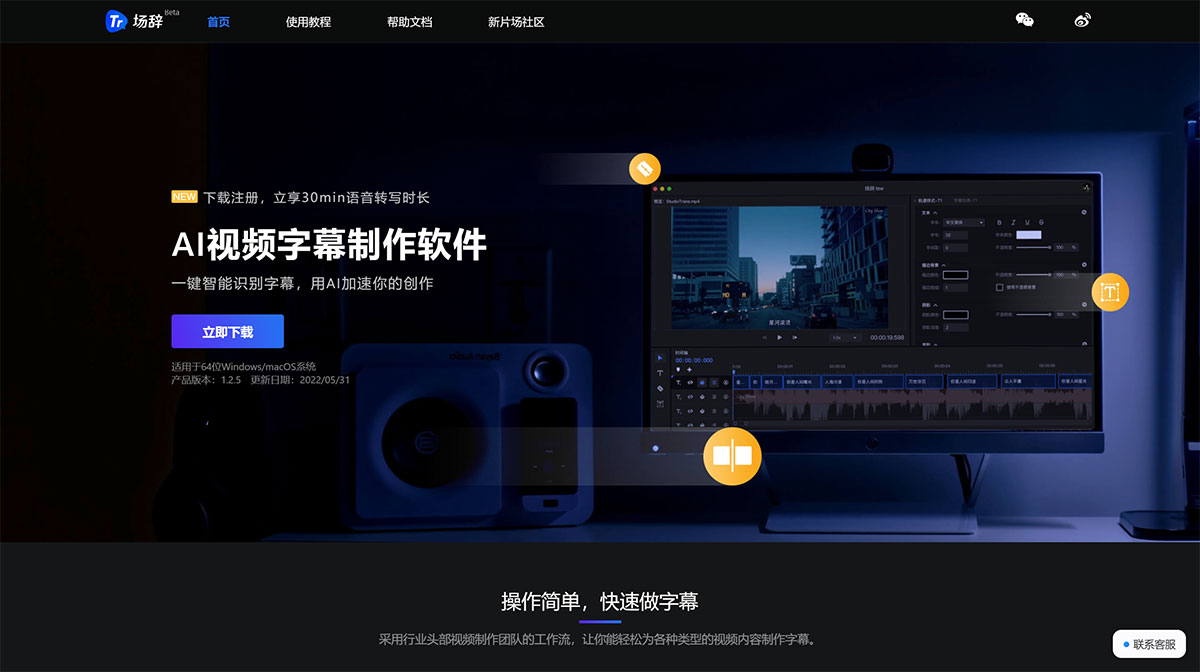
Trans (场辞) is a professional AI video subtitle software released by Xinpianchang. It uses speech recognition technology to convert the audio in videos into text, with an accuracy rate of 97.5%. Designed for professional film and TV post-production, it helps video creators, editors, and self-media practitioners save time — what used to take hours of listening and typing can now be done in just a few minutes.
✨ Trans Features & Characteristics
Trans mimics the workflow of leading video production teams. Its main features include:
AI Speech-to-Subtitle: Automatically recognizes video audio, intelligently splits the timeline, and generates subtitle blocks.
Visual Multi-Track Editing: Supports multi-track editing with a clear timeline, allowing you to drag, scale, and rotate subtitles just like editing video, with real-time previews.
Efficient Proofreading Tools: Includes a subtitle list and text editing features with find-and-replace and batch editing capabilities, allowing for quick modifications.
Multiple Languages & Dialects: Recognizes over 99 languages and dialects, suitable for international content or special needs.
Professional Format Support: Supports importing and exporting multiple formats, including MP4, MOV, and other video files, as well as SRT, ASS, XML, and other subtitle files. It can directly connect with editing software like Premiere and Final Cut Pro.
🎯 Trans Use Cases
Whether you're a professional editor or a self-media blogger, Trans can be used in these scenarios:
Short Videos/Vlogs: Add stylized text or subtitles to videos on TikTok, Kuaishou, or Bilibili to keep viewers watching.
Online Education: Automatically recognizes lecture content and generates accurate subtitles for online courses and tutorials, making it easier for students to follow along.
Film & TV Post-Production: Helps create subtitles for films, documentaries, and variety shows, reducing the time spent on manual transcription.
Meeting Records: Converts recorded video conferences or lectures into text for easy meeting minutes and archiving.
🛠️ How to Use Trans
Creating subtitles with Trans is simple. Just follow these steps:
Download & Install: Visit the official website to download the software, then register and log in to your account.
Import Media: Drag your video or audio file into the software.
AI Recognition: Click "Speech Recognition" and the software will automatically analyze the audio to generate subtitles.
Edit & Proofread: Modify subtitles in the timeline or text box, and adjust the time codes.
Export the Final Product:
Encode Video: Directly export an MP4 with embedded subtitles.
Export Subtitle File: Export standalone subtitle files like SRT or ASS for uploading to platforms or importing into editing software.
❓ Frequently Asked Questions (FAQ)
Q: What formats are supported?
A: Imports support common audio and video formats like MP4, MOV, and MP3, as well as SRT and ASS subtitle files; exports support MP4 video, SRT, ASS, and XML (for use in PR/FCP).
Q: How accurate is the recognition?
A: Officially claimed to be over 95%, but actual accuracy depends on recording quality, background noise, and accents. Generally, some manual proofreading is still required.
Q: What if speech recognition fails?
A: First check your network (recognition requires internet access); if the network is working, the audio format might not be supported or the file could be corrupted. Try changing the format. If the issue persists, contact customer support.
Q: The exported video has black bars/blurry subtitles?
A: Adjust the encoding parameters (such as CRF mode) in the export settings; if there are black bars when importing into other software, it might be a subtitle transparency issue. Adjust the blend mode in the corresponding software.
Q: Are there any keyboard shortcuts?
A: Yes. For example, the J key sets the start time, K sets the end time, and Ctrl/Cmd+Z undoes. Once you're familiar with them, efficiency improves significantly.