
 Script Planner Assistant▸
 AI Apps
 AI News
PicDoc Beginner’s Guide
小编 ·
PicDoc Beginner’s Guide
What Is PicDoc?
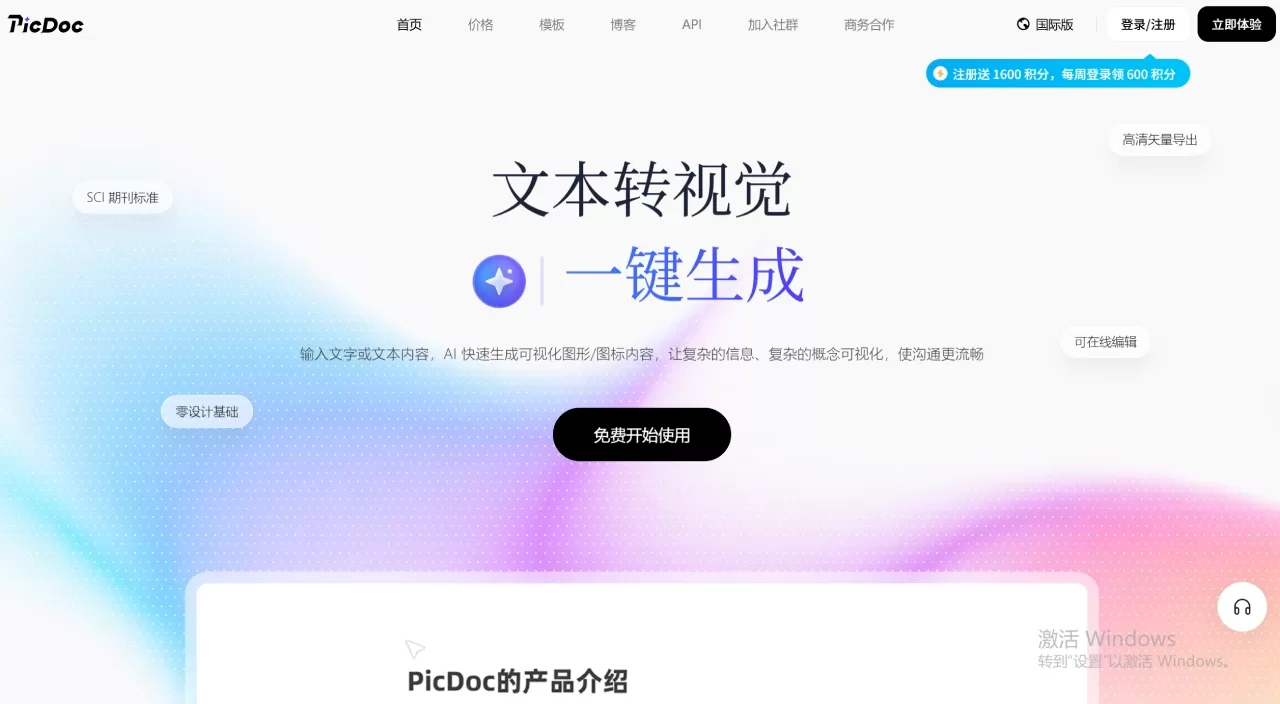
Picdoc is an efficient and convenient AI text-to-visual and AI-assisted content creation tool featuring four core capabilities: one-click text-to-infographic conversion, AI-assisted writing, automatic article illustration, and one-click generation of a complete PPT. The tool has a low learning curve and comprehensive features, making it suitable for a variety of needs, including copywriting, visual design, and office presentations. Users can quickly produce high-quality HD visual content and complete manuscripts without professional design skills.
To help beginners get started quickly, this article will explain the tool's features, detailed operating steps, and fine-tuning and export techniques in layers.
I. PicDoc Core Features
Picdoc integrates the entire content creation and visual generation workflow. Its core capabilities cover four areas, fully meeting everyday office and content creation needs:
Four text input methods: It supports creating content from a blank document, pasting external text, drafting with the AI Assistant, and uploading files to read their content, accommodating different content source scenarios.
Precise text-to-image generation: Select any text passage and pair it with a corresponding illustration to generate an image that matches the text in one click. Text can be edited again and details fine-tuned.
One-click full-text illustration: For complete manuscripts, AI automatically understands the entire text, eliminating the need to manually select passages for image generation and completing full-text illustration and layout in one click.
Complete PPT generation: Based on the entered text, it intelligently organizes the logic, splits pages, pairs them with visual layouts, and generates a complete PPT presentation in one click.
HD fine-tuning and export: All generated images support detail adjustments and text modifications, and can ultimately be downloaded and saved in lossless HD quality.
II. How Can You Quickly Create a Professional Image?
Only three steps are required: Enter text content --> Select text and generate an image in one click --> Export in HD
Step 1: Create a document and enter text content
Open the Picdoc tool and click 【Create Project】 on the home page to generate a blank editing document. Users can choose any of the following four content input methods:
Manually paste text: Copy the text and paste it directly into the blank document to quickly import the content.
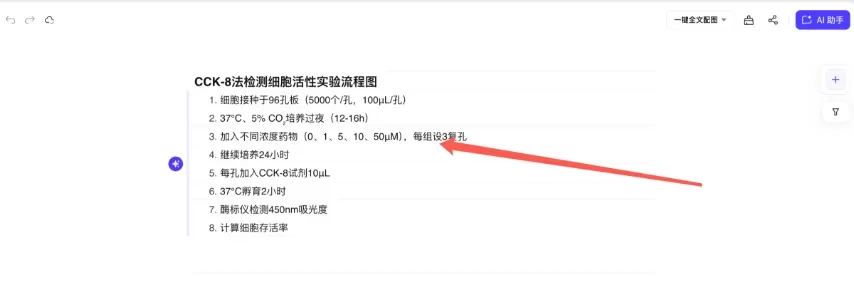
AI-assisted creation: Enter 【/】 to invoke the built-in AI assistant, specify requirements such as the creation goal, topic, word count, and style, and AI will automatically generate a high-quality manuscript. Once generated, it can be inserted into the current document in one click and used directly or modified further.
Upload a file to read its content: If the content is stored in a local file, click 【Upload File】 directly, select the corresponding document, and the tool will automatically recognize, read, and parse the file before importing it into the editing document, eliminating the need for manual copying.
Create content from scratch: Enter content manually in the blank document, providing complete freedom to write and edit.
Step 2: Select text and generate an infographic in one click
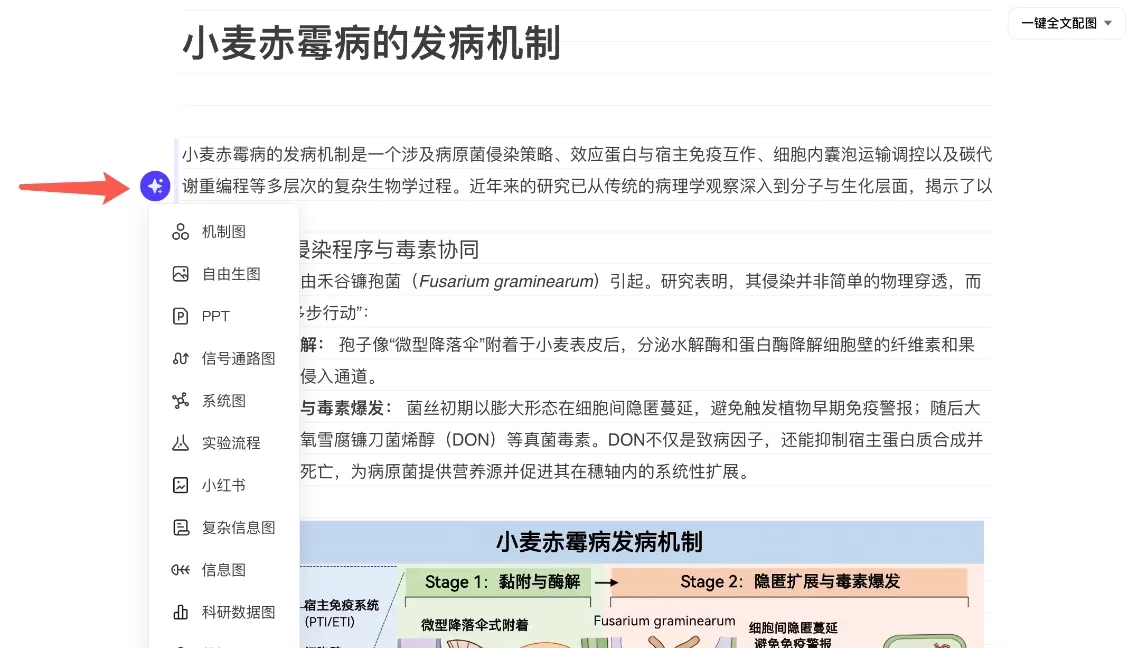
After entering the content, proceed to text-to-image generation. Select the target text passage for which you want to generate an image. You may select a single sentence, paragraph, or multiple paragraphs to generate images for specific sections as needed. After selecting the text, click the image generation button on the left and select a corresponding illustration based on the text and use case to generate the image.
Step 3: Fine-tune the text and image, then download in HD
Picdoc supports editable fine-tuning throughout the entire workflow to ensure the final result meets your needs:
Further text editing: After generating an image, click the 【Editable Text】 option above the image to extract and edit the text within it.
Infographic style switching: After generating an infographic, click the “Style” button to choose from numerous infographic styles, including 3D, flat, and cartoon styles, along with a wider range of color schemes.
Infographic outline editing: You can directly edit the illustration outline on the canvas, and the text and charts within the illustration will update accordingly, with no need for manual adjustments.
Lossless HD download: After fine-tuning and being satisfied with the result, click 【Download】 above the illustration to save the original high-resolution image. The image has clear quality with no compression and can be used directly for posters, social media posts, course materials, presentations, and other scenarios.
III. What Types of Images Can PicDoc Generate?
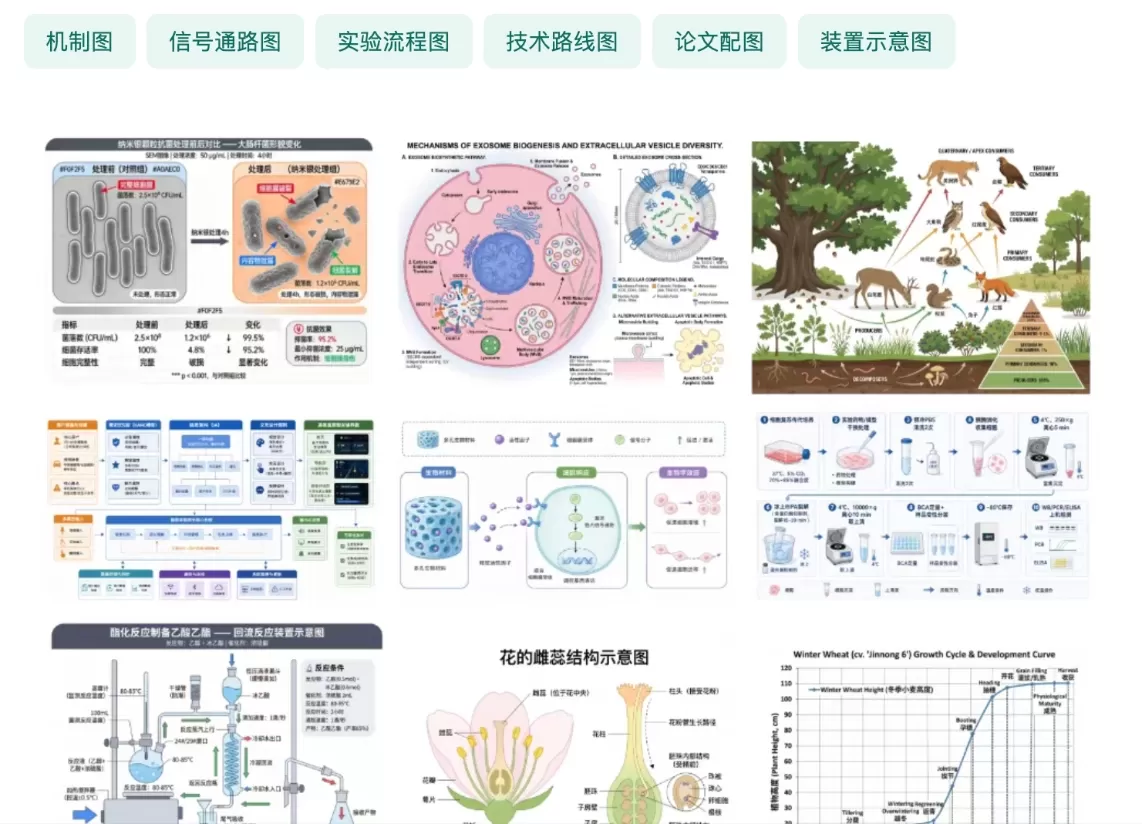
Scientific figures: These can be subdivided into various types, including mechanism diagrams, pathway diagrams, journal covers, and system architecture diagrams.
Knowledge graphics
Data visualizations: The tool supports editable simple charts such as bar charts, radar charts, line charts, and rose charts, as well as non-editable versions of complex data visualizations generated from tables.
Office visualizations: Flexible infographics supporting multiple relationship formats, including progression, fishbone, SWOT, parallel, and pyramid diagrams. Projects can be switched flexibly, and text, colors, and other elements can be edited.
IV. Guide to Featured Functions
In addition to basic single-passage text-to-image generation, Picdoc offers two featured one-click illustration features that can significantly improve batch creation and office efficiency, making them ideal for full-text layout and presentation scenarios.
1. One-Click Full-Text Illustration
For complete, lengthy manuscripts, intelligent illustration is applied to the entire text without requiring users to select passages or generate images one by one:
Enter the full article content, whether by pasting, AI generation, or file upload;
There is no need to manually select passages. Simply click the 【Automatic Illustration】 option under 【One-Click Full-Text Illustration】 in the toolbar;
AI automatically reads the full text, intelligently matches corresponding images based on the core meaning of each paragraph and the article's overall style, and automatically completes full-text image pairing and layout;
After generation, individual images and their corresponding text can be fine-tuned separately, and the complete illustrated manuscript can ultimately be exported as a unified file.
2. One-Click Generation of a Complete PPT
Text can be directly converted into a complete presentation, eliminating the need for manual layout, page creation, and image placement:
Enter any text content, such as topic copy, a speech, a work report, or courseware script;
Click the 【Complete PPT】 option under 【One-Click Full-Text Illustration】 to select from multiple PPT styles, including business, minimalist, academic, and creative;
AI intelligently and automatically organizes the text logic, divides the content into chapter pages, extracts the key points for each page, and simultaneously pairs them with suitable illustrations, layouts, and font formatting;
A complete PPT is generated with support for individual page content modifications, image replacement, and layout fine-tuning. Once completed, the PPT file can be exported directly for use.
V. Tips for Efficient Use
Short passages, memorable quotes, and headings are ideal for local passage selection and image generation, allowing for precise matching with dedicated illustrations;
For lengthy articles and WeChat public account posts, prioritize one-click article illustration to efficiently complete the full-text layout.
For reports, courseware, and speeches, use complete PPT generation directly to save substantial layout and design time.
After generating an image, first fine-tune the text content and then adjust the image details to avoid affecting image adaptation after the text is modified.
All generated materials support repeated editing and multiple rounds of fine-tuning, with no limit on the number of modifications, allowing you to continuously refine the final result.
On the project management page, you can create separate projects for different content, making it easier to find and reuse content.
Picdoc connects the entire workflow of content creation, text-to-visual conversion, batch image creation, and presentation generation. There is no need to switch between multiple tools; a single application handles copywriting, image design, text-and-image layout, PPT production, and more. With multi-channel content input, flexible single-paragraph image generation, one-click batch generation, and fine-tunable high-resolution export, it is suitable for personal creation, workplace productivity, student assignments, new media operations, and other scenarios, enabling even beginners to quickly produce professional-grade content and visual works.
Click the [New Project] button in the upper-left corner of the document to immediately experience the AI journey of one-click visualization for complex text.









