
 Script Planner Assistant▸
 AI Apps
 AI News
Lovart Beginner's Guide: How to Use It
小编 ·

Lovart Beginner's Guide: How to Use It
Lovart is the world's first design Agent, enabling humans and AI to collaborate on the same canvas. It can quickly transform prompts into stunning visual effects. Below is a tutorial on how to use it:
Get a Lovart Invite Code
Lovart is currently in closed beta and requires an invite code to use. You can obtain one through the following methods:
Follow Lovart AI's official Twitter account @lovart_ai, leave a comment with your creative ideas on relevant tweets, and the official team will randomly distribute invite codes (with the first 500 comments receiving priority).
Apply via the official website: Visit the Lovart official website and fill out the application form. The system will gradually grant access based on the order of applications.
Access Lovart
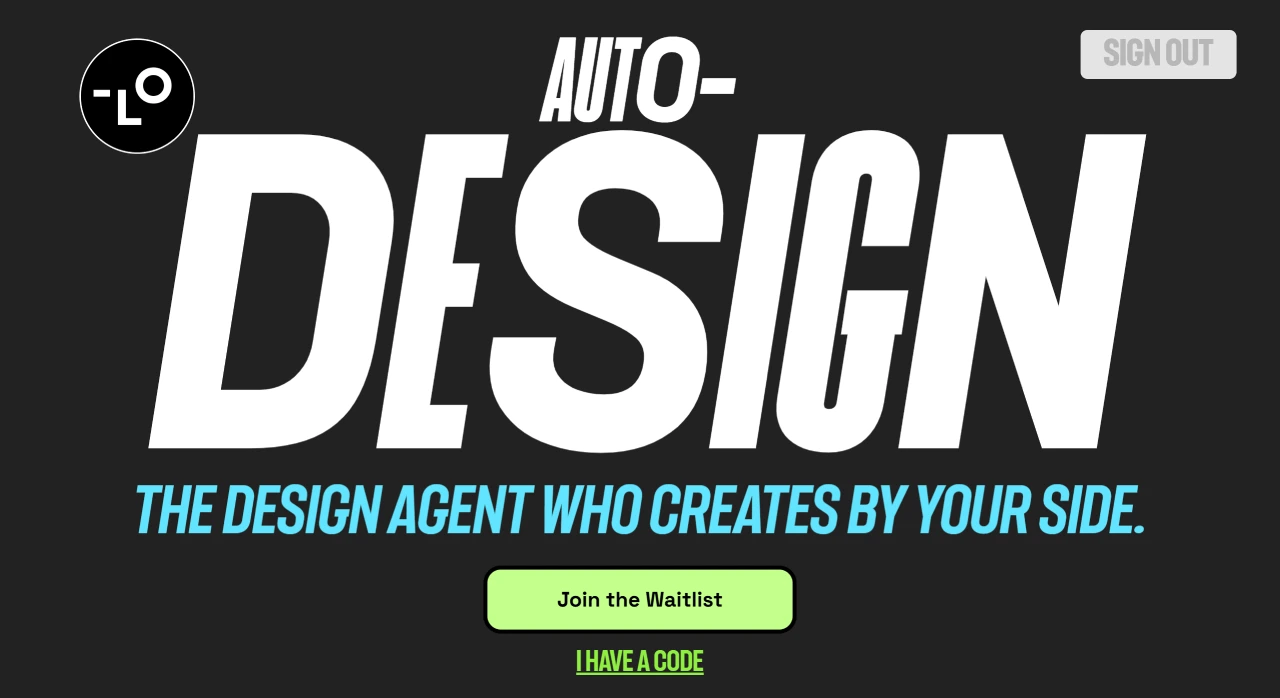
After logging in with your invite code, go to Lovart's official website at https://www.lovart.ai, click "I HAVE A CODE", and enter your invite code to proceed.
Steps to Use Lovart
1. State Your Needs
1. Express Your Ideas Clearly
You can directly tell Lovart your task in natural language, such as "Help me generate a 30-second textured video of a Chanel face cream." Lovart will think through it and provide storyboard prompts, call relevant image models to generate storyboard images, and select and analyze the style of the images. Once the storyboard images are generated, you can edit individual images with six functions: HD upscale, outpainting, background removal, inpainting, adding new elements, and brushing.
2. Describe Your Needs in Detail
Clarify your needs before designing, as precise descriptions help Lovart generate better work. Before publishing a task, it's best to communicate with the AI first and let it generate the final prompt. The prompt can include structured information such as style, color, text, and aspect ratio. For example, when designing a promotional poster for a new plant-based protein drink, you could say: "Design a promotional poster for a new plant-based protein drink. Style: vibrant and energetic, modern editorial layout. Color palette: green, cream, and orange. Text: 'Fuel Your Day, Naturally'. Aspect ratio: 3:4, for Instagram feed. Include editable text layers."
2. Leverage the Features for Design
1. All-in-One Tool Usage
Lovart integrates multiple advanced tools such as GPT image-1, Flux pro, and OpenAI-o3, allowing you to design, edit, and generate on a single canvas without switching back and forth.
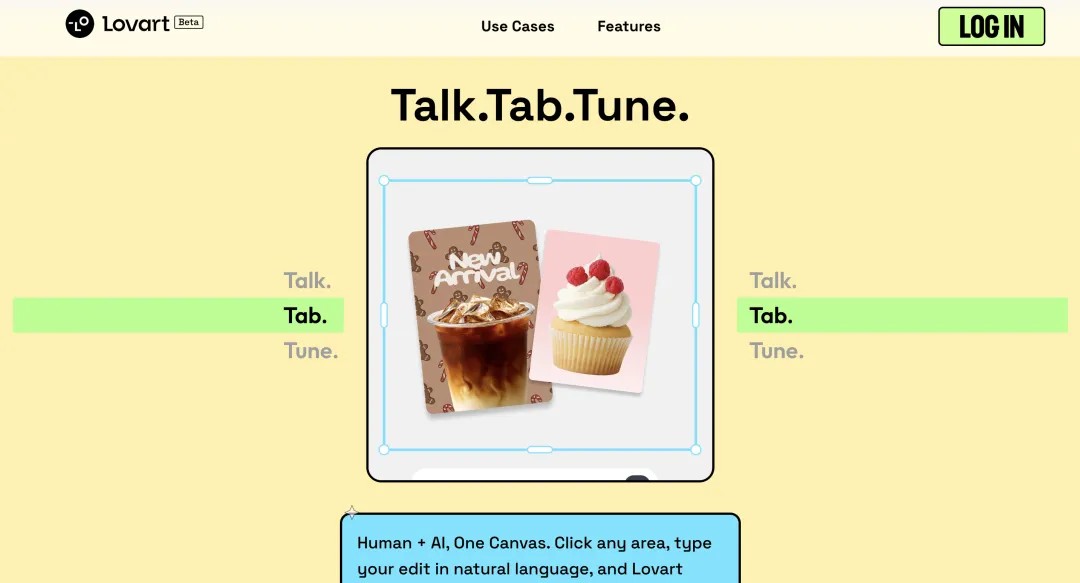
2. Talk, Tab, and Tune Operations
Talk: Give the Agent tasks in natural language.
Tab: Click on a selection on the canvas and issue commands in natural language; the AI will help you complete the modifications.
Tune: Freely edit on the canvas, supporting modifications within layers. Combined with built-in components, it enables one-stop adjustments to size, shape, font color, and more.
3. Preview and Download
Preview the output: Lovart will first attempt to think through and understand your needs, then formulate a plan and execute it, displaying the results on the left canvas. If a series of images is generated, they will be presented together.
Adjust and modify: Use the function buttons at the top of the canvas for fine-tuning, such as zoom, outpainting, background removal, object removal, inpainting, brushing, and more. You can also continue to give instructions through the "Edit" option or in the dialog box, such as "Add a few peace doves to the upper right corner of the image."
Download your work: When downloading and exporting, Lovart provides formats such as JPG, PNG, and SVG.
4. Tips for Use
Language selection: Although Lovart integrates many image, video, and music models, some models do not support Chinese well. It is recommended to use English prompts for more accurate and high-quality output.
Layer settings: If you need independent text layers, simply add "Include editable text layers" to your command, and Lovart will output a version with separated text and images, making it easy for you to freely modify text content, adjust size, and change colors, achieving flexible post-editing.









