
 Script Planner Assistant▸
 AI Apps
 AI News
iFlytek SmartDoc AI Online PPT Generation Tutorial
小编 ·

iFlytek SmartDoc AI Online PPT Generation Tutorial
What is iFlytek Zhiwen?
iFlytek Zhiwen is an intelligent document creation platform launched by iFlytek, based on the Spark Cognitive Large Model. It can generate professional Word and PPT documents with one click based on the topics, text, or audio/video inputs provided by users. It also offers features such as AI writing, automatic image matching, multilingual generation, and speaker notes. Below is a tutorial guide on how to use iFlytek Zhiwen AI to generate PPT and WORD online.
Tutorial on Generating PPT with iFlytek Zhiwen
1. Register and Log In
Visit the iFlytek Zhiwen official website (https://zhiwen.xfyun.cn/).
Complete the registration using your phone number and log in.
2. Choose a PPT Generation Method
Select a generation method: After logging in, choose how you want to generate the PPT on the member center homepage:
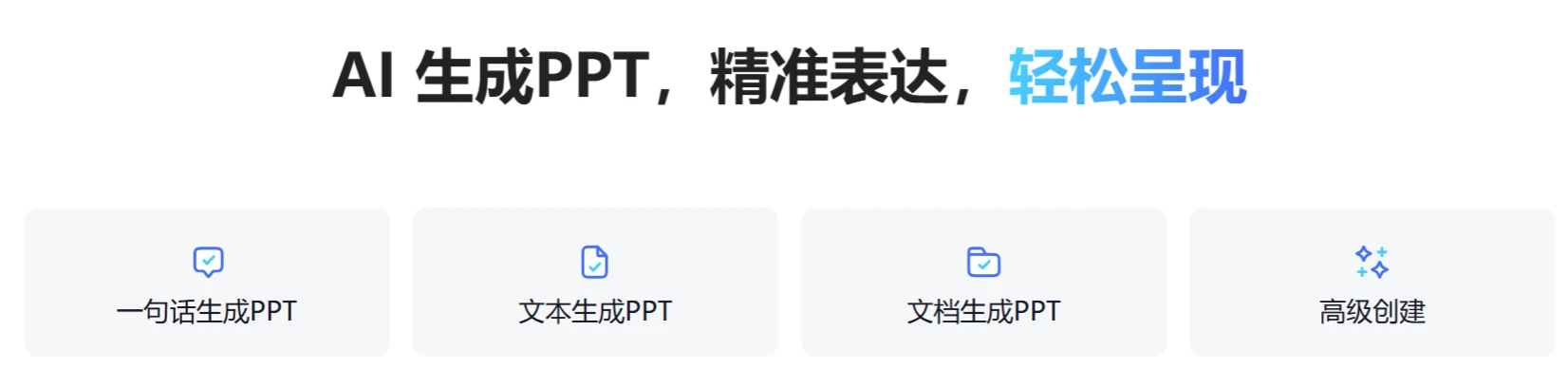
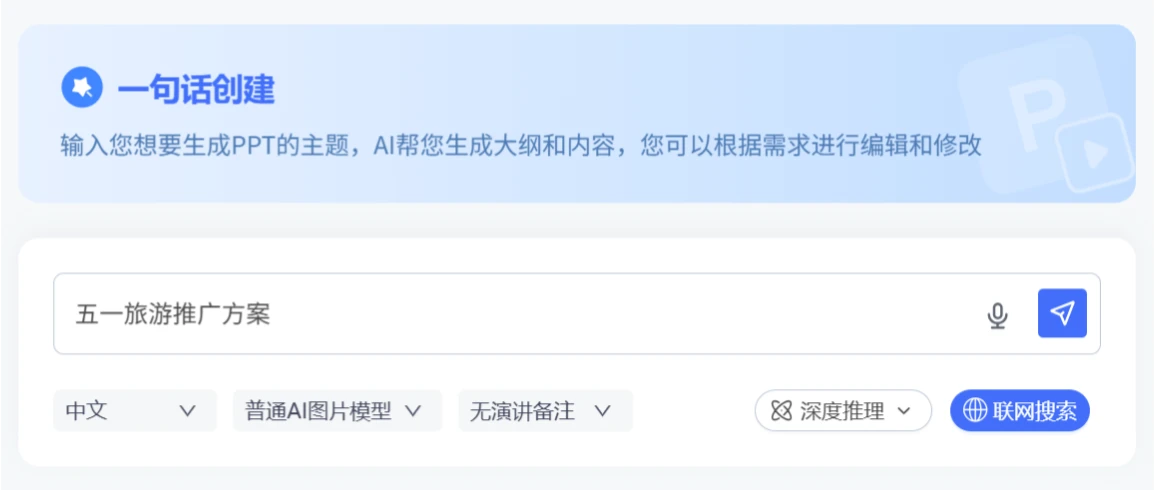
One-Sentence PPT Generation: Enter the topic of the PPT you want to generate, and the AI will create the outline and content for you, which you can edit and modify as needed.
Text-to-PPT Generation: Enter the text content, and the AI will summarize and refine it, ultimately completing the title, outline, and content for you.
Document-to-PPT Generation: Upload a document, and the AI will extract key information from it to generate a PPT document that closely matches the content and requirements of the source material. Supported file formats include doc, pdf, txt, etc., with a maximum upload size of 10MB.
Advanced Creation: Enter a topic and upload reference materials; the AI will generate more accurate content based on the references.
3. Generate the Outline
1. After entering content according to the selected mode, click "Next," choose an image layout model and a reasoning model (DeepSeek R1 and Spark Model), click [Web Search], and click [Submit]. The AI will generate a PPT outline. Users can use advanced options to modify the outline or drag to adjust the chapter hierarchy. Once done, click [Next].
2. Choose a Template: The system will intelligently recommend multiple style templates based on the topic, and users can select the appropriate template according to their needs.
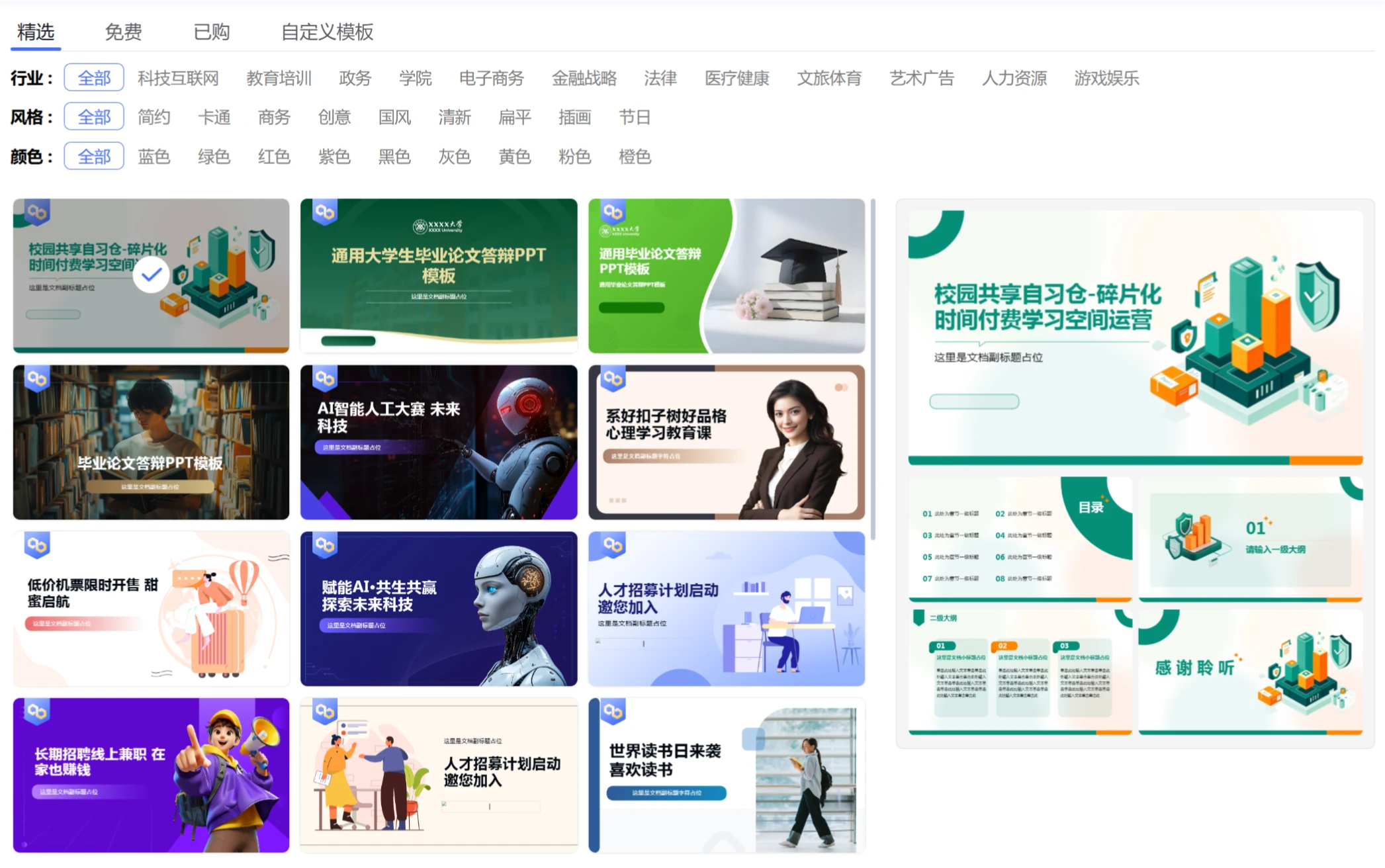
3. Generate the PPT: After selecting a template, click [Generate PPT] in the upper right corner. The AI will begin generating the PPT content, including text and images. The generation time varies depending on the length of the outline content, so please be patient.
Edit and Optimize
1. Adjust Content: Click [Format Settings]; the generated PPT content can be polished, expanded, condensed, or corrected through the AI Assistant.
2. Replace Images: If you are not satisfied with the AI-generated images, you can re-enter prompts, and the AI will regenerate images for replacement.
3. Modify Notes: The AI will automatically generate speaker notes, which users can modify as needed.
Download and Payment
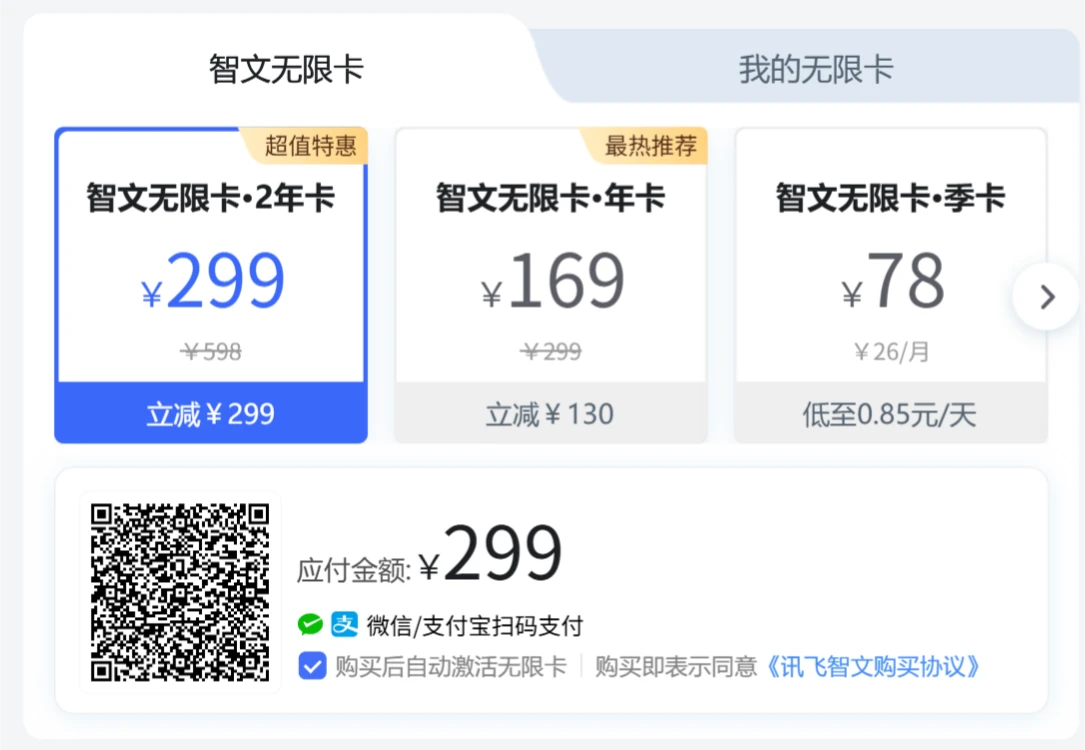
After editing and optimization is complete, click the [Download] button in the upper right corner and proceed with the payment to download. A single purchase costs approximately 8 yuan, or you can use the Zhiwen Unlimited Card. See the bottom of the page for permissions.
Select the desired file format (such as PPT, Word, etc.) to download.
The downloaded PPT can be opened and further edited in Microsoft Office PowerPoint.
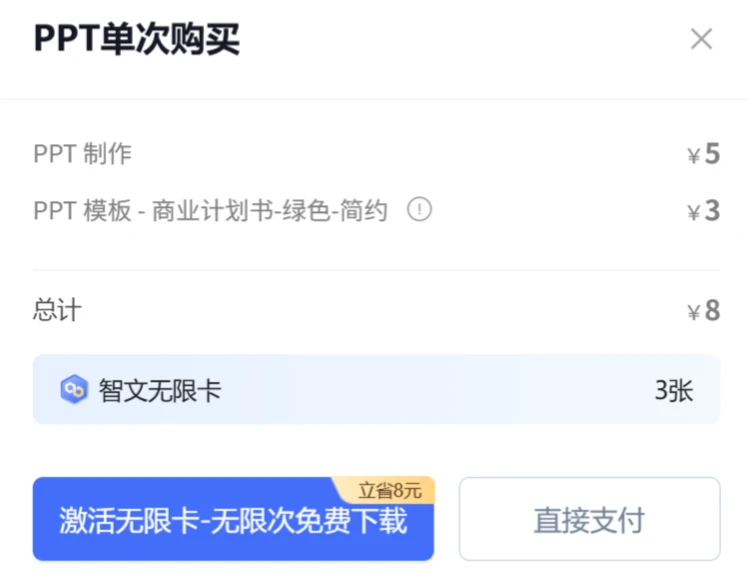
Zhiwen Unlimited Card Pricing and Permissions
Unlimited PPT downloads
Unlimited PPT generation pages
Create custom templates
Unlimited AI generations
Massive selection of premium templates
Advanced AI models
Unlimited file uploads









