Script Planner Assistant▸
 AI Apps
 AI News
How to Generate PPTs with iFlytek Spark: A Step-by-Step Guide
小编 ·

How to Generate PPTs with iFlytek Spark: A Step-by-Step Guide
Want to quickly create a professional and good-looking ppt? Try Xunfei Spark! With just a few simple steps, you can quickly generate a PPT. This tutorial will teach you how to use Xunfei Spark to generate a PPT.
1. Log in and start a new conversation: Open the Xunfei Spark official website, log in to your account, and click 【PPT Generation】 in the left column.
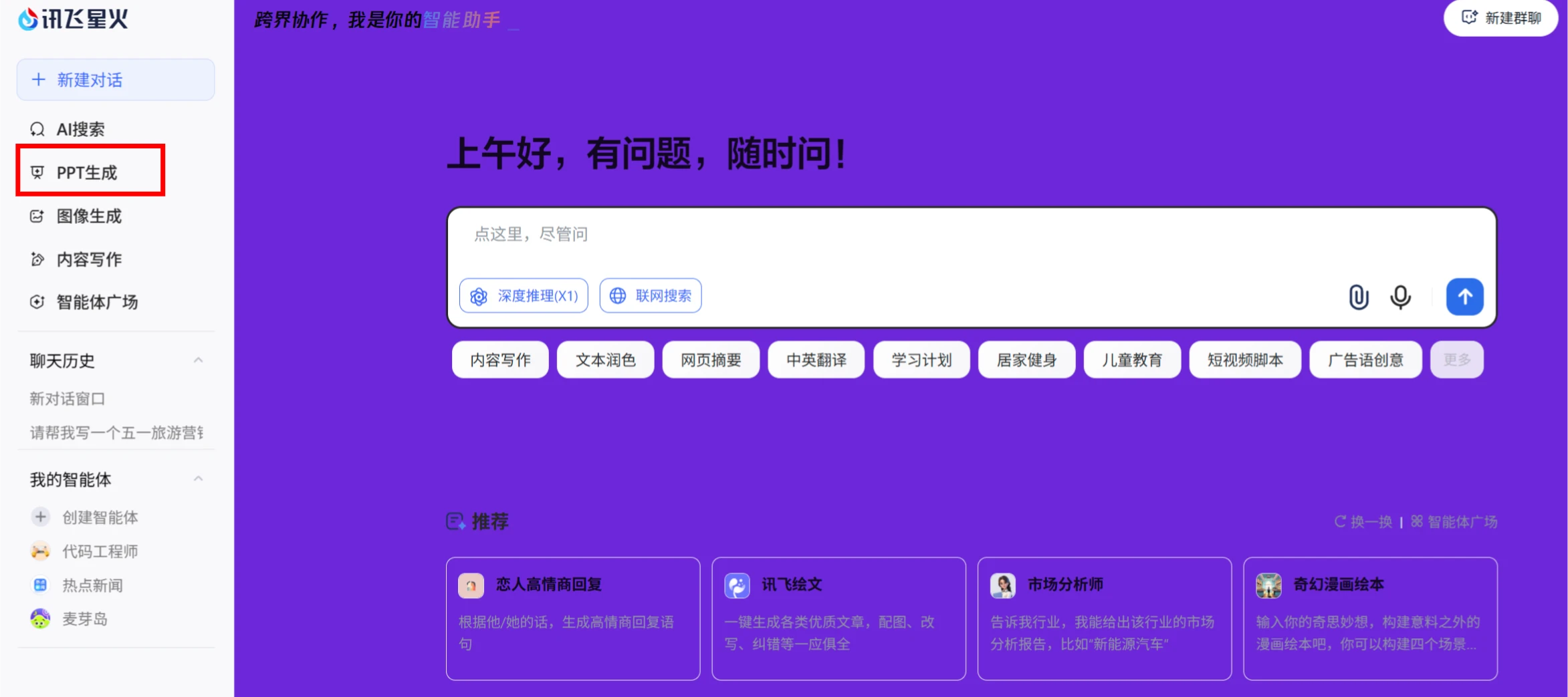
2. Enter description: Enter the PPT topic and related description in the dialog box, for example, "Please help me write a May Day tourism promotion plan."

3. Select a template: Select a PPT template below the input box, and click the blue send button.
4. Generate outline: Xunfei Spark will generate a PPT outline based on the entered content, and then configure the PPT parameters.
Body content generation settings
Text settings, including tone and audience.
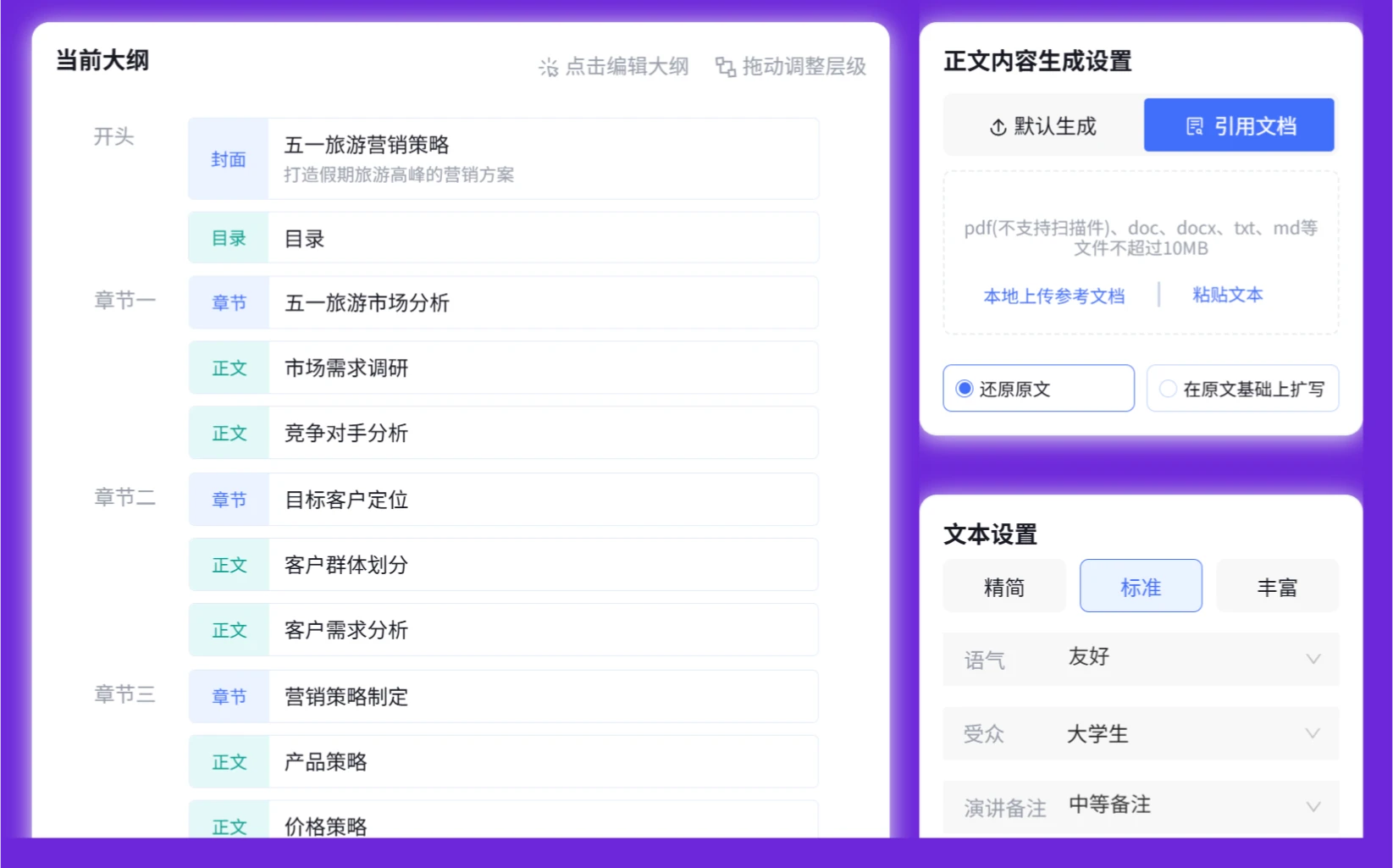
5. Generate PPT: Click the "Generate PPT" button below the outline, and the system will automatically generate an initial version of the PPT and jump to the Xunfei Zhiwen page.
6. Edit and adjust: On the Xunfei Zhiwen page, you can view the generated PPT effect. If further editing is needed, you can click 【Format Settings】 to adjust the layout, add background images or charts, etc.
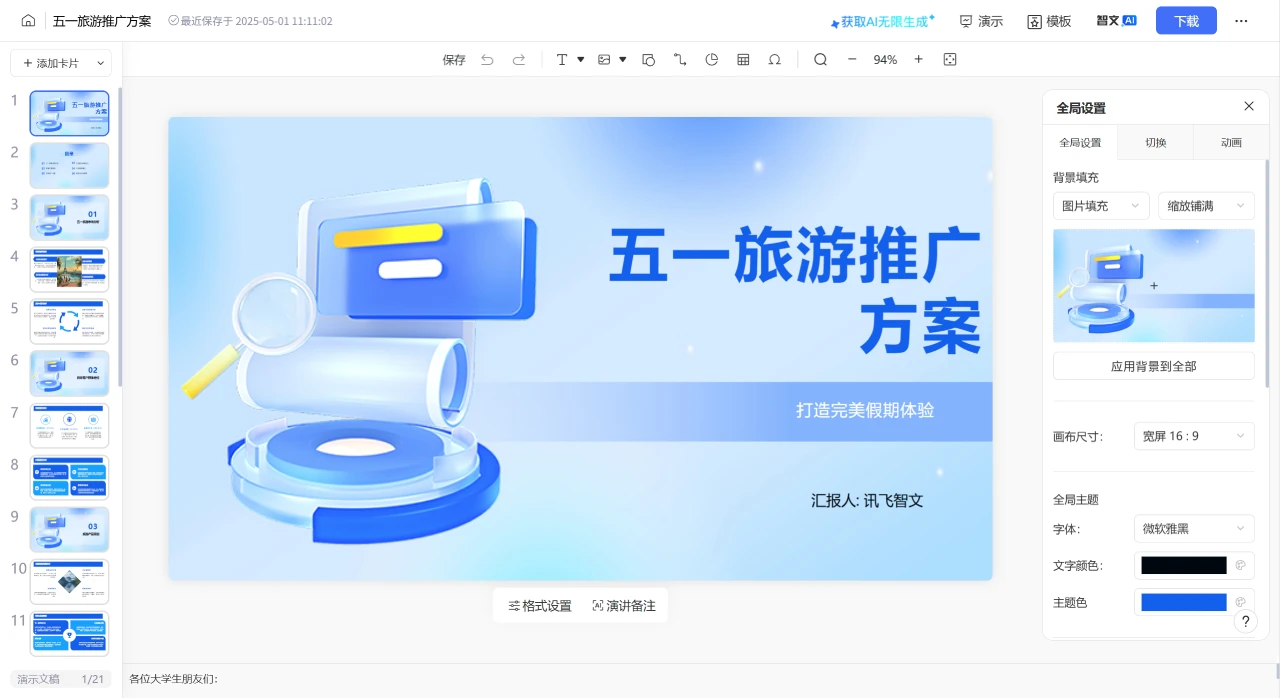
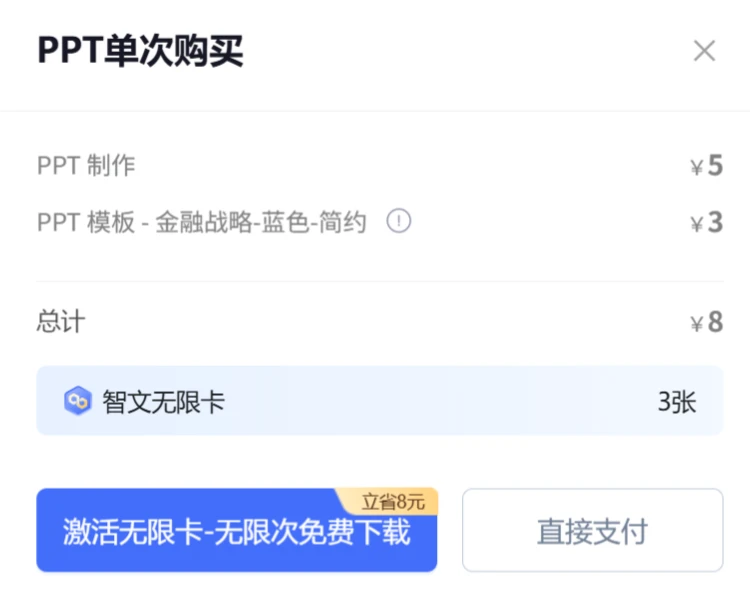
7. Download and save: After finishing editing, click the "Download" button in the upper right corner to save the PPT locally, or save it to the file library or save it as a long image. Please note that saving it in PPT format requires payment.