
 Script Planner Assistant▸
 AI Apps
 AI News
Cloudflare Launches AutoRAG: A Fully Managed Retrieval-Augmented Generation (RAG) Pipeline
小编 ·

Cloudflare Launches AutoRAG: A Fully Managed Retrieval-Augmented Generation (RAG) Pipeline
What is AutoRAG
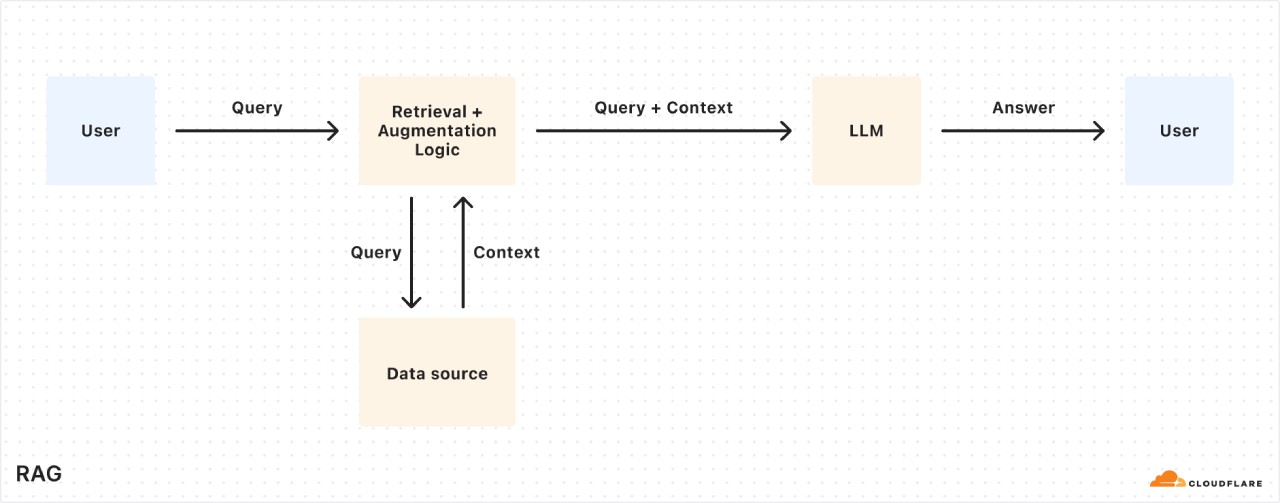
AutoRAG is a fully managed RAG pipeline powered by Cloudflare. RAG is an approach that generates more accurate, contextually relevant responses by retrieving information from a user's own data and providing it to a large language model (LLM).
Pain Points of Traditional RAG Pipelines
Building a RAG pipeline requires piecing together multiple tools and services, such as data storage, vector databases, embedding models, LLMs, etc. As data changes, manual reindexing and regeneration of embeddings are needed to maintain the system's relevance and performance. AutoRAG was created to eliminate this complexity, providing an end-to-end fully managed RAG pipeline—from data ingestion, automatic chunking and embedding, to vector storage in Cloudflare's Vectorize database, semantic retrieval, and generating high-quality responses using Workers ai—with just a few clicks. AutoRAG also continuously monitors data sources in the background and reindexes them, keeping your AI up to date without any manual effort.
Why Use RAG
LLM Limitations: Although powerful, LLMs like Meta's Llama 3.3 are limited to the knowledge available during their training and often struggle to provide accurate answers when it comes to new, proprietary, or domain-specific information. Providing relevant system prompt information can help, but it increases input size and is constrained by the context window. Fine-tuning models is expensive and requires continuous retraining to stay up to date.
Advantages of RAG: RAG can retrieve relevant information from data sources at query time, combine it with the user's input query, and feed both into an LLM to generate a response based on the user's data. This makes RAG ideal for use cases such as AI-powered support bots, internal knowledge assistants, and semantic search across documents—scenarios where the ground-truth information source is constantly changing.
How AutoRAG Works
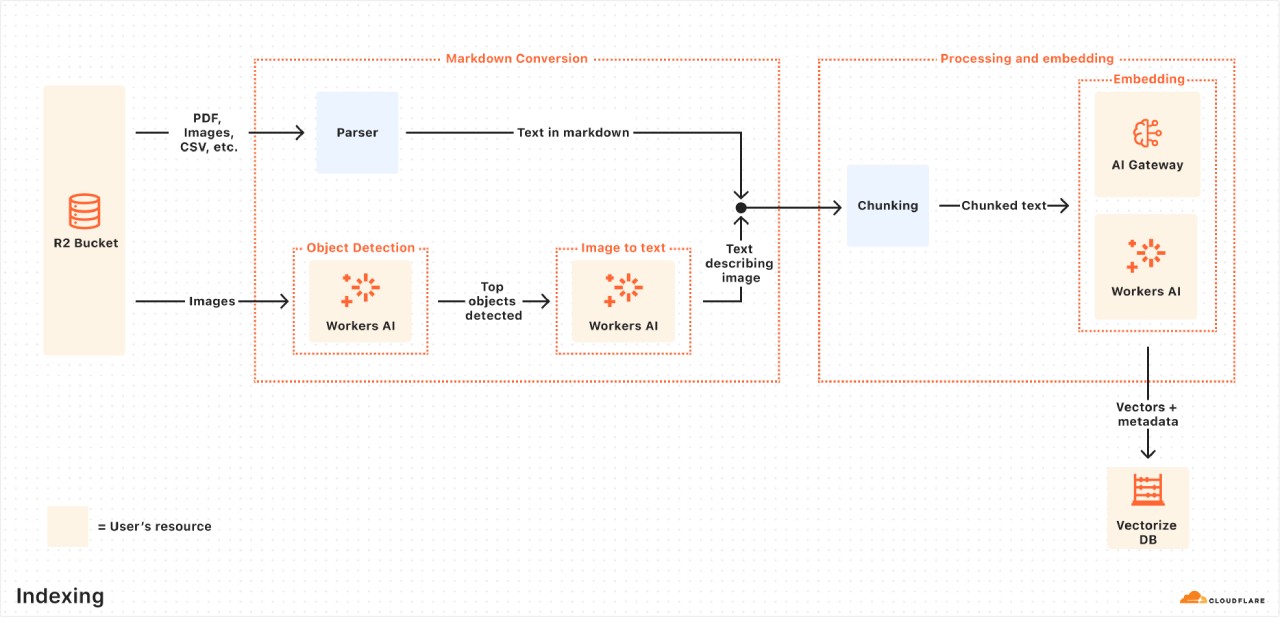
Indexing Process: This is an asynchronous process that runs in the background, automatically starting when AutoRAG is created and looping to reprocess new or updated files each time the previous job completes. During indexing, content is converted into vectors optimized for semantic search.
File Ingestion: AutoRAG reads files directly from data sources. It currently integrates with Cloudflare R2, allowing documents in formats such as PDFs, images, text, HTML, and CSV to be stored in R2 for processing.
Markdown Conversion: Markdown conversion via Workers AI is used to convert all files into a structured Markdown format, ensuring consistency across different file types. For images, Workers AI performs object detection followed by a vision-to-language conversion to transform the images into Markdown text.
Chunking: The extracted text is split into smaller chunks to improve retrieval granularity.
Embedding: Each chunk is embedded using Workers AI's embedding model, converting the content into vectors.
Vector Storage: The resulting vectors, along with metadata (such as source location and file name), are stored in Cloudflare's Vectorize database, which is created in your account.
Query Process: This is a synchronous process triggered when a user sends a search request.
Receive a Query from the AutoRAG API: The query workflow begins when you send a request to AutoRAG's AI Search or Search endpoint.
Query Rewriting (Optional): AutoRAG offers the option to rewrite the input query using one of Workers AI's LLMs, improving retrieval quality by transforming the original query into a more effective search query.
Embedding the Query: The rewritten (or original) query is passed through the same embedding model used when embedding the data, converting it into a vector so it can be compared with the already vectorized data to find the most relevant matches.
Vector Search in Vectorize: The query vector is searched against the vectors stored in the Vectorize database associated with AutoRAG.
Retrieving Metadata + Content: Vectorize returns the most relevant chunks along with their metadata, and the original content is fetched from the R2 bucket. This content is then passed to the text generation model.
Response Generation: A text generation model from Workers AI is used to generate a response based on the retrieved content and the original user query.
AutoRAG Usage Tutorial
Using the Browser Rendering API: If your content is not in an R2 bucket but still on a webpage or needs to be dynamically rendered through a frontend UI, you can use the Browser Rendering API to crawl your own site to obtain the content that will inform the RAG pipeline. The Browser Rendering REST API is now generally available, providing endpoints for common browser operations, including extracting HTML content, capturing screenshots, and generating PDFs. In addition, a crawl endpoint is coming soon, making it even easier to obtain website content.
Step 1: Create a Worker to scrape webpages and upload them to R2
Create a new Worker project named browser-r2-worker and select the appropriate options for setup.
Install @cloudflare/puppeteer to control the browser rendering instance.
Create a new R2 bucket named html-bucket.
Add the appropriate configuration to your Wrangler configuration file so the Worker can use browser rendering and the new R2 bucket.
Replace the contents of src/index.ts with a script that scrapes webpages and stores them in the R2 bucket.
Deploy the Worker to your Cloudflare account.
Test the Worker using a cURL request to scrape an HTML file from a webpage and upload it to the html-bucket.
Step 2: Create AutoRAG and monitor indexing
In the Cloudflare dashboard, navigate to AI > AutoRAG.
Choose to create an AutoRAG and complete the setup process, including selecting the R2 bucket containing your knowledge base, embedding model, LLM, AI Gateway, naming your AutoRAG, and selecting or creating a service API token.
Once AutoRAG is created, it will automatically create a Vectorize database in your account and begin indexing data. You can view the progress of the indexing job on the AutoRAG overview page.
Step 3: Test and add to your application
Once indexing is complete, you can start asking AutoRAG questions. Questions can be asked in the Playground tab of the AutoRAG instance, such as "What is AutoRAG?".
If you are satisfied with the results in the Playground, you can integrate AutoRAG directly into the application you are building. If you are building your application with a Worker, you can call AutoRAG directly through the AI binding.
During the open beta, AutoRAG is free to use. Compute operations for indexing, retrieval, and augmentation will not incur additional charges during this period.
Official detailed introduction: https://blog.cloudflare.com/introducing-autorag-on-cloudflare/









