
 Script Planner Assistant▸
 AI Apps
 AI News
TypeSimulator: Advanced Input Simulation Tool for Automated Typing Across Scenarios
小编 ·

TypeSimulator: Advanced Input Simulation Tool for Automated Typing Across Scenarios
What is TypeSimulator?
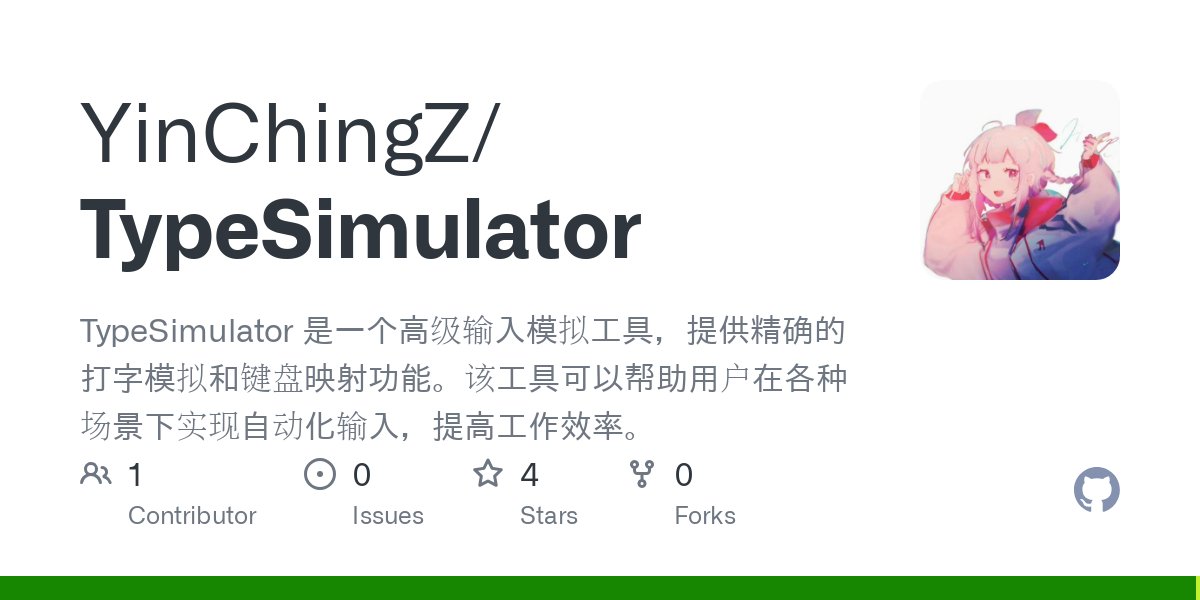
TypeSimulator is an advanced input simulation tool that simulates keyboard input, supports custom typing speed and random delays, and can map keyboard keys to predefined text sequences. It also features global hotkeys for convenient control in any application. With a clean and intuitive interface and simple operation, it suits various scenarios such as office automation and programming assistance, effectively improving input efficiency.
TypeSimulator Features
Keyboard Input Simulation: Supports custom typing speed and random delays, simulates random intervals of real human input, and automatically simulates keyboard text input at a controllable speed.
Key Mapping Function: Maps regular keyboard input to predefined text, allowing keyboard keys to be mapped to predefined text sequences.
Mapping Pause Function: Supports pausing/resuming mapping while preserving mapping progress. The newly added mapping pause feature allows temporary pausing of mapping without losing progress, with complete disable and pause functions separated, providing a more flexible user experience.
Global Hotkey Support: Control various functions at any time in any application. For example, F10 can enable mapping/pause mapping/resume mapping (three-state toggle), F11 can completely disable the key mapping function, F12 can reset the application state, and Ctrl+Alt+T can toggle the typing function.
Clean and Intuitive User Interface: Simple operation with clear status display. More intuitive status indication clearly shows the current state of the mapping function (enabled, paused, or disabled).
Detailed Operation Log: Records all operations for easy troubleshooting.
TypeSimulator Use Cases
Office Automation: Quickly input repetitive text in office software, such as inserting commonly used formatted text into documents or filling data into spreadsheets, greatly improving work efficiency.
Programming Assistance: Programmers can quickly input code snippets in code editors, reducing the writing of repetitive code and improving programming efficiency.
Gaming Assistance: In some games that require a large amount of text input, you can quickly input commands or dialogue content to enhance the gaming experience.
Teaching Demonstration: Teachers can quickly demonstrate text input effects during teaching, enhancing the intuitiveness of instruction.
Installation and Usage Tutorial
Installation: Download the exe file from the release page and run TypeSimulator.exe directly as administrator; or download the rar file, extract it, and run setup.exe from the folder as administrator.
Usage:
Simulate Typing: Enter or paste the text to be simulated in the text box, adjust the typing speed, click the "Start Typing" button or use the shortcut (Ctrl+Alt+T) to start, and use the "Pause" and "Stop" buttons to control the typing process.
Using Key Mapping: Enter or paste the text to be mapped in the text box, enable mapping by checking the "Enable Mapping" checkbox or pressing the F10 shortcut, and start typing in any application. Each keypress will be mapped to the next character in the text.
System Requirements
Windows 10/11.
.NET Framework 4.7.2 or higher.
Administrator privileges (required for global keyboard hooks).
Github Address:https://github.com/YinChingZ/TypeSimulator









