
 Script Planner Assistant▸
 AI Apps
 AI News
How to Use Doubao AI for Image Cutout, Erasure, Inpainting, and Outpainting?
小编 ·

How to Use Doubao AI for Image Cutout, Erasure, Inpainting, and Outpainting?
豆包AI is a free image processing tool ideal for non-professional users, capable of quickly completing editing operations such as image cutout, erasing, regional redrawing, and image expansion. Although it may not perform as well as professional software in complex scenarios, it is sufficient for most daily needs. The key advantages are that it's free, efficient, and easy to operate. Let's go ahead and try it out below.
The following operations require logging into 豆包 ai and selecting [Image Generation] from the left sidebar
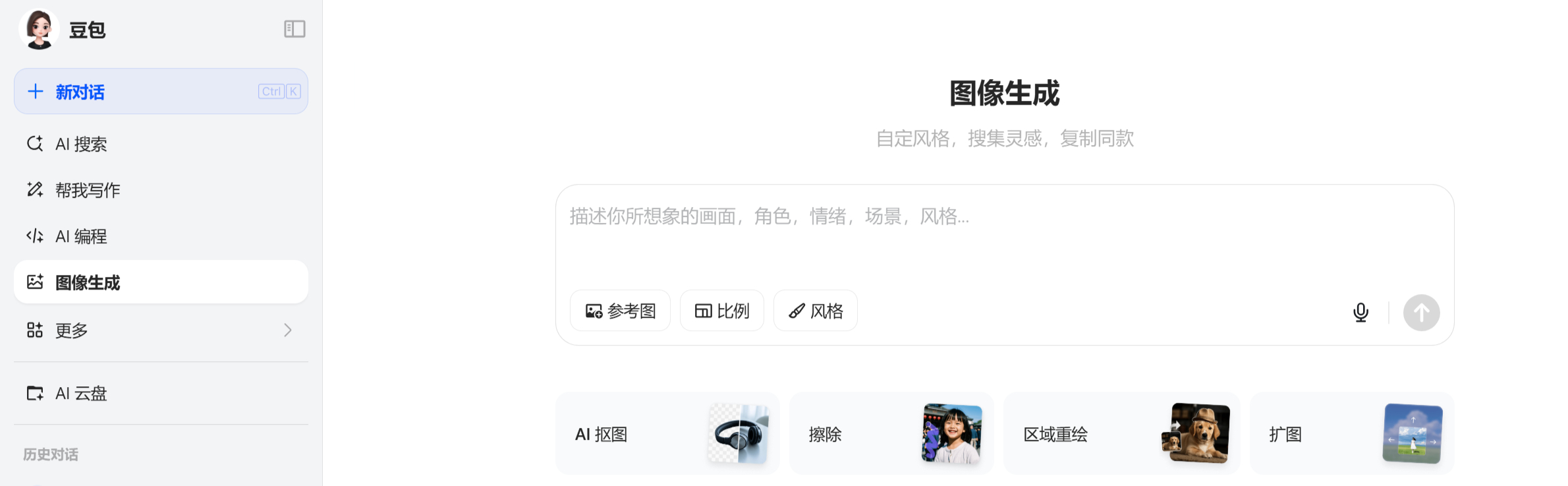
First: AI Image Cutout
Operating Steps:
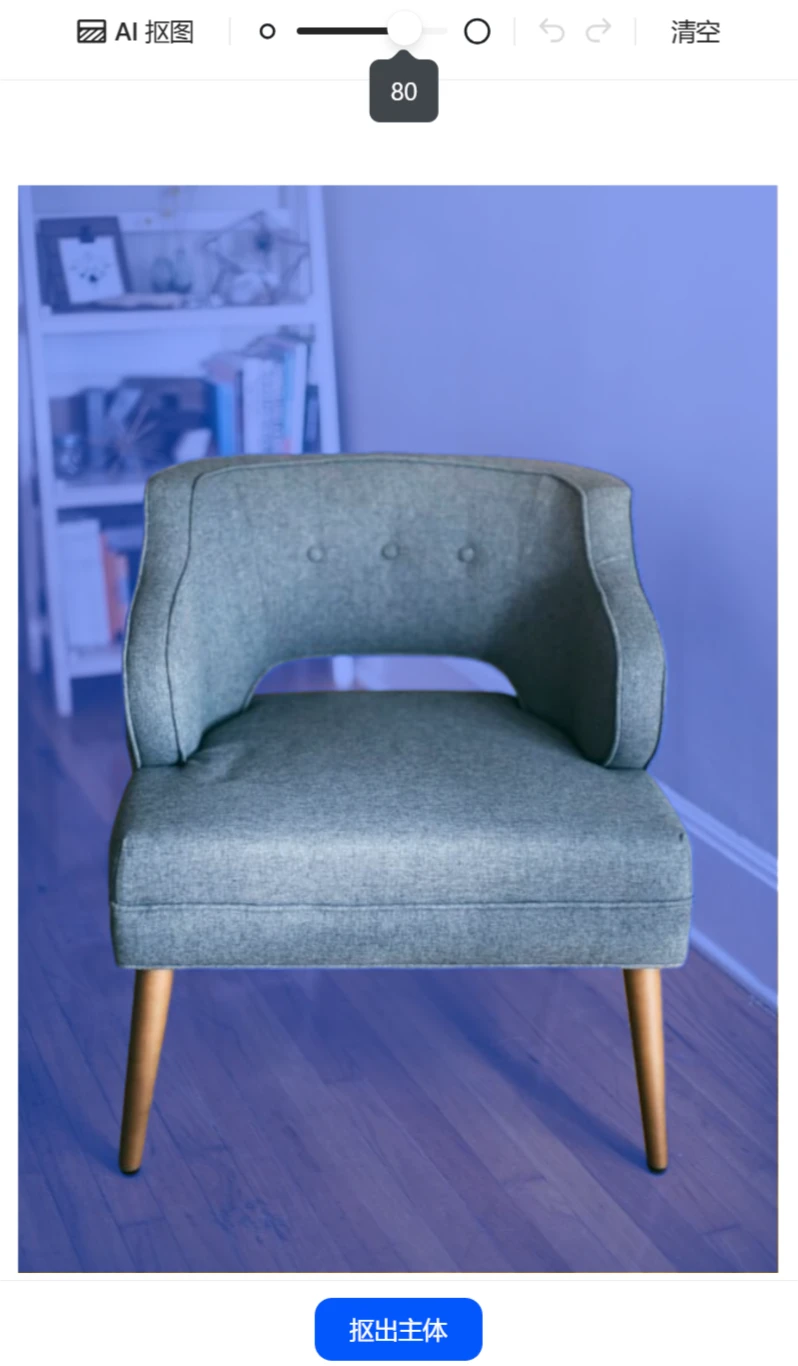
Upload the image to 豆包.
The system uses AI algorithms to automatically identify the subject and background, with high segmentation accuracy, especially excelling at handling details such as hair strands and clothing edges.
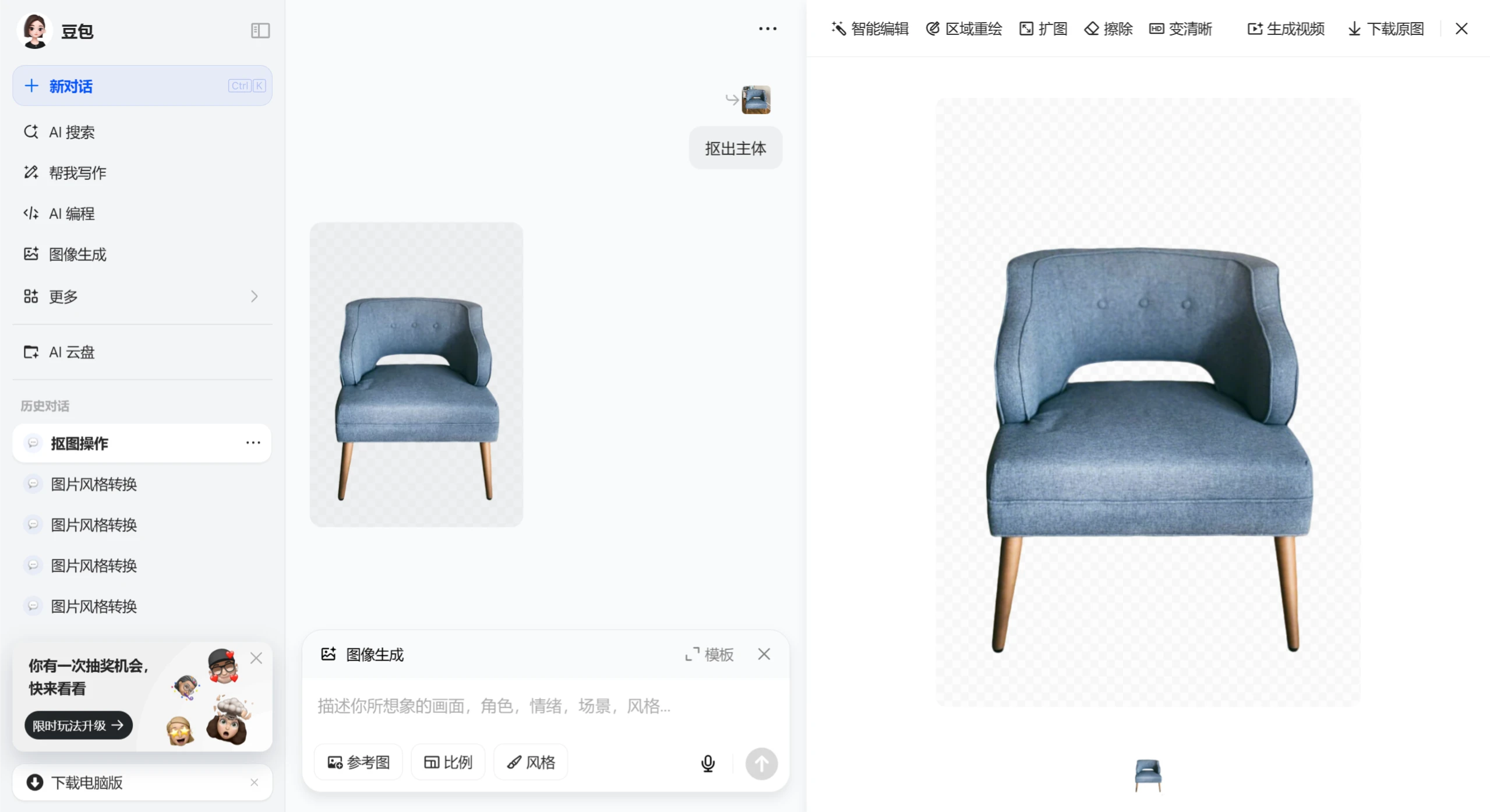
Click "Extract Subject" to obtain a transparent-background image of the subject, supporting one-click download or direct use in subsequent editing.
Click [Download Original Image] in the top right corner
Second: Erasing Feature
Operating Steps:
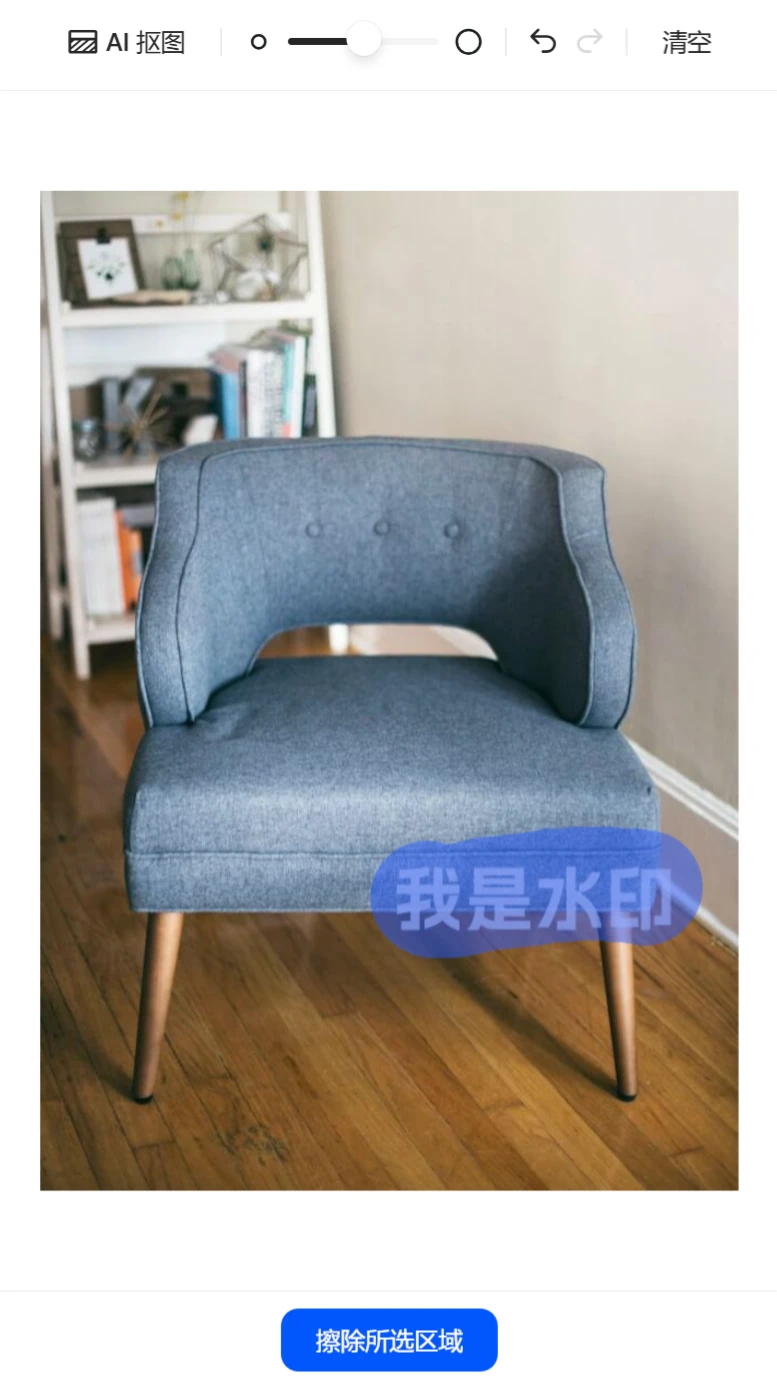
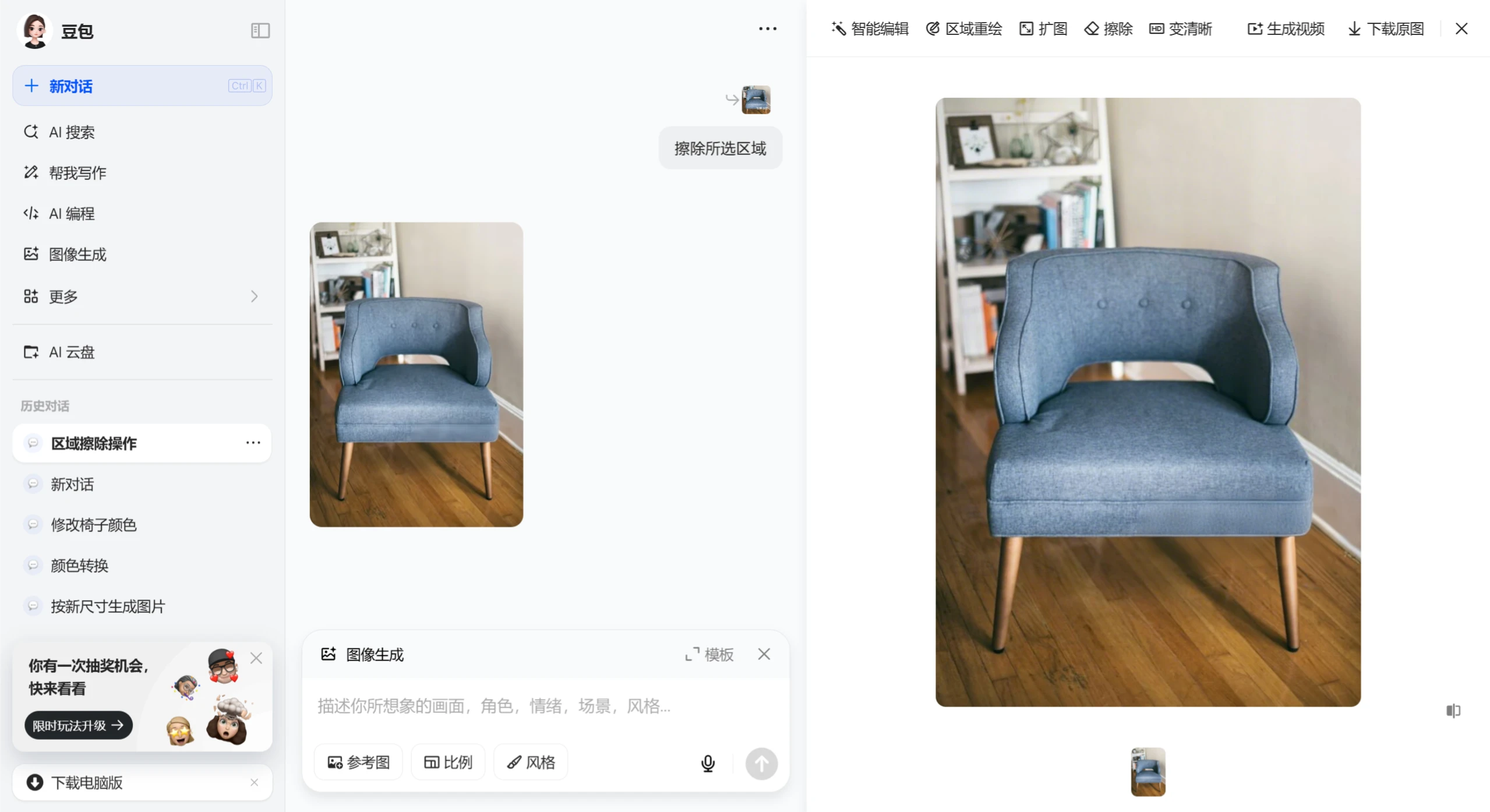
In the image editing interface, click the "Erase" feature and brush over the area to be removed (such as watermarks, passersby, etc.).
Adjust the brush size to fit the area to be erased as closely as possible. After selecting all the areas to be erased, click "Erase Selected Area".
The AI automatically analyzes the background and fills in the erased portions, ensuring a natural, seamless transition.
Preview the effect and then download the processed image, with support for comparison with the original.
The effect is average; in particular, the texture after erasing is noticeably different from the surrounding area.
Third: Regional Redrawing
Operating Steps:
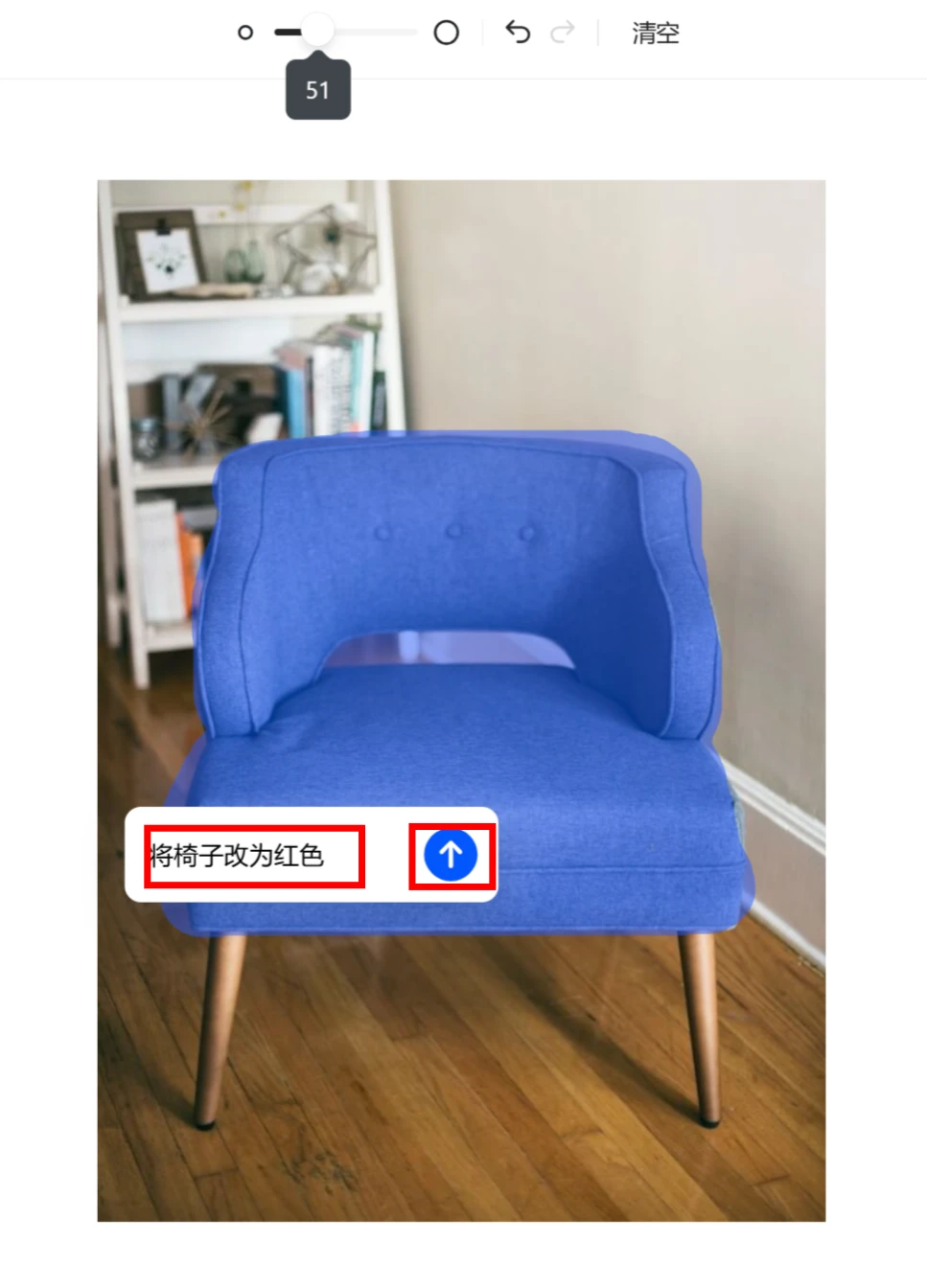
Use the brush tool to select the part to be modified (such as changing clothing color, replacing objects, etc.).
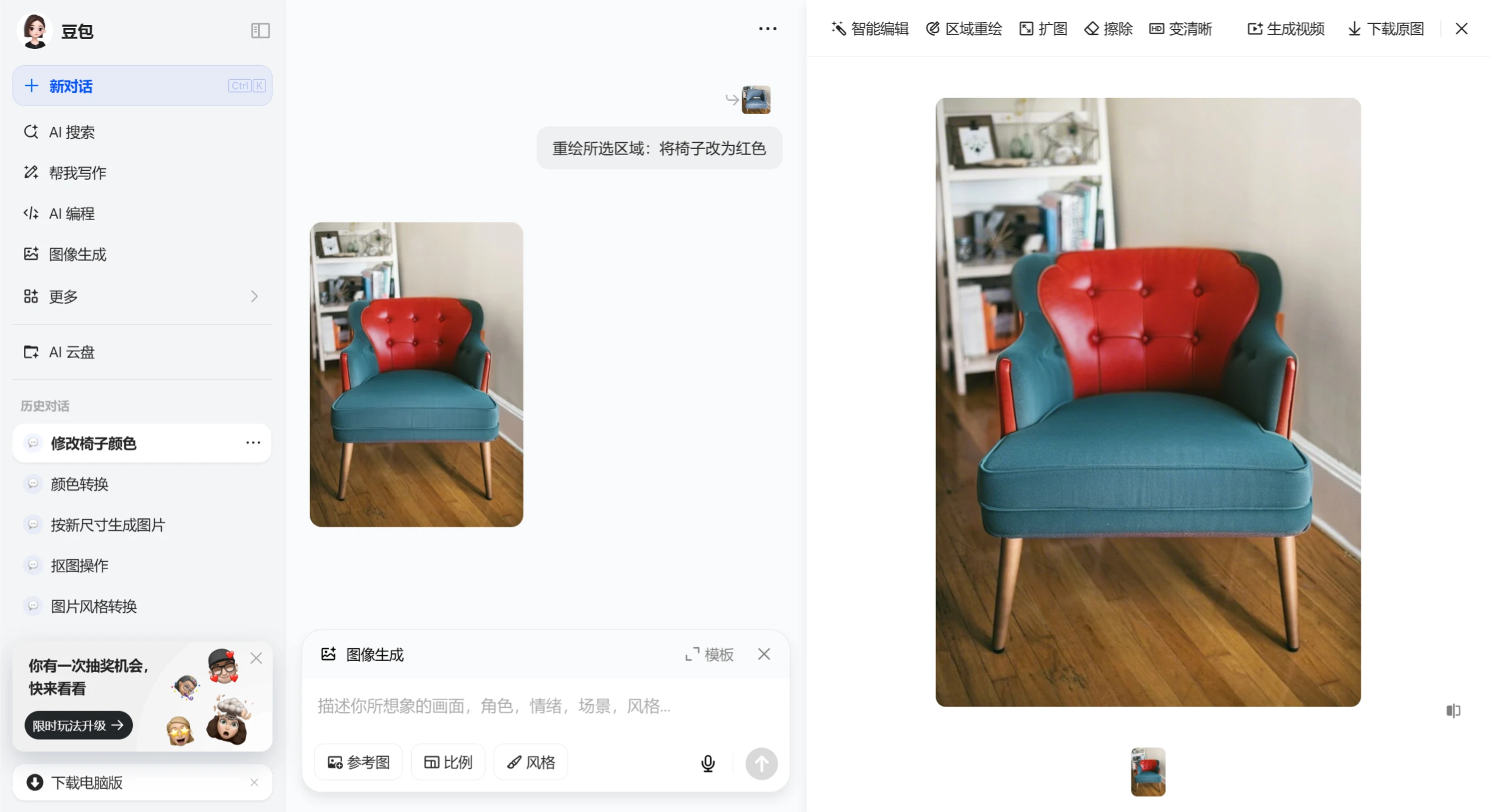
Describe the redrawing requirement in the pop-up box (such as "Change the clothes to red", "Add clouds", etc.), making sure to specify the object.
The AI redraws the selected area based on the instructions, blending seamlessly with the original image.
This feature doesn't redraw according to your own intentions and is not very easy to use, as shown in the image below:
Fourth: AI Image Expansion
Operating Steps:
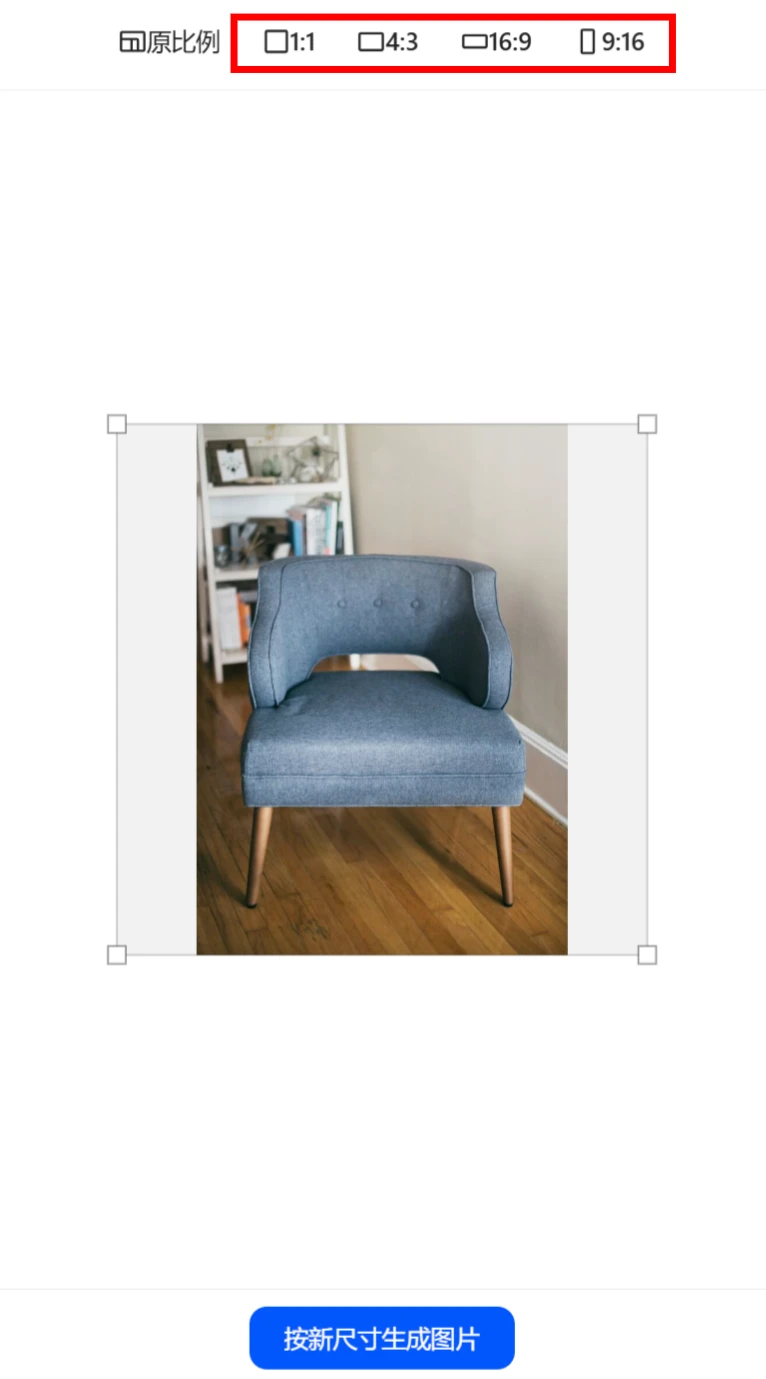
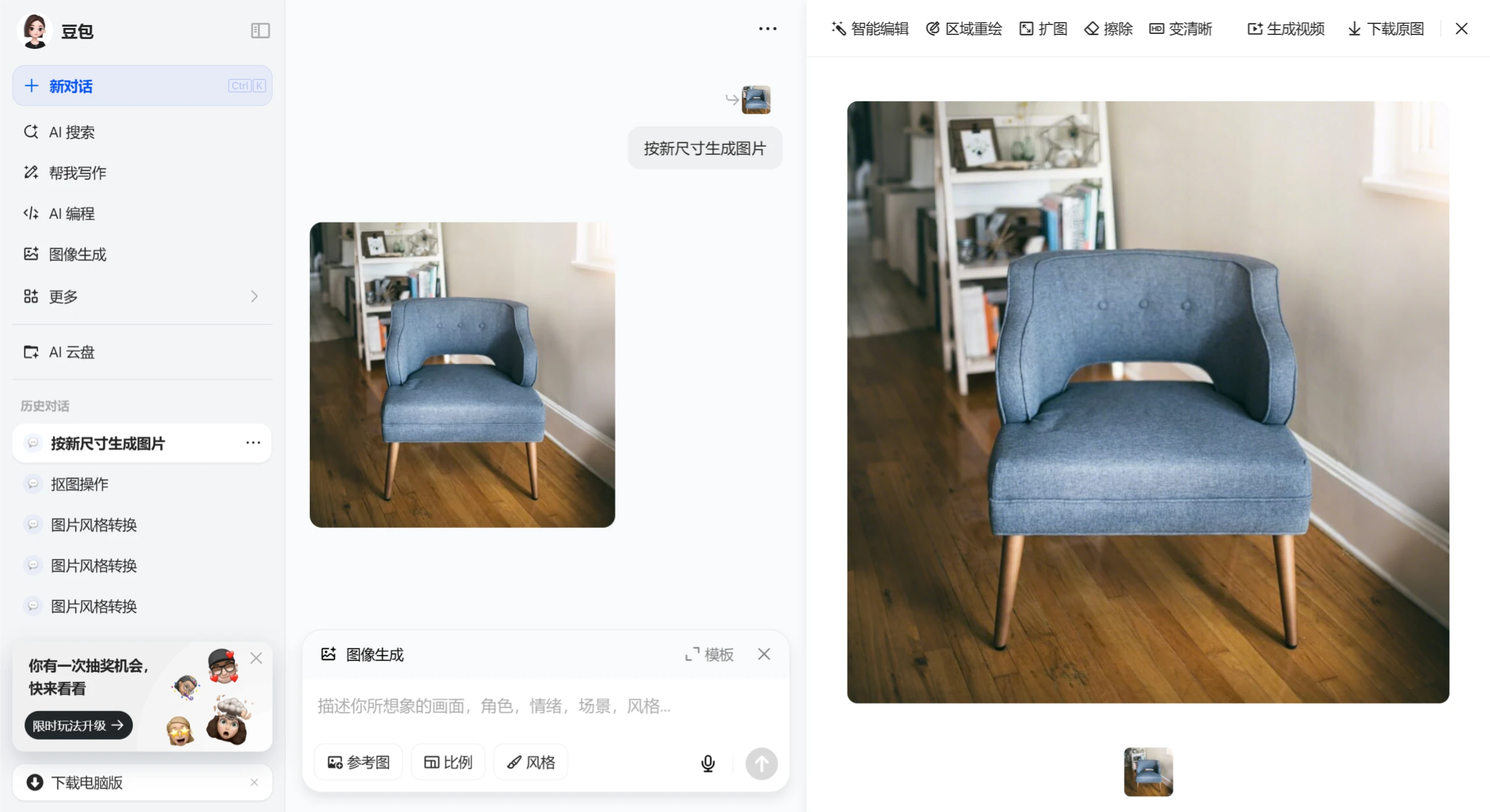
After uploading the image, adjust the target size or ratio (such as 16:9, square, etc.).
The AI automatically expands the canvas based on the original image content, supplementing the background or refining edge details.
After generation, you can fine-tune parameters (such as edge precision) and finally save the high-definition image.
Click [Download Original Image] in the top right corner
If you want to process images quickly, go ahead and give it a try.









