
 Script Planner Assistant▸
 AI Apps
 AI News
DeepSeek + Gamma: The Ultimate Guide to Generating PPTs
小编 ·

DeepSeek + Gamma: The Ultimate Guide to Generating PPTs
This complete DeepSeek+Gamma PPT generation tutorial is mainly prepared for beginners and those with some foundational knowledge, teaching you how to use DeepSeek and Gamma.app to quickly create professional-level presentation slides. Once you learn it, you can produce high-quality PPTs in just a few minutes, greatly improving your work efficiency.
Tool Introduction
DeepSeek
DeepSeek is a powerful AI text generation tool with intelligent information organization. It excels at structuring text and is particularly suitable for quickly producing PPT content outlines, laying a solid foundation for your presentations.
Gamma.app
Gamma.app is an AI-driven PPT generation platform with one-click beautification features and multiple output formats. Provide it with a content outline, and it will automatically generate well-designed PPTs. It also supports many export formats, meeting any presentation needs.
When used together, DeepSeek and Gamma.app combine speed and quality—within about 10 minutes, you can create PPTs that are both visually appealing and logically structured. Whether you're a professional, student, or teacher, you can easily create engaging presentation slides.
Generation Step Tutorial
Preparation
Access DeepSeek: Visit the DeepSeek web version.
Gamma Account Registration: Visit Gamma and register a free account. The free version lets you experience core features and familiarize yourself with its usage.
Step 1: Generate Outline with DeepSeek
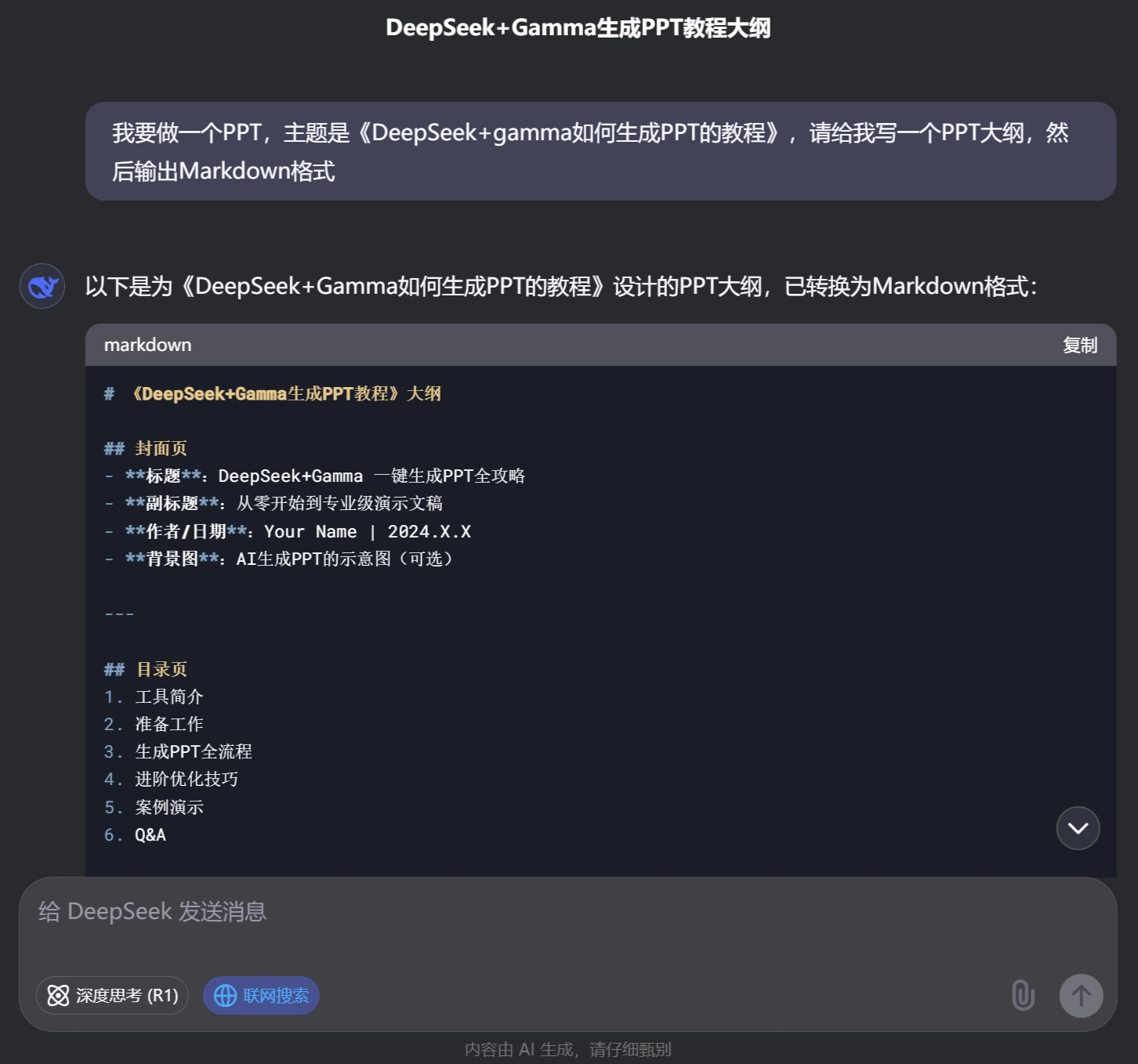
Open DeepSeek and input a clear question, such as "Generate a PPT outline about [topic]." If the result isn't quite right, adjust your prompt until you get a satisfactory outline, then copy the outline. Most importantly, make sure it outputs in Markdown format.
Step 2: Import into Gamma
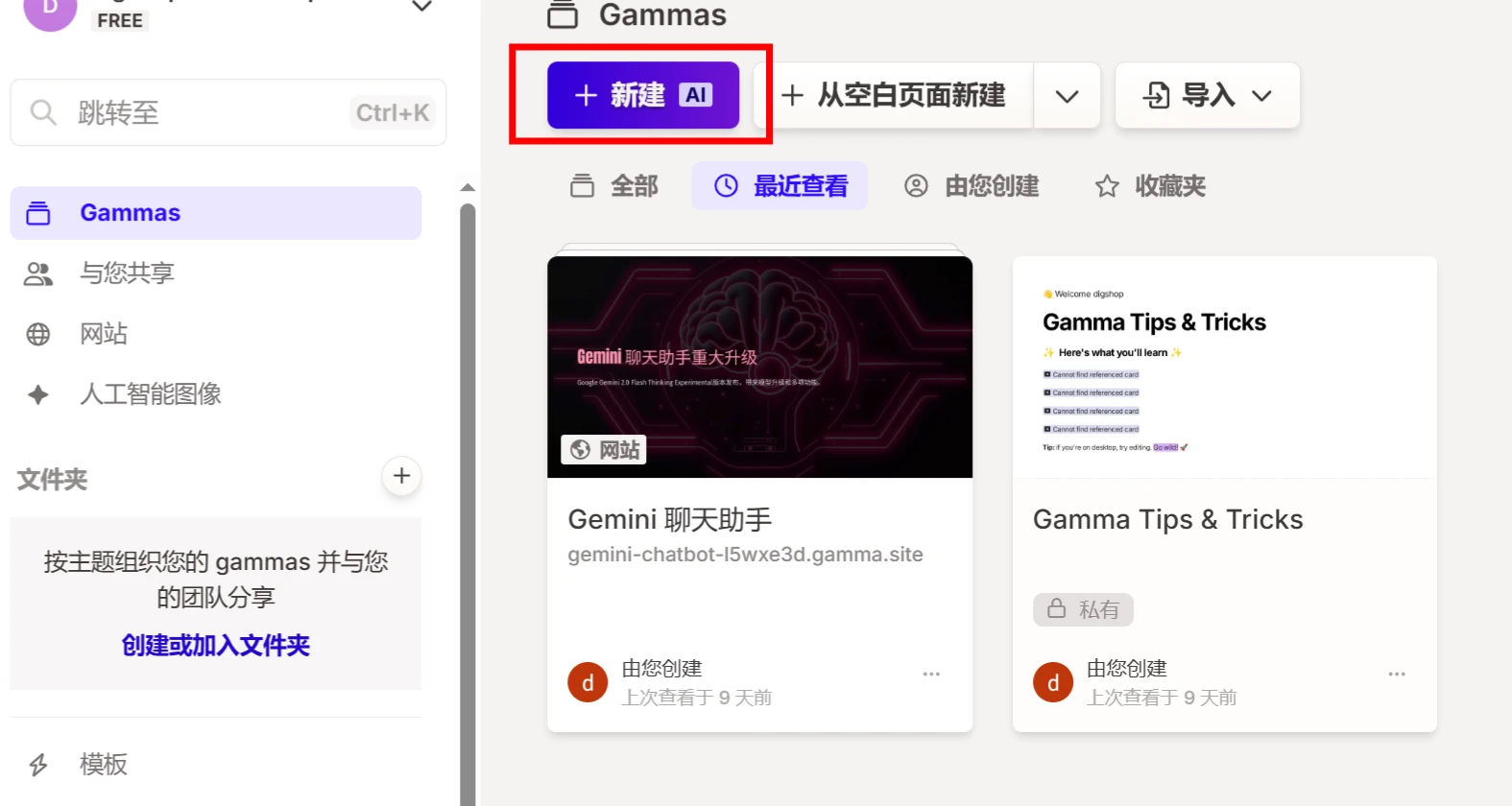
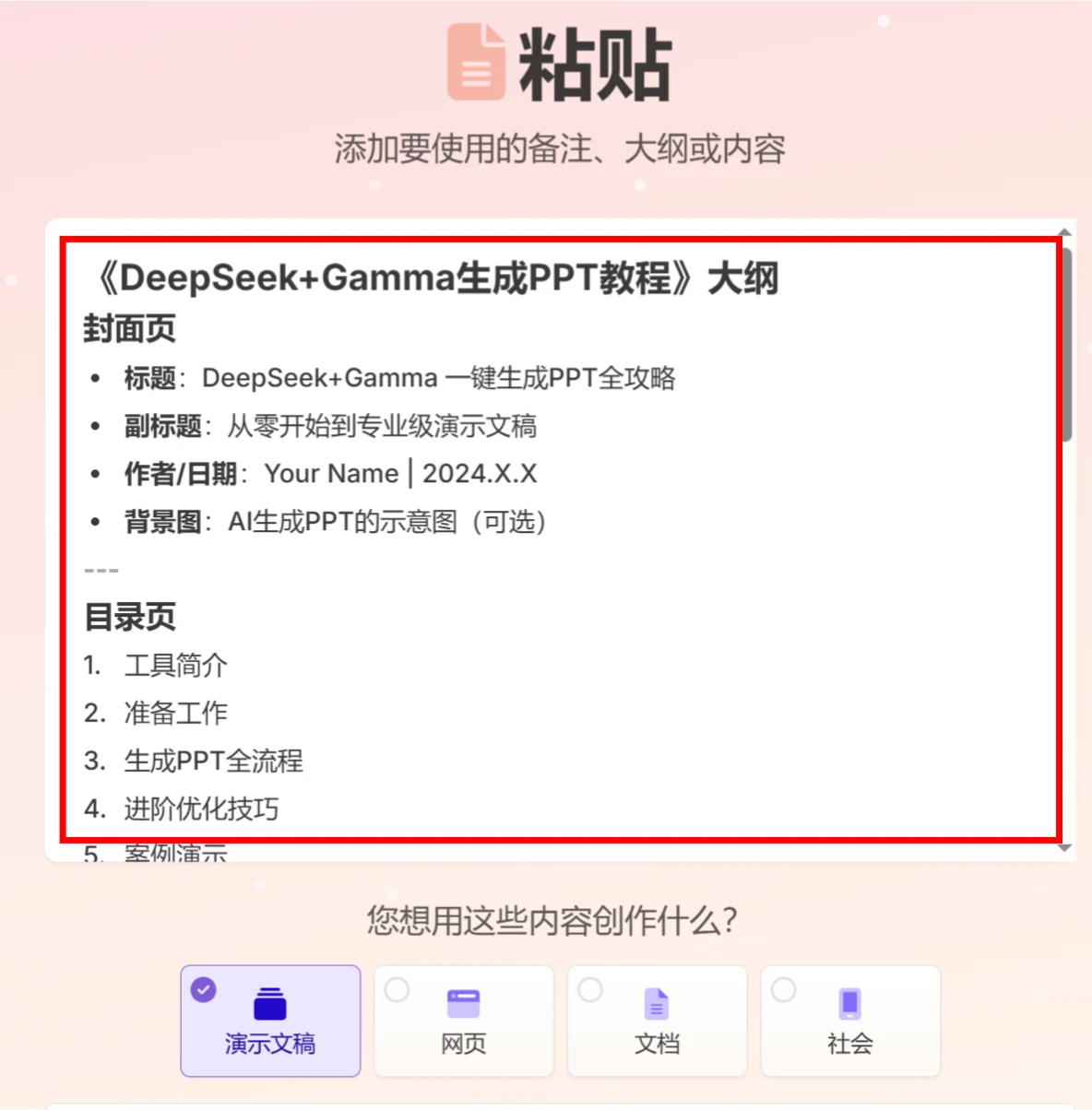
1. In Gamma.app, find the "New AI" feature and paste the Markdown-formatted outline you just copied into the designated field.

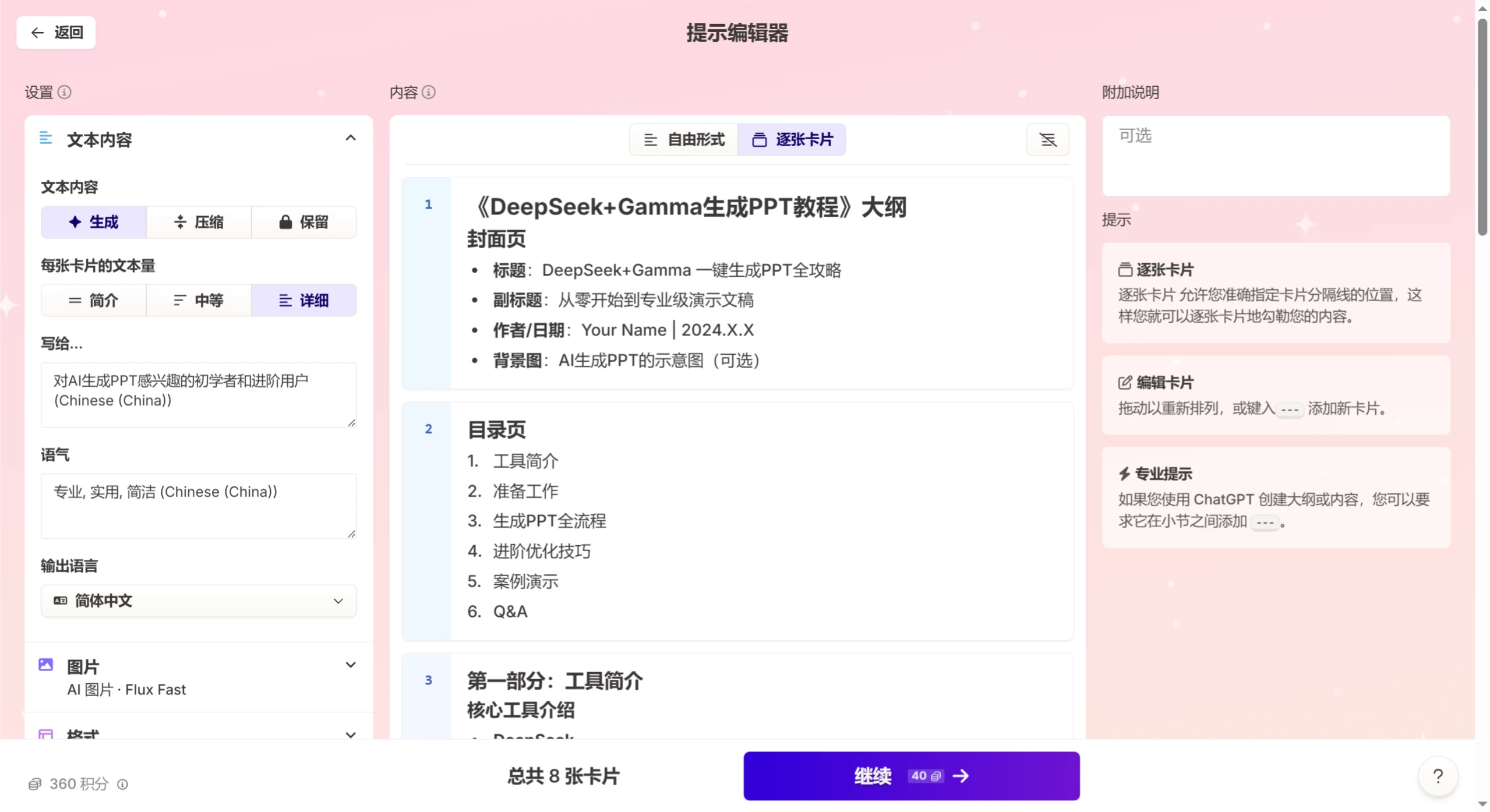
2. Gamma will automatically recognize the outline structure and generate an initial version of the PPT.
Step 3: Optimize Design with AI
Gamma offers many theme templates and recommends suitable images. You can apply a template with one click, then add appropriate images and icons based on the recommendations to make the PPT look more beautiful. Additionally, you can customize brand colors and fonts to give your PPT more personality.
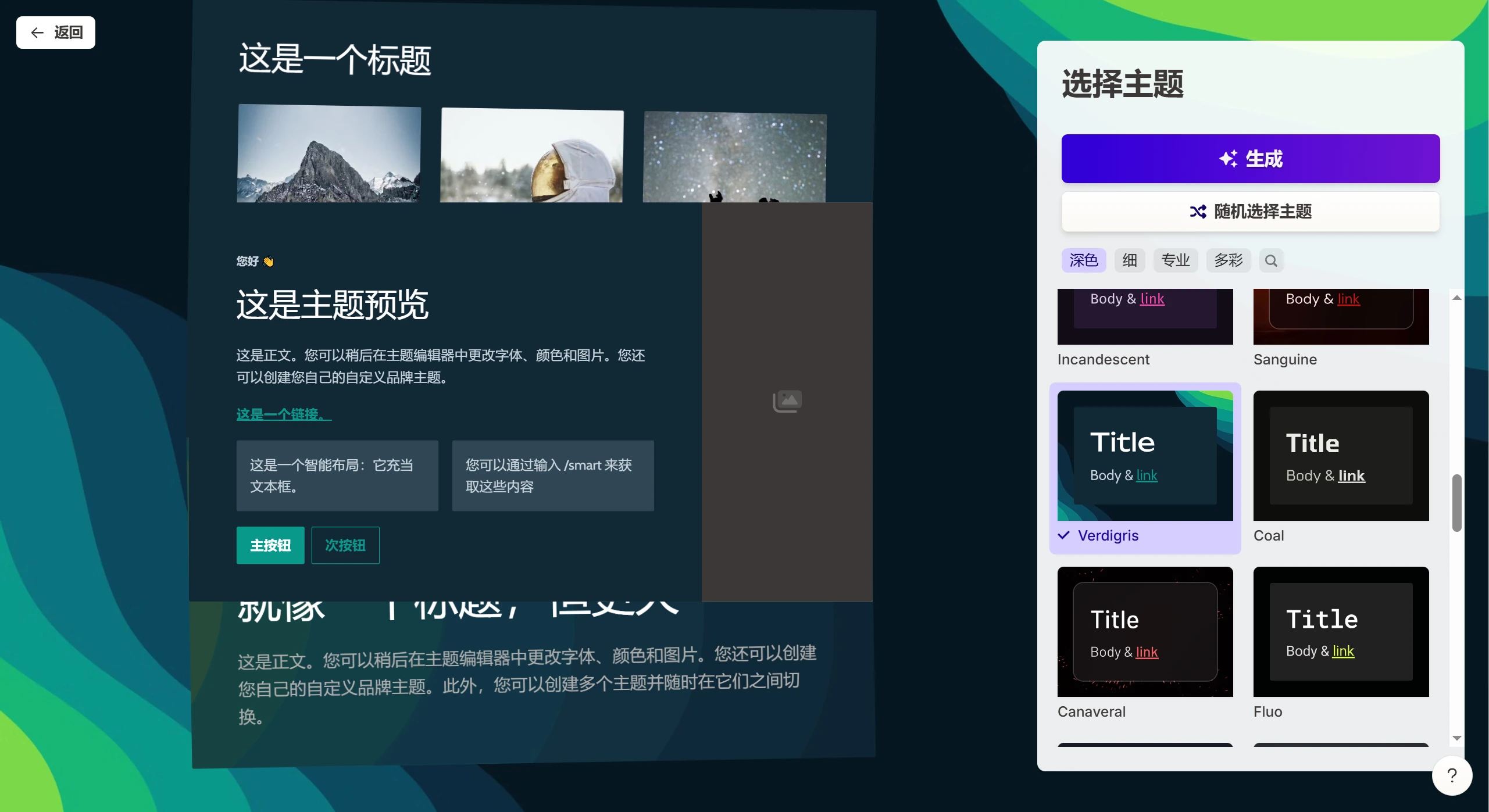
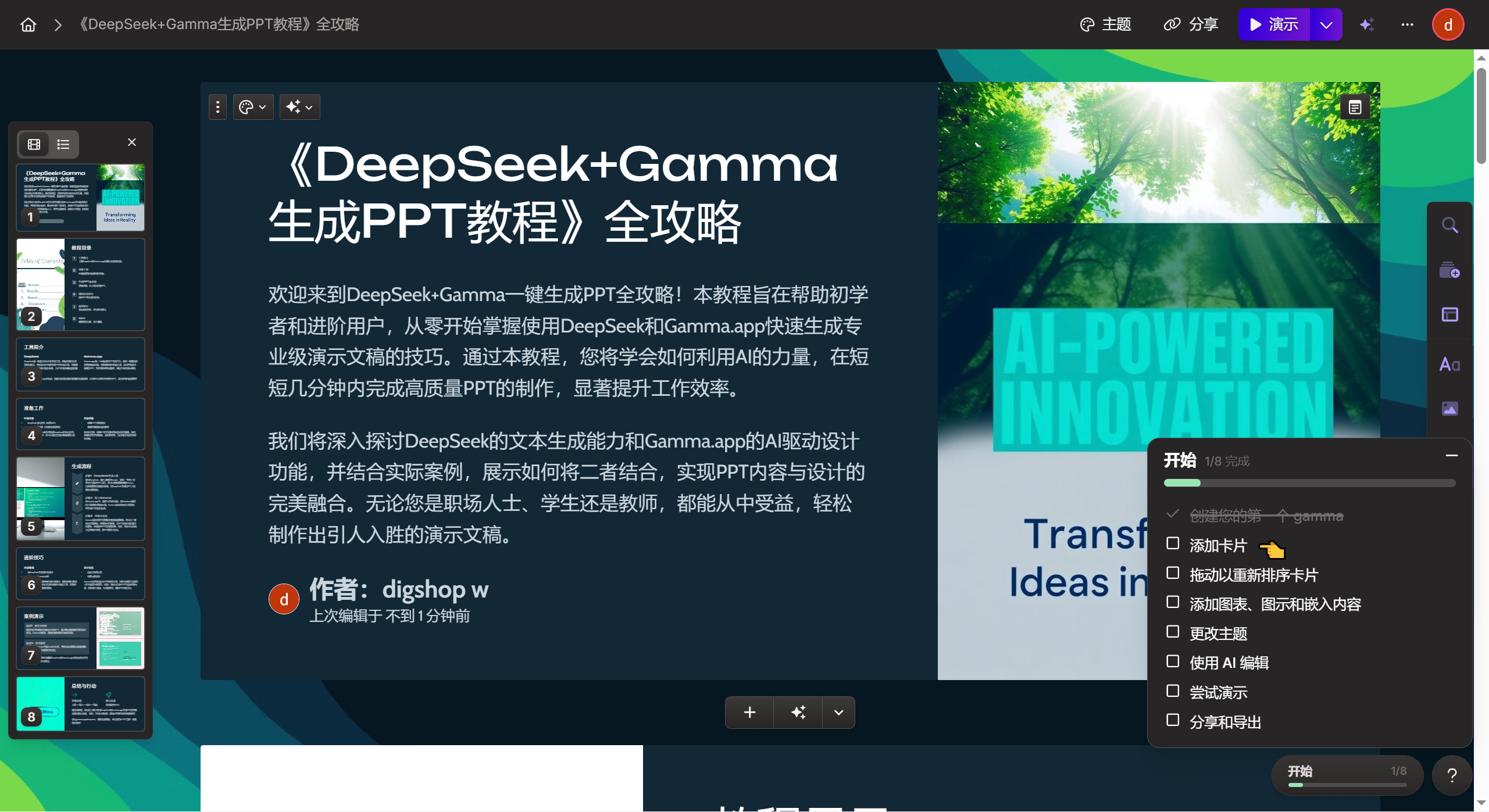
Gamma also allows you to customize the PPT layout, such as "Title Page + Transition Page + 3-Column Content Page + Summary Page." If you want the PPT to be more engaging, you can add dynamic elements like videos and interactive charts.
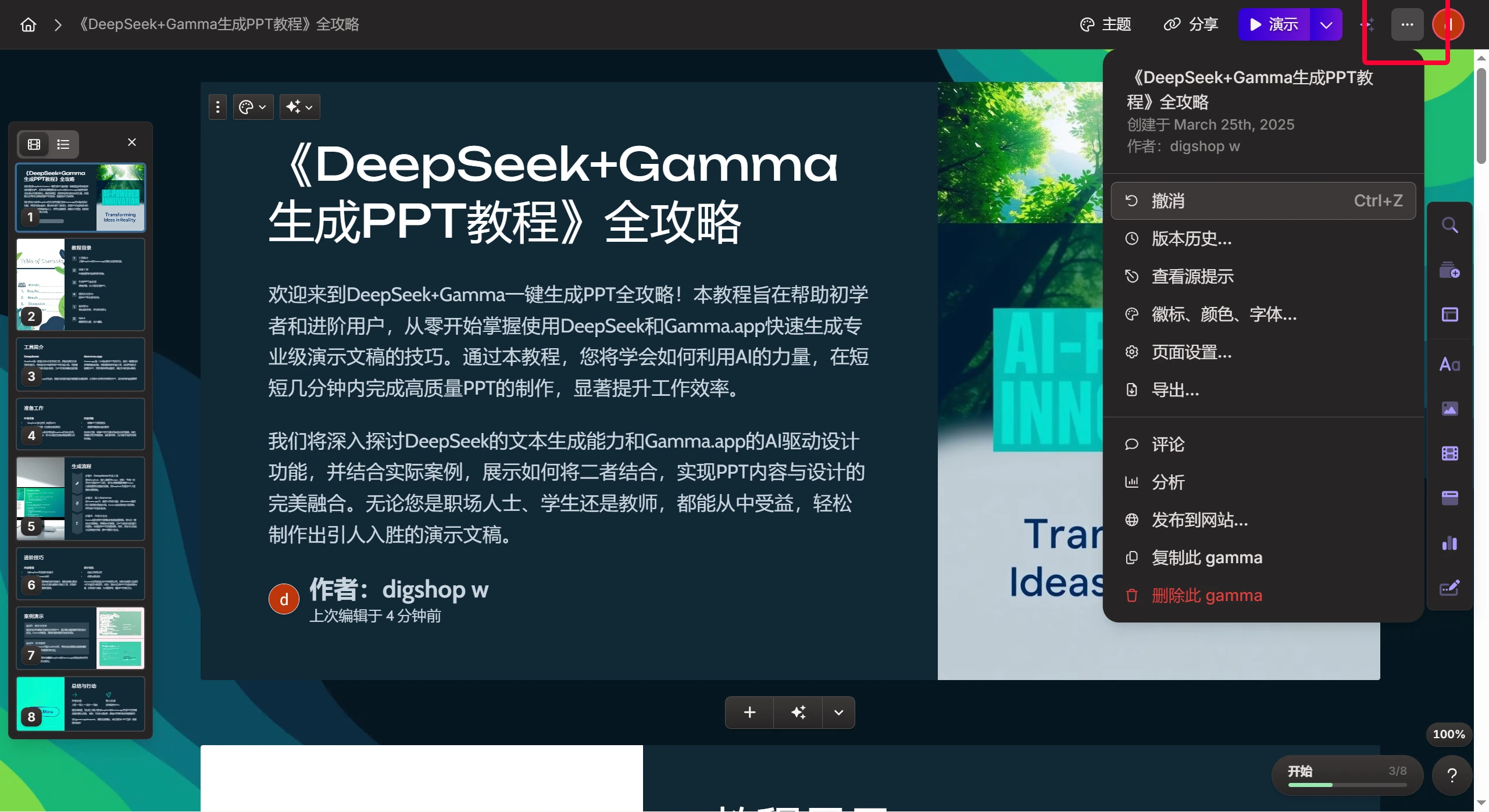
Finally, click the "..." icon in the upper right corner to export the format you want.
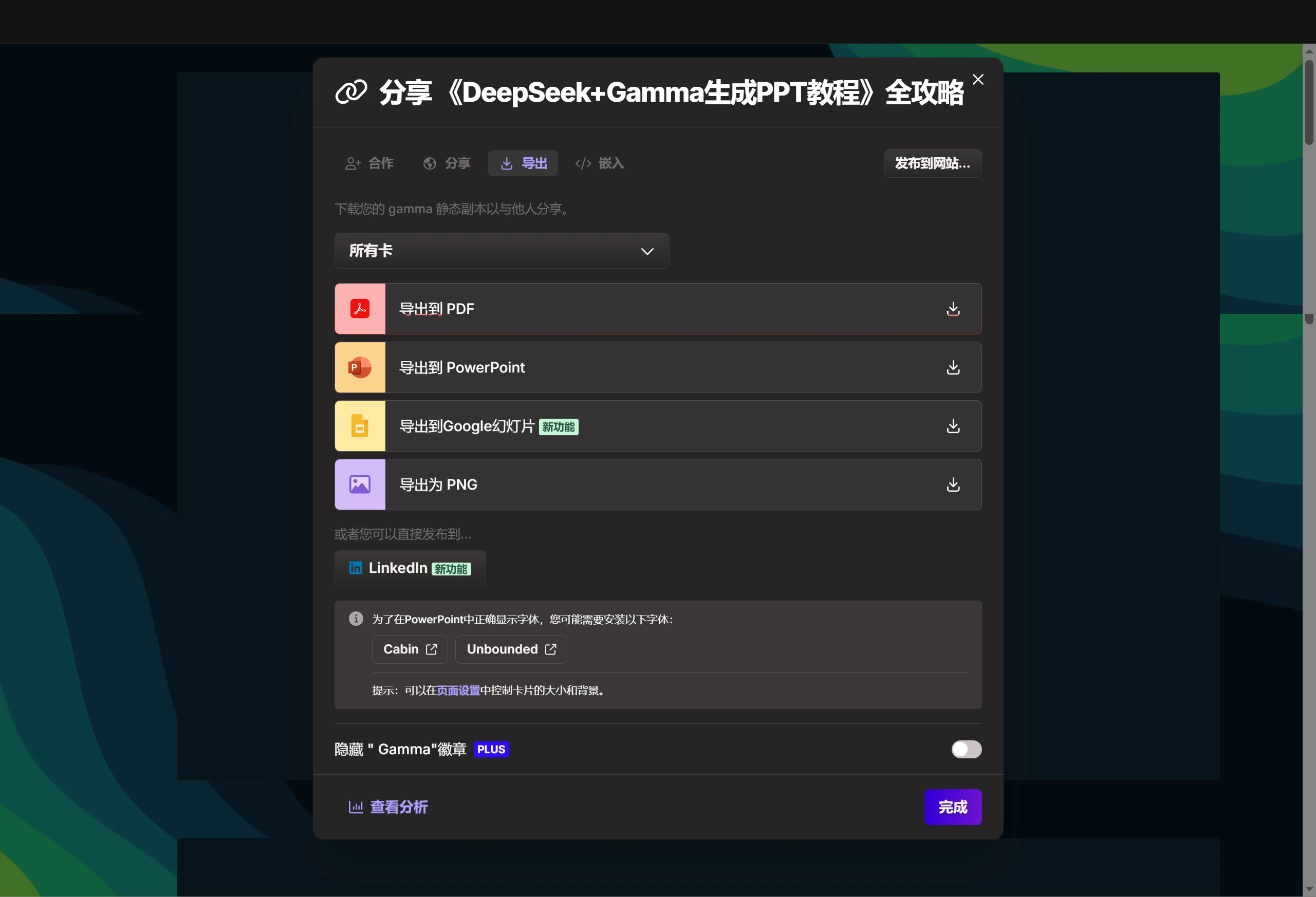
Following this process, you can use DeepSeek and Gamma.app to create great PPTs. Give it a try now and experience the convenience and efficiency that AI brings!
If you find Gamma's usage and workflow unfamiliar, you can use Deepseek+Kimi to generate PPTs instead. Personally, I'm not used to it either, and Gamma's free version has limits on the number of PPT pages (a maximum of 10 pages per generation). To create more pages, you'd need to upgrade to the Pro version.









