
 Script Planner Assistant▸
 AI Apps
 AI News
The Ultimate Guide to iPhone Shortcuts
小编 ·

The Ultimate Guide to iPhone Shortcuts
What is iPhone Shortcuts?
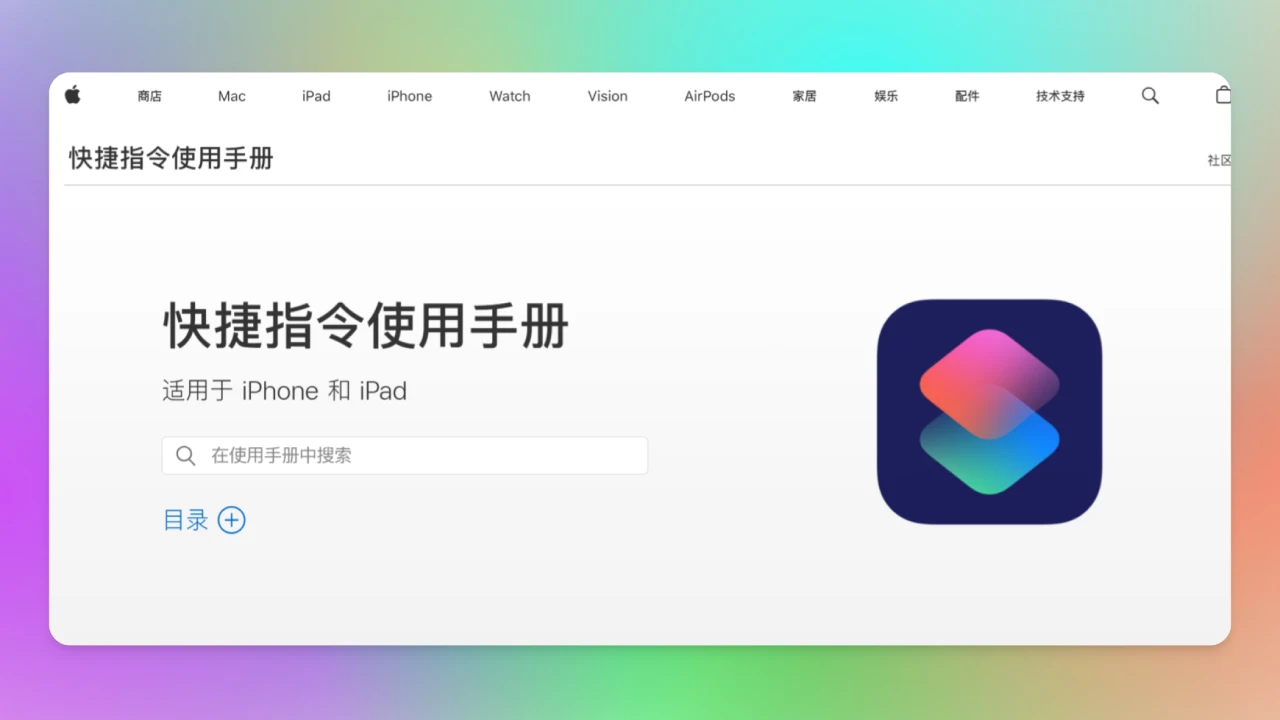
iPhone's "Shortcuts" is a built-in application introduced by Apple (pre-installed on iOS 12 and later) that allows you to create shortcuts to perform one or more tasks with apps. Users can combine multiple actions into a single command through it, and then execute these commands through simple setup actions (such as tapping, voice commands, or automation triggers). For example, you can create a shortcut to one-click complete tasks like "send location information to family," "automatically organize photos," or "remind me to drink water periodically." It is similar to "automation scripts" or "hotkeys" on other platforms, but is more intuitive and user-friendly.
Main Features of iPhone Shortcuts
Automated Tasks: Achieve complex automation tasks by combining features of multiple apps. For example, automatically play music when you connect your headphones, or automatically send a message when you arrive at the office.
Voice Control: Deeply integrated with Siri, allowing you to trigger shortcuts through voice commands.
Personalized Operations: Users can customize the name, icon, and color of shortcuts, and even create their own shortcuts.
System Integration: Can access iPhone's system functions, such as retrieving location information, reading calendar events, sending notifications, etc.
Third-Party App Support: Supports extensions for a large number of third-party apps, such as WeChat, Alipay, Spotify, etc., allowing you to integrate the features of these apps into shortcuts.
Where is the iPhone Shortcuts Setup Entry?
1. "Shortcuts" is a standalone application, usually pre-installed on iPhones running iOS 12 and later. If it is not pre-installed, you can download it from the App Store.
Find the Shortcuts App
Find the "Shortcuts" app icon on the iPhone home screen (the icon features a gear and a lightning bolt).
If you can't find it, you can quickly locate it through Spotlight Search (swipe down from the home screen and type "Shortcuts").
Or go to "Settings" > "Home Screen" and confirm whether "Shortcuts" is hidden. If it doesn't appear, you can add it to the home screen.
Add to Home Screen or Control Center
Open the "Settings" app.
Scroll to the "Control Center" option.
On the "Control Center" page, find "Shortcuts" and tap the "+" button to add it to the Control Center.
After adding, swipe down from the top-right corner of the screen to bring up the Control Center, and you will see the Shortcuts entry.
2. Shortcuts is deeply integrated with Siri and can be triggered through voice commands.
Open the "Shortcuts" app.
Select a shortcut and tap the "..." button to enter the details page.
On the details page, tap the "Add to Siri" button.
Set a voice command (such as "Start work mode" or "Navigate home").
Afterwards, you can trigger the shortcut through voice commands (such as "Hey Siri, start work mode").
How to Use Shortcuts?
1. Open the Shortcuts app: Find and open the "Shortcuts" app on your iPhone. If this app is not on your device, you can download it from the App Store — see the previous step.
2. Browse preset shortcuts: The Shortcuts app comes with many built-in presets, such as "One-tap navigate home" and "One-tap generate schedule." You can use these presets directly or modify them according to your needs.
3. Create custom shortcuts:
Tap "Create Personal Automation" or "Create Shortcut."
Select the required function or app, such as "Get Current Weather," "Send Message," "Play Music," etc.
Combine multiple actions into one command, for example, "If it's raining, automatically send a message reminding to bring an umbrella."
Set trigger conditions. You can choose manual triggers or set automation triggers, such as time, location, or specific events.
Trigger with Siri: You can integrate shortcuts with Siri to trigger them through voice commands. For example, you can set a voice command "Start work mode" and then speak this phrase through Siri to trigger a series of automated tasks.
Common Shortcut Examples
One-tap Navigate Home: Tap a button or speak a voice command to automatically open the Maps app and navigate home.
Auto Backup Photos: Automatically upload photos to the cloud when connected to Wi-Fi.
Periodic Water Reminder: Automatically send reminder notifications at regular intervals.
One-tap Send Location: Tap a button or speak a voice command to automatically send your real-time location to a specified contact.
Automated Workflows: For example, automatically open specific apps, play music, send messages, etc., when you arrive at the office.
Advantages of Shortcuts
Improved Efficiency: Reduce repetitive operations through automated tasks, saving time and effort.
Personalized Experience: Create unique shortcuts based on your own needs and habits.
Powerful Feature Integration: Access system functions and third-party app features to achieve complex automation operations.
Easy to Use: Even without programming experience, you can create shortcuts through simple drag-and-drop and combination.
Precautions for Using Shortcuts
Privacy and Security: Some shortcuts may access your personal information or sensitive data. It is recommended to pay attention to privacy settings when creating and using them.
Third-Party App Support: Not all third-party apps support Shortcuts; you need to check whether the app supports extension features.
System Limitations: Some automation tasks may only be triggered under specific conditions, such as connecting to Wi-Fi or enabling location services.









