
 Script Planner Assistant▸
 AI Apps
 AI News
DeepSeek + Meijian AI Creative PPT: Million-Dollar Decks Made Easy
小编 ·

DeepSeek + Meijian AI Creative PPT: Million-Dollar Decks Made Easy
Do you often struggle with making PPT? Worried that the content isn't professional enough or the design isn't visually appealing? Don't worry—today I'm sharing an amazing tool combination for creating PPTs—DeepSeek and Meijian AI Creative PPT—to help you get it done effortlessly! DeepSeek can quickly generate logically structured content outlines, while Meijian AI Creative PPT can transform that content into beautiful, professional slides. Next, I'll walk you through how to use these two tools, so even beginners can make PPT creation simple and efficient.
Part 1: Use DeepSeek to Generate the PPT Outline and Content
Visit the DeepSeek official website:Open your browser and go to the DeepSeek official website, then click "Start Chat." If you encounter a busy server, please use the full-power version of Wenxiaobai.
1. Enter Your Requirements:
Clearly and specifically tell DeepSeek what you need. For example:
Help me generate a PPT on "Trends in Artificial Intelligence Development," primarily for presentation at an industry seminar.
Please ensure the content is cutting-edge and professional, with extensive references to authoritative data. Output in Markdown format.
Note: Before submitting, be sure to check both Deep Thinking (R1) and Web Search.
2. Generate and Copy the Content:
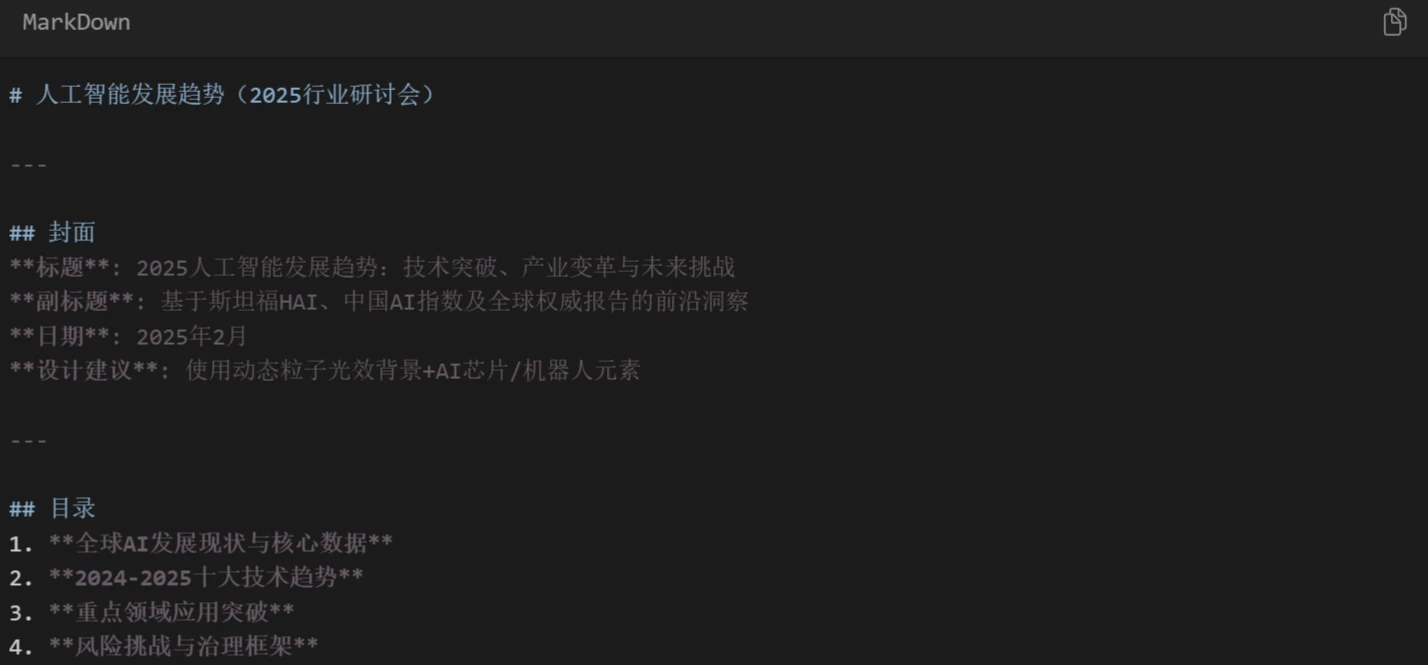
DeepSeek will generate text in Markdown format. Click the "Copy" button in the upper right corner to save the content to your clipboard.
Part 2: Use Meijian AI Creative PPT to Generate and Edit the PPT
1. Visit Meijian AI Creative PPT:Open your browser and go to Meijian AI Creative PPT.
2. Paste the Content Generated by DeepSeek: Paste the Markdown content copied from DeepSeek into the input area of Meijian AI Creative PPT. Meijian AI will automatically convert the text into a structured outline, retaining nearly 100% of the text content, and also supports fine-tuning details.
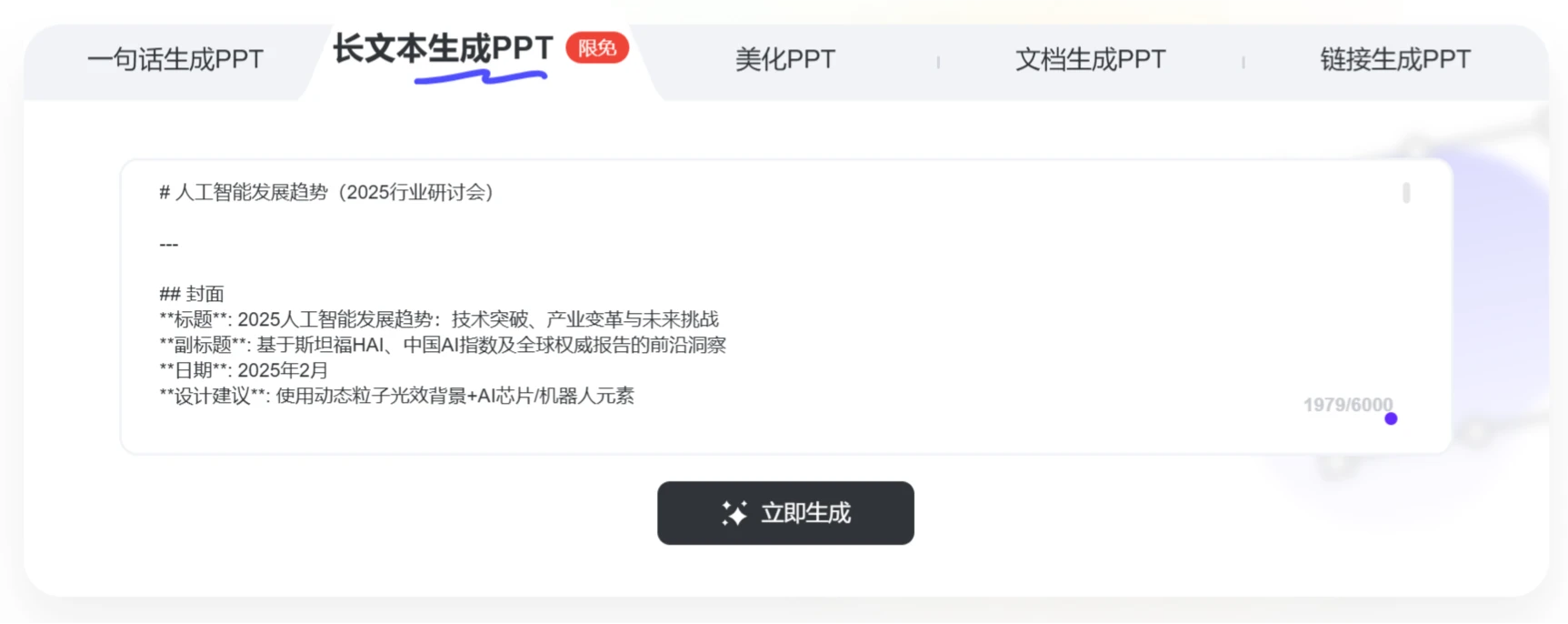
3. Generate the PPT:Click "Generate Now," and Meijian AI will automatically create the PPT based on the outline. It supports up to 6,000 characters of input and fully preserves the text output by DeepSeek.
4. Choose a Template: Meijian offers a wide range of templates in various styles, including tech, business, and fresh/clean designs. Select the one that best fits your needs.
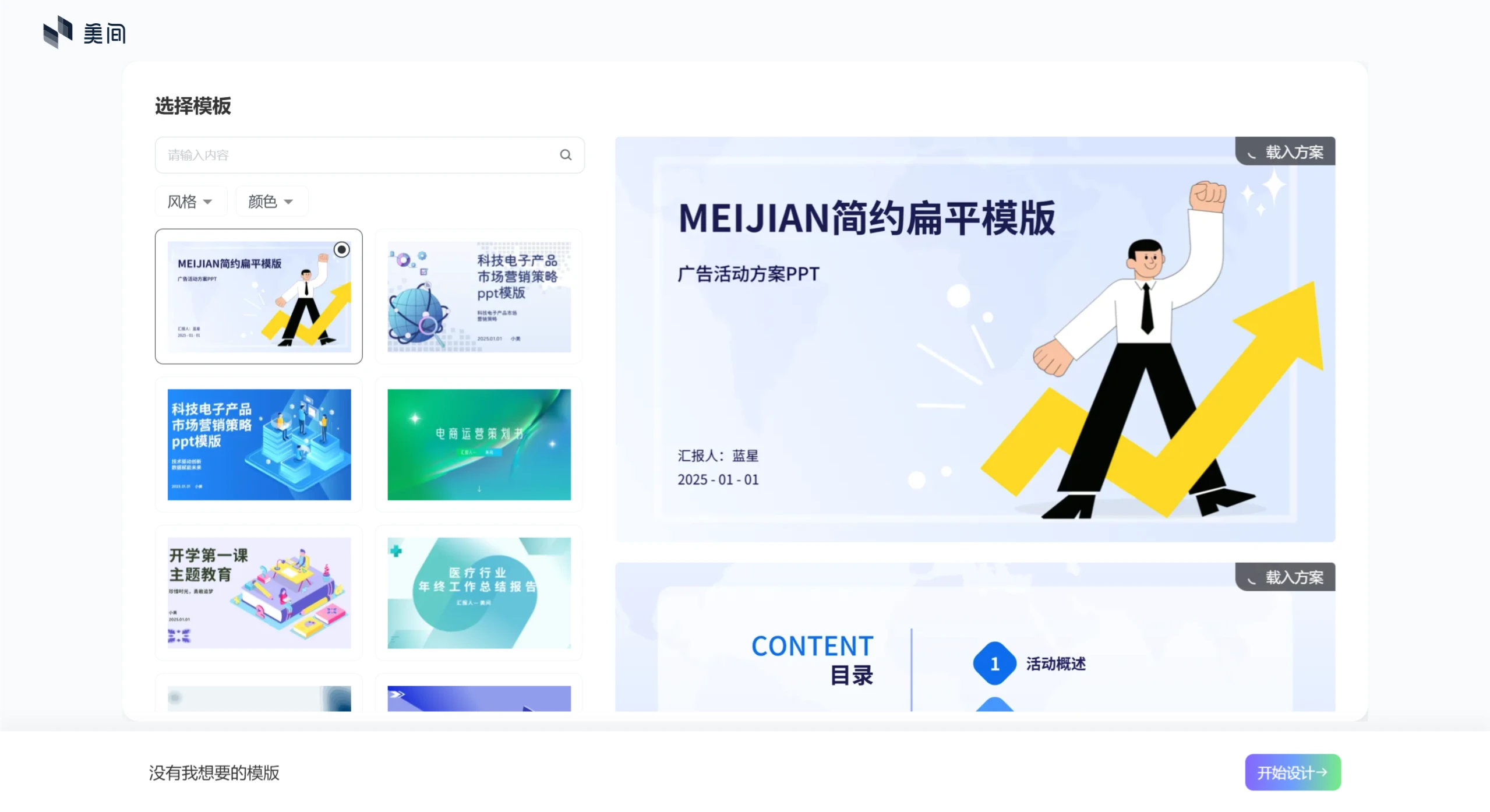
5. Edit Online and Export: Click "Start Design"Once the PPT is generated, you can edit it directly online. It supports one-click layout switching, AI-powered image processing, and a vast library of licensed images to choose from. When you're done, export in multiple formats such as PDF, PPT, JPG, PNG, and MP4.
Part 3: Advanced Features (Optional)
Beautify PPT: If you feel the generated PPT isn't visually appealing, you can use Meijian PPT's beautification feature to polish it.
Generate PPT from Documents: Supports importing Word, Txt, PDF, and other documents—intelligently parses them and automatically adds images to generate the PPT.
Generate PPT from URLs: Supports WeChat Official Account and Jianshu links—parses the webpage content and outputs it as a PPT.
By combining DeepSeek with Meijian AI Creative PPT, we can easily create professional-grade PPTs. These two tools not only save us time and effort but also allow us to focus more on content innovation and depth. I hope these tools help you create PPTs more efficiently in your work and studies, and showcase the best version of yourself!









