
 Script Planner Assistant▸
 AI Apps
 AI News
OmniParser V2: Microsoft's Screen Parsing Tool That Converts UI Screenshots into Structured Data
小编 ·

OmniParser V2: Microsoft's Screen Parsing Tool That Converts UI Screenshots into Structured Data
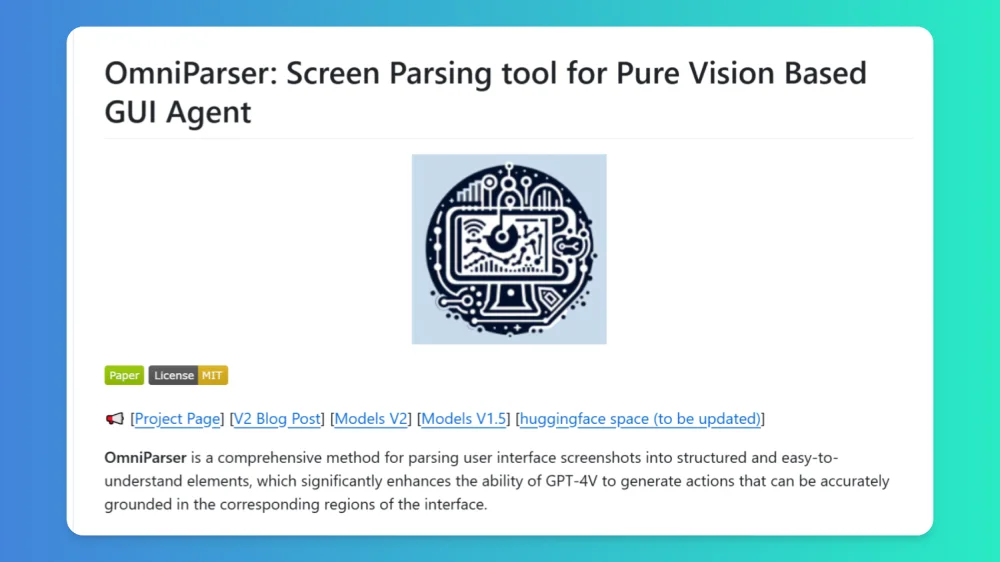
OmniParser V2 is a powerful ai tool that helps computers understand and interact with visual information from user interfaces. It leverages vision and language models (VLM) to not only identify interactive elements on the screen, but also parse complex UI screenshots into structured data. This assists language models in understanding screen elements and predicting user interaction actions, thereby generating precise operations—making it an extremely powerful screen understanding solution.
Features of OmniParser V2
Multi-Model Compatibility: OmniParser V2 is compatible with many of the most popular LLMs available today, such as OpenAI and DeepSeek, greatly enhancing its flexibility and range of applications.
Vision-Language Fusion: This tool cleverly combines vision and language models (VLM) to accurately parse and understand captured UI elements, which is of great significance for developing intelligent agents.
Structured Data Output: When parsing screenshots, OmniParser V2 can automatically identify and classify UI elements such as buttons and text fields, then convert them into structured information to facilitate subsequent operations and analysis.
Precise Action Generation: It not only identifies UI elements but also generates corresponding action commands based on the recognition results, providing convenient conditions for the development of intelligent application automation.
Intelligent OCR Extraction: Using advanced OCR technology, it accurately recognizes on-screen text information, while combining icon bounding boxes to ensure comprehensive and complete information extraction.
Structured Integration: It integrates icons, text, bounding boxes, and semantic labels into an organized structure, similar to a DOM tree, presenting interface elements in a logically clear manner.
Use Cases for OmniParser V2:
Office Automation: It can automatically process document formatting, unify Word document layouts, and auto-fill Excel data.
Automated Testing: In software testing, OmniParser V2 enables automated testing of user interfaces, improving testing efficiency and accuracy.
GUI Automation Testing: It provides precise interface element recognition for software testing and can automatically execute test scripts to reduce manual costs.
User Experience Analysis: By parsing user interface data, businesses can gain in-depth insights into user experience and optimize product design.
Intelligent Assistant Development: With its structured output, developers can build smarter assistants capable of understanding and operating various interfaces to accomplish more complex user commands.
Education and Training: Used in educational software, it helps students interact with content through graphical interfaces.
How to Use OmniParser V2
1. Obtain Resources
Get the project code and documentation from the GitHub repository (https://github.com/microsoft/OmniParser).
Download the pre-trained model from the HuggingFace model library (https://huggingface.co/microsoft/OmniParser).
2. Environment Setup: Install OmniParser V2 in an appropriate environment, ensuring that a compatible LLM is available.
3. Data Input: Once ready, input the UI screenshots you need to parse into OmniParser V2. If reading from a local folder, make sure the screenshot format is one commonly supported by OmniParser V2, such as PNG, JPEG, etc.
4. Monitor the Parsing Process
During parsing, if there is a monitoring interface, you can use it to view the parsing progress, which displays information such as the currently processed screenshot number and estimated remaining time.
You can also check the log file (if generated), which records detailed information about the parsing process, including any error messages that may have occurred.
5. Data Processing
After parsing is complete, the data output by OmniParser V2 is typically presented in formats such as JSON.
Process the parsing results according to the application scenario. For example, if used for automated testing, you may need to use the parsed UI element positions and attributes to write test scripts; if used for data entry, you may need to import the results into a database.
GitHub Repository:https://github.com/microsoft/OmniParser
HuggingFace Model Library:https://huggingface.co/microsoft/OmniParser









