
 Script Planner Assistant▸
 AI Apps
 AI News
How to Batch-Create Excel Spreadsheets with DeepSeek?
小编 ·

How to Batch-Create Excel Spreadsheets with DeepSeek?
Before this, I wrote an article titled "How to Use Deepseek + Kimi to Create Professional PPTs: The Full Workflow", which received a very high number of views, showing that everyone is very interested in using DeepSeek to boost office productivity. In this article, I will introduce how to use DeepSeek combined with VBA to batch-generate Excel spreadsheets, in order to improve the efficiency and quality of creating Excel spreadsheets. Without further ado, let's dive straight into the case.
Case: Your boss asks you to put the resumes of 20 people in the company into the same spreadsheet, with each tab named after the person. Using DeepSeek to batch-generate Excel spreadsheets requires only five steps:
Specific Steps:
Step 1: Generate the macro code
Open DeepSeek (if DeepSeek is busy and unavailable, please use the third-party platform Wenxiaobai, which has integrated the full-power version of DeepSeek), and enter the instruction:
我要做一张20个人的表格,第1张表格有数据,我想复制20张表格,然后把个人的名字改成表格的名字,名字如下,请写1个宏代码
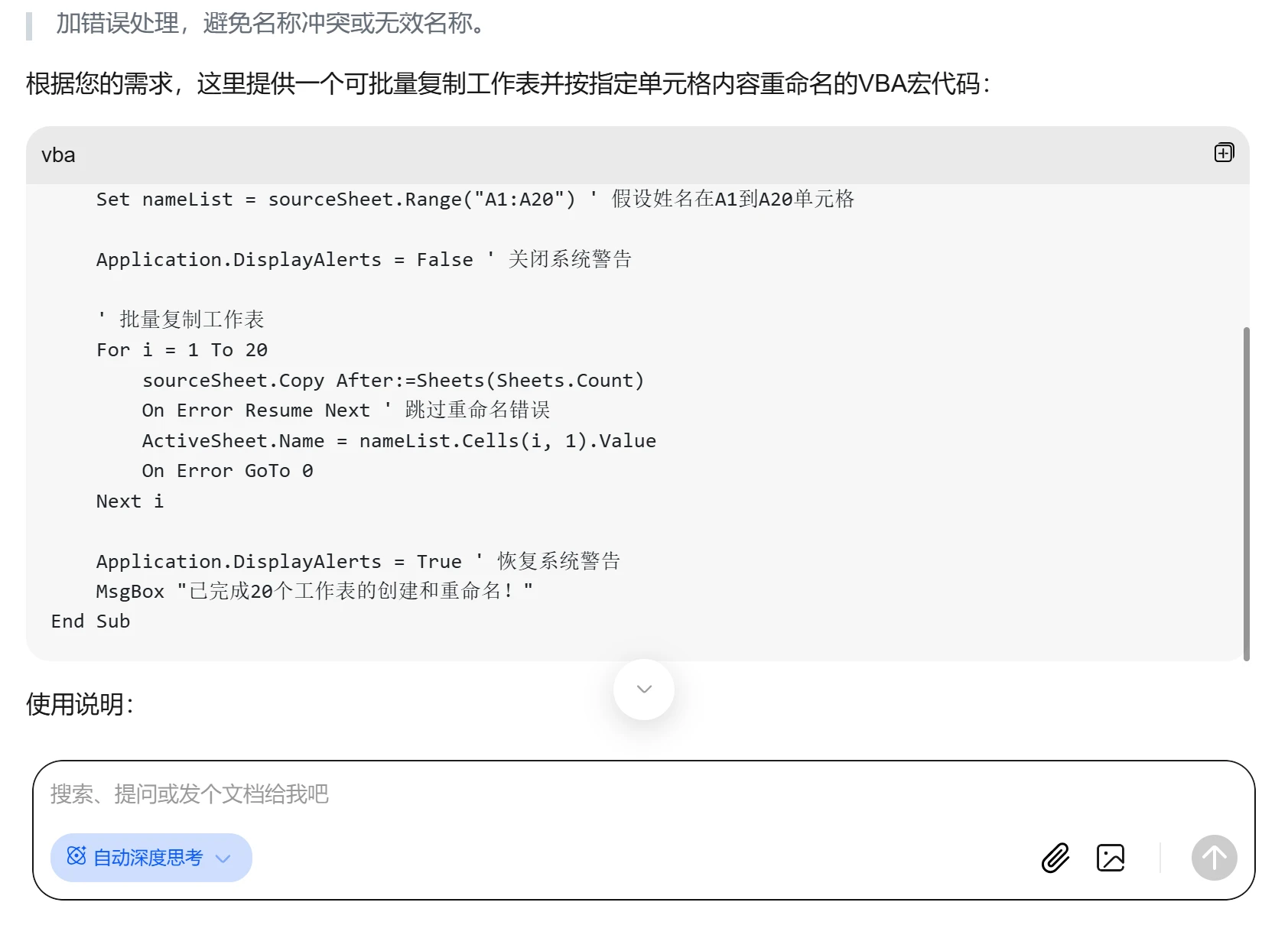
Step 2: Enter the names, submit, and copy the code
Enter: Type the names of 20 people.
Generate: DeepSeek will generate the complete VBA code, and users only need to copy the last segment of code.
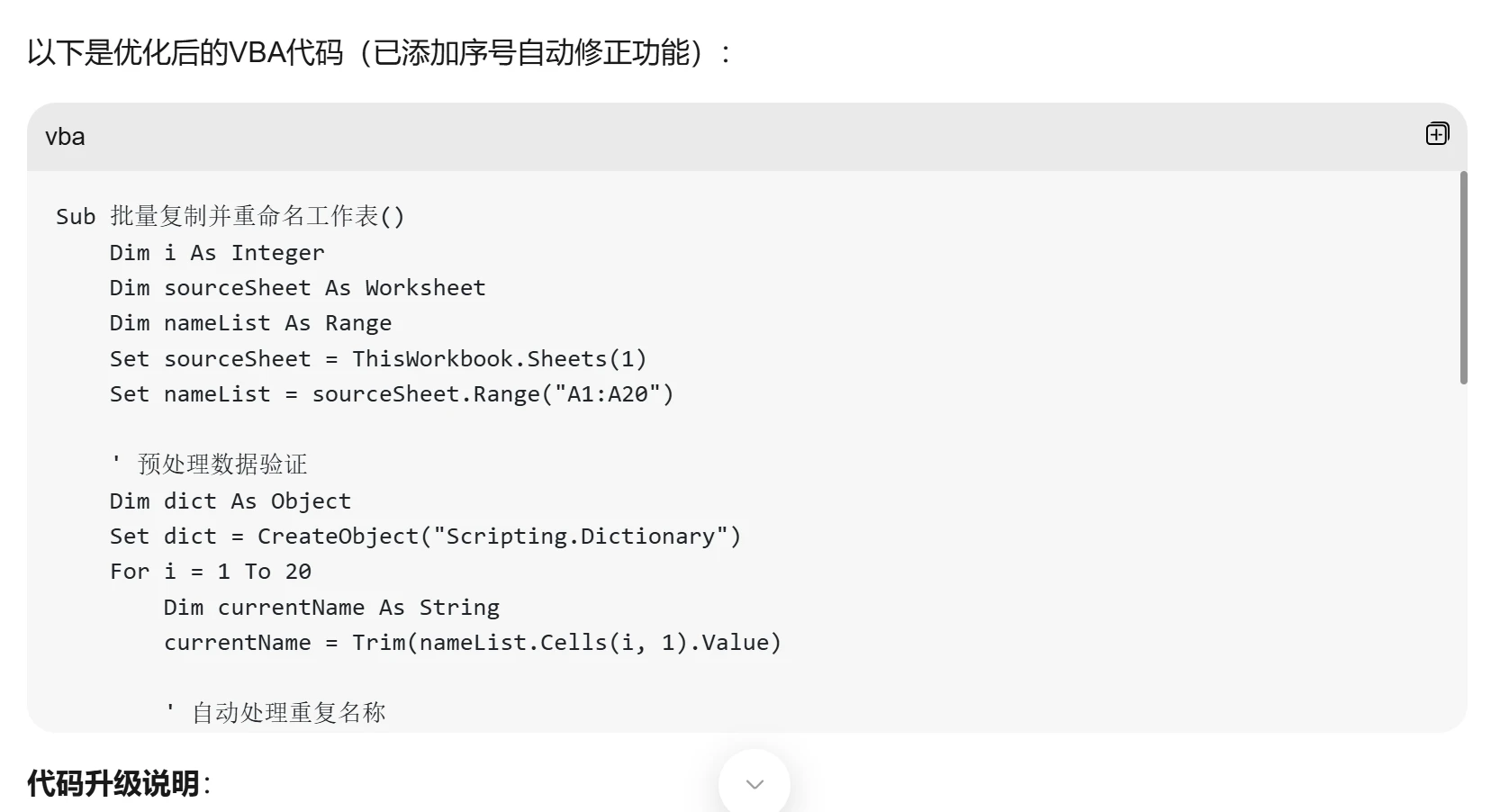
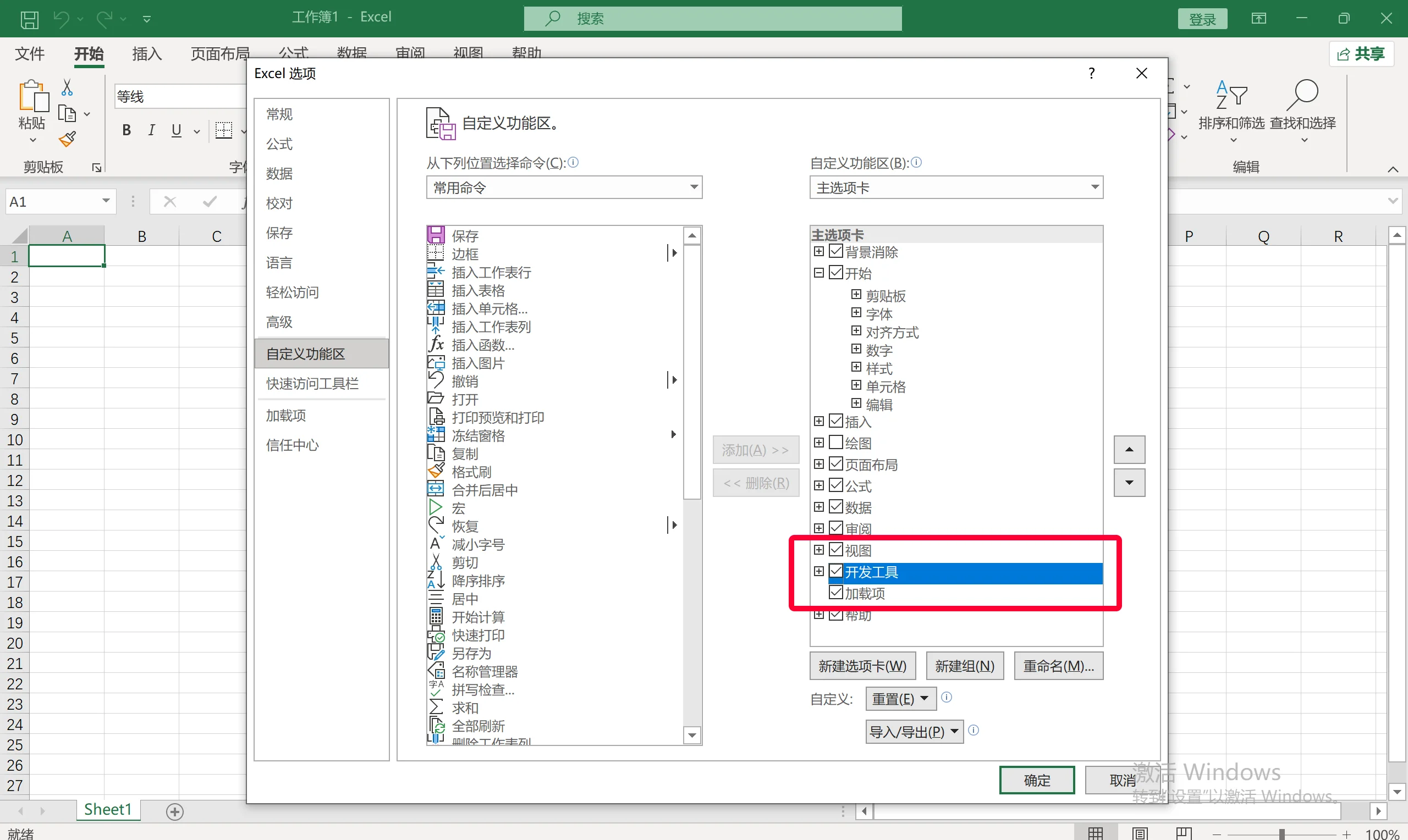
Step 3: Open the Developer Tools in Excel and enable the VBA editor.
For some users, the Developer Tools may not be displayed in the Excel menu bar. You can click on the top menu, right-click, and select [Customize Ribbon], then check the box next to [Developer Tools].

After [Developer Tools] appears, click the [Visual Basic] feature
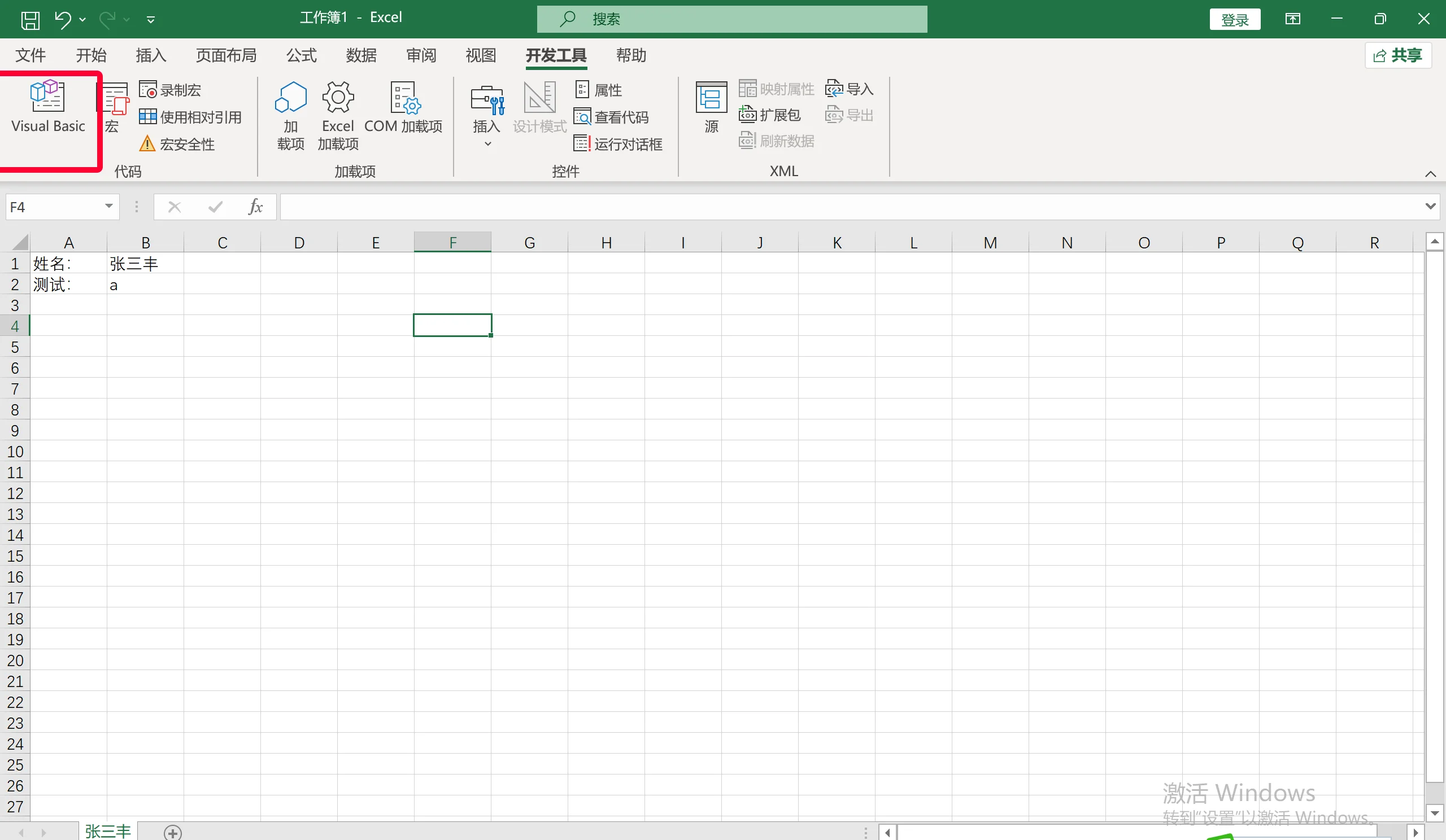
Step 4: Paste the code
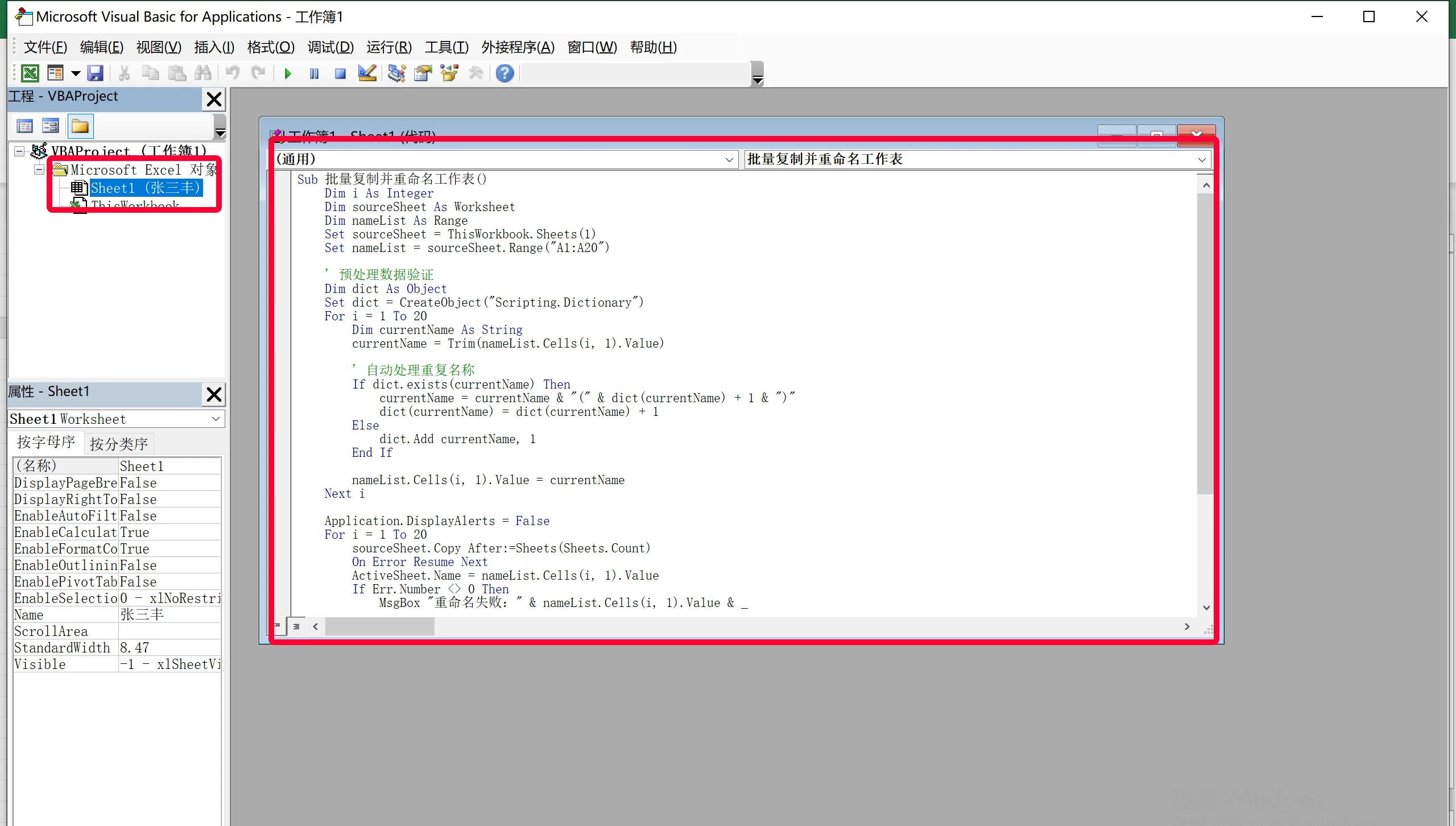
Operation: After enabling the VBA editor in Step 3, in the pop-up window, [double-click to select Sheet1], paste the generated VBA code into the VBA editor, then click X to exit and return to the Excel interface.
Step 5: Execute the macro
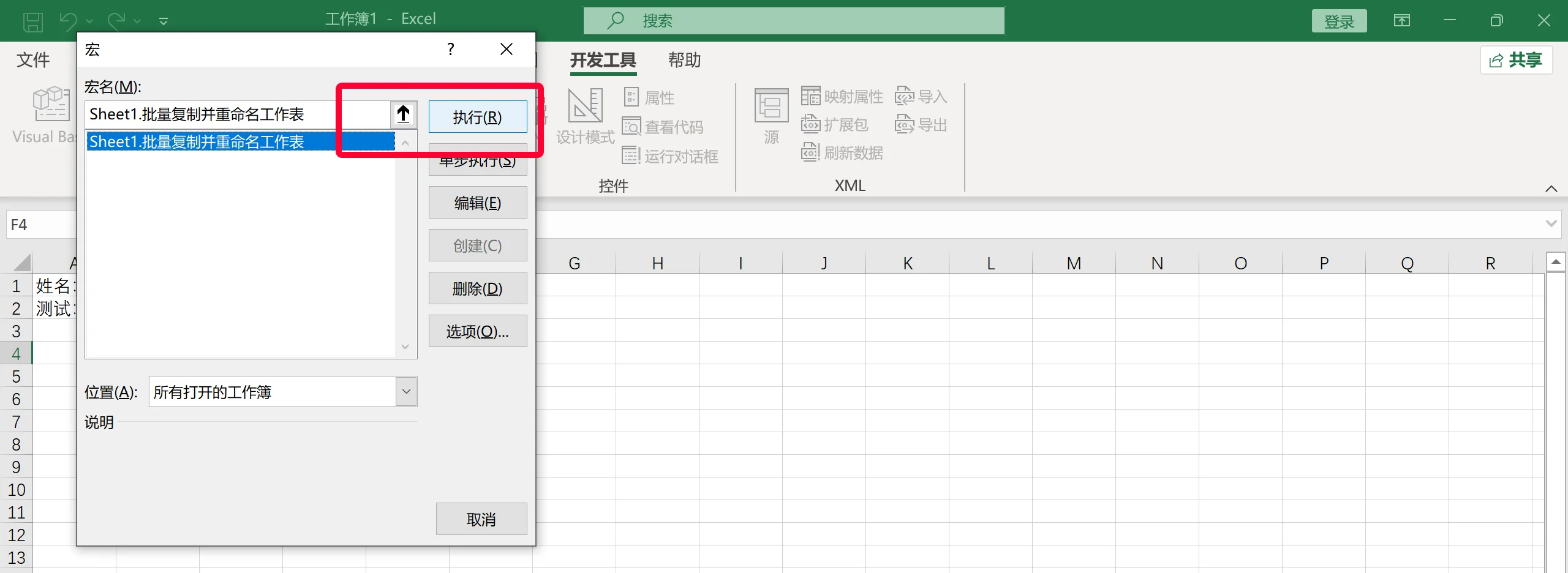
Operation: Double-click "Macros" and select "Run" in the interface.

Result: 30 worksheets will be successfully created, and each tab will be named after the corresponding person. That's the complete 5-step process of batch-creating Excel files with DeepSeek. Isn't it very simple? Give it a try now!









