
 Script Planner Assistant▸
 AI Apps
 AI News
How to Generate PPT Templates with Kimi: A Tutorial
小编 ·

How to Generate PPT Templates with Kimi: A Tutorial
Kimi's PPT assistant is integrated from Kimi and AiPPT. Users can directly invoke the AI PPT function through Kimi's chat interface, and generate PPTs automatically in a short time through simple steps.
Kimi's PPT assistant function can be accessed in three ways:
Through Kimi+: On the left sidebar of Kimi's homepage, select "Kimi+", then select "PPT Assistant".
Directly invoke in chat: In a Kimi conversation, @PPT Assistant to activate this function.
Click the PPT icon directly under Kimi+ on the left sidebar
Step 1: Enter the PPT commands and requirements you want. For example, the command I'm using to test the input is "I want to make a company product introduction PPT for the company's customers, hoping to highlight product advantages to impress customers, please generate an outline and content." Or generate a PPT outline through DeepSeek or Doubao. Kimi also supports uploading documents, allowing users to convert WORD document content into PPTs.
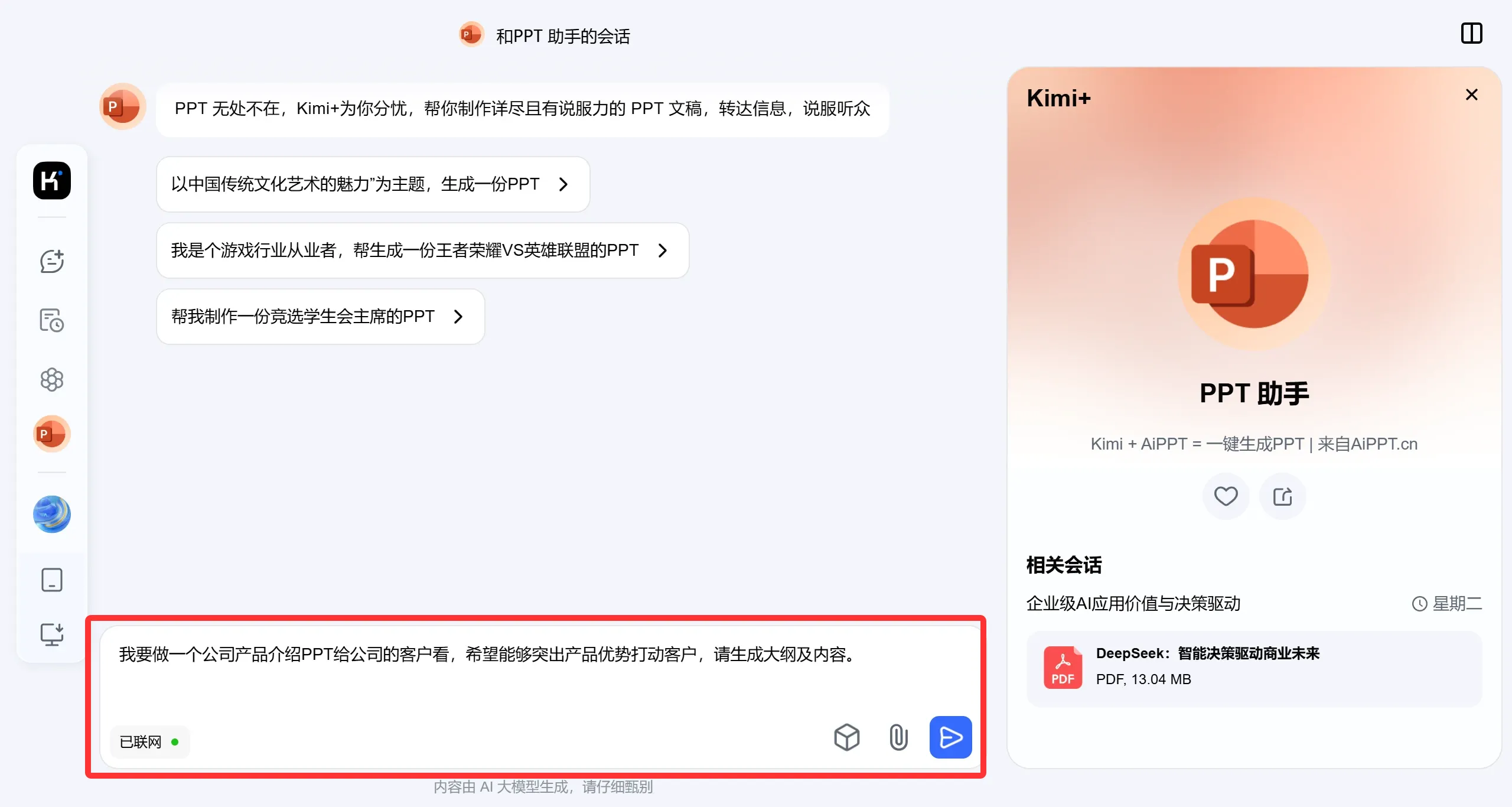
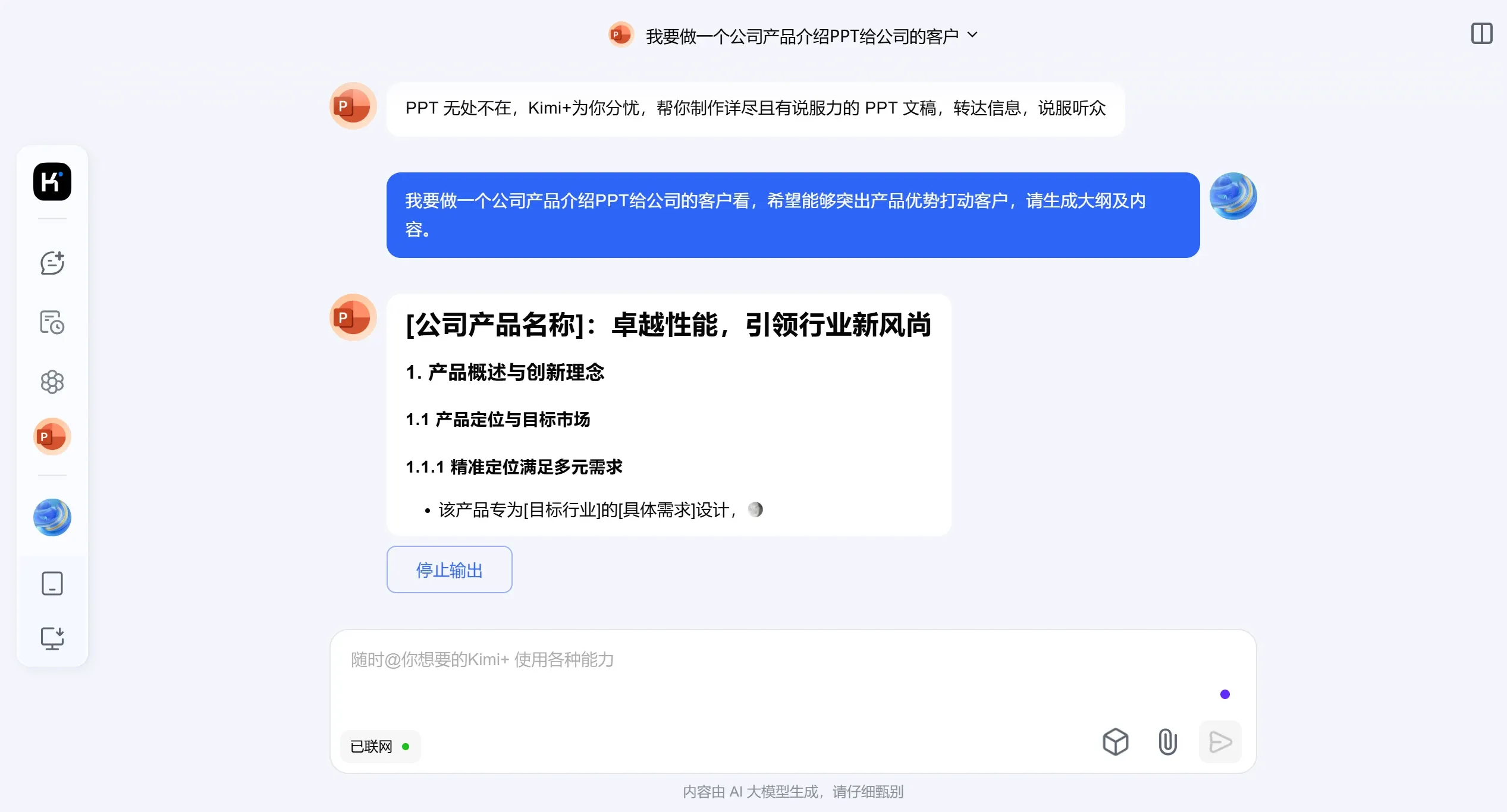
Kimi automatically generates relevant outline content. Kimi's AI function can help users quickly generate content. Users can input keywords or topics to obtain relevant text and data, further enriching the PPT content.
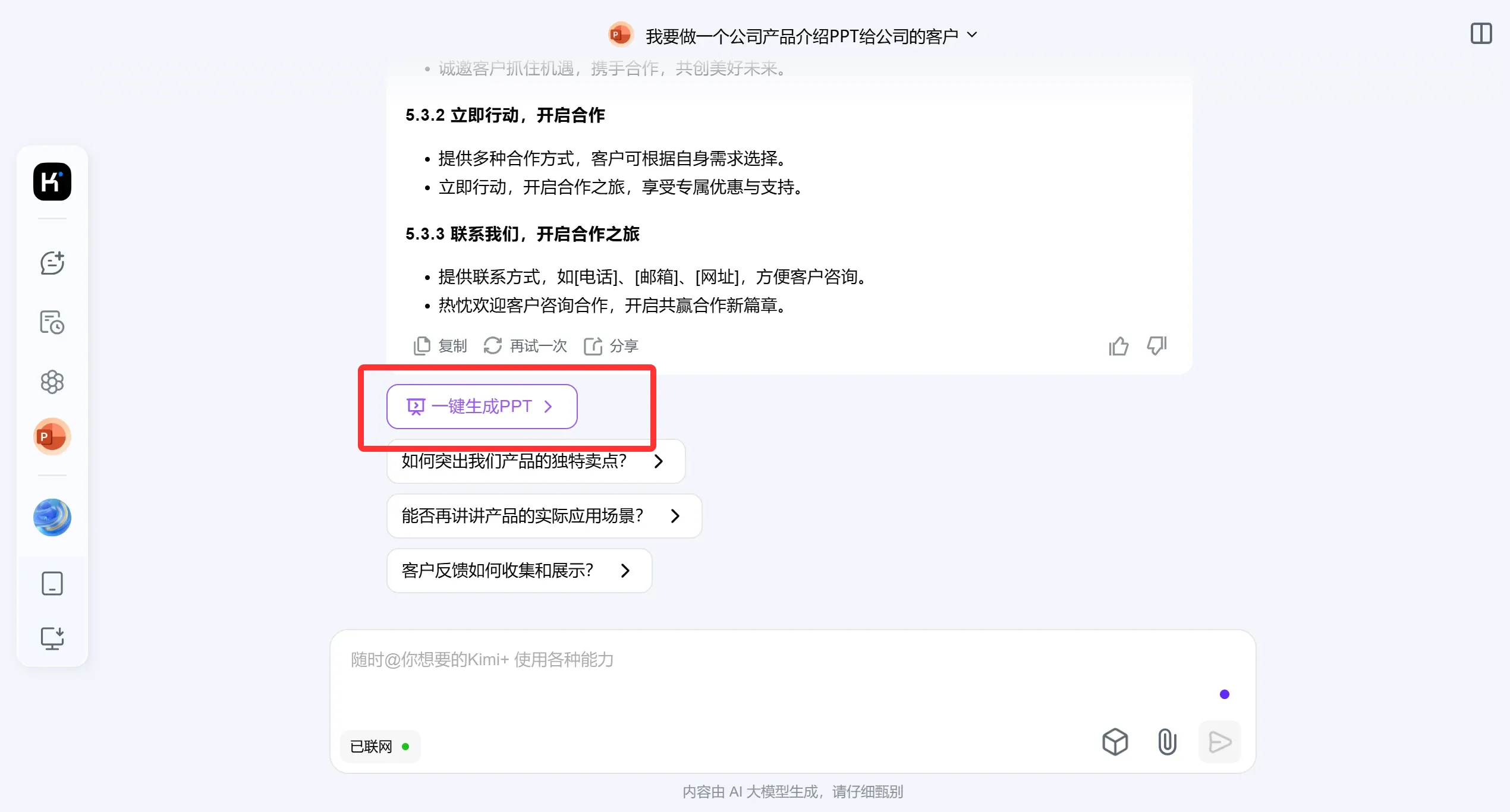
Step 2: After confirming that the outline content is correct, click the [Generate PPT with One Click] button.
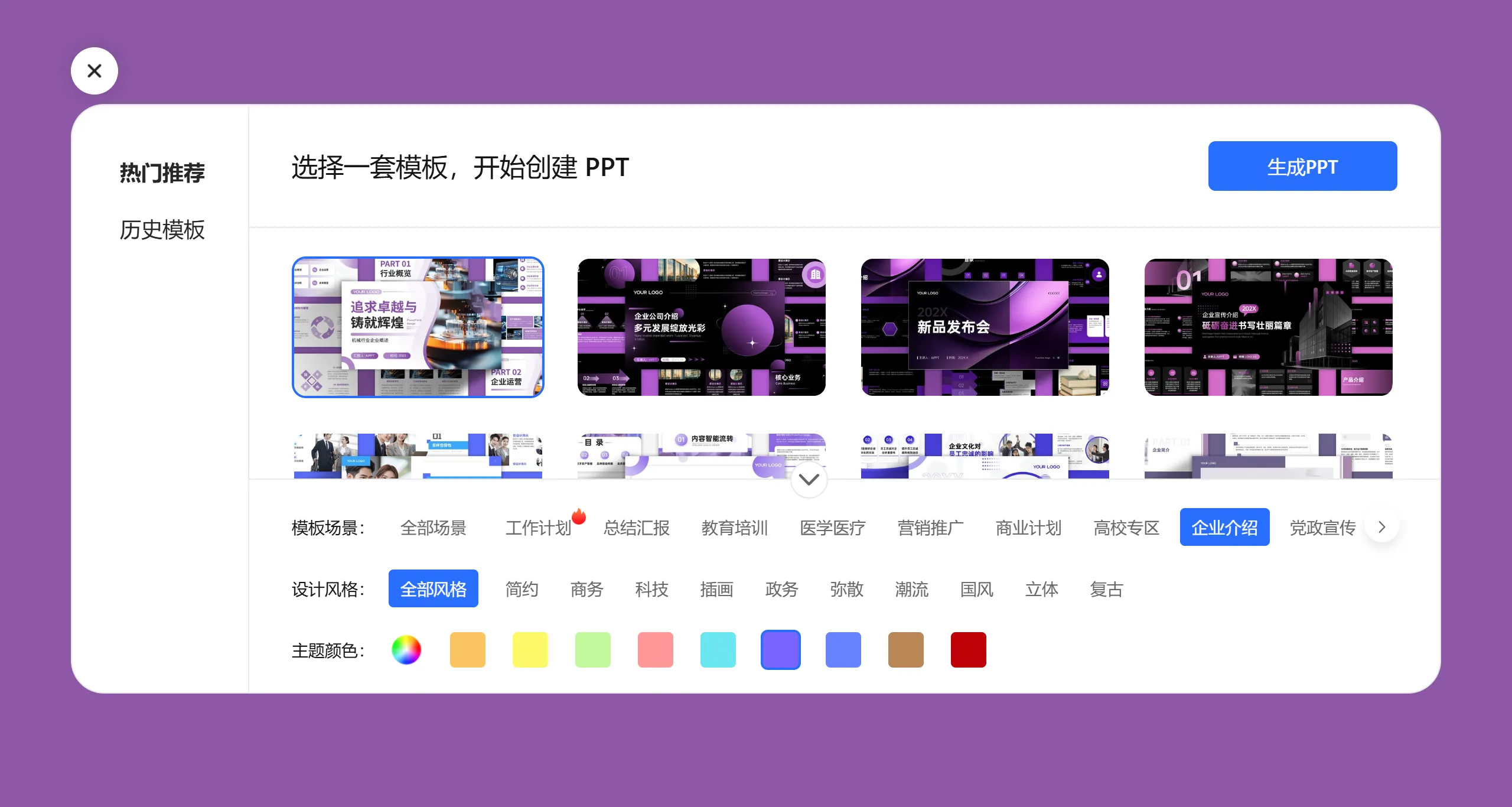
Step 3: Choose a PPT template that matches your theme in terms of design style and theme colors, then click [Generate PPT] in the upper right corner to start creating the PPT.
Template is generating, please wait one or two minutes
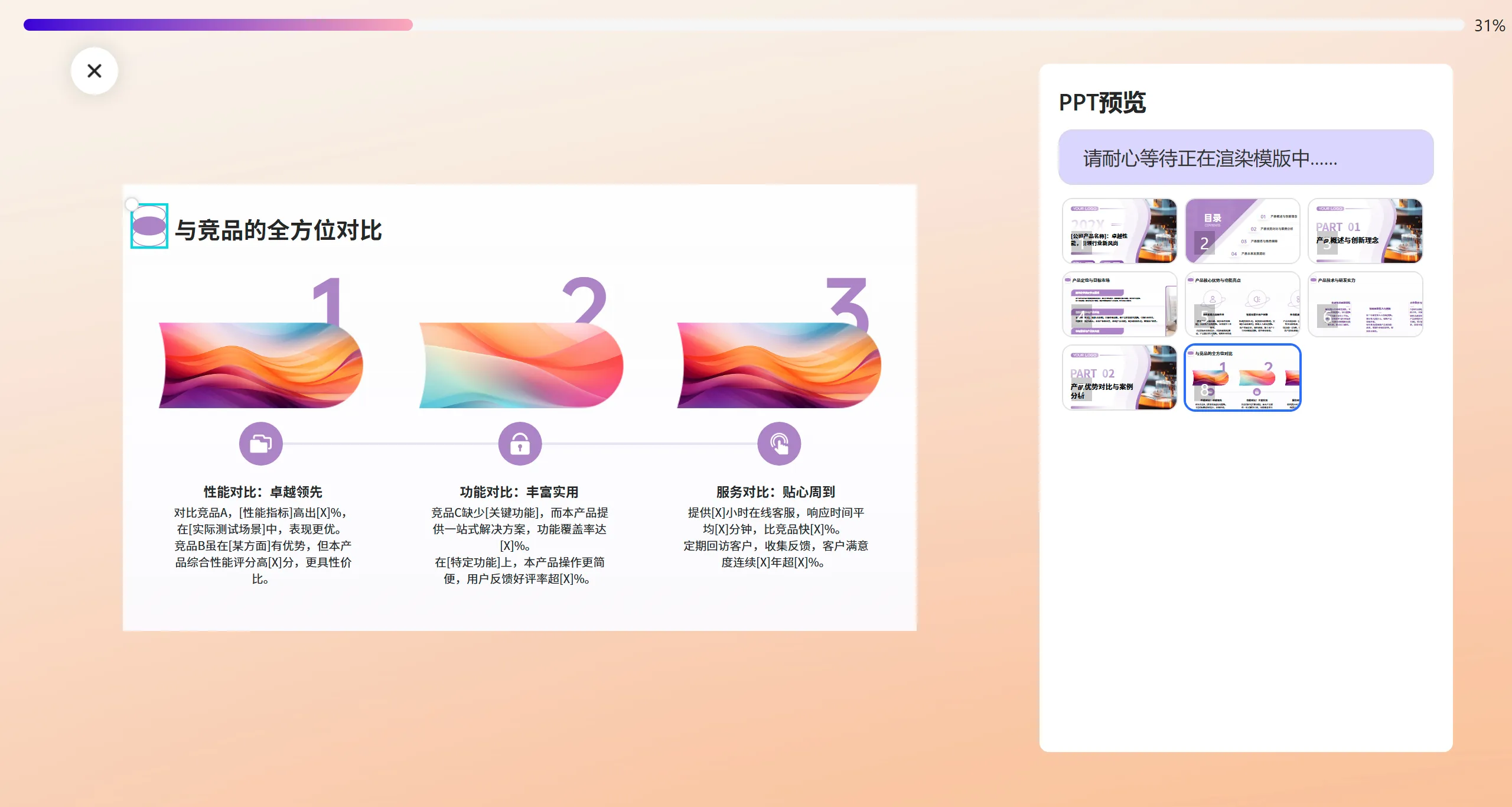
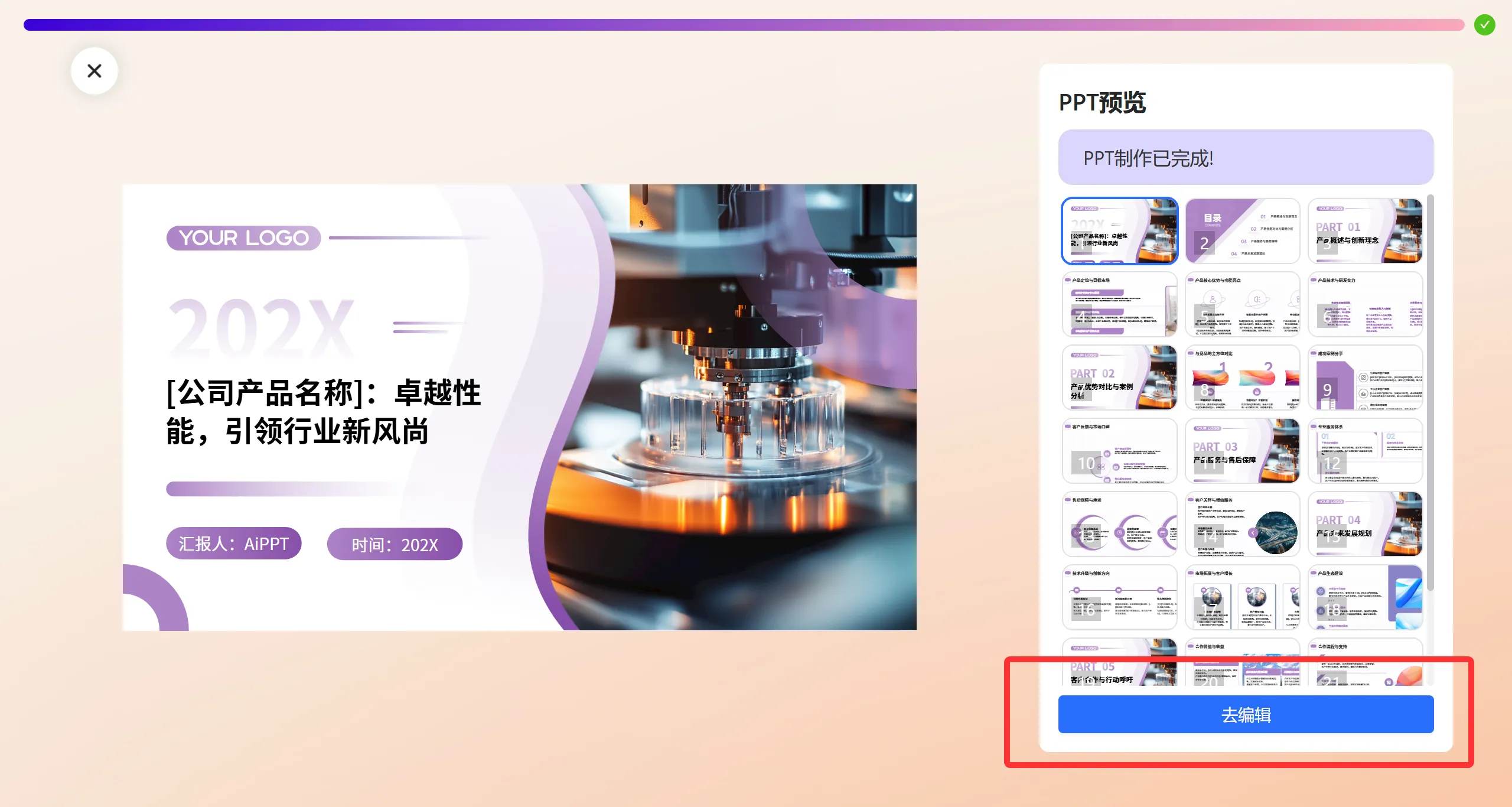
Step 4: After the PPT is generated, click [Go to Edit]. Many people ask how to export the PPT generated by Kimi. This step is very important. Many people don't know where to download after generation. Be sure to click [Go to Edit].
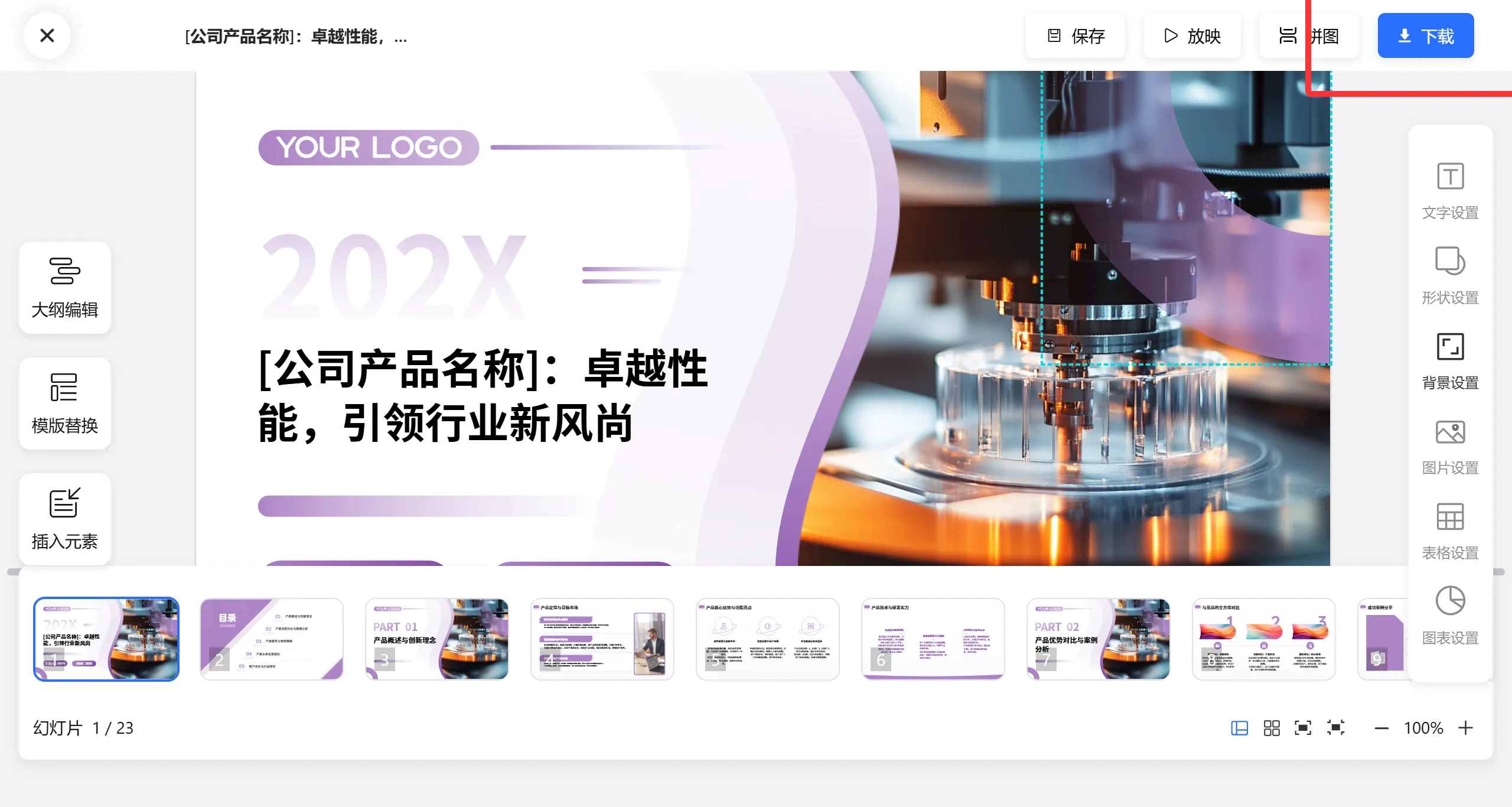
Step 5: Enter the editing page, where you can edit the outline, replace the PPT template, modify elements, etc. Of course, you can also download it and edit it in PPT. After making modifications, click [Download] and select "Text is editable".
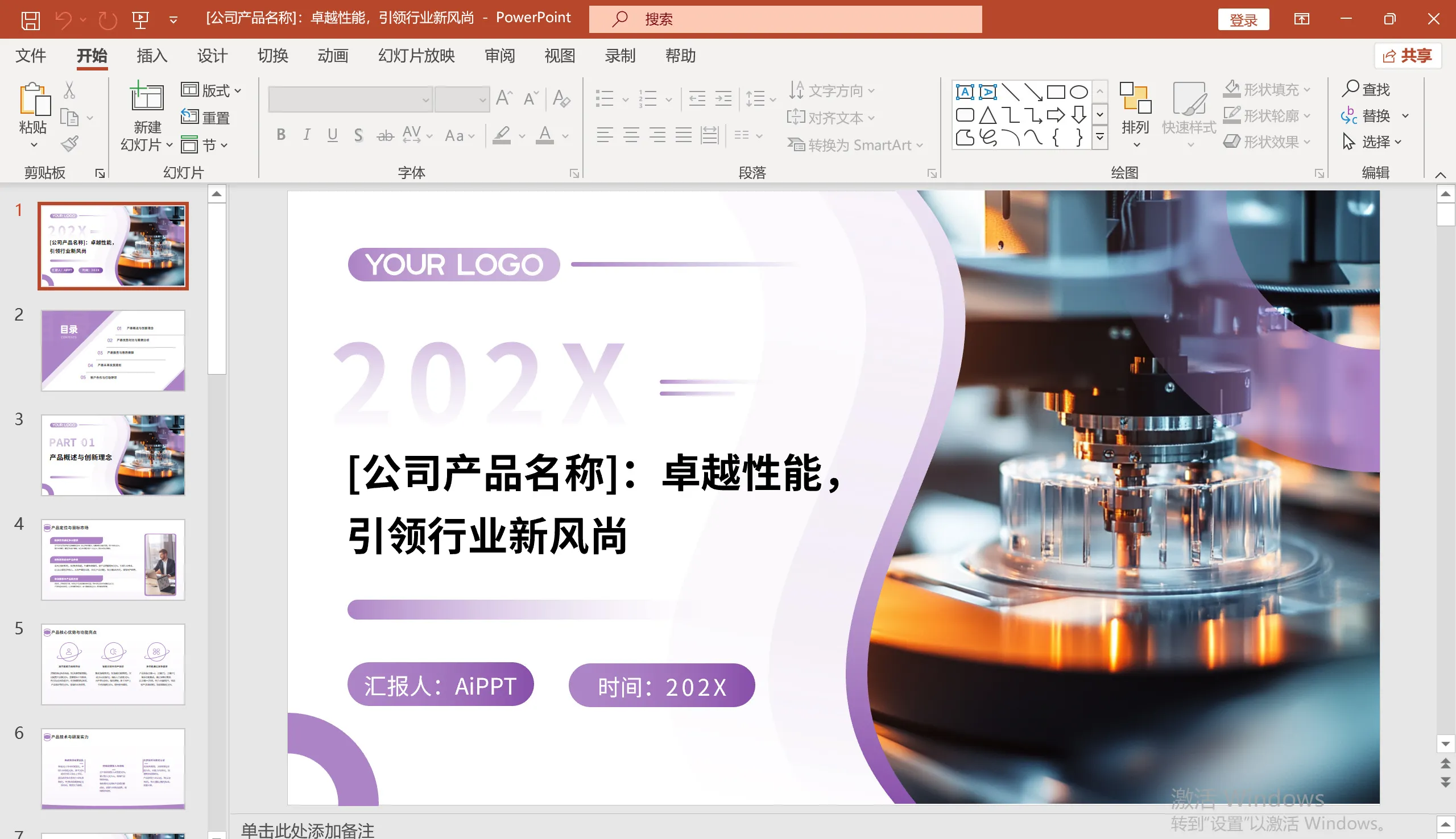
Step 6: After completion, you can download the PPT locally for use. The PPT below is what it looks like after downloading, and you can directly open and edit it.
Kimi's PPT assistant is currently free, and users can make full use of this function to improve work efficiency and save time on making PPTs.









