
 Script Planner Assistant▸
 AI Apps
 AI News
Full Workflow for Creating Professional PPTs with DeepSeek + Kimi
小编 ·

Full Workflow for Creating Professional PPTs with DeepSeek + Kimi
Using Deepseek and Kimi智能助手 to create ppt is all about combining Deepseek's logical reasoning and content generation capabilities with Kimi's structured organization abilities to produce highly professional PPTs. Below are the full steps for creating a professional PPT using Deepseek + Kimi:
Step 1: Generate PPT Outline and Content Instructions
"What to do + Who it's for + What effect to achieve + Which scenario to apply it in" Example:
我要做一个【DeepSeek】介绍PPT要给公司的客户看,希望能够突出产品优势打动客户,确保符合演讲场景,请生成大纲及内容。
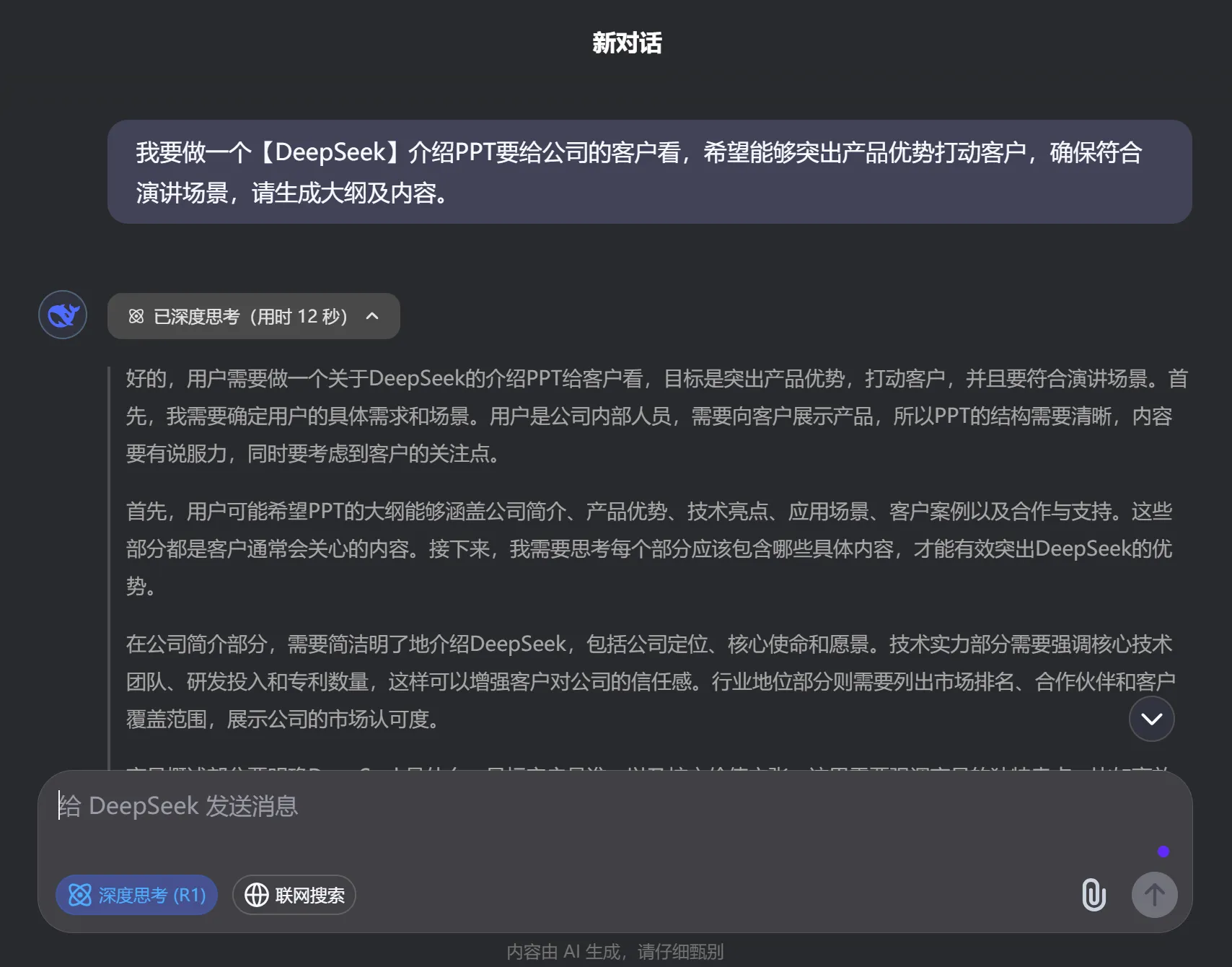
Step 2: Export the Outline and Content
After generating the outline and content, scroll down and click the 【Copy】 icon button in the lower left corner to copy the entire text for use in the next step of importing it into KIMI to create the PPT.

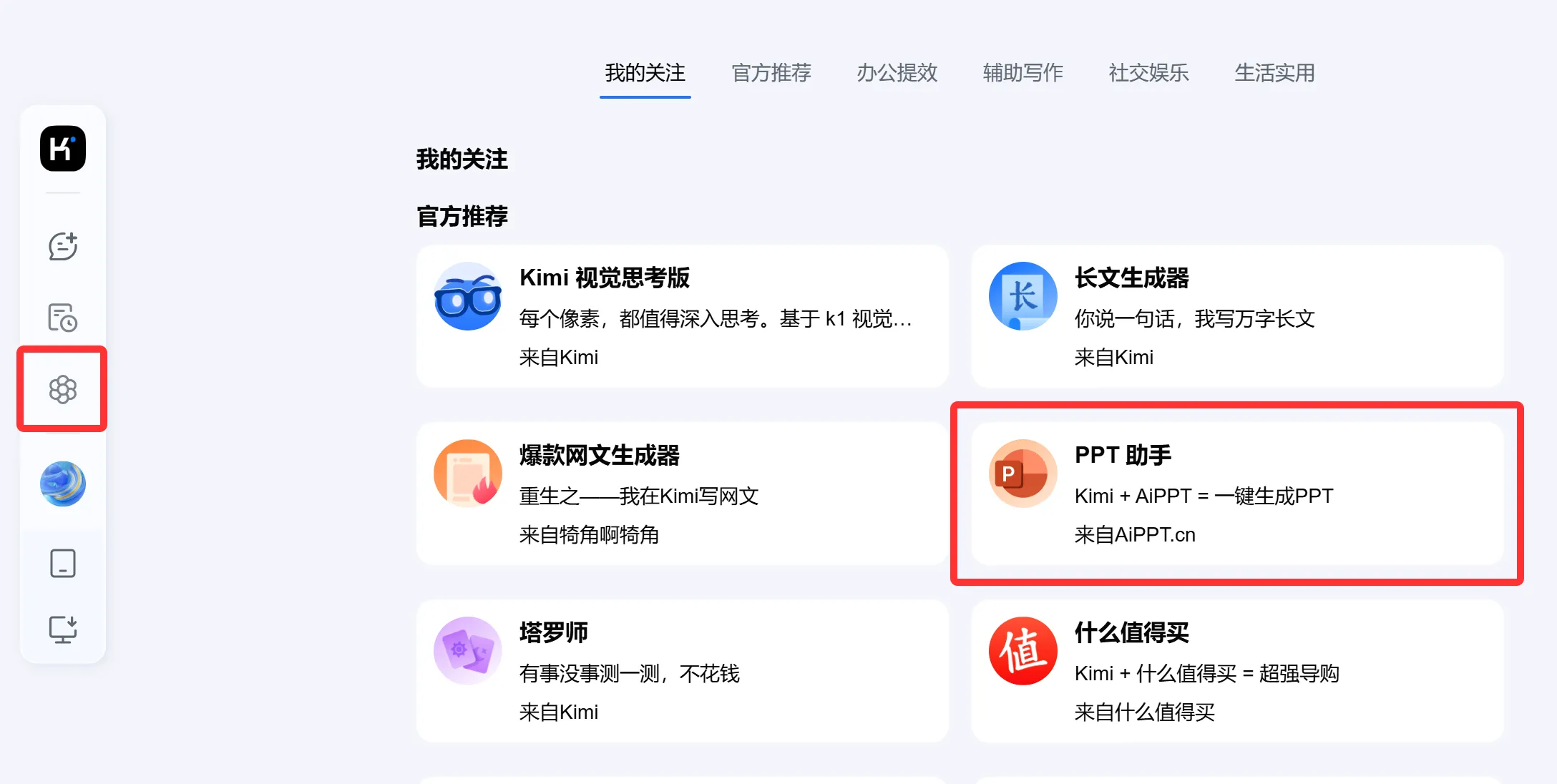
Step 3: Copy the PPT Outline and Content into Kimi's "PPT Assistant"
After copying the PPT outline, open Kimi's 【PPT Assistant】tool.
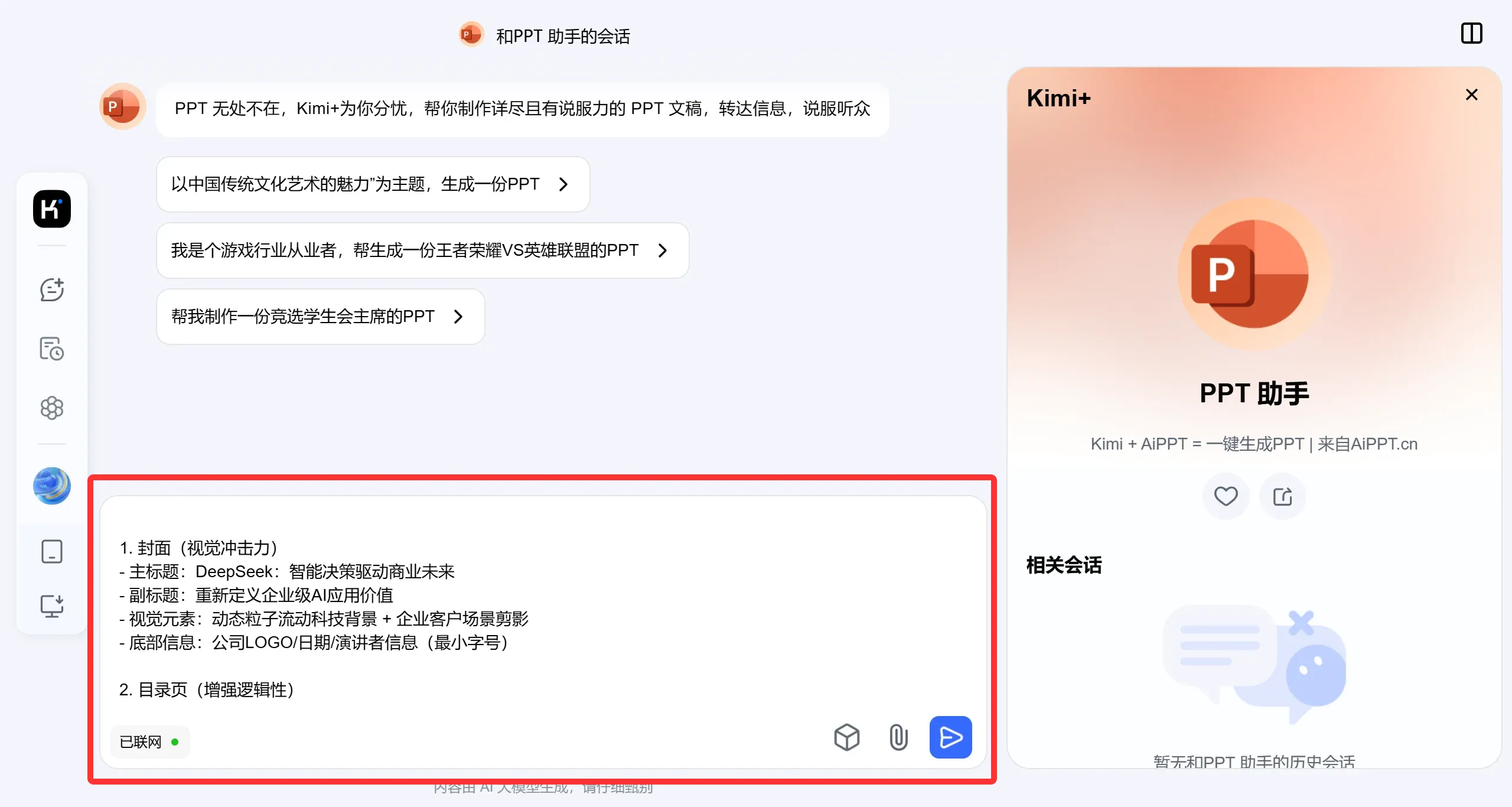
Copy the content generated by DeepSeek directly into the Kimi PPT Assistant.
Step 4: Generate the PPT
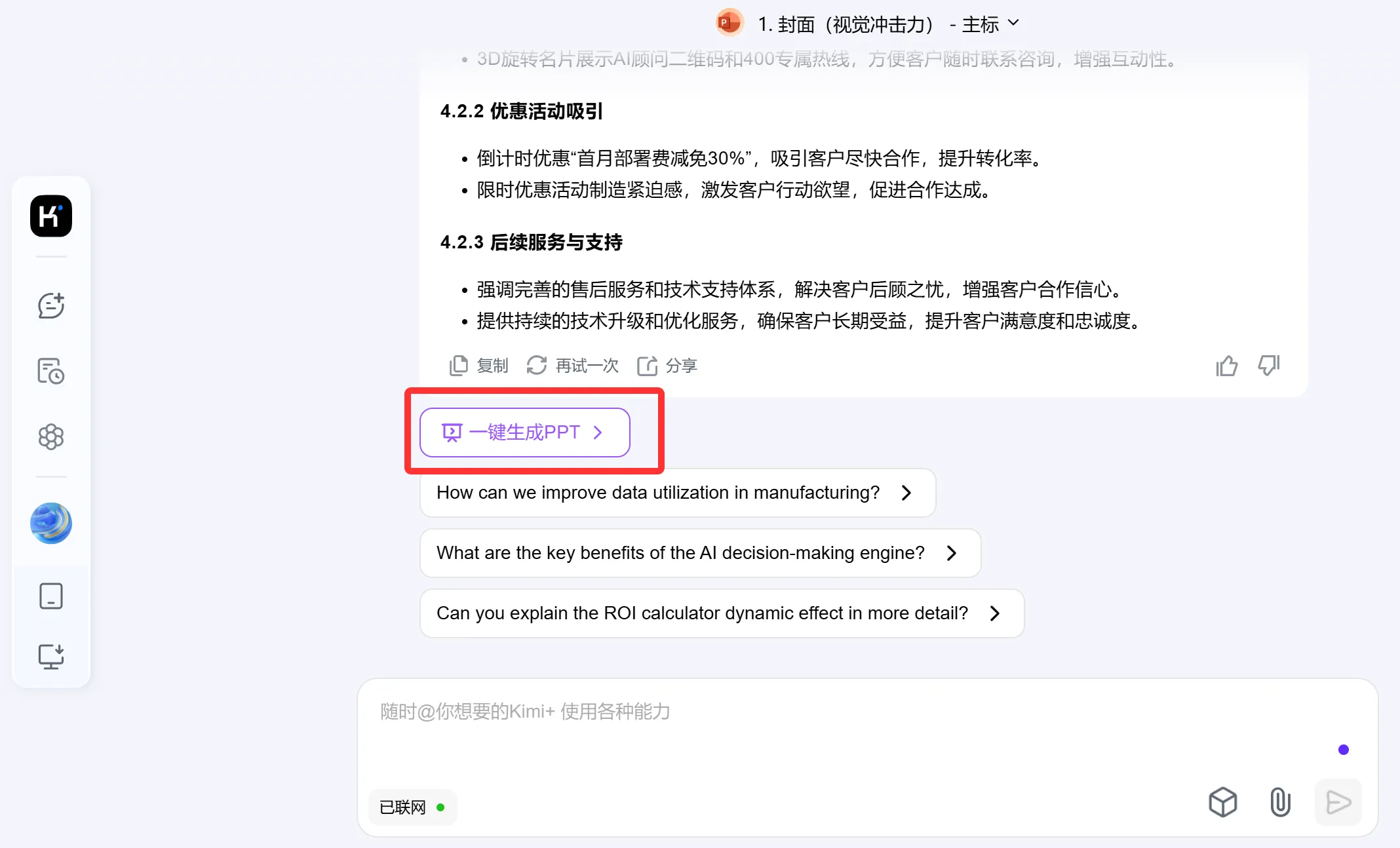
The Kimi PPT Assistant organizes the outline and content generated by DeepSeek into a structured format. Click 【Generate PPT with One Click】
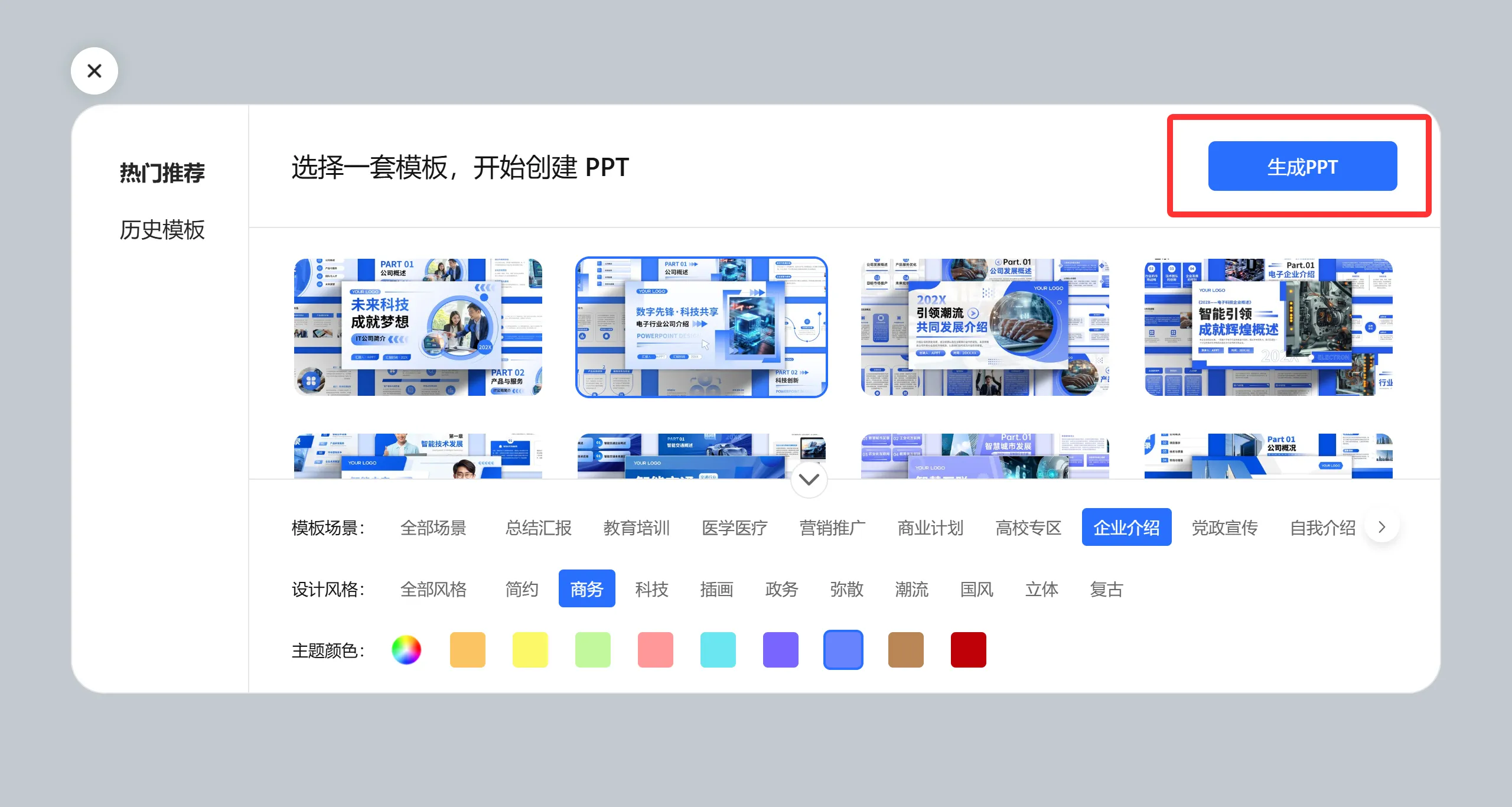
Step 5: Choose a PPT Template
After clicking "Generate PPT with One Click," many PPT templates will appear. Once you've selected a template, click 【Generate PPT】. Following Deepseek's recommendation above, I chose a blue tech-style template.
Step 6: Generate the PPT Template
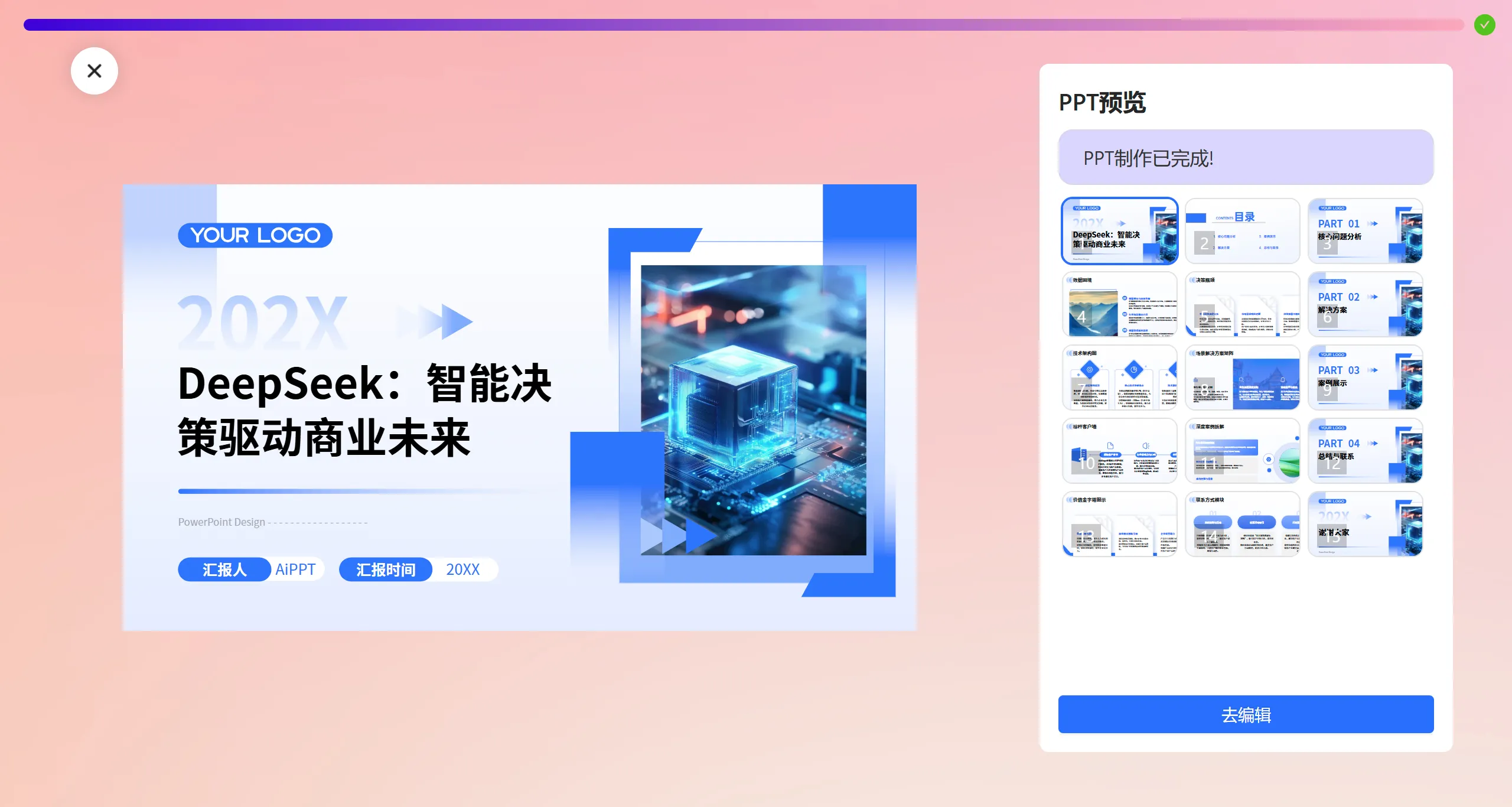
Then, please wait patiently while the template is being rendered. After one or two minutes, a professional PPT template will be generated. If you're not satisfied, you can also edit and modify it online.
The above is the full process of creating a professional PPT using Deepseek + Kimi. When making a PPT, it's all about the framework's logic and content—which is exactly Deepseek's strength—while the Kimi PPT Assistant excels at structuring the content. Deepseek + Kimi for creating PPTs is truly a match made in heaven.
If you don't want to go through all this trouble, you can try using the aippt tool directly.









