Script Planner Assistant▸
 AI Apps
 AI News
ByteDance Trae Tutorial: IDE Settings

ByteDance Trae Tutorial: IDE Settings
In the Trae Settings center, you can modify the IDE general settings, ai settings, keyboard shortcut settings, including changing Trae's theme and language, importing configurations from VSCode or Cursor, and changing editor settings, etc.
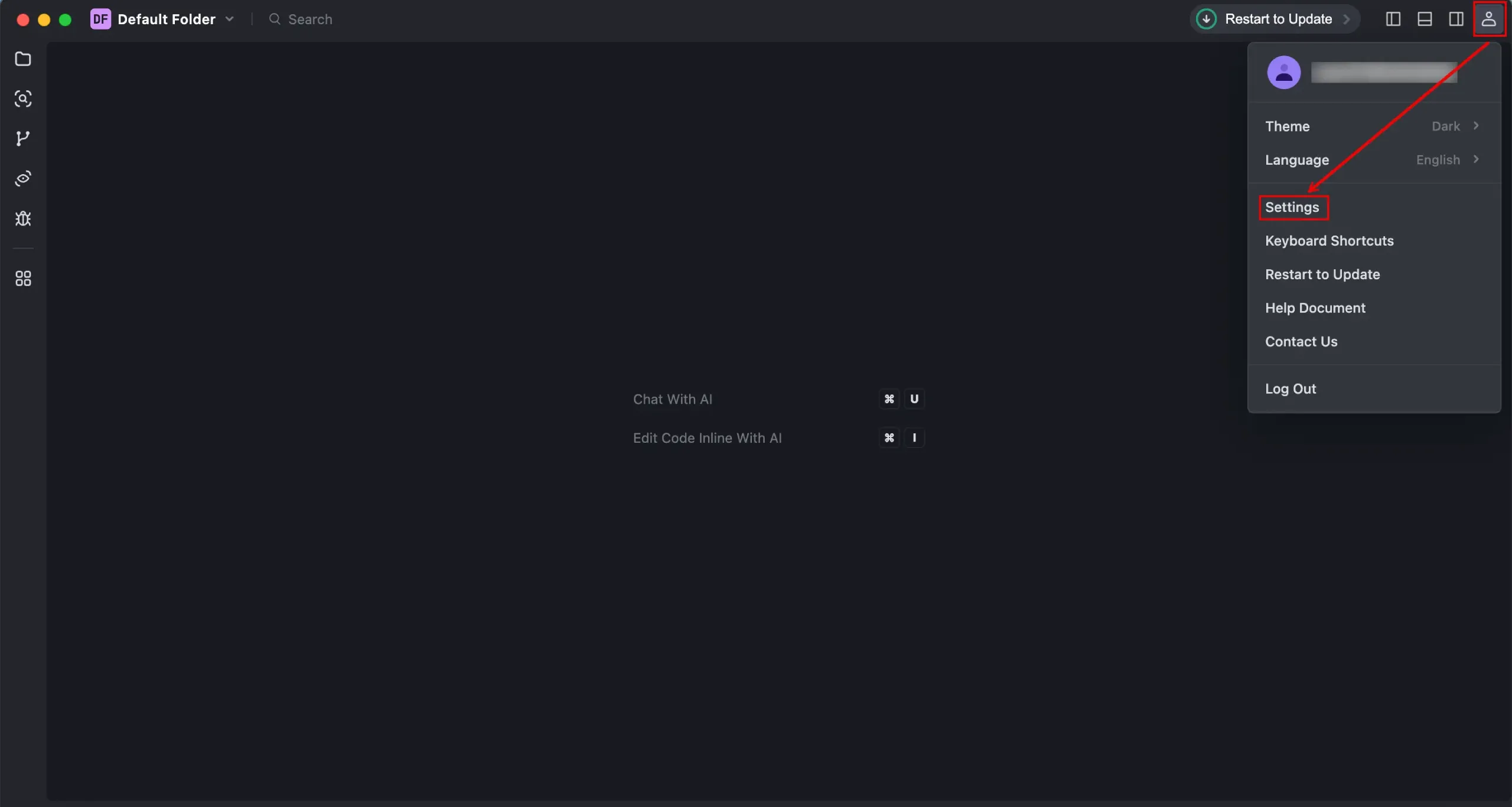
1. In the upper right corner of Trae, click the profile icon.
2. Select 【Settings】 from the shortcut menu
The 【Settings】 window will open and the 【General Settings】 section will be displayed by default
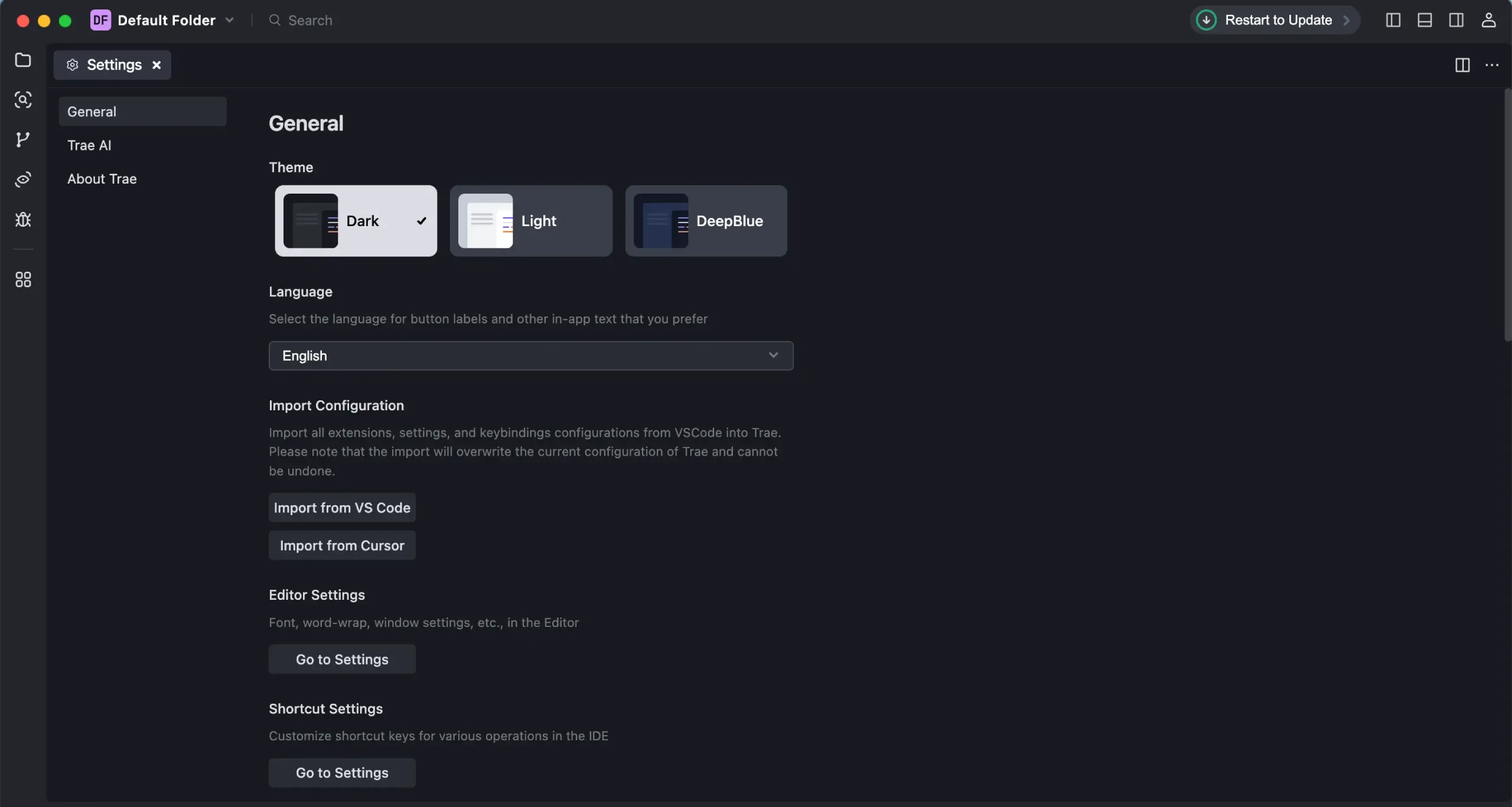
3. In the General Settings section, configure Trae as needed
In Theme, change Trae's theme:
In Language, change Trae's display language;
In Import Configuration, import configurations from VSCode or Cursor;
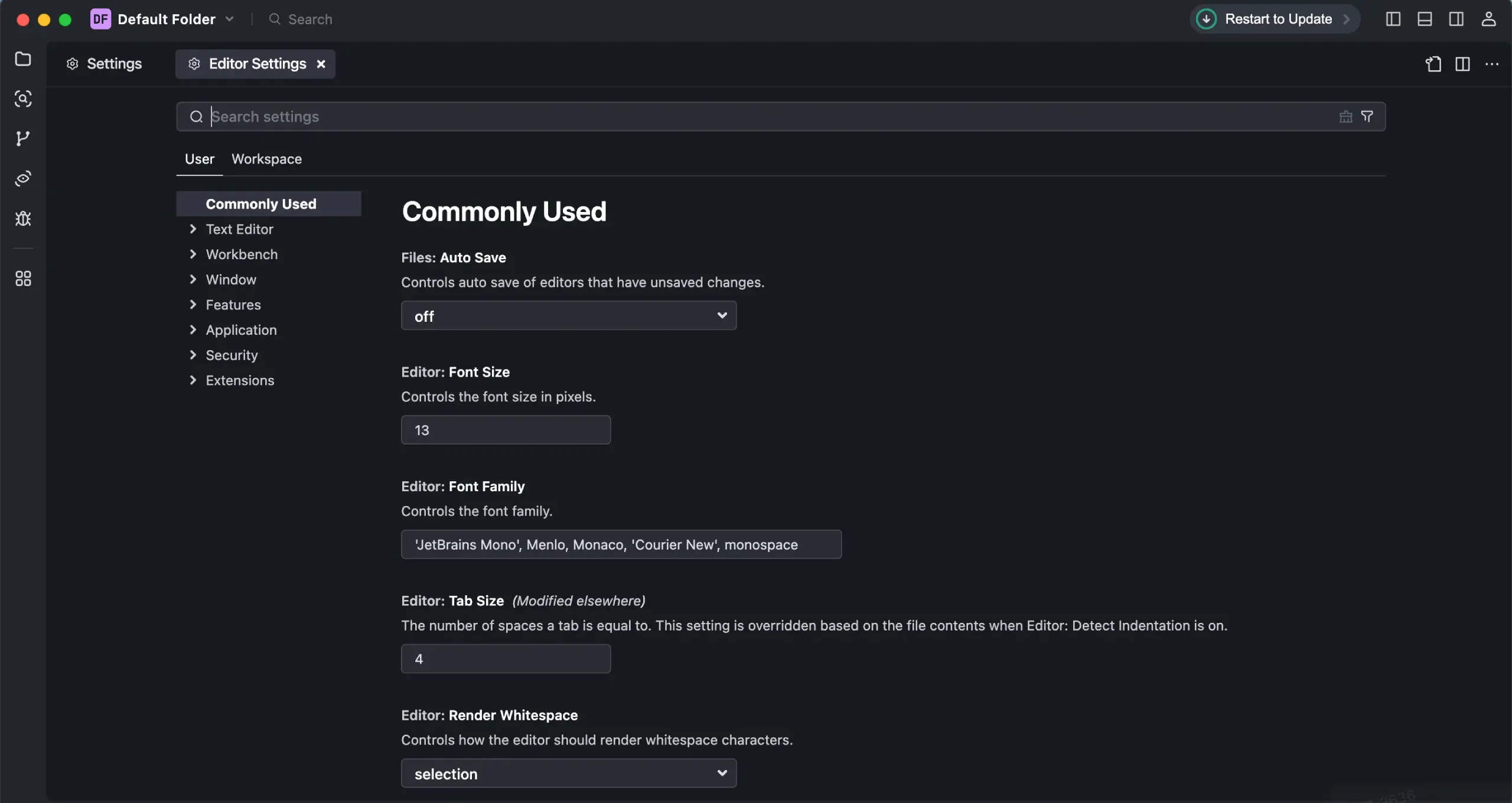
In the editor settings, click Go to Settings, then in the Editor Settings window, change editor-related settings, including font, word wrap, window settings, etc.
In "Keyboard Shortcuts Settings", click 【Go to Settings】,
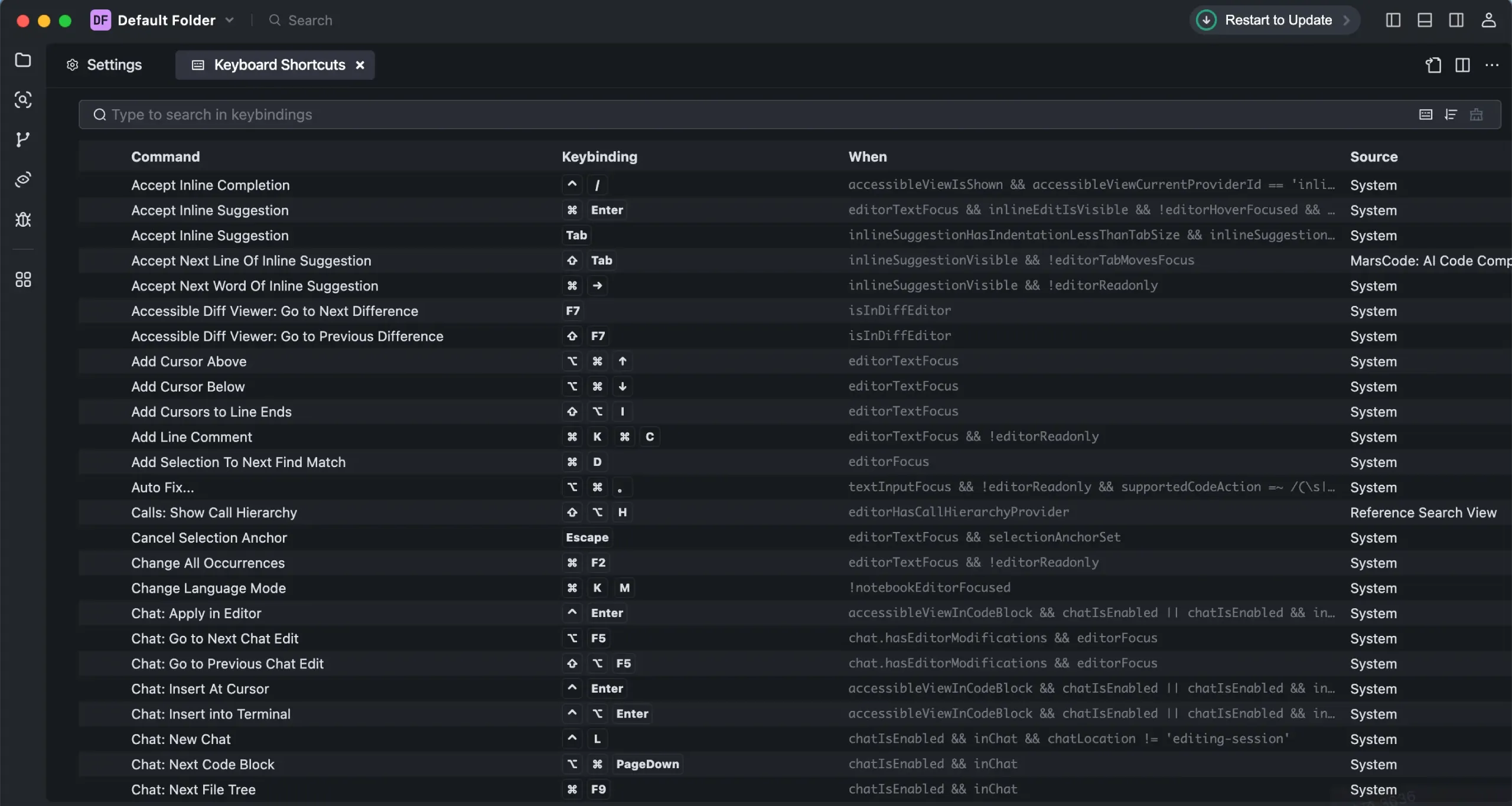
Then in the "Keyboard Shortcuts" window, change the keyboard shortcut settings. For more information, refer to 【Shortcut Settings】