
 Script Planner Assistant▸
 AI Apps
 AI News
Transform Songs with Suno's Covers Feature

Transform Songs with Suno's Covers Feature
Suno has launched the Covers feature, which allows you to take any audio—from a simple recording to a fully produced song—and transform it into an entirely new style while preserving the original melody. Our newest feature is now available in an early beta, letting you experiment with different music genres, add lyrics for instruments, and even alter your own voice.
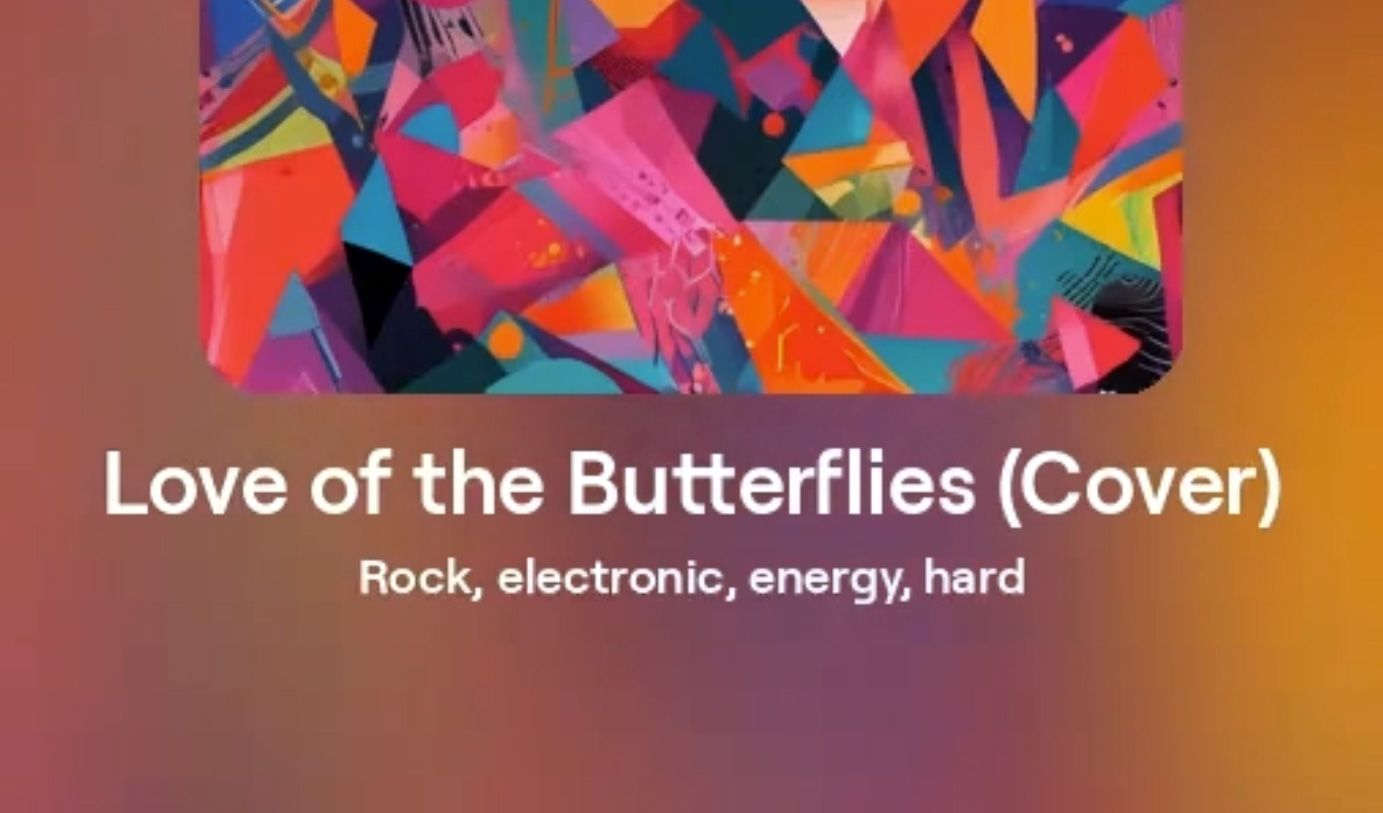
How to make a Suno Cover?
Find the song in your music library or on the "Create" page.
Right-click or tap the vertical three-dot "..." menu.
Hover over "Create" and select "Create Cover Song."
The original lyrics will be automatically imported into the cover song. For best results, it's recommended to keep the lyrics unchanged at first, but you can modify or add lyrics as you experiment.
How to Use Suno Cover:
From instrumental to vocal: Create multi-layered musical works by adding lyrics to instrumental tracks.
Transform uploaded audio: Try uploading clips of yourself singing, humming, or playing an instrument, and use the Covers feature to reinterpret it.
This feature is now available to all Pro/Premier subscribers, and comes with 100 free Covers!
Suno Covers Pricing
The first 200 Covers are free.After 200, each new cover will cost 10 credits, similar to the cost of generating a new song.









