Script Planner Assistant▸
 AI Apps
 AI News
PixVerse AI — Detailed How-To Guide

PixVerse AI — Detailed How-To Guide
PixVerse AI is an AI text-to-video and AI image-to-video tool. On the PixVerse ai web version or Discord, enter text prompts or upload an image, and PixVerse can quickly generate images or videos.
PixVerse AI has recently launched PixVerse V2, which can generate 8-second videos and provide 5 scenes, generating 5 videos with consistent style, subject, and scene. Compared with V1, V2 further enhances detail expression, with more realistic generated characters and larger motion ranges.
PixVerse AI offers a free version and a paid version. After registration, the free version provides 100 Credits, with 50 Credits refreshed daily.
PixVerse AI Main Features
1. Text to Video
2. Image to Video
3. Character to Video
PixVerse AI Tutorial
Go to the PixVerse AI website and log in with email or Discord to start using.
PixVerse AI Web Version Tutorial
1. On PixVerse AI, select "PixVerse V2", "Text to Video", "Image to Video", or "Character to Video" to begin.
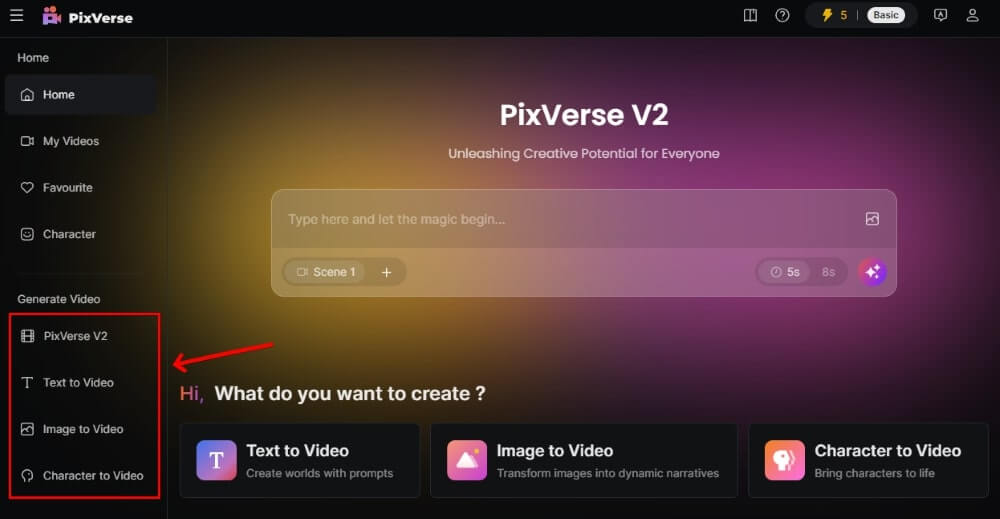
PixVerse V2
1. After selecting "PixVerse V2", enter the text prompt. If you have a reference image, you can upload it via the image Icon to the right of the text prompt.
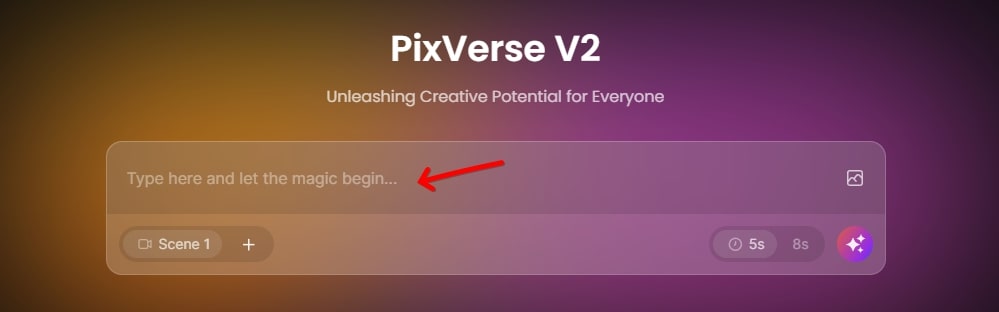
2. You can add scenes below the text prompt. Select "Scene 1", enter the text prompt, then add "Scene 2" and enter the desired画面 for scene two, and so on, up to a maximum of 5 scenes. Select the duration on the right side, and click the purple button to the right of the duration to generate consistent videos with matching style, subject, and scene, with up to 5 videos per generation.
Example as follows:
Scene 1: A white dolphin playing the violin.
Scene 2: It is playing the guitar.
Scene 3: It is playing the piano.

Text to Video
After selecting Text to Video, enter the text prompt, negative prompt, model, duration, and video aspect ratio, then click Create to generate a video.
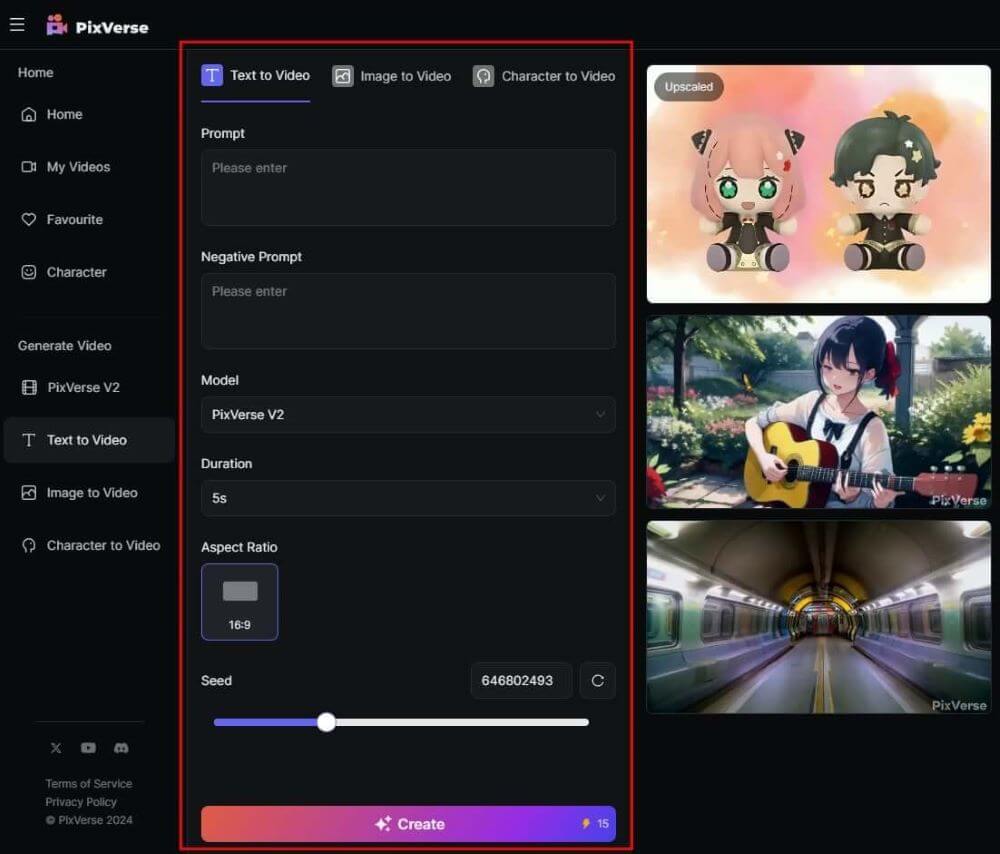
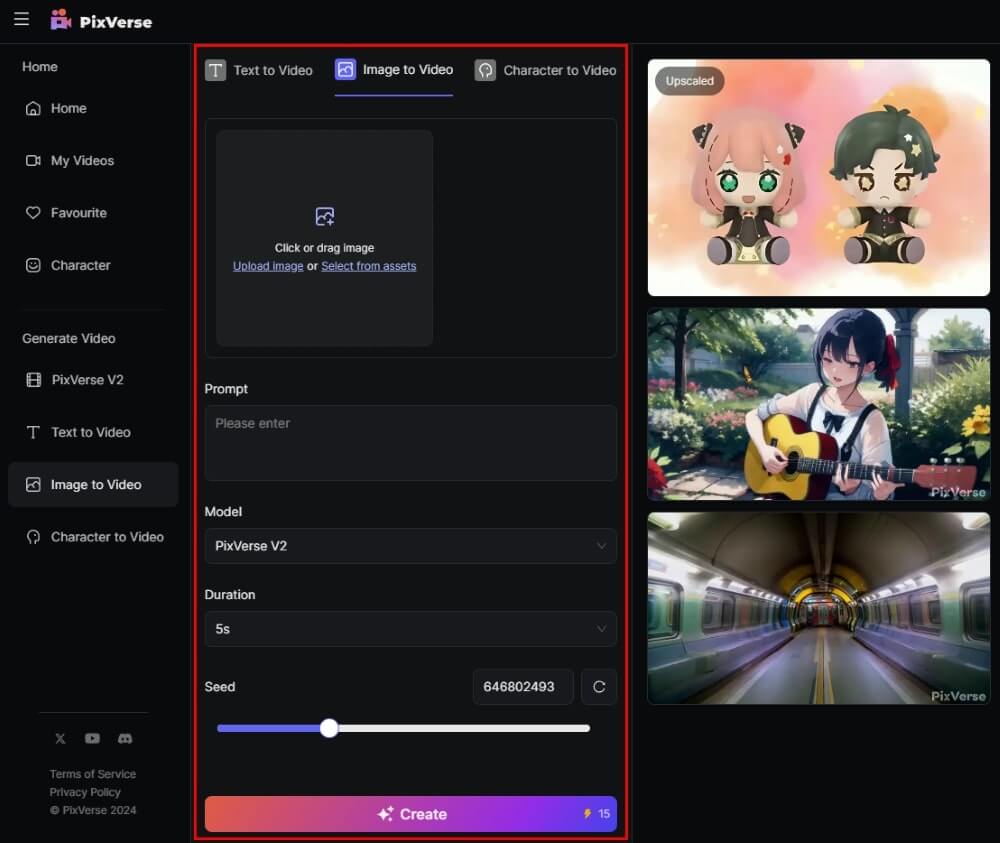
Image to Video
After selecting Image to Video, upload an image, enter the text prompt, model, and duration, then click "Create" to generate a video.
PixVerse AI Discord Tutorial
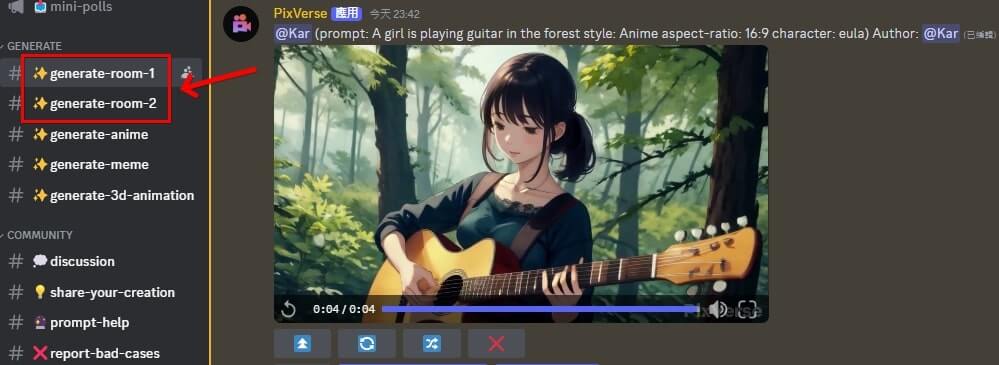
1. Enter the PixVerse AI Discord channel.
2. Find "generate-room" on the left side and select one to enter.
Text to Video Tutorial (Discord)
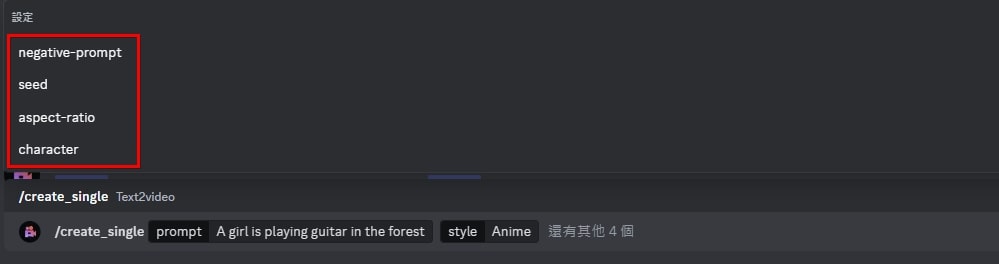
1. Enter "/create_single" in the input box below, enter the prompt, select the style, then click "4 more options", and select aspect ratio, Seed, Character, and enter the negative prompt.
2. Once completed, click "Enter" to generate the video.

3. After the video is generated, click "Download" at the top of the video to download it.
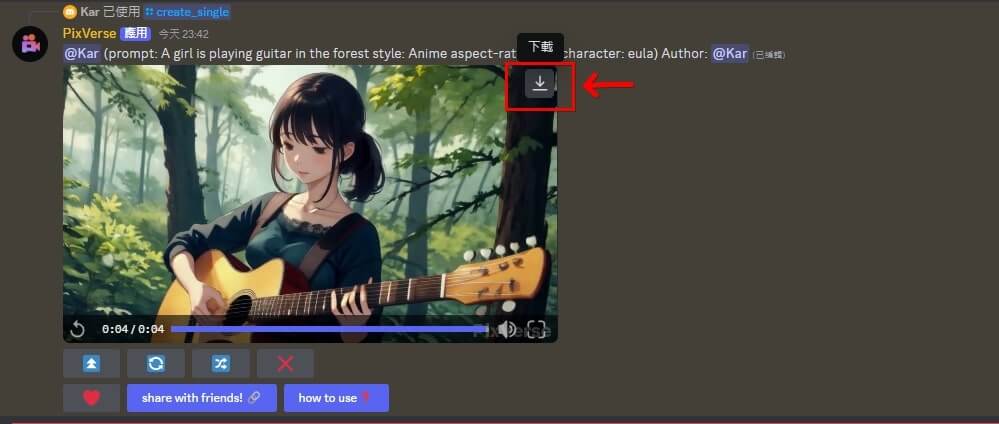
Image to Video Tutorial (Discord)
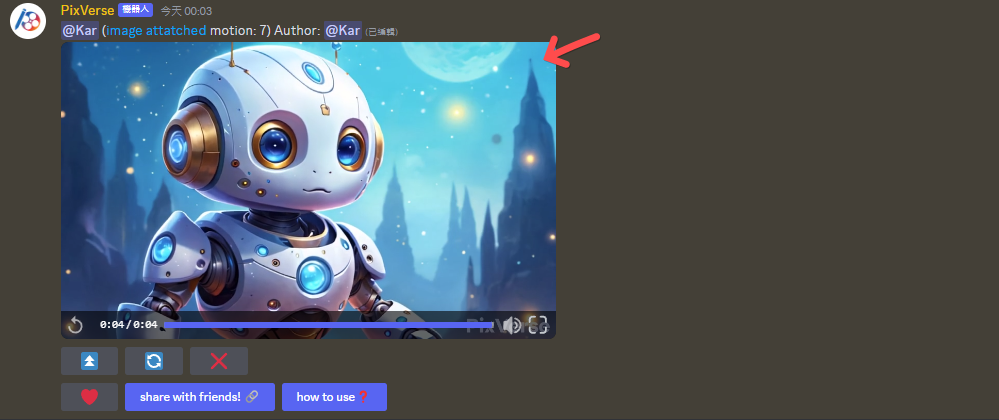
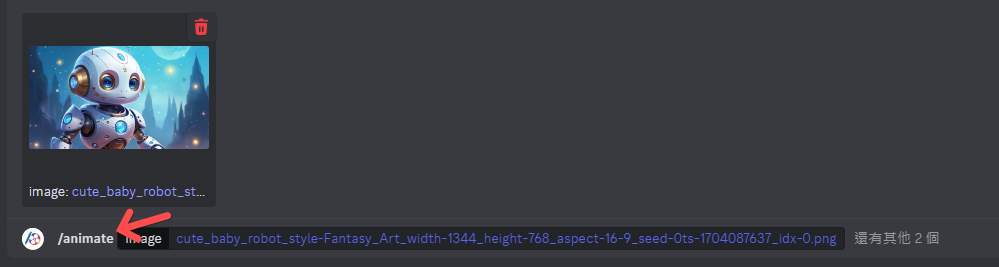
1. Enter "/animate" in the input box below, upload an image, click "2 more options", Motion defaults to 7. If you want to modify Motion, enter a number from 1-10. If you have a Seed, you can also enter it.
2. Once completed, click "Enter" to convert the image into a video.
3. After the video is generated, you can download it from the top right of the video.