
 Script Planner Assistant▸
 AI Apps
 AI News
Bairimeng AI Comic Creation Tutorial

Bairimeng AI Comic Creation Tutorial
BairimengAI can generate works simply by writing a story, setting up characters, selecting storyboards, editing images, and previewing video. Bairimeng AI is currently free to use with no limitations.
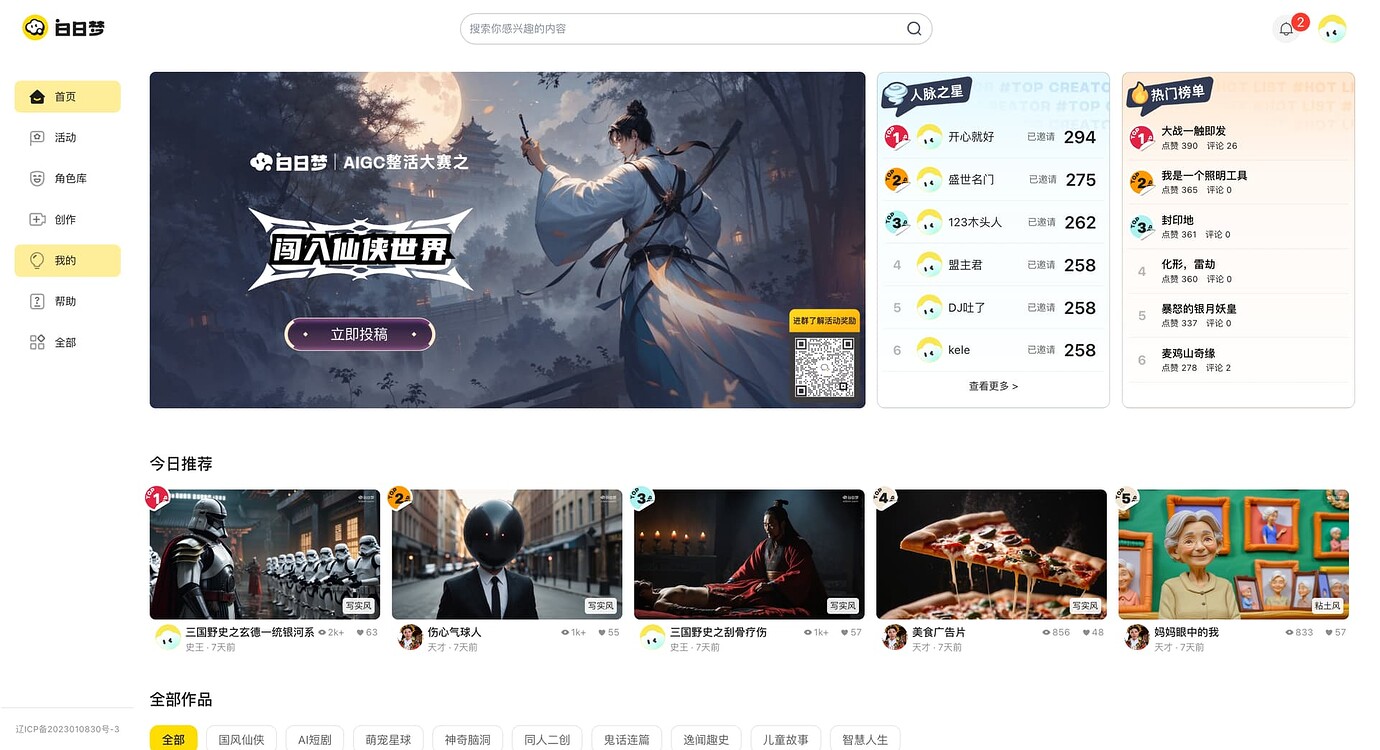
1. After registering and logging in, click [Create] on the left navigation bar to enter the creation workflow.
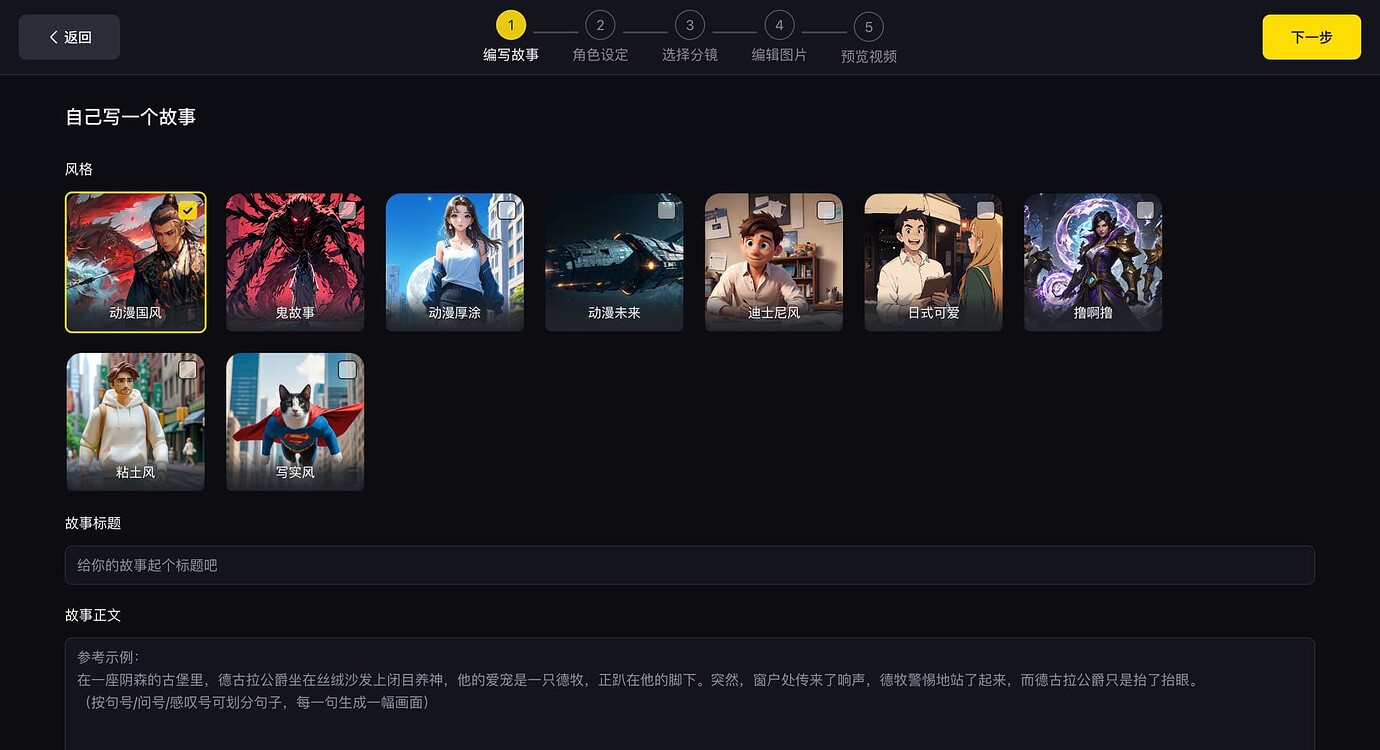
2. After entering the creation workflow, select the visual style, enter the story title and story text. The story can be written with GPT, then click [Next] in the upper right corner.
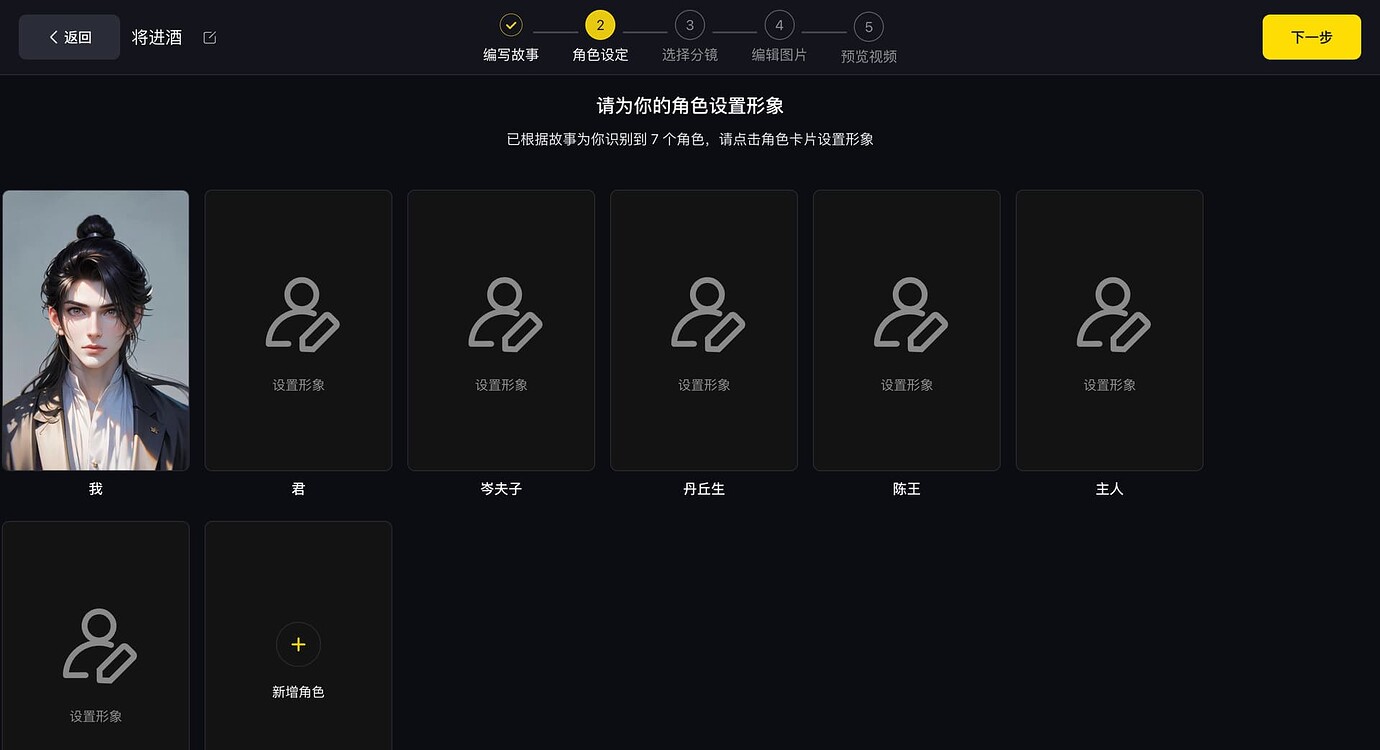
3. Once the text is broken down, proceed to character settings. Click "Set Image" to choose an image for each character. If the platform does not recognize the character you want, you can click "+" to add a new character.
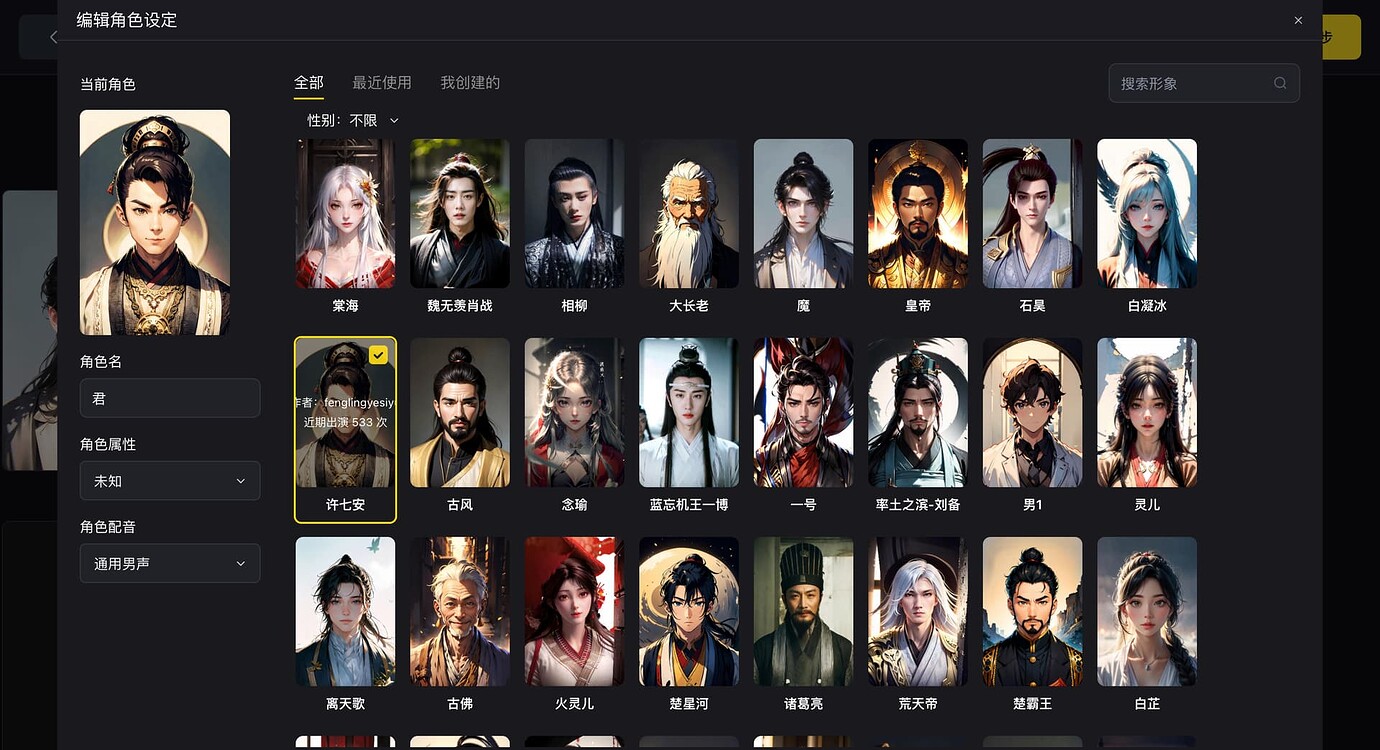
4. Enter the character settings editor, where you can modify the character's name, gender, and voiceover;
5. Once the characters are set up, click [Next].
Enter the storyboard selection stage. You can select the corresponding storyboard for each paragraph, and choose paragraphs on the left side of the screen; the on-screen characters, character actions (character description), and scene description for each paragraph can be adjusted on the right side of the screen. To modify the character description, enter [@XX character knocks on the door] in the input box, and click "Regenerate Storyboard" to rematch the storyboard based on the action of "knocking on the door".
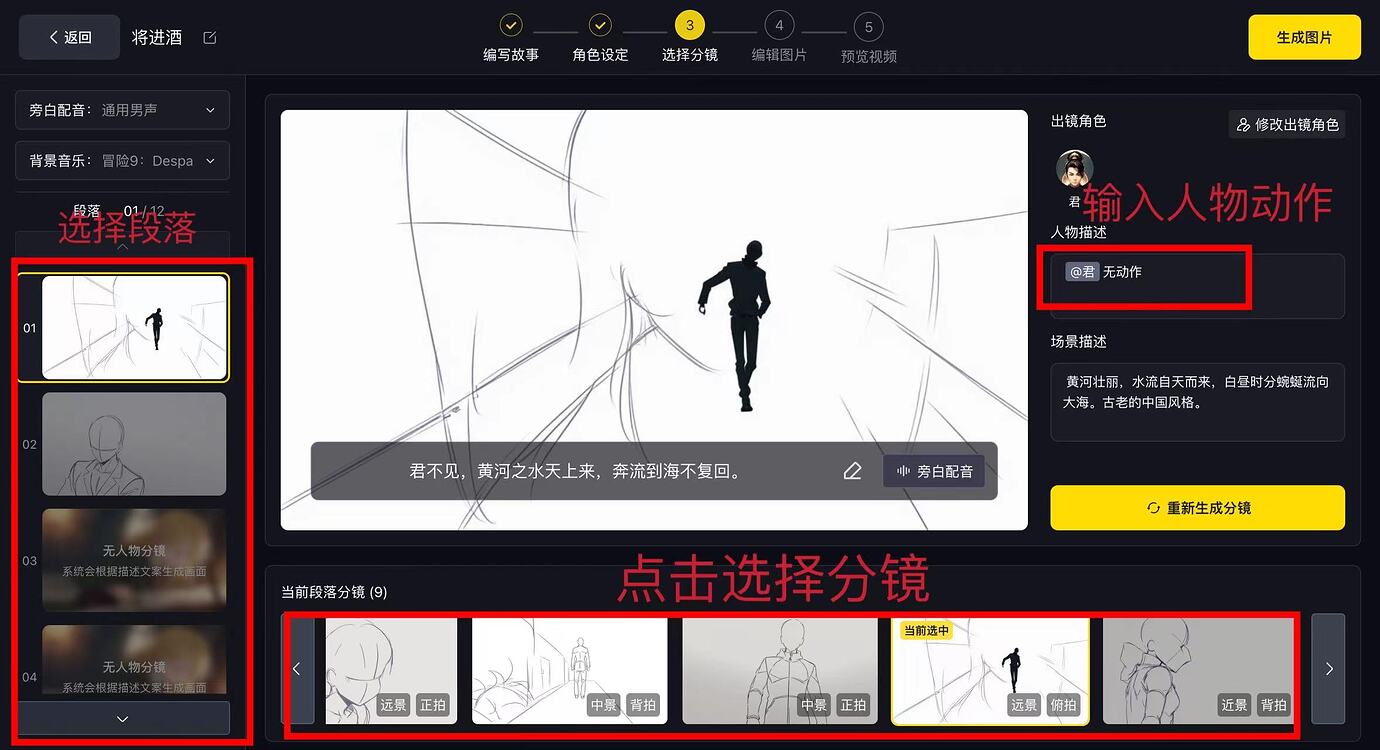
If no character appears in a paragraph, it will display as "No Character Storyboard". In this case, you can adjust the descriptive words in the scene description to modify the image generation effect.
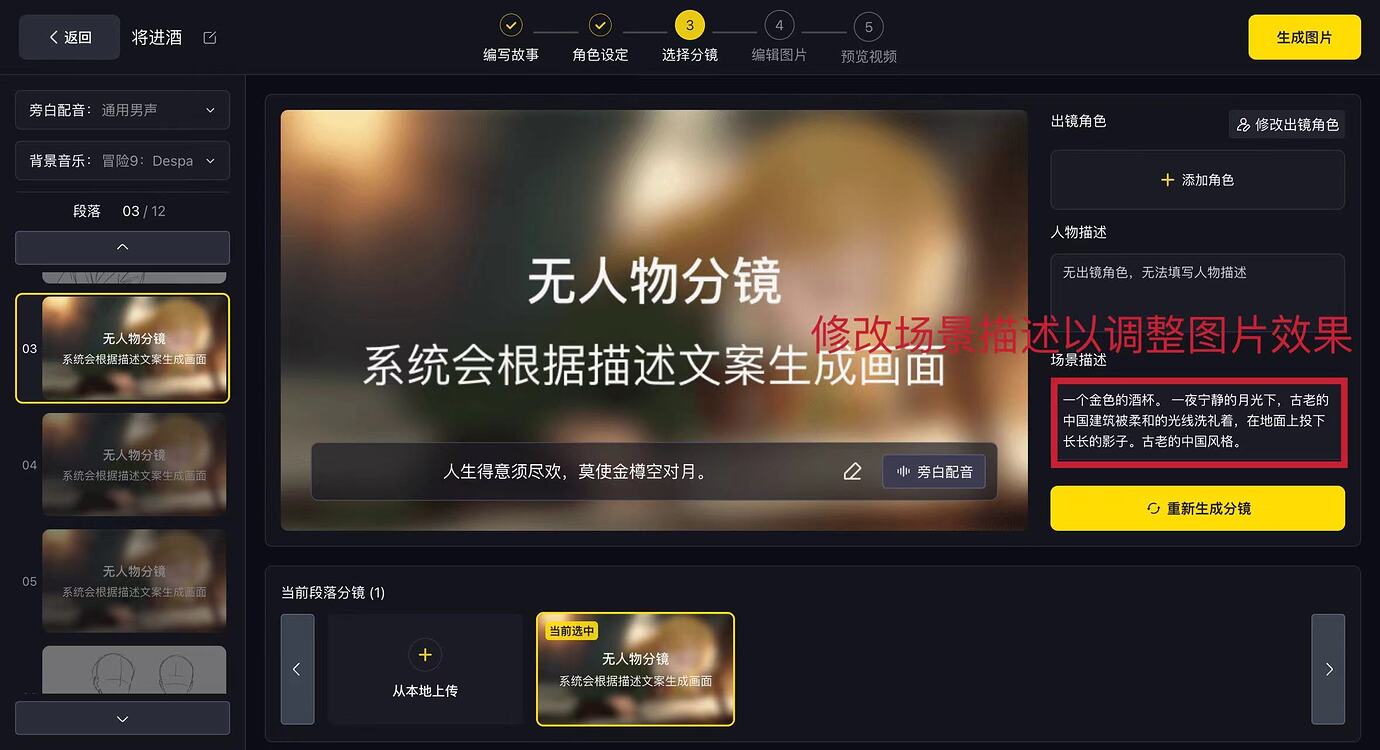
6. After selecting the storyboard and filling in the scene description, click "Generate Image" to proceed to the next step.
Once the images are generated, enter the image editing stage. If you are not satisfied with the generated results, you can modify the character description and scene description, then click "Redraw Current Frame" to regenerate.
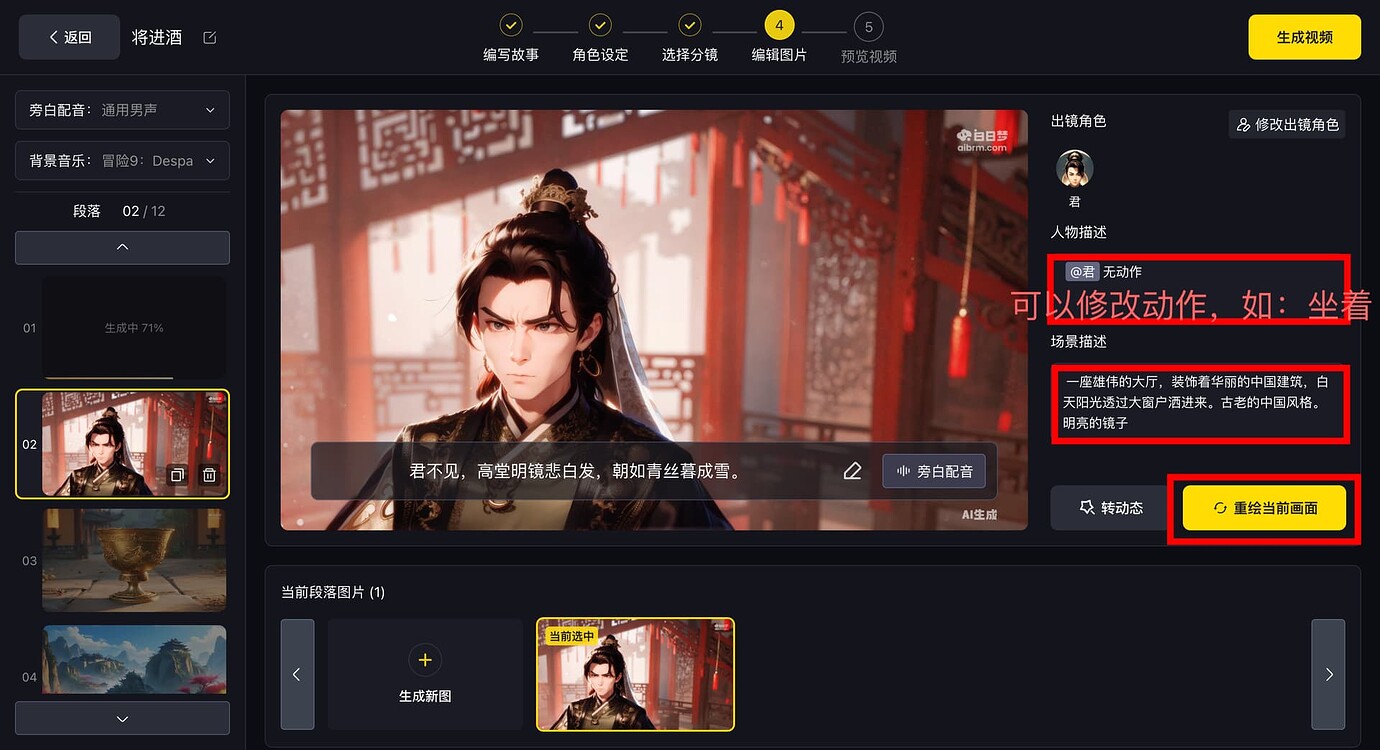
After clicking "Redraw Current Frame", you can reselect the storyboard by clicking "Switch Storyboards".
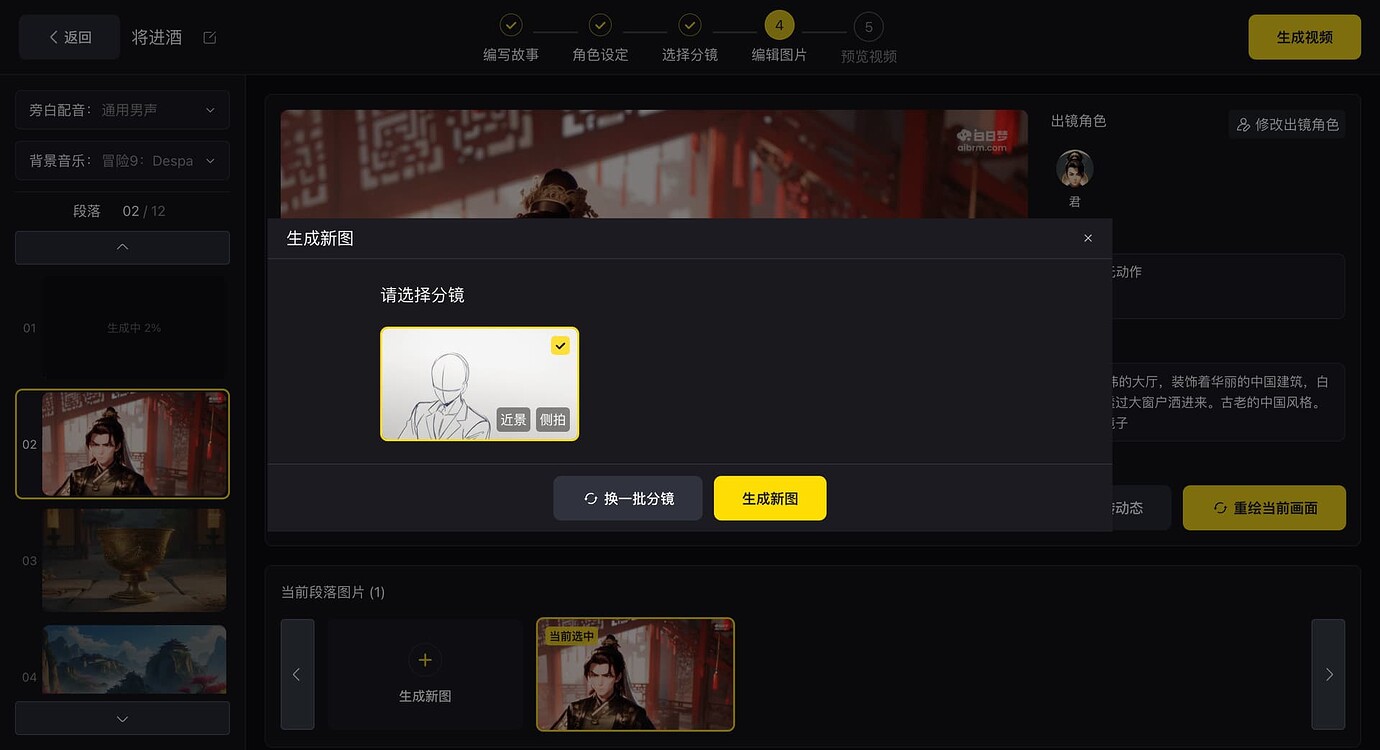
7. Once you are satisfied with the image effect, you can click "Convert to Dynamic" to turn the static image into a dynamic one. This process takes about 1 minute to generate the dynamic effect. You can select narration voiceover and background music in the upper left corner.
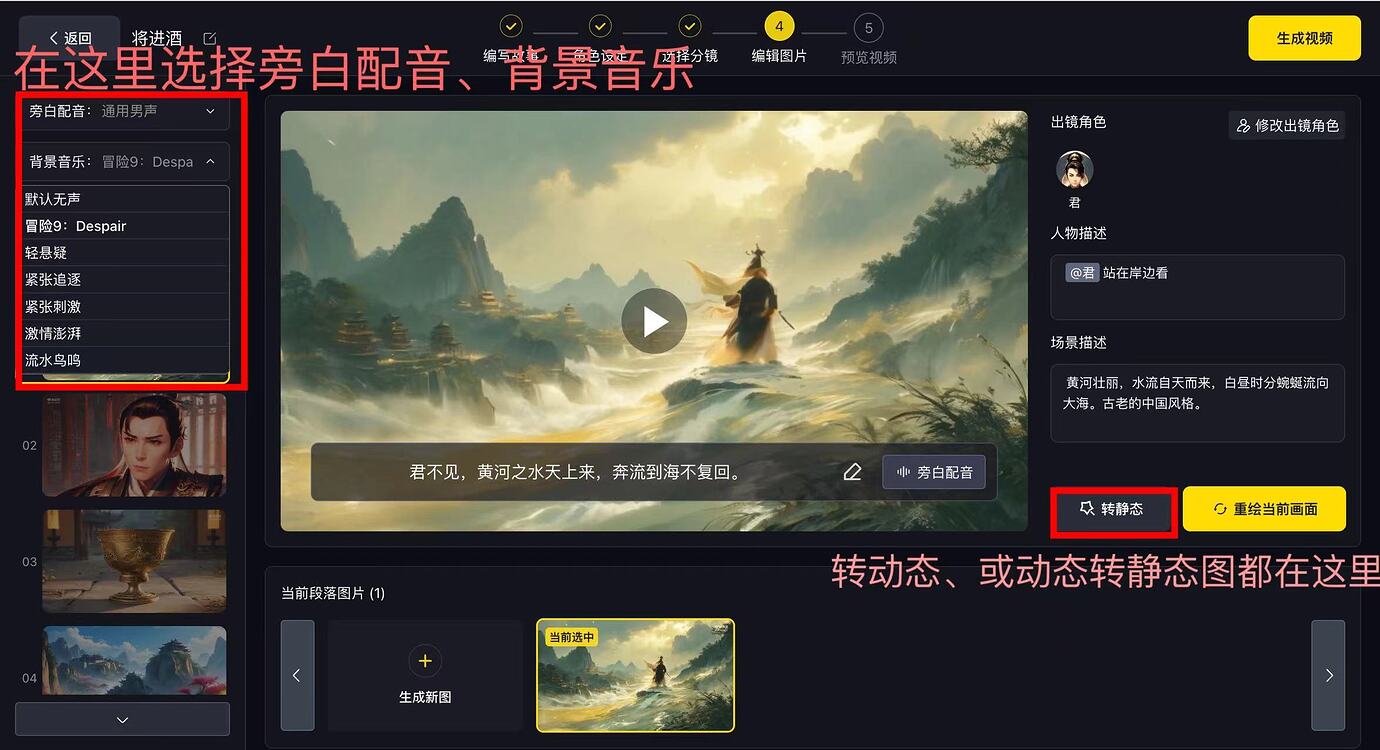
After clicking Generate Video, enter the video preview page, where you can select the video cover and adjust the speech speed, among other options. Once everything is set, you can publish your work~~
Frequently Asked Questions about Bairimeng AI Work Creation Tutorial
1. What is the maximum number of characters I can input?
Currently, a maximum of 2000 characters is supported.
2. What if my desired character is not correctly recognized?
You can add a note at the very beginning of the script saying "This story has x characters in total", or increase the frequency of secondary character names in the script to improve the accuracy of character recognition; if the system fails to recognize your character names, you can add the character after entering the character settings page; if the gender is incorrectly identified, you can click on the character to enter the character details page and modify it... Read more
3. How do I generate animal characters?
During the storyboard stage, click to modify the on-screen characters and remove the existing characters; the storyboard will then become a no-character storyboard. In the no-character storyboard, write the animal you want in the original story text or scene description, such as "a rabbit running". If you need two animals, you can add double brackets, such as ((a rabbit)) and ((a dog)) playing together.
4. Why are some storyboards in works of such high quality, and how do I use these storyboards?
To provide a better experience during your creation process, we have optimized some commonly used actions. By entering the following actions in the story text or storyboard description, you can match these high-quality storyboards. The currently available high-quality storyboards include: [look up, look upward, read, reading, read a book, ride a bike, knock on the door, check the time, ride a horse, lower head, look downward, raise hand, look at each other.
5. What if my desired character is not correctly recognized?
You can go to the content details page, select the image you want to replace, click the edit button, and modify the image by reselecting the character, reselecting the storyboard, or simply redrawing the image until you are satisfied with the result.









