
 Script Planner Assistant▸
 AI Apps
 AI News
Step-by-Step Guide: Making Music with Udio AI

Step-by-Step Guide: Making Music with Udio AI
It's understandable that you may have doubts about the quality of the AI music generators available to the public, and those doubts are often valid. However, you can try using the Udio tool to see how it works. Below is a step-by-step tutorial on how to use Udio to create music with AI.
1. Visit the Udio website
First, you need to visit the Udio website to get started.
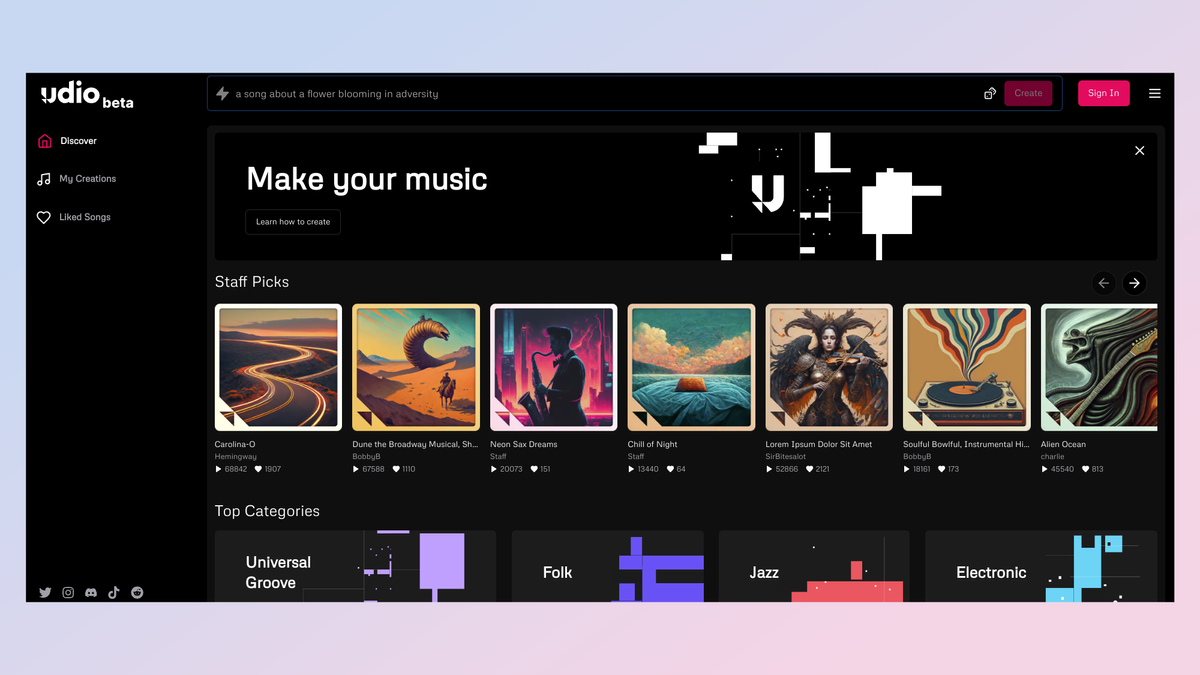
(Image source: ©Udio)
2. Log in
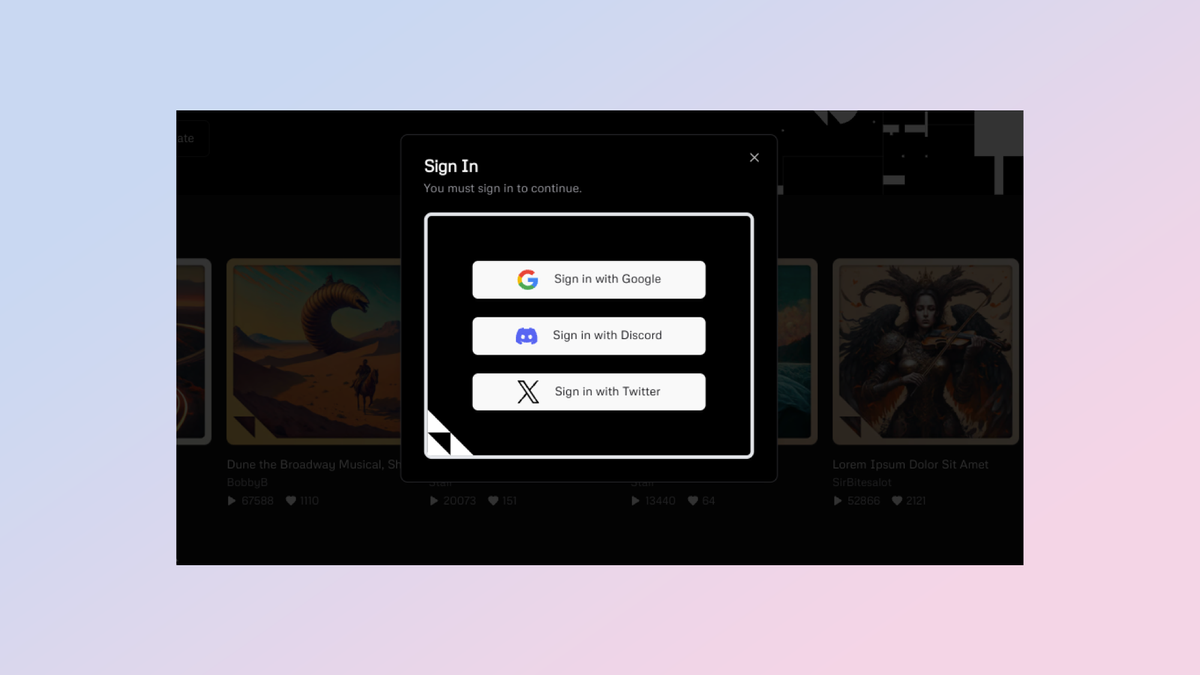
(Image source: ©Udio)
To log in, you need an existing Google, Discord, or X account. The good news is that, although Udio is still in beta, you can create up to 1,200 songs per month for free.
3. Sign up
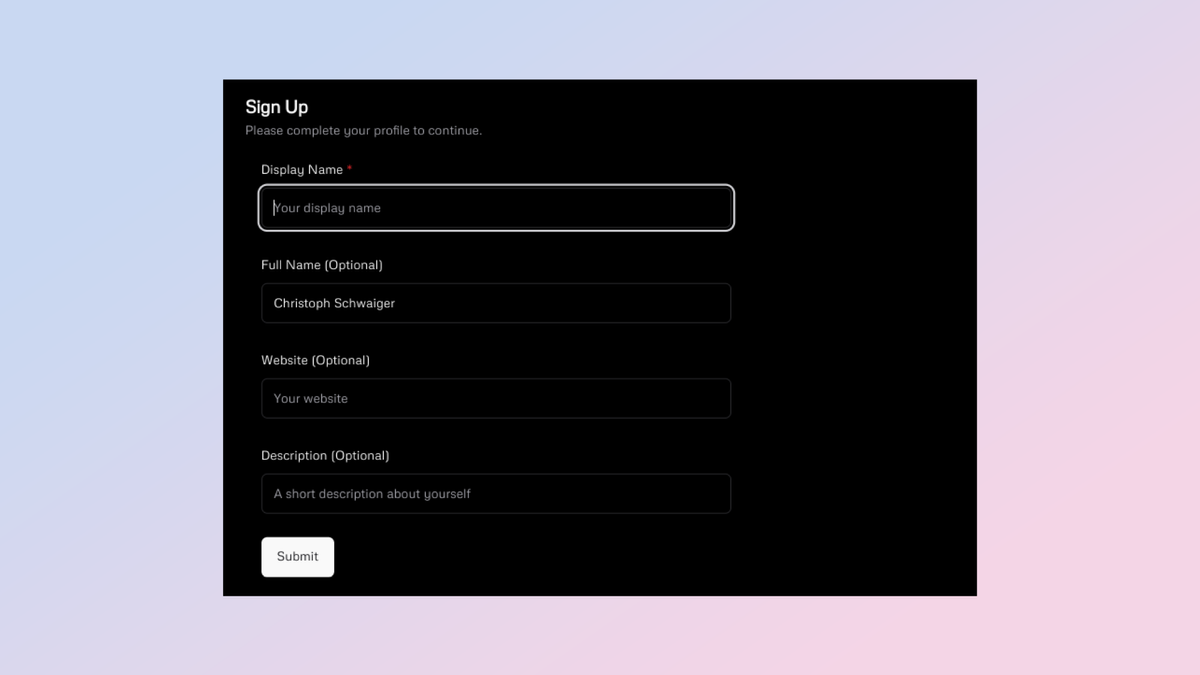
(Image source: ©Udio)
After choosing your preferred sign-in method, the system will ask you to provide some details to create a Udio account. You'll need to choose a display name for your account. You may optionally provide your full name, website, and a self-description.
4. Create your first track
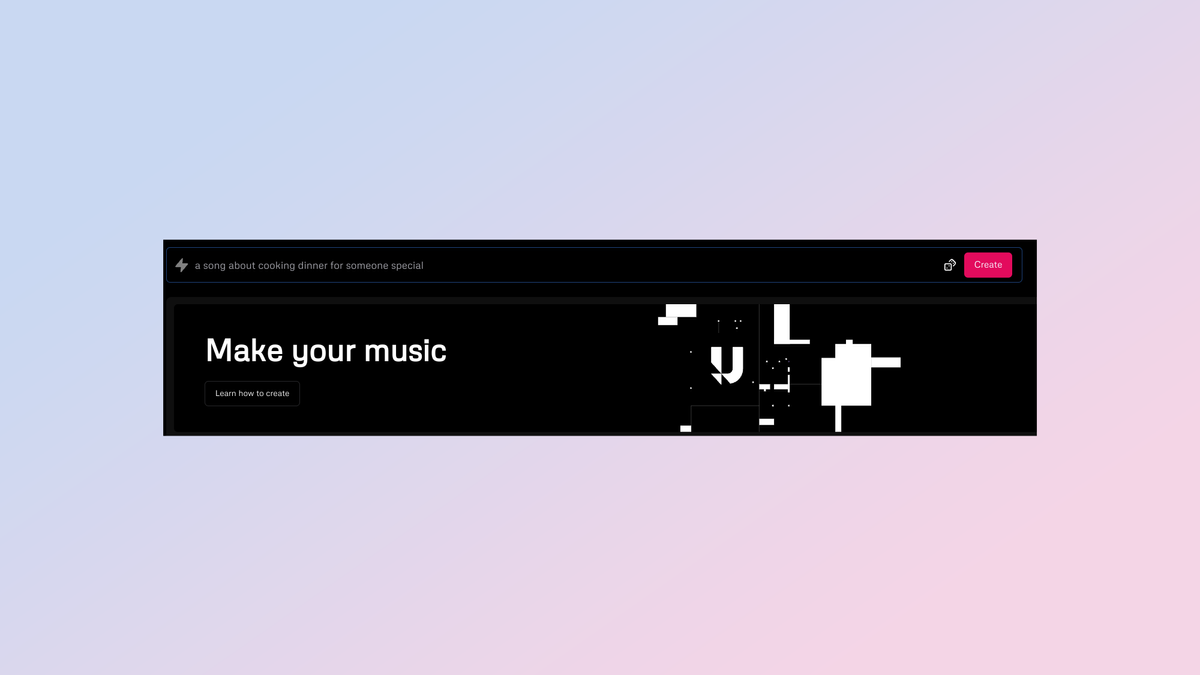
(Image source: ©Udio)
After completing the setup, you can now dive into the AI music production process.
5. Enter a text prompt
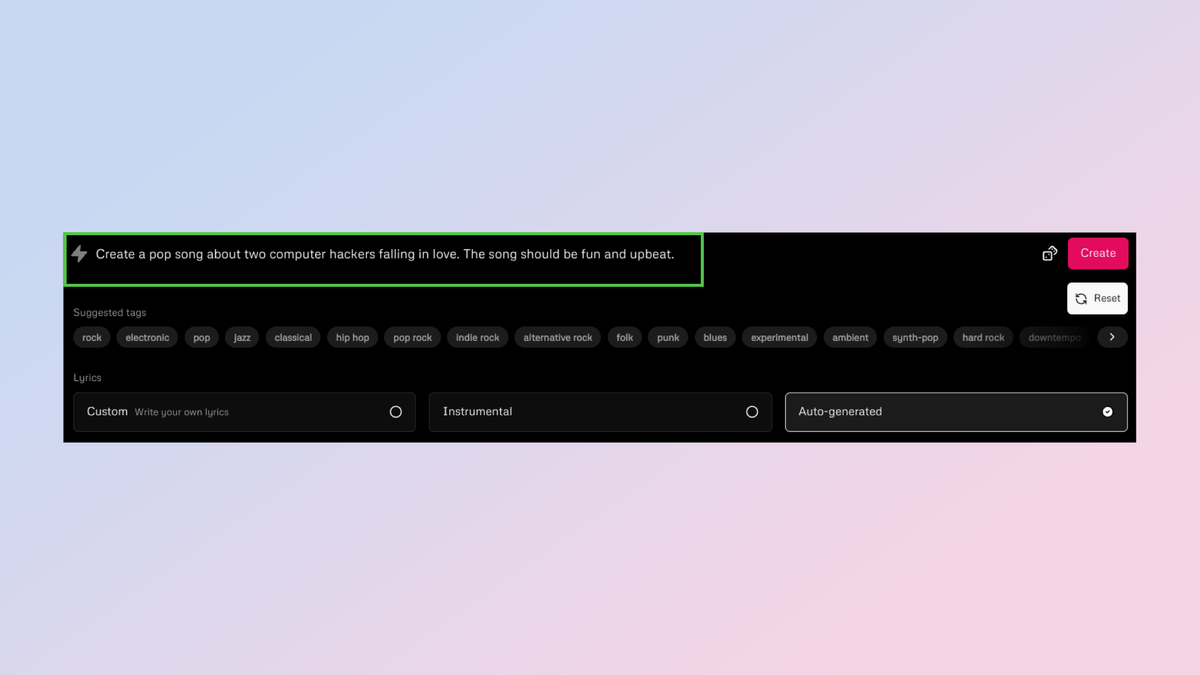
(Image source: ©Udio)
Here's where it gets interesting. Provide a description of the song you want to create using artificial intelligence. It's recommended that you include the genre, mood, and any other descriptors you want to use to shape the song.
6. Write your own lyrics
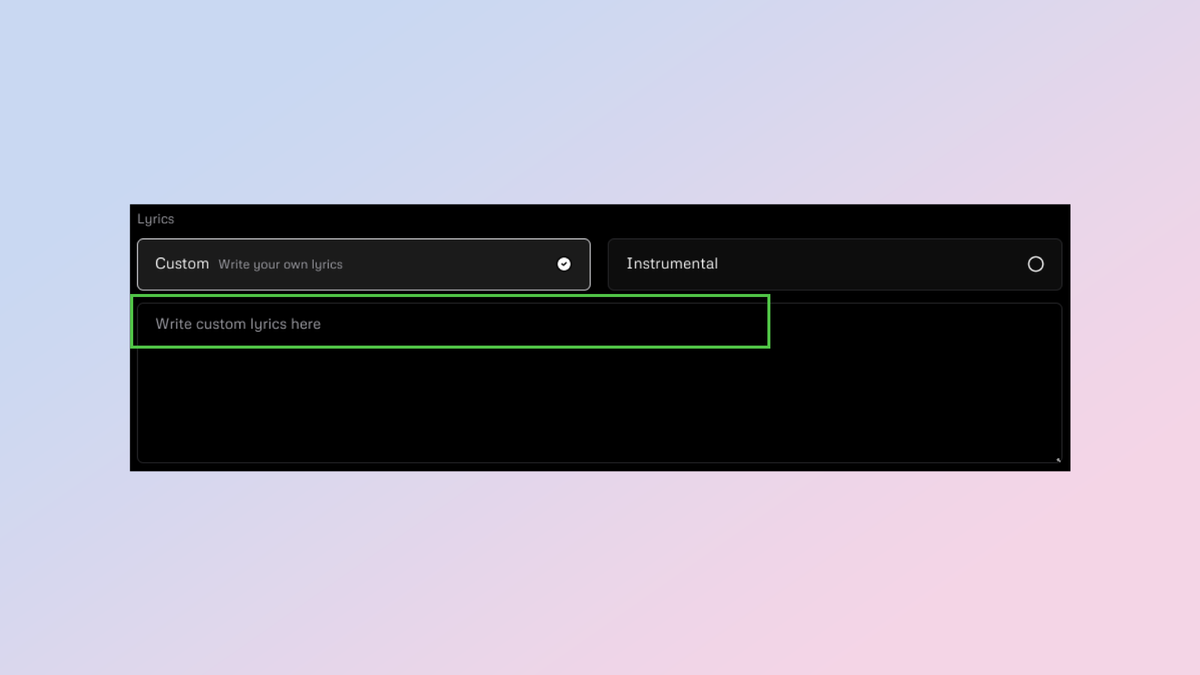
(Image source: ©Udio)
If you want to write custom lyrics for your song, simply click on the "Custom" tab and paste the lyrics into the field below.
7. Shape your song
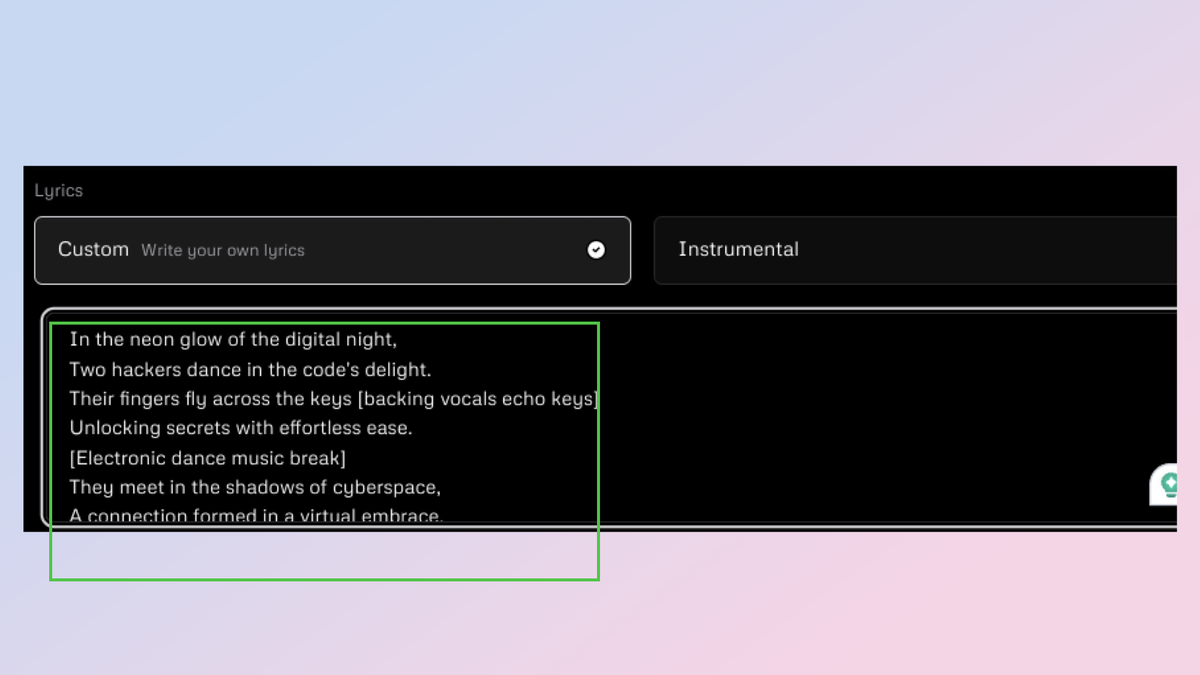
(Image source: ©Udio)
To truly make the song your own, add descriptors in the lyrics box such as [Chorus], [Hook], [Verse], [Sax Solo], or [Drop]. See a section that pairs well with the harmony? Tag it using brackets.
8. Time to create the song
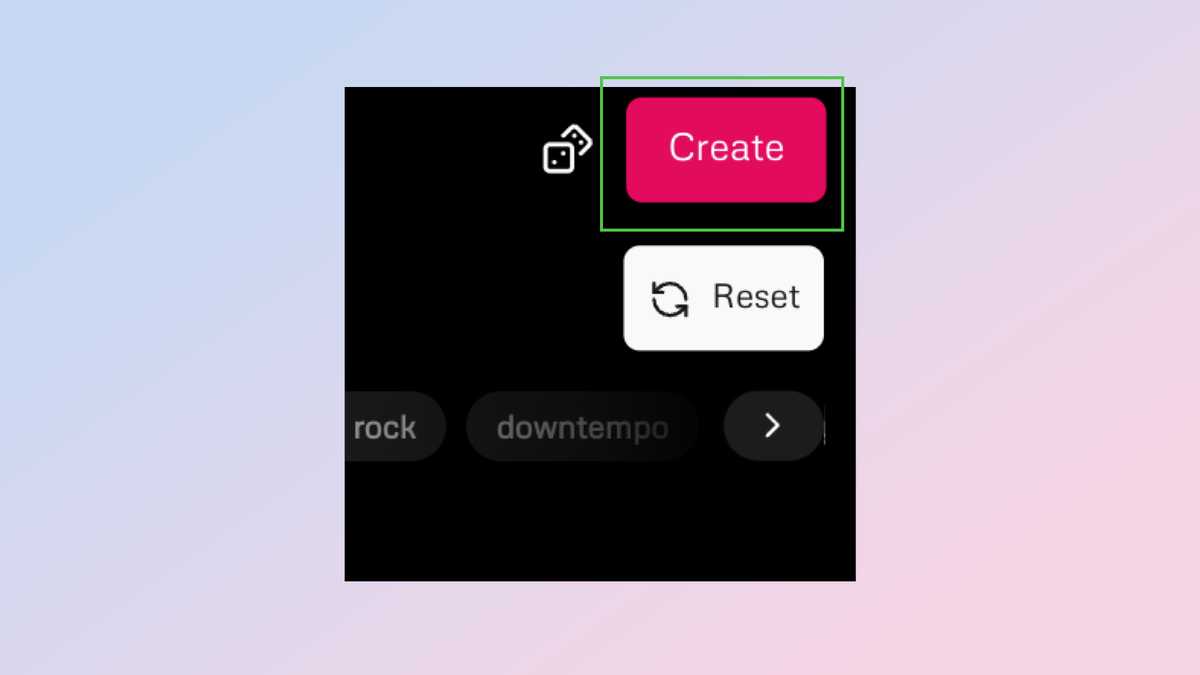
(Image source: ©Udio)
Once you're satisfied with all the configurations, you can create the song. To do this, click "Create."
9. Wait for the song to be generated
(Image source: ©Udio)
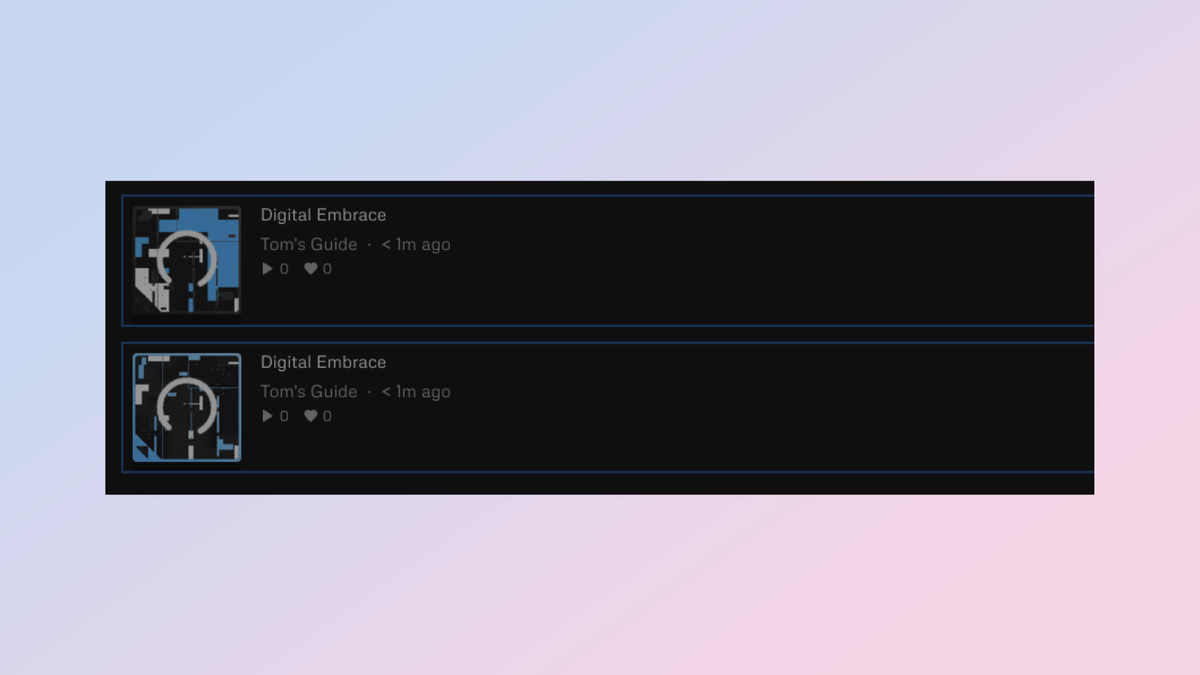
After clicking "Create," your song will begin to generate. You shouldn't have to wait too long to hear your new creation.
10. Play the song
(Image source: ©Udio)
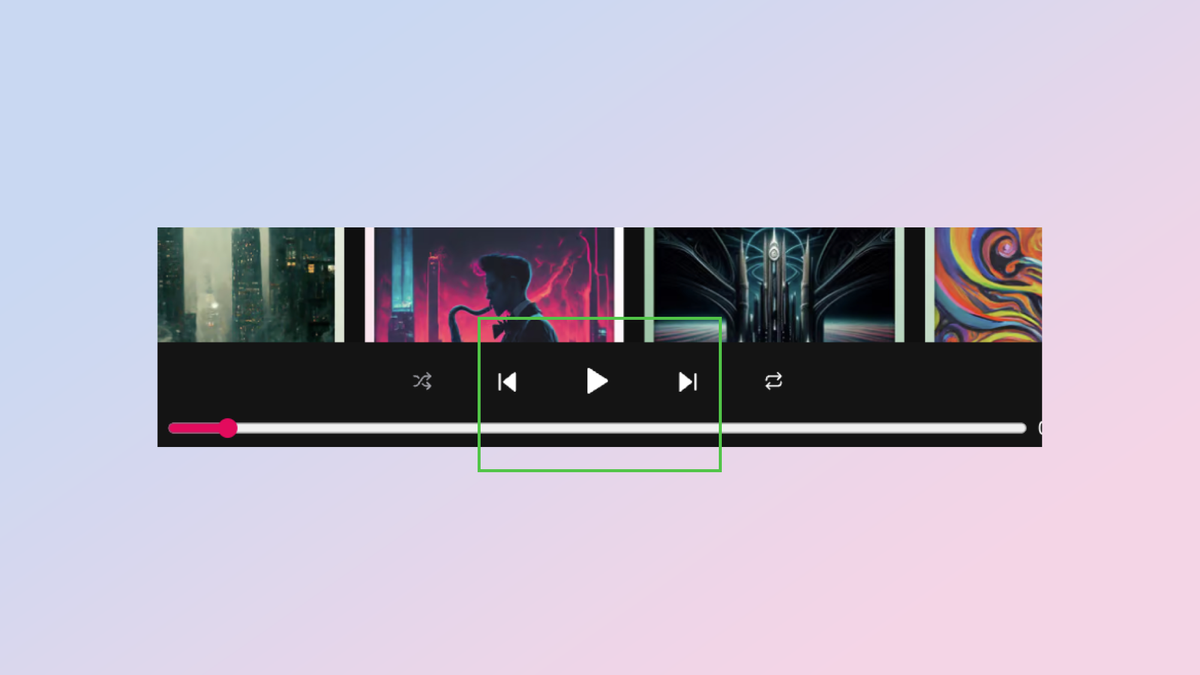
Once your AI song is ready, click its thumbnail to add it to the queue.
11. Extend your song
(Image source: ©Udio)
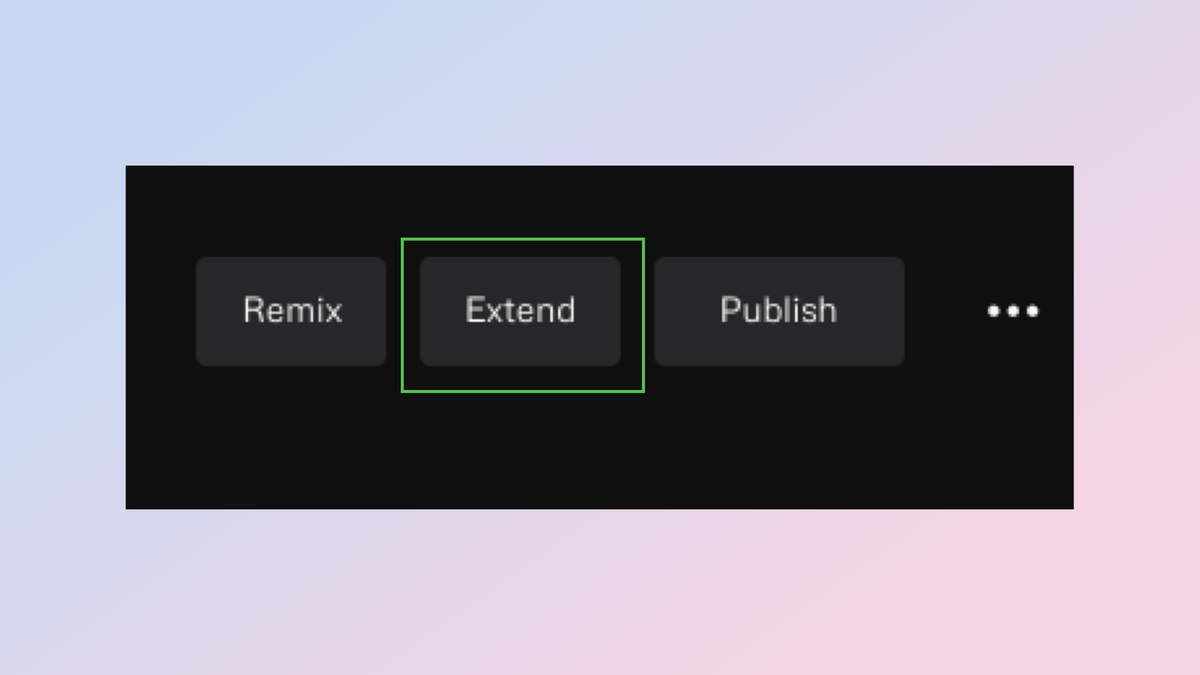
Still not satisfied with your new hit single? Expand the song with more lyrics or instrumental sections.
12. Add some lyrics
(Image source: ©Udio)
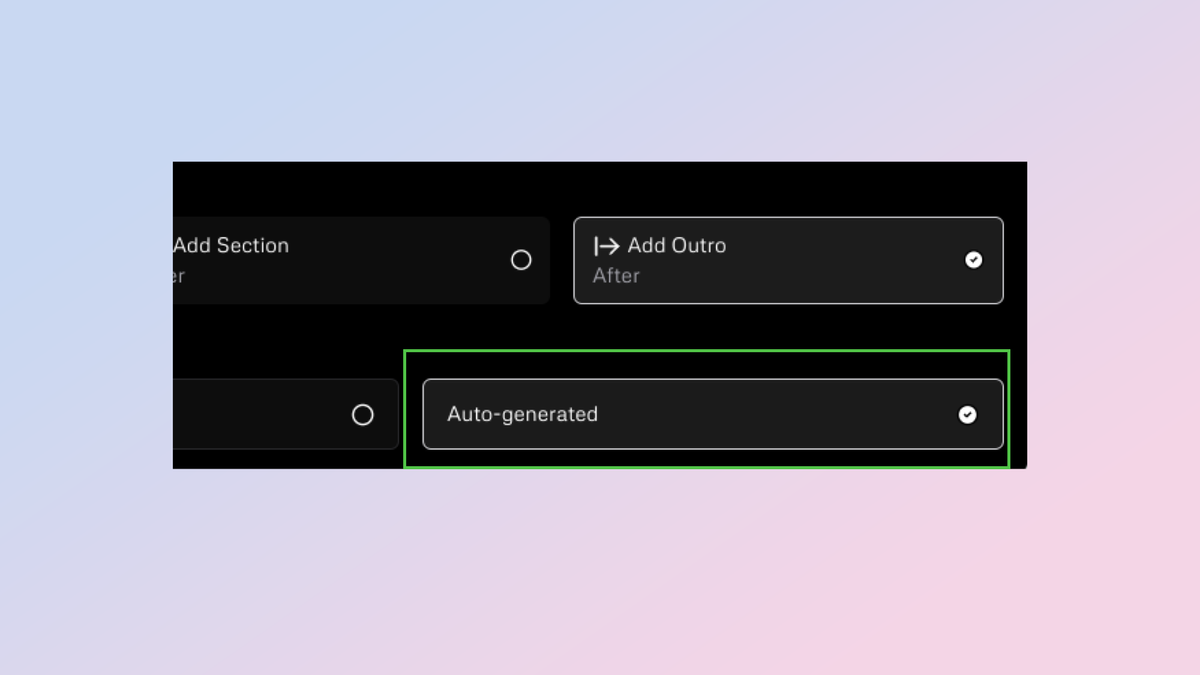
If your inspiration has run dry, don't worry. Udio can generate lyrics for your song from scratch or based on the lyrics you've already written.
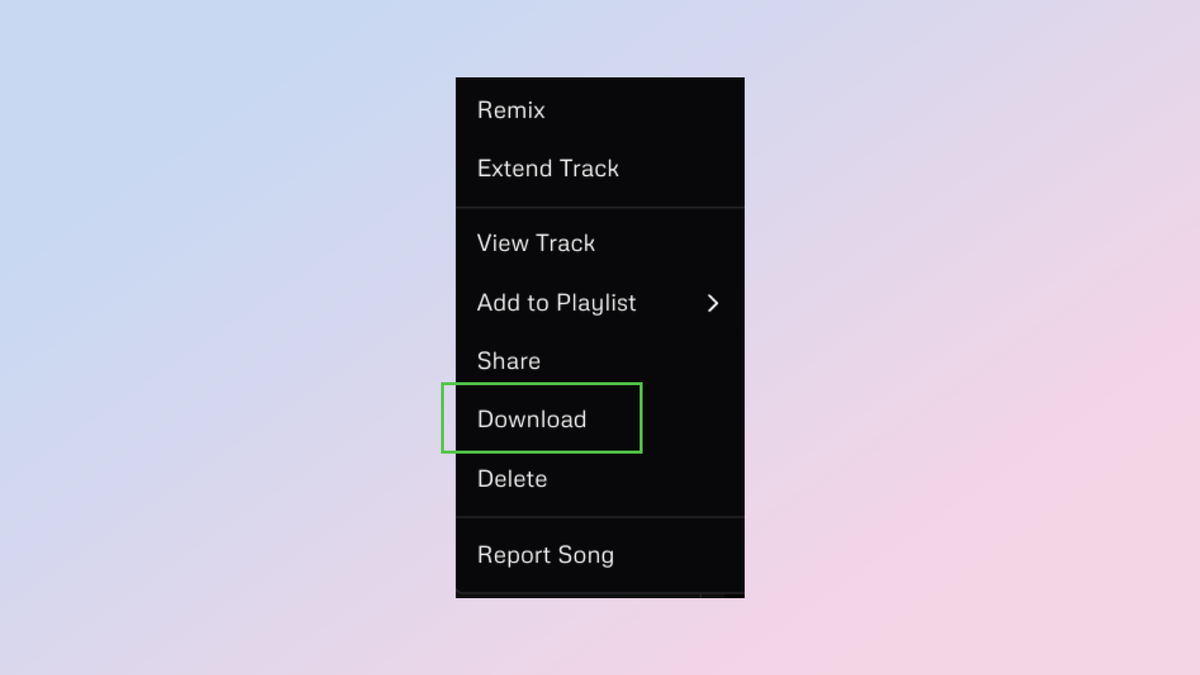
13. Download your song
(Image source: ©Udio)
Once you're happy with the results of your AI-generated song, you can download it as an mp3 file.









