
 Script Planner Assistant▸
 AI Apps
 AI News
SparkBrush Mirror: Beginner's Guide and Tutorial

SparkBrush Mirror: Beginner's Guide and Tutorial
Xinghuo Huijing (Spark Mirror) is an AI-driven short video creation tool that can automatically transform text descriptions entered by users into video content, such as short dramas, trailers, music videos, and more. Xinghuo Huijing covers the entire process from script generation and storyboard design to the final formation of a complete short video. It is particularly well-suited for content creators and marketing professionals, as it can quickly present ideas or stories in video form, simplifying the video production workflow. Below is a tutorial guide on how to use Xinghuo Huijing.
1. Create a Text Script
After clicking "Start Creating" on the homepage, you will first enter the text script creation stage; enter your inspiration and ideas, select the type of work you want to create, click "Generate Content," and the AI script will be created;
Tips:
"AI Short Drama" can generate plots and narration based on the story synopsis you provide, assisting you in creating various types of feature films such as sci-fi, drama, and romance;
"AI Trailer" requires you to define the type of short film; simply enter your creation requirements to generate PVs such as city promotions, commercial advertisements, and scenic tourism videos that you desire;
"AI MV" can generate corresponding video materials based on the song lyrics you provide, allowing you to customize the protagonist of your music MV;
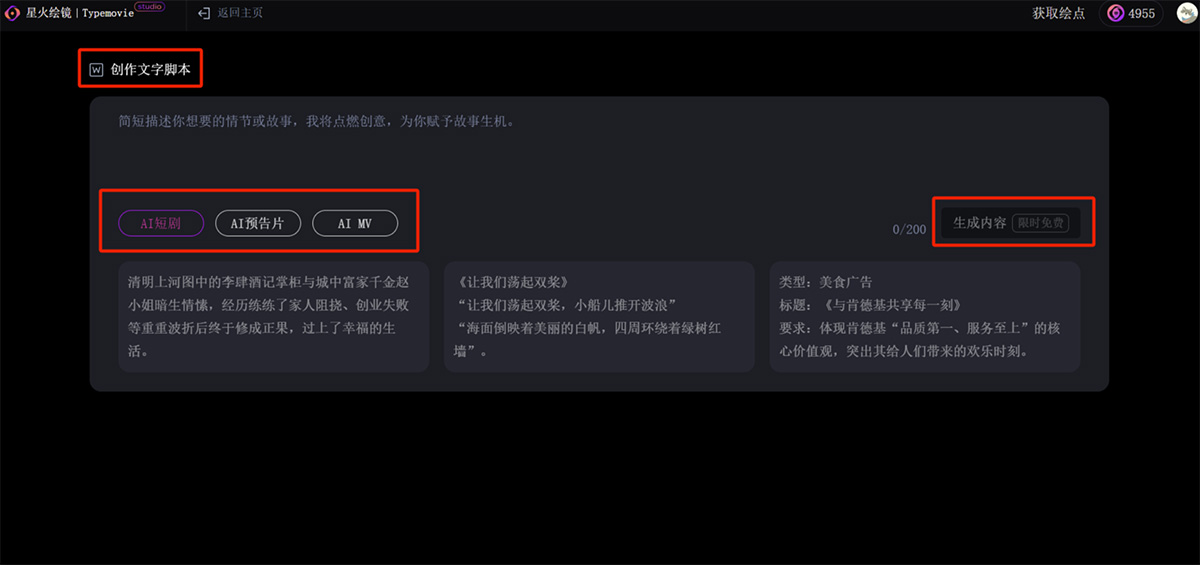
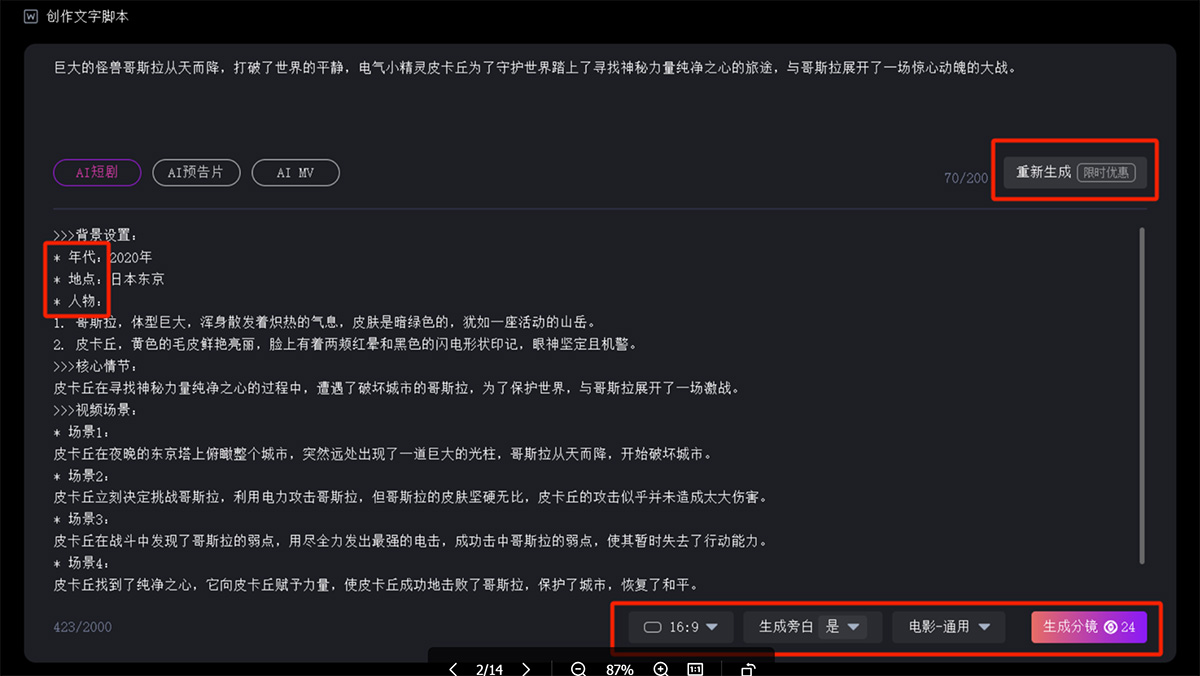
Taking the AI short drama as an example, the AI-generated script mainly includes two parts: "Background Setting" and "Story Outline." You can complete the story setup by modifying the settings for "Time, Location, and Characters." If you are still not satisfied with the generated script, you can click "Regenerate" to try new ideas:
You can click on the aspect ratio (16:9/9:16) to choose whether to produce horizontal or vertical screen videos according to your needs. In terms of visual style, we have carefully designed nine styles for you to choose from. You can select a style that matches the tone of your work for creation. After the settings are complete, click "Generate Storyboard" to obtain image storyboards;
2. Generate Image Storyboards
Based on the text script, the AI will generate corresponding image storyboards for you. Simply wait 1-2 minutes, and you can view the image effects:
If the generated image storyboard effects are not what you want, you can modify the description in the text script to make changes, or use the "Refresh" function.
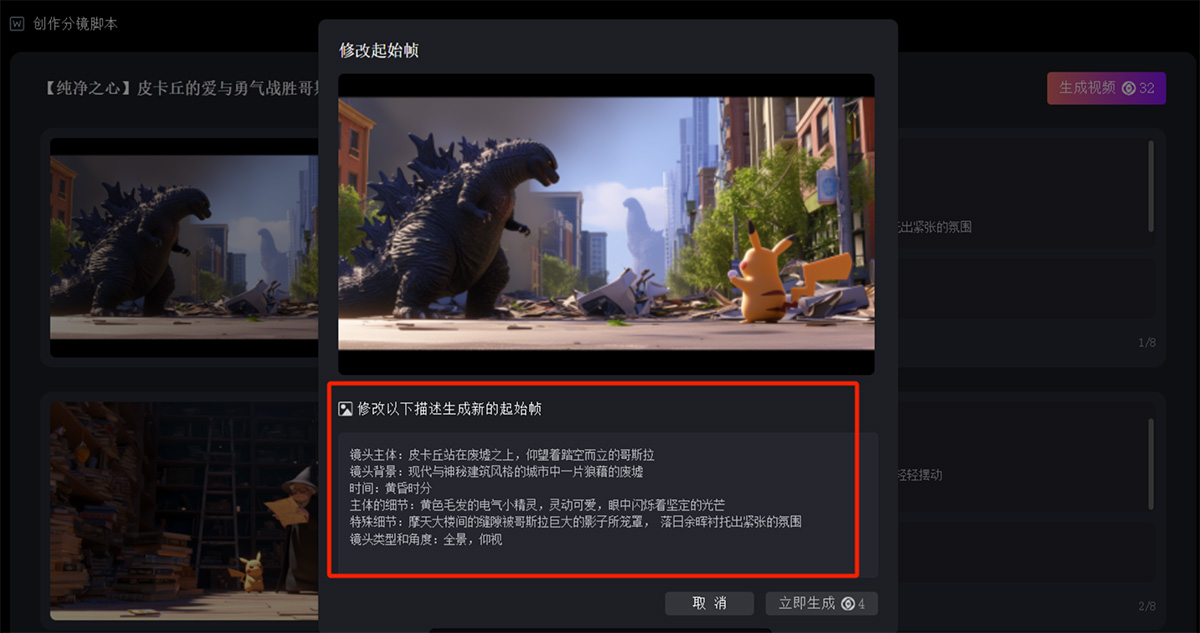
Click the "Modify Narration" button to modify the narration text and set your desired lines.
By default, 8 storyboards are generated. You can click on the blank space between two images to manually add image storyboards;
3. Generate Video Materials
After completing the image storyboard settings, click "Generate Video" to generate video materials.
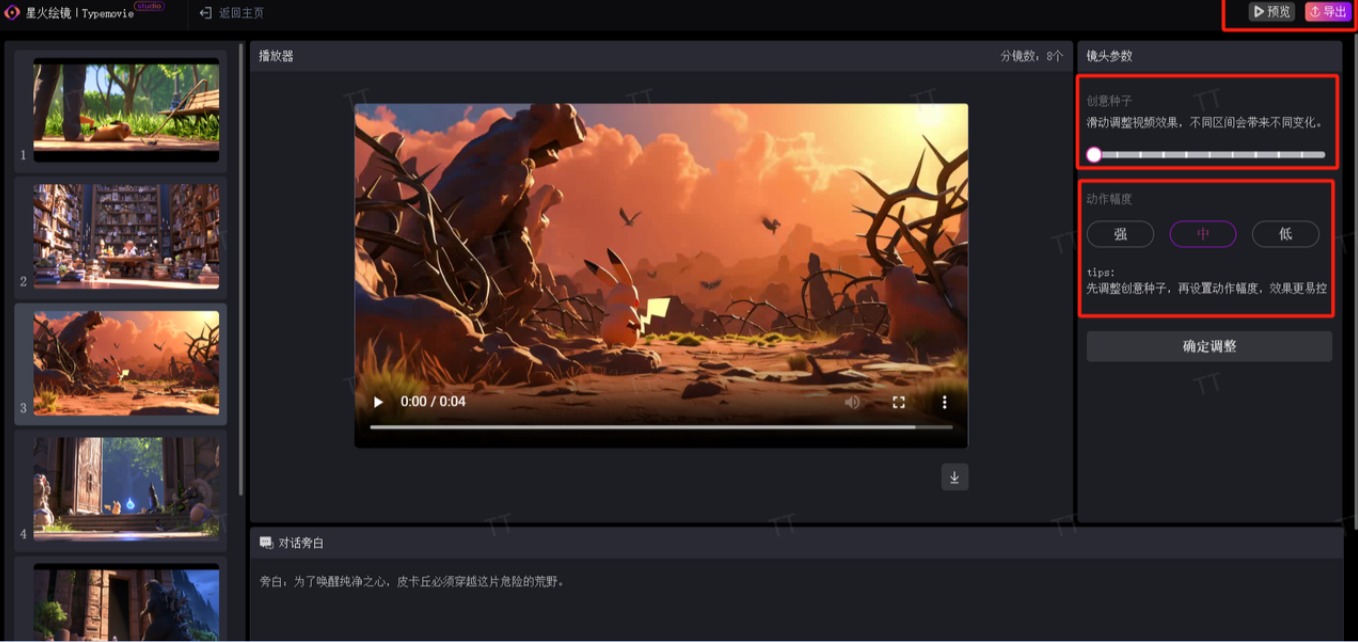
To preview video materials, you can change the camera movement state by adjusting the "Creative Seed" parameter; you can change the movement speed by adjusting the "Motion Amplitude." Tip: Try more variations for better results~
4. Export Materials to Local
After the video materials are adjusted, click the "Download" button to save individual video materials;
Once you are satisfied with all video materials, click the "Export" button in the upper right corner to download the project package with one click, which includes narration content, image storyboards, and video storyboards.
Frequently Asked Questions About Using Xinghuo Huijing
Q1: What should I do if the generated images do not meet my requirements?
If only certain small details in the image do not meet your expectations, you can try using the "Refresh" function to regenerate and obtain a different version.
If the image differs significantly from your expectations, it is recommended that you modify the description of the starting frame, or re-describe it to generate new images.
Q2: Why did I set up a classic IP character in the storyboard, but the generated character is completely inconsistent with what I expected?
When you want to generate a specific character in the storyboard, please ensure that you provide a detailed description of the character's appearance. For example, if you want to generate the image of Lin Daiyu, you should clearly point out features such as her wearing traditional Chinese ancient costume, being beautiful, slender, and appearing somewhat sickly as a young woman.
Q3: How can I use the video adjustment function to get a video I am satisfied with?
Adjusting the "Creative Seed" will change the overall style and variation effect of the video, while the "Motion Amplitude" determines the strength of these variation effects. To get a satisfactory video, it is recommended that you first try adjusting the "Creative Seed" and initially set the "Motion Amplitude" to a lower level. By adjusting gradually, you will be more likely to obtain a video that meets your expectations.
Q4: Why is the video I generated just separate material clips, not merged into a complete video, and without sound?
Currently, our product does not yet support direct video editing and audio addition features. However, we have already incorporated these features into our future development plans. At this stage, we recommend that you use third-party video editing software to process the generated materials to meet your needs.
Q5: Why has my image or video been generating for a long time?
If your image or video has not finished generating for a long time, it may be due to a busy system processing or other reasons. Please first take screenshots to retain relevant information and provide your registered phone number to the customer service team. We will assist you in troubleshooting and resolving the issue as soon as possible.









