
 Script Planner Assistant▸
 AI Apps
 AI News
How to Use Ideogram AI: A Beginner's Guide

How to Use Ideogram AI: A Beginner's Guide
Ideogram ai is an advanced text-to-image generator that uses artificial intelligence to create visually appealing intelligent designs based on text prompts. ideogram.ai offers stunning and clear font features in various colors, fonts, sizes, and styles. With Ideogram ai, you can create high-quality images with text, such as logos, slogans, and signage.
Step-by-step guide on how to use Ideogram.AI painting:
1. Visit the Ideogram AI website.
2. Sign up or log in: Generating images with Ideogram is similar to using any other AI tool generator. Before using it, you need to create an account by signing up with a Google account.
3. Enter your text prompt: Ideogram AI generates images based on text prompts. Enter your text prompt in the text field at the top of the page. It can be a description, concept, or any text you want to convert into an image. For example, I entered "A vintage boutique sign that says 'Fox'."
Below the text field, you'll notice several tabs—these are the styles you can choose from.
Click the "View All" button to expand the list and see all styles. Select the style you want.
You can choose multiple styles. If you're unsure which style to choose, click the "Lucky Style" button to let Ideogram randomly pick three styles for you.
Then, select the image ratio—choose 10:16, 1:1, or 16:30 ratios.
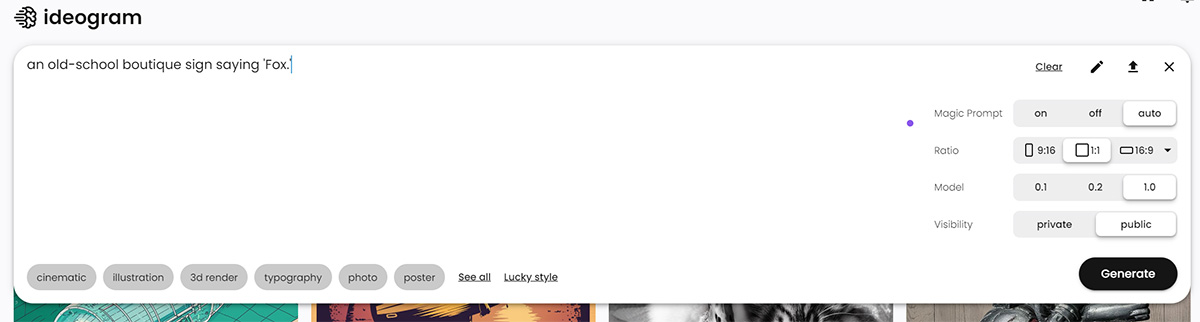
4. Generate the image: After entering the text prompt, click "Generate" and let Ideogram.ai process your input. The AI model will generate high-quality images that match the descriptions provided in the text prompt.
5. Preview and select images: Ideogram.ai will generate four images based on your text prompt. You can preview these images and select the one you like or think is suitable for your project.
6. Download or remix: After selecting the desired image, you can download it to your device. In addition, Ideogram.ai offers a "Remix" option that allows you to make modifications to an existing image, providing more creative possibilities.
Pin Image (Optional): Ideogram.ai offers a "Pin" feature that lets you curate your profile and showcase your best work in a dedicated section of your Ideogram profile. You can pin images from the generated image list to your profile for others to view.
Some tips for using Ideogram AI:
Be as specific as possible in your prompts. The more specific you are, the better Ideogram.ai will understand what you want and generate the image you're looking for.
You can use keywords and phrases related to the image you want to generate. For example, if you're creating a picture of a cat, you can use keywords like "cat," "kitten," "feline," and "pet."
You can also use modifiers to describe the image you want to generate. For example, you can say, "A black and white cat sitting on a red sofa" or "A close-up of a cat's face."
If you're not satisfied with the results, you can modify the prompt or generate a new image. To modify the image, click the "Remix" button. This will open a box containing your prompt and the selected style. You can modify the prompt and select a different style. Additionally, you can increase or decrease the image weight by clicking the "+" or "-" symbol below the image.
In summary, Ideogram.ai is a powerful tool that can be used to generate creative images for various purposes. You can learn to use Ideogram AI to create visually appealing and effective images through some experimentation. It's worth noting that Ideogram.ai's specific features and capabilities may evolve over time, so it's recommended to refer to the documentation provided on Ideogram.ai's official website for the latest instructions on using the platform.









