
 Script Planner Assistant▸
 AI Apps
 AI News
How to Use Beautiful.ai: Generate Stunning PPT Presentation Templates

How to Use Beautiful.ai: Generate Stunning PPT Presentation Templates
For many professionals, creating visually stunning ppt presentations can be a time-consuming and challenging task. That's where Beautiful.ai comes in—a unique PPT presentation generation tool. With its artificial intelligence (AI) powered design capabilities, Beautiful.ai makes creating professional and engaging PPT presentations a breeze.
In this article, we'll discuss Beautiful.ai's features and tips on how to use it to create outstanding PPT presentations.
What is Beautiful.ai?
Beautiful.ai is a web-based PPT generation tool that uses AI to automatically design visually appealing PPT slides based on your content and preferences.
However, unlike traditional presentation tools that offer a blank canvas, Beautiful.ai provides a library of smart templates tailored to your content and style. You simply select a template, add your text, images, charts, or videos, and leave the rest to Beautiful.ai.
With Beautiful.ai, you can create and present from any device and browser, making it a versatile tool for a wide range of professionals, from marketers and salespeople to educators and students.
Key features of Beautiful.ai:
AI-powered design: Beautiful.ai uses artificial intelligence to automatically design slides, handling fonts, colors, layouts, and animations.
Smart templates: Choose from a variety of templates for different purposes and audiences, and Beautiful.ai adapts the design to your content.
Customizable slides: Customize your slides with your own branding, icons, logos, and fonts to create a unique and professional look.
Export options: Convert your presentations to PDF or PowerPoint format for easy sharing and offline viewing.
Real-time collaboration: Work on presentations simultaneously with team members through version history and user access controls.
Slack integration: Stay up to date on changes and collaborate with your team via Beautiful.ai's Slack integration.
How to use Beautiful.ai:
To use Beautiful.ai, follow these general steps:
Sign up and log in: Visit the Beautiful.ai website and register for an account using your email address and password. You can also log in directly with your Google, Facebook, or LinkedIn account.
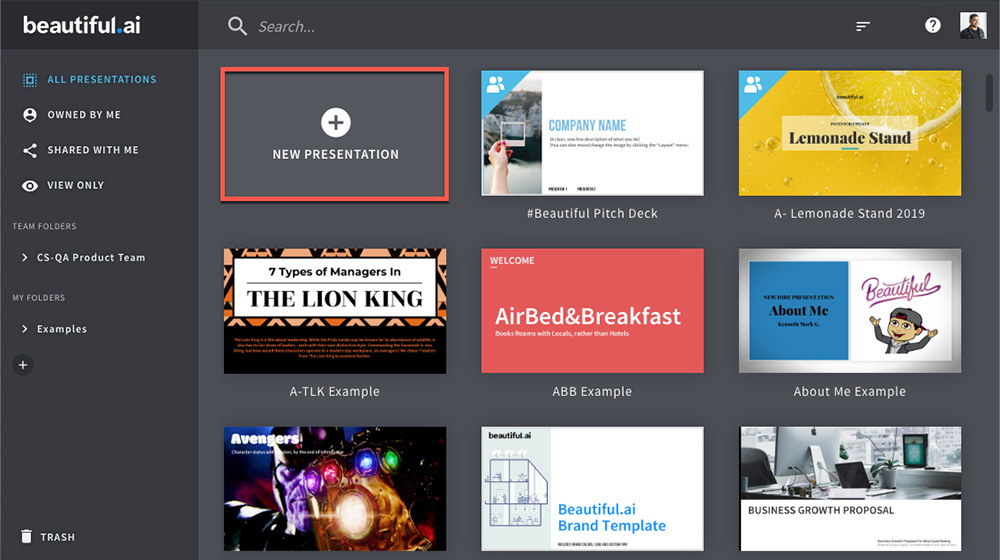
Choose a template: Beautiful.ai offers a library of smart templates. Select one that suits your presentation needs. These templates adapt to your content and style. Alternatively, you can choose to start from scratch by creating a blank presentation. To select a template, simply click the "New Presentation" button in the top right corner of the dashboard.
Add content: After selecting a template or creating a blank presentation, start adding content to your slides. You can add text, images, charts, videos, and more. Beautiful.ai will automatically adjust the layout, colors, fonts, and animations to make your slides visually appealing.
Text: Click on the text box and type your message. Use the toolbar at the top of the screen to format the text to your liking. Customize font size, color, alignment, and style to your preference.
Images: Click the image placeholder, then select an image from your computer or the built-in stock photo library. Use the corner handles to resize and crop the image.
Icons: Click the icon placeholder, then select an icon from the provided library. Use the toolbar at the top of the screen to customize color and size.
Charts: Click the chart placeholder, then select a chart type from the menu. Options include bar charts, pie charts, line charts, area charts, and more. Enter data manually or import from a spreadsheet file, and customize the chart with colors, labels, axes, legends, and other options.
Maps: Click the map placeholder, then select a map type from the menu, such as world map, country/region map, or state map. Use the slider in the lower right corner to zoom in or out, and use the toolbar at the top of the screen to add pins and labels as needed.
Videos: Click the video placeholder, then paste the URL from YouTube or Vimeo. Use the corner handles to modify the size and position of the video.
Customize: After adding content to your slides, further customize them by adjusting design elements such as colors, fonts, and backgrounds. If needed, you can also rearrange the order of the slides.
Preview and refine: Preview your presentation to see how it looks. Make any necessary improvements or edits to ensure your presentation is polished and visually appealing.
Export PPT presentation: Once you're satisfied with your presentation, you have several options. You can present your slides directly from Beautiful.ai by sharing a link with your audience. Alternatively, you can download the presentation as a PDF file and share or print it for offline use.
Beautiful.ai also offers additional features and capabilities that can enhance your presentation creation process. These include AI content generation, version history, PowerPoint import/export, viewer analytics, collaborative workspaces, custom company themes, and more. Depending on the pricing plan you choose, these features may be available.









