
 Script Planner Assistant▸
 AI Apps
 AI News
How to Use PixAI.Art: Generate Manga-Style Artwork

How to Use PixAI.Art: Generate Manga-Style Artwork
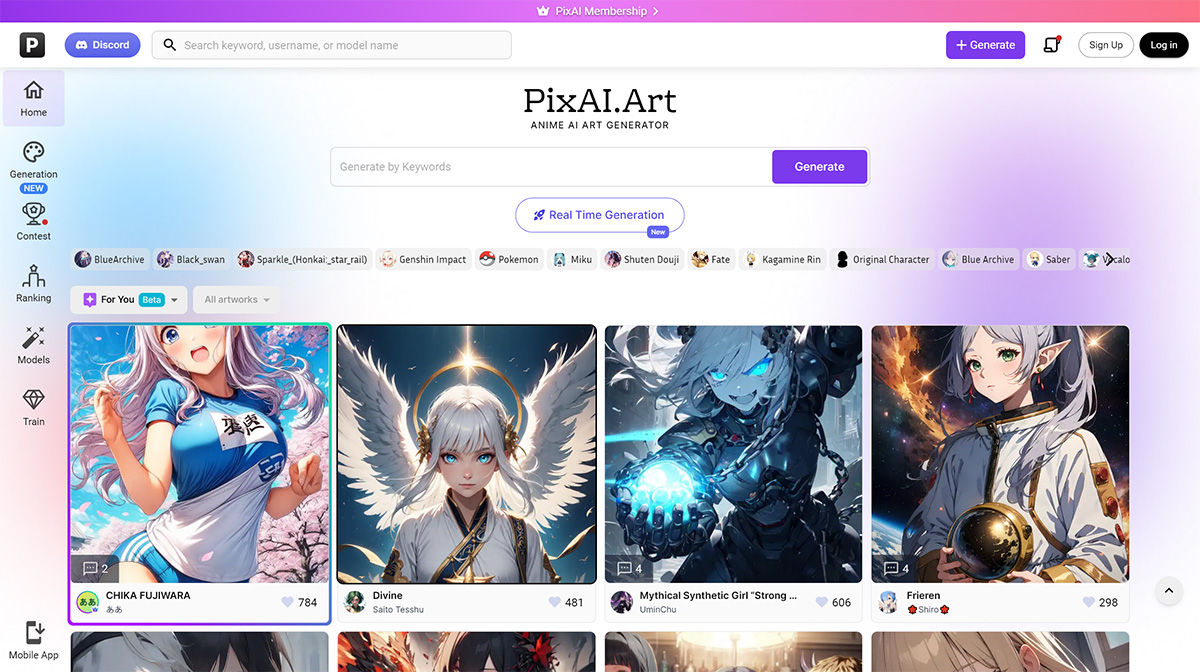
What is Pixai.Art?
PixAI.Art is an innovative AI comic image generation tool whose core purpose is to use advanced artificial intelligence to transform user-input prompts into unique anime-style artworks. Whether you are an experienced illustrator looking to speed up your workflow or an amateur hoping to bring your wildest anime concepts to life, PixAI.Art has you covered.
Key Features of PixAI.Art:
Anime Art Generation: Specializes in creating anime-style artworks from text descriptions or base images.
Customization Options: Allows users to fine-tune generated artworks by adjusting different parameters.
High-Resolution Output: Capable of producing high-quality images suitable for various digital applications.
User-Friendly Interface: Provides an intuitive and straightforward platform for both beginners and experienced users.
How to Use PixAI:
You can follow these steps:
1. Visit the PixAI website: Go to the PixAI website and sign up for an account. You can also log in using your Google account.
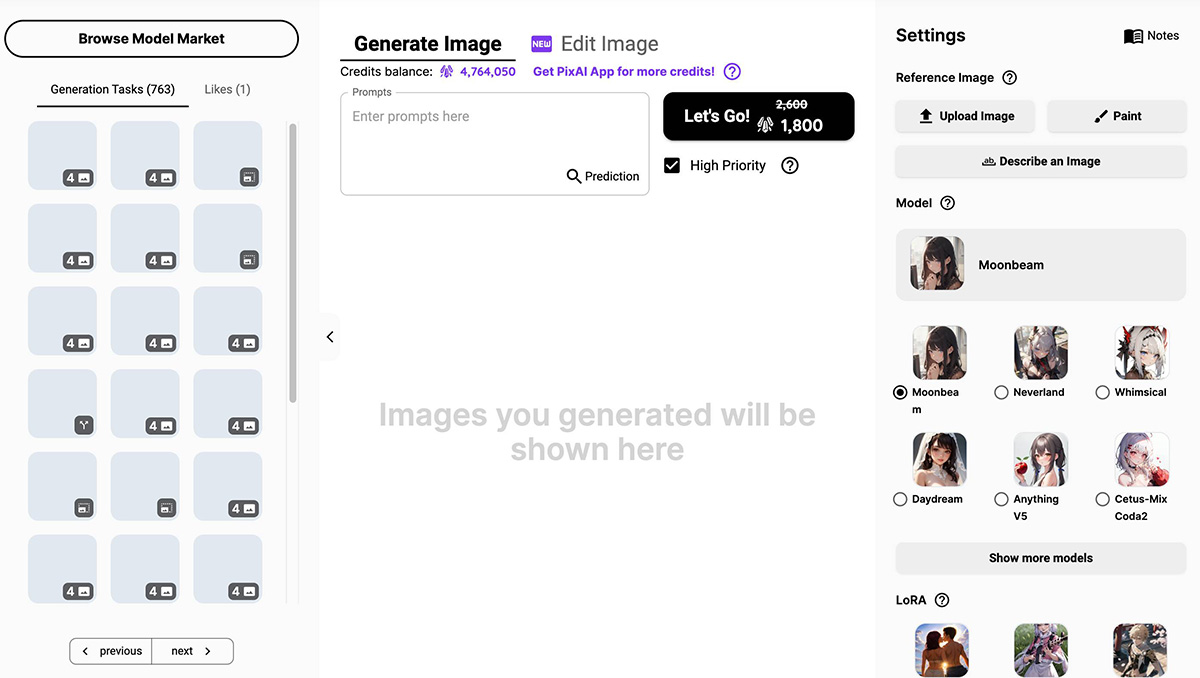
2. Click "Generate" in the top right corner to generate images. PixAI provides an AI art generator that lets you easily create high-quality anime AI art. You can use their tools, character templates, and more to unleash your creativity.
Generating Images with Prompts:
Describe the keywords for the image you want to create. It can be a phrase or a word. Separate them with commas.
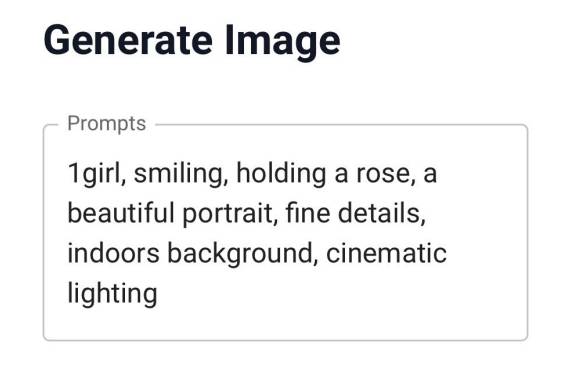
Describe with tags: PixAI's model works best when you express prompts as descriptive "tags" or short phrases. You need to separate tags with commas. Here is a basic example of tag wording:
Using Image-to-Image
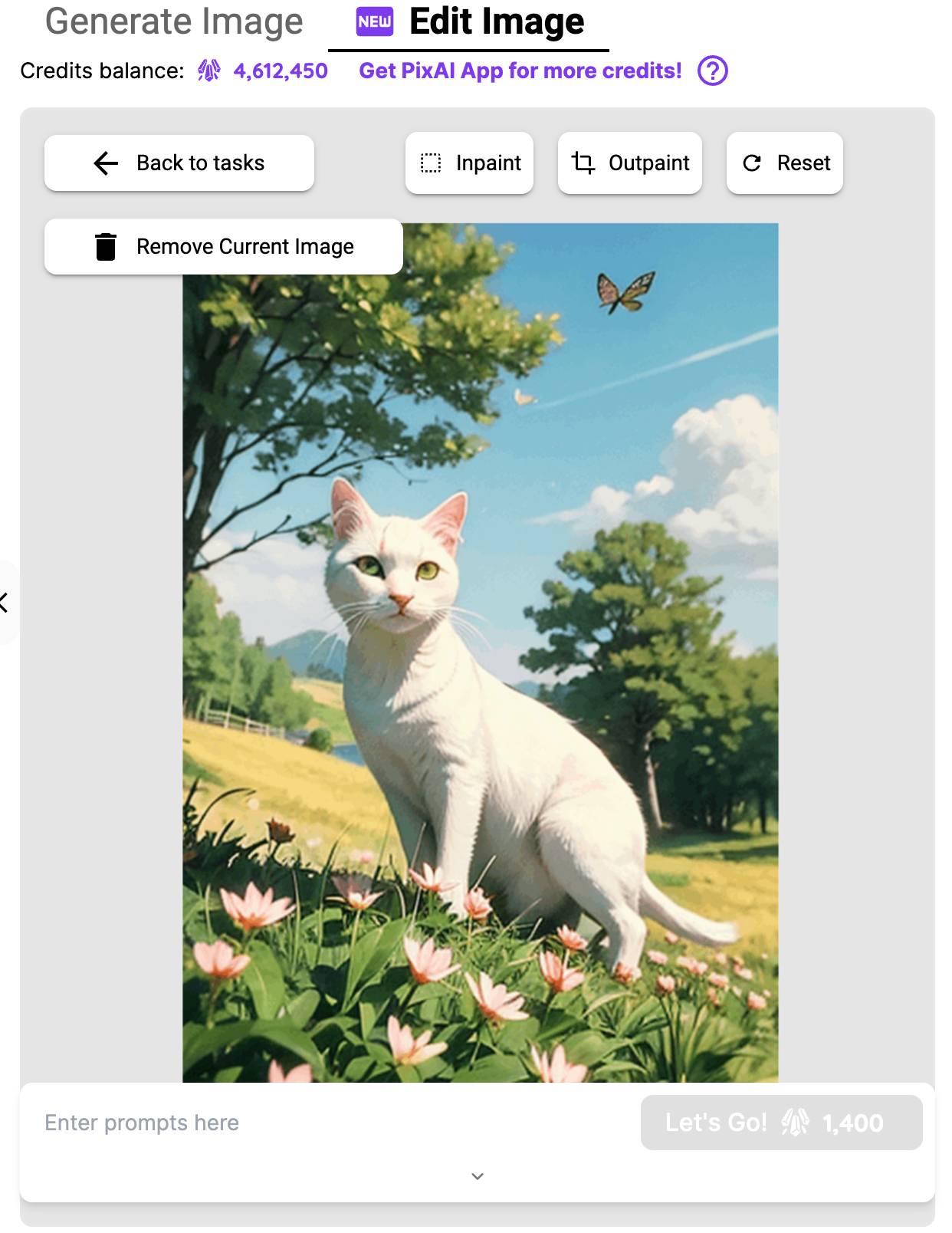
PixAI allows you to upload images as references for AI art. You can edit the uploaded image and save the edited result as an image reference. In addition, you can describe the uploaded image to get prompt descriptions from the AI. PixAI also offers the option to upscale/enhance images without changing them.
Upload an image as a reference
Edit the uploaded image and save the edited result as an image reference
Describe the uploaded image as a reference for the AI to obtain prompt descriptions.
3. Use the Note feature to save settings: In PixAI, you can use the Note feature to save setting templates. These templates can include prompts, negative prompts, models, sizes, sampling steps and methods, as well as base images. Once saved, you can use these templates as references for future work.
4. Publish and share your work: After generating an artwork, you can publish your task to the PixAI community by filling in the post details. This allows you to share your creations with others.
5. Animate your images: PixAI also offers the ability to generate animated images from your generated tasks. You can select a task from the generation panel or task history and animate it. You can also re-roll or enhance the animation for sharper, smoother results.
Please note that the specific steps and features on the PixAI website may vary, so it is recommended that you browse their help center or documentation for more detailed instructions on how to use the platform effectively.
PixAI.Art excels at providing a professional and accessible platform for creating anime art, making it an essential tool for fans and creators in the anime community.









