
 Script Planner Assistant▸
 AI Apps
 AI News
StartAI – Your Personal Design Assistant

StartAI – Your Personal Design Assistant
Do you often find yourself frustrated by creative block, leading to low work efficiency and spending a lot of time searching for suitable references or creative materials? Then the newly launched STARTAI PS plugin from Startai can rescue you from this predicament, reducing the significant effort spent on work and saving your receding hairline.
Currently, the STARTAI PS plugin mainly provides AI features, specifically: Text-to-Image, Generate Similar Image, Inpainting, Line Art Coloring, and Lossless Upscaling — five tools designed to tackle the tedious and tedious situations that arise during design work. The specific usage effects are as follows:
1. Text-to-Image
Designers describe their creative ideas in text, input keywords into the STARTAI PS plugin, and it can generate images that match the designer's vision while being highly creative. The operation is simple — just follow the steps below:
(1) First, select "Text-to-Image" from the AI features
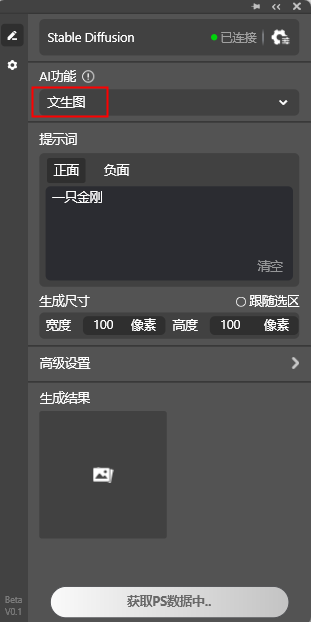
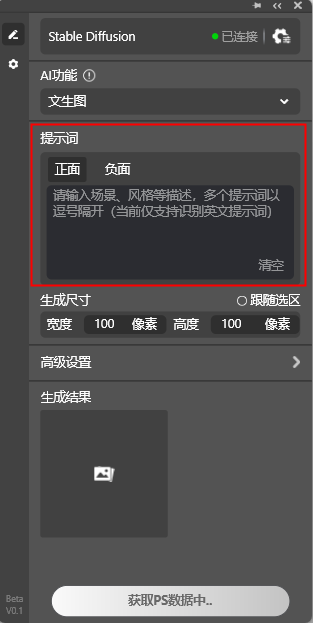
(2) Prompt: Enter your descriptive words of ideas. Currently, only English input is supported.
Positive prompt: Enter the result you hope to get. The richer and more precise the adjectives, the better the generated result.
Negative prompt: Enter content you do not want to appear in the image, reducing interference with the generated result.
You can use the "Clear" button in the bottom-right corner to clear the currently entered prompt content with one click. If no keywords are entered, the AI will randomly generate an image for you.
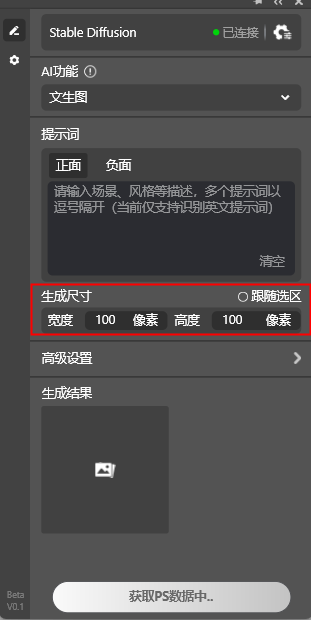
(3) Generation Size: Used to set the size of the generated image. You can customize the width and height of the generated image, up to a maximum of 1024*1024; if the "Follow Selection" option is enabled, the generated image size will match the selection size in PS, and the generated result can be inserted into the PS selection with one click.
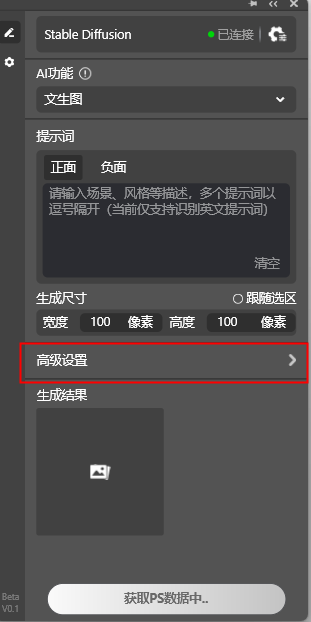
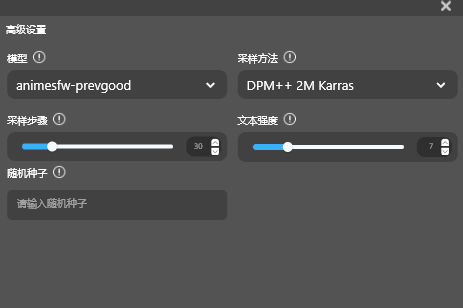
(4) Advanced Settings: More advanced operations are available to adjust the effect of the generated image.
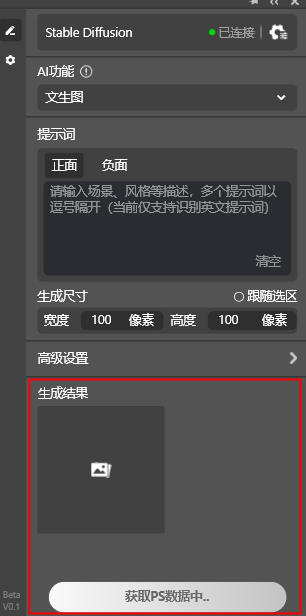
(5) Generation Result: Used to display the image generated by AI.
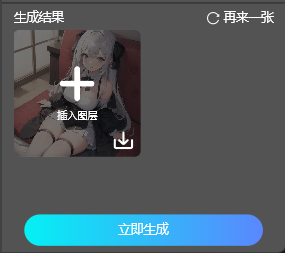
The final generated image can be processed with the following three operations:
Insert Layer: Click on the image, and it will be inserted into the PS file as a new layer.
Download: Click the download button to save the image to your local computer.
Generate Another: Generate a new image using the same parameters.
2. Generate Similar Image
Designers provide design elements, and STARTAI quickly generates a series of works similar to those elements based on them. The operation method is as follows:
(1) Select "Generate Similar Image" from the AI features
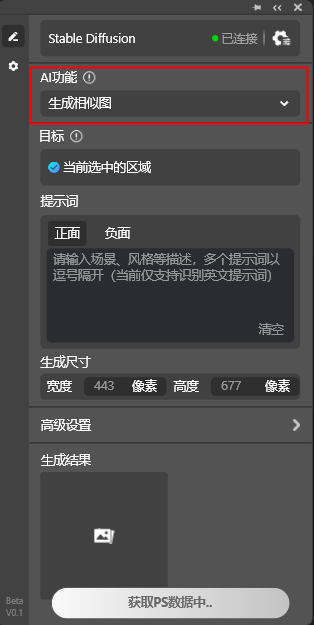
(2) Target: Use the selection tool on the PS canvas to select the area image to be used as a reference.
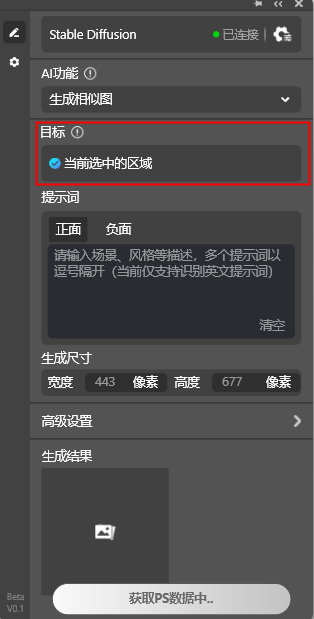
(3) Prompt: Enter your descriptive words of ideas. Currently, only English input is supported.
Positive prompt: Enter the result you hope to get. The richer and more precise the adjectives, the better the generated result.
Negative prompt: Enter content you do not want to appear in the image, reducing interference with the generated result.
You can use the "Clear" button in the bottom-right corner to clear the currently entered prompt content with one click. If no keywords are entered, the AI will randomly generate an image for you.
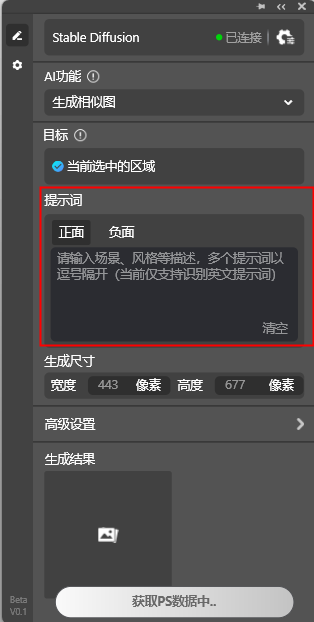
(4) Generation Size: Refers to the size of the target selection area, which is also the size of the generated image.
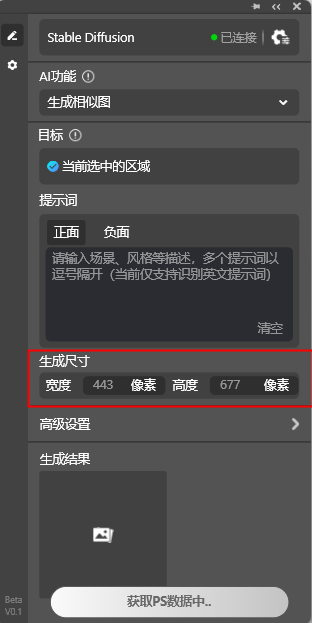
The Advanced Settings and Generation Result modules are consistent with those of the Text-to-Image feature.
3. Inpainting
This feature helps designers quickly redraw a specific local area of an image. It enables precise control over details, allowing designers to quickly replace or modify local elements of an image without affecting the overall effect. The operation method is as follows:
(1) First, select "Inpainting" from the AI features
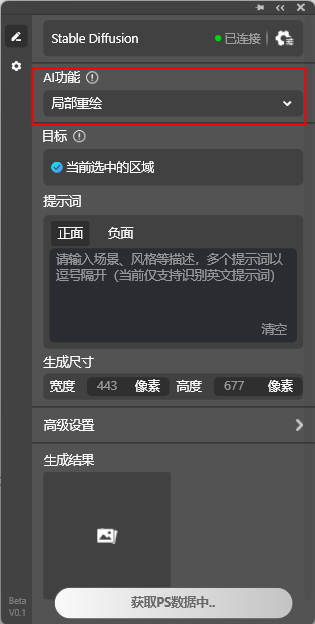
Target: Use the selection tool on the PS canvas to select the area that needs inpainting.
Prompt: Enter your descriptive words of ideas. Currently, only English input is supported.
Generation Size: Refers to the size of the target selection area, which is also the size of the generated image.
The Target, Prompt, Generation Size, Advanced Settings, and Generation Result modules are consistent with those of the Generate Similar Image feature.
4. Line Art Coloring
This feature helps designers quickly color hand-drawn line art, automatically recognizing and preserving the shape and details of the lines. The operation method is as follows:
(1) AI Feature: Select "Line Art Coloring"
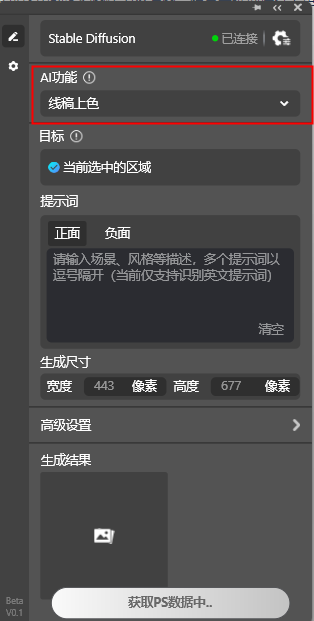
Target: Use the selection tool on the PS canvas to select the area that needs coloring.
Prompt: Enter your descriptive words of ideas. Currently, only English input is supported.
Generation Size: Refers to the size of the target selection area, which is also the size of the generated image.
The Target, Prompt, Generation Size, Advanced Settings, and Generation Result modules are consistent with those of the Generate Similar Image feature.
5. Lossless Upscaling
This feature enables image upscaling without distortion or loss of detail. STARTAI uses advanced AI image processing technology to achieve high-quality image upscaling, keeping the enlarged work clear. The operation method is as follows:
(1) AI Feature: Select "Lossless Upscaling"
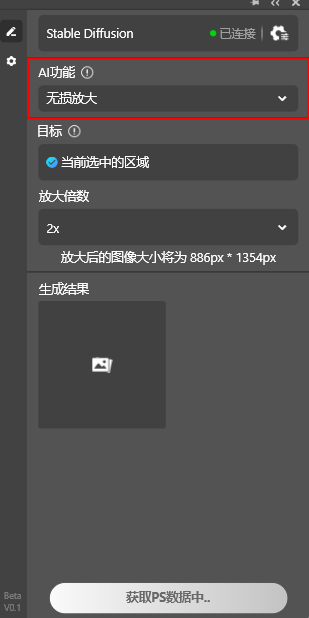
Target: Use the selection tool on the PS canvas to select the area that needs lossless upscaling.
Upscaling Factor: Provides 2x and 4x upscaling factors for adjusting the enlargement factor.
limg/20231109/3936-231109150A4J0.png" title="START AI, your personal design assistant (Figure 15)" />The generation result module is consistent with the "Generate Similar Image" feature.
The above is the detailed introduction to the AI features of the STARTAI PS plugin. We hope it can help all designers. Use START AI to free yourself and rediscover the pure joy that design brings~









