Script Planner Assistant▸
 AI Apps
 AI News
Touchchouk AI Pro Web Version: Features & How-to Guide
小编 ·

Touchchouk AI Pro Web Version: Features & How-to Guide
Welcome to use Chusuo ai Professional Edition | PC Web Version. The Professional Edition is mainly designed for users who need model training and advanced parameter configuration for AI generation functions, such as professional anime creators and professional designers. The Professional Edition features will be continuously enriched and improved. We hope you can provide us with more valuable suggestions to make Chusuo better and better, empowering everyone and making creation simpler.
Brief Introduction to Chusuo AI Professional Edition Features:
1. Supports text-to-image
2. Supports image-to-image
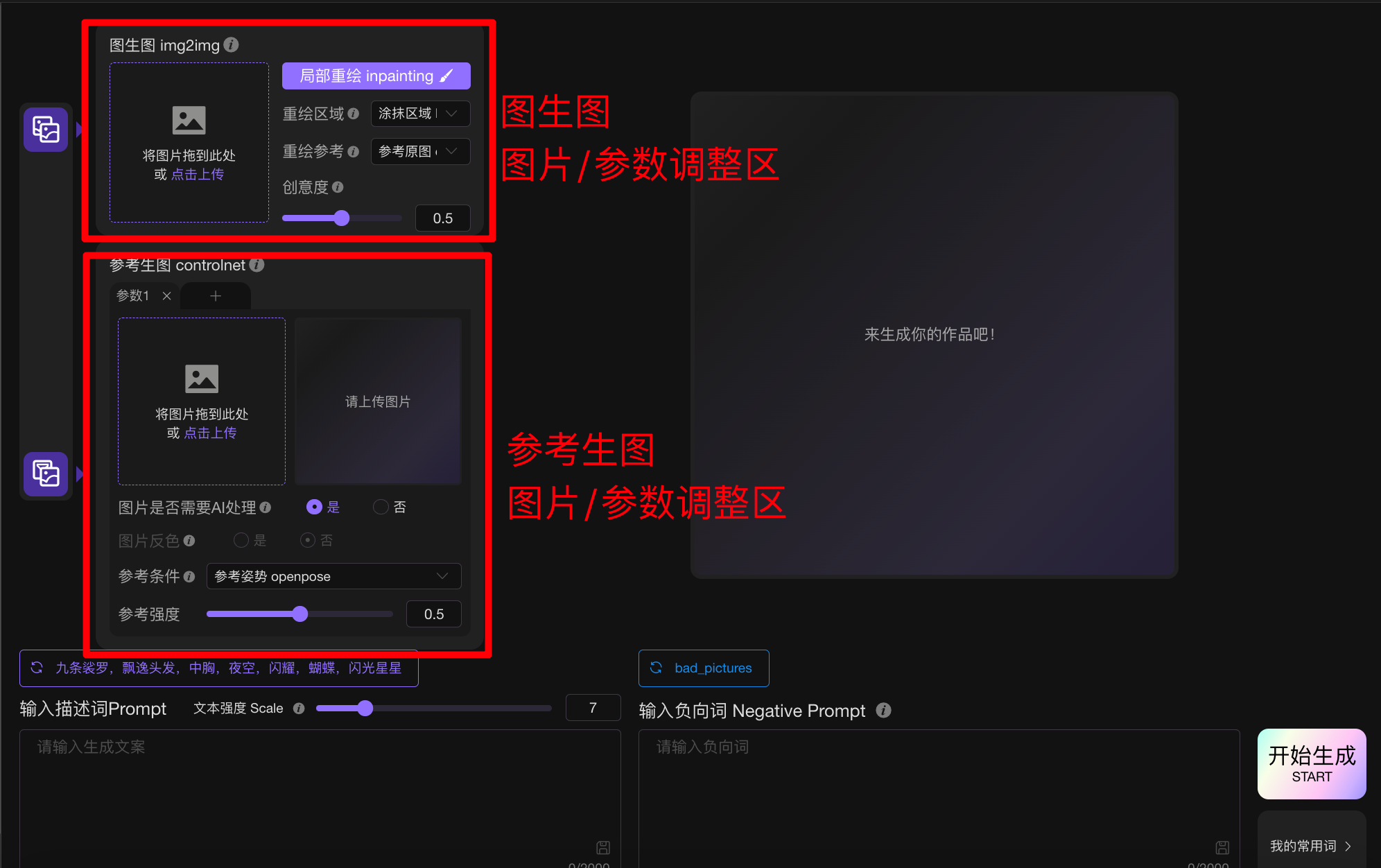
3. Supports ControlNet's reference image condition detection function
4. Supports Inpainting's magic brush for local modifications
5. Supports self-trained models
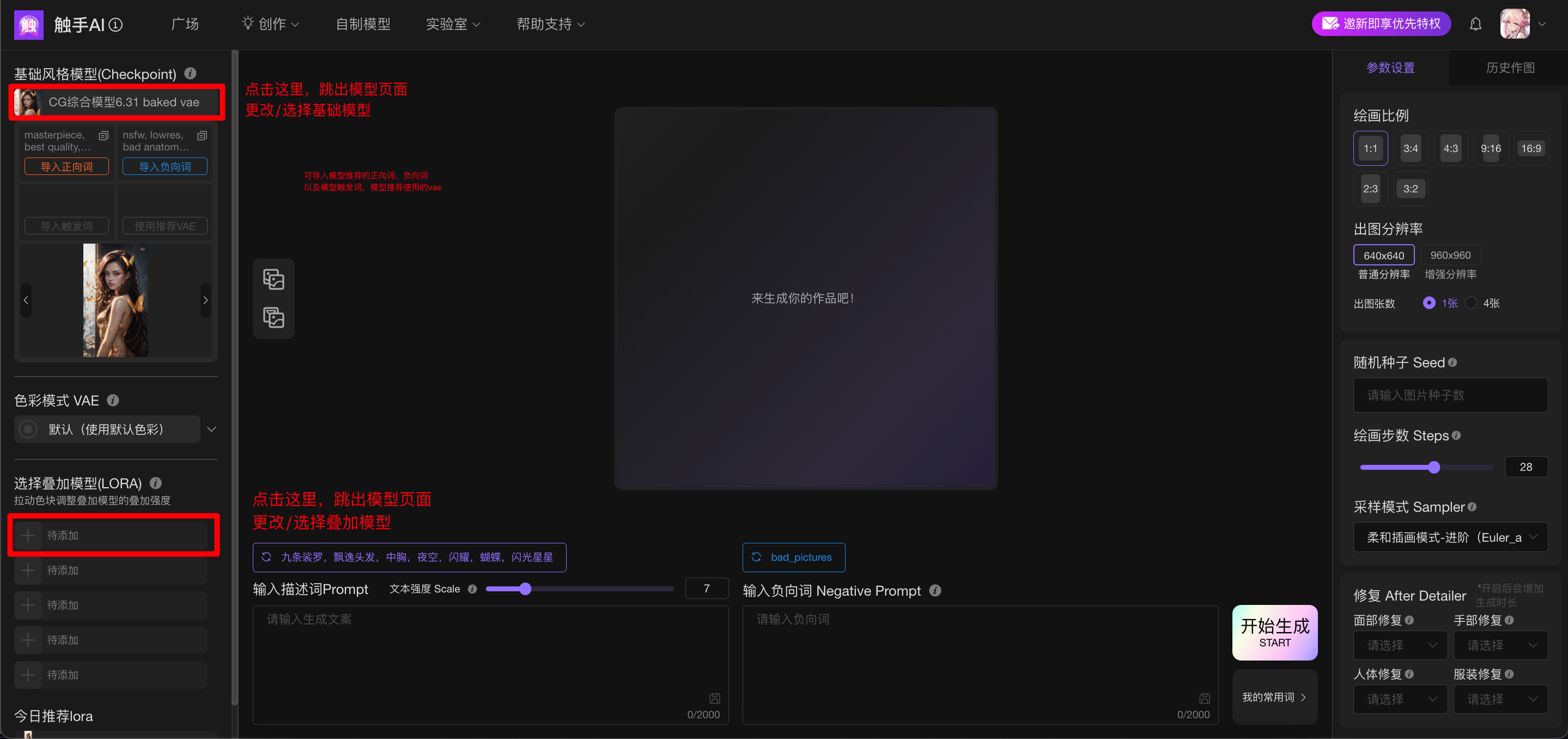
6. Supports the use of overlay models on top of base style models
7. Supports collecting various painting styles, IPs, scenes, characters, and design models in the Model Square
1. Feature Introduction and Interface Layout
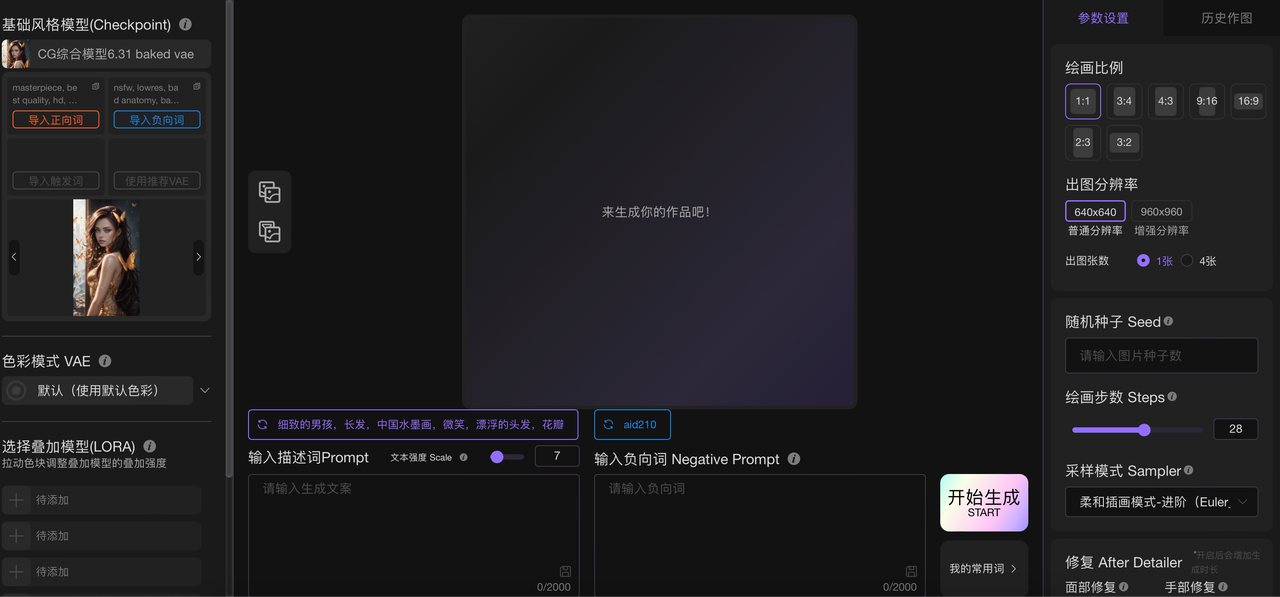
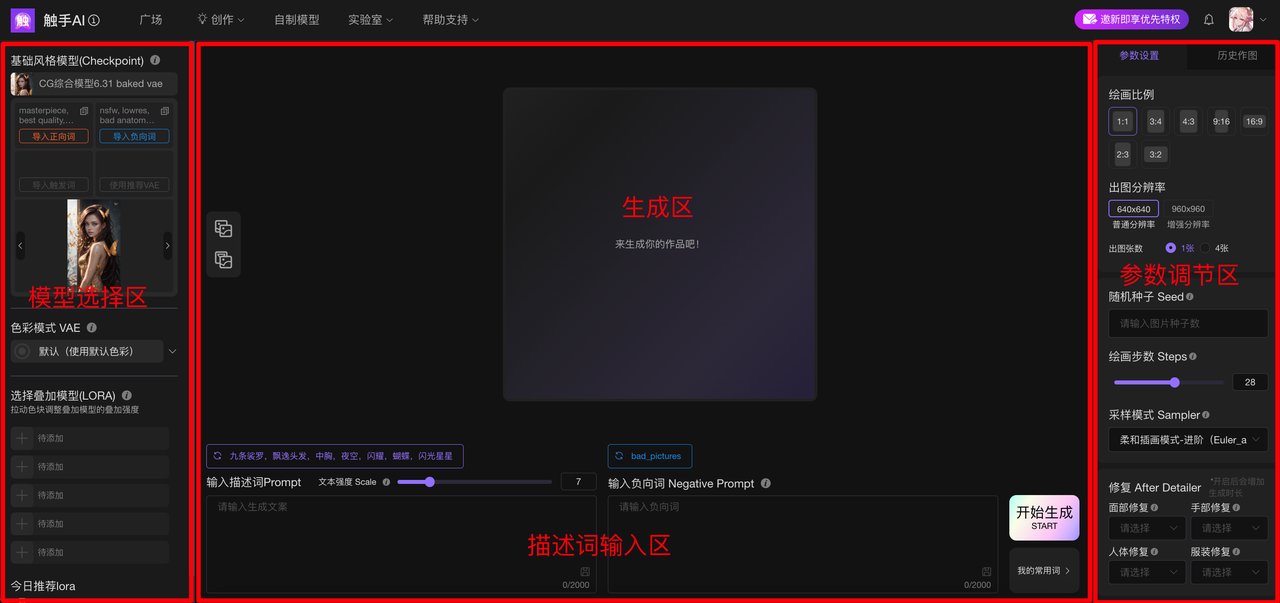
Chusuo AI Professional Edition is divided into three sections: [Create], [Train], and [Model Repository]
[Create] Section:
1. Supports text-to-image, creating by inputting keywords
2. Supports image-to-image, creating by uploading reference images combined with inputting keywords
3. Supports conditional generation, by uploading feature reference images, selecting the reference features to be recognized by AI, then creating based on those features
4. Also supports using image-to-image and reference generation simultaneously
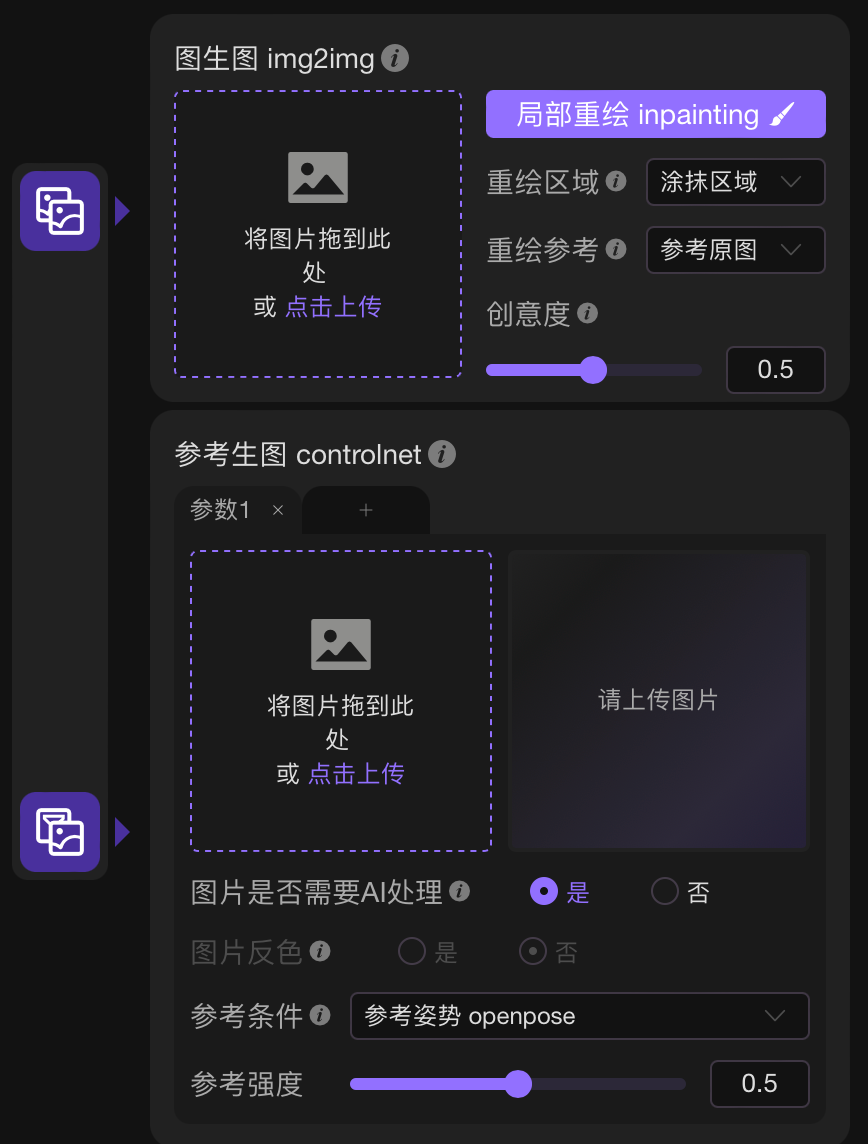
Reference Generation:
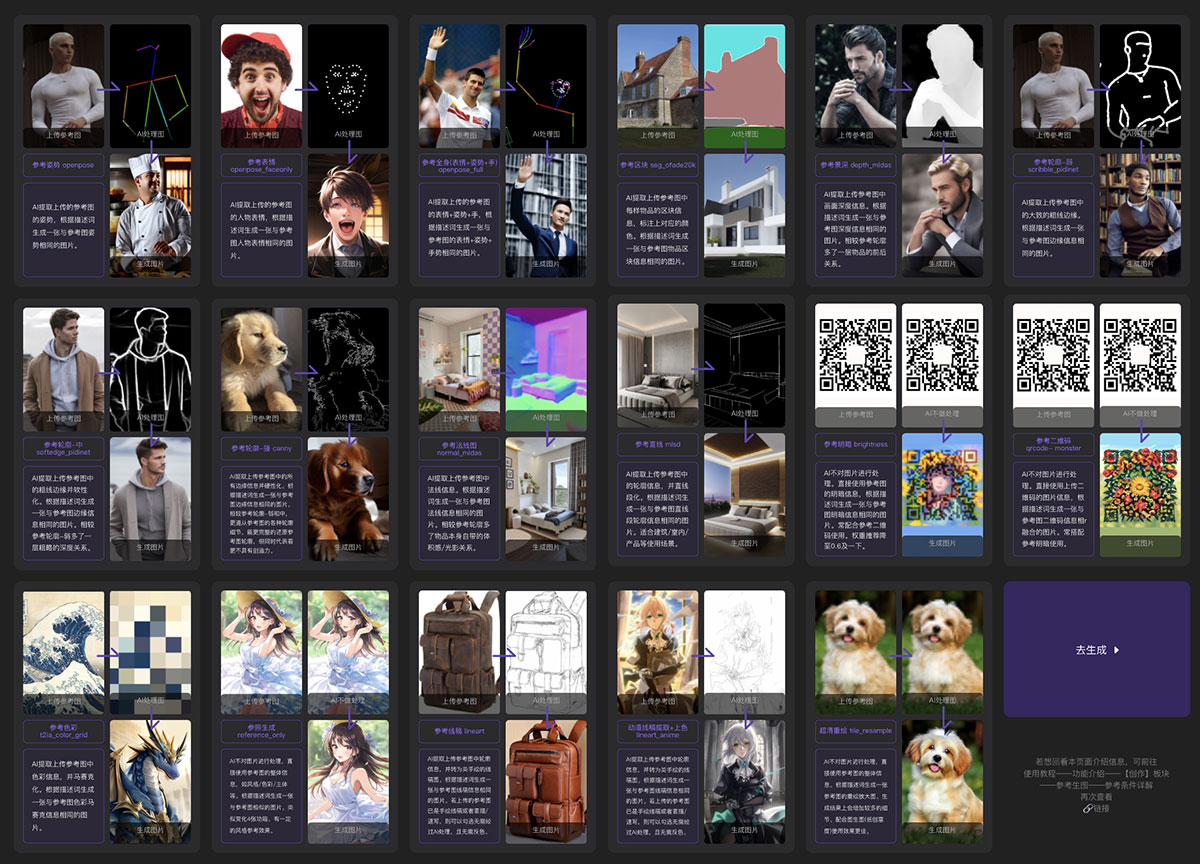
Detailed Explanation of Reference Conditions
[Train] Section:
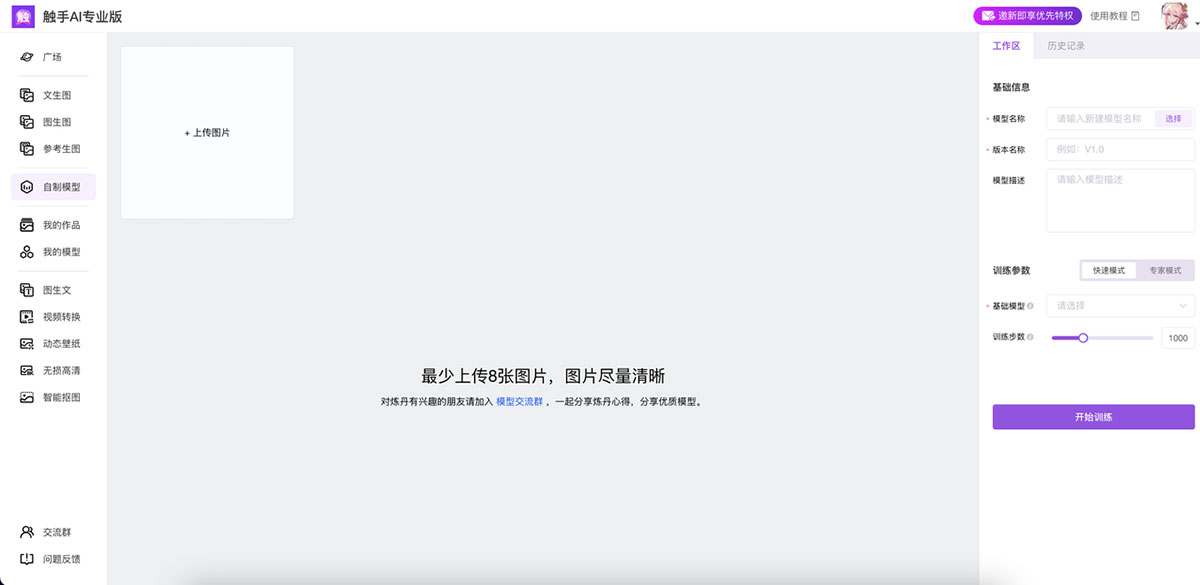
1. Upload training images based on your desired painting style or characters, and train models according to the training images
2. Supports training for styles, characters, scenes, painting themes, etc.
[Model Repository] Section:
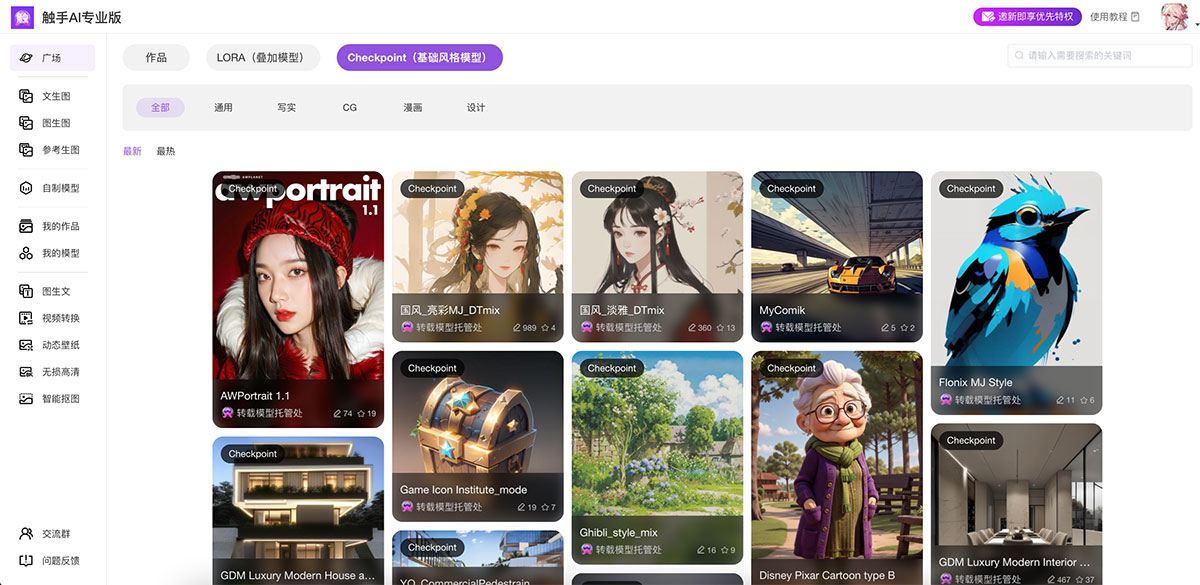
1. Overlay models in the Model Square can be favorited by clicking and used in the [Create] section
2. You can view your self-trained custom models in My Models
2. How to Use Chusuo AI Professional Edition - Operation Guide
[How to Generate]
1. Text-to-image and image-to-image support basic creation.
2. Select a base style model. Currently, 8 base style models are supported: CG Comprehensive Model, Concept Art Scene Model, Japanese Manga Model, Korean Manga Model, American Manga Model, Character Portrait Model, Hyper-realistic Model, and Realistic Model.
3. Enter prompts, or upload a reference image, then select the parameters on the right side and click Generate.
4. After users' models are successfully trained, they can also be selected in the overlay model area on the right side and used to generate creations.
[How to Use ControlNet for Reference Generation]
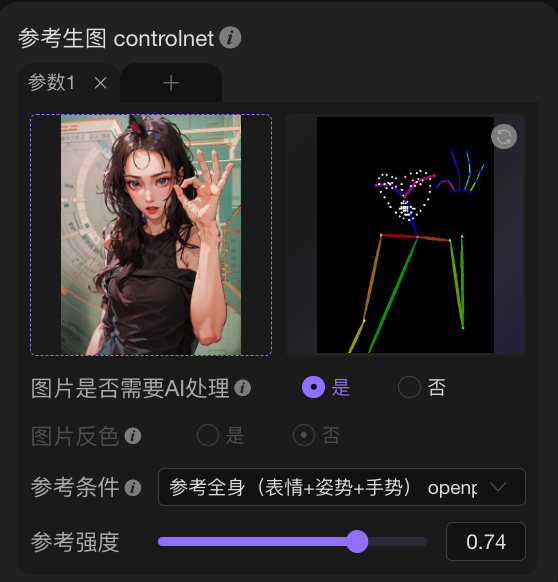
1. Open Reference Generation
2. Upload a feature reference image and select the features that need to be recognized, extracted, and referenced by AI
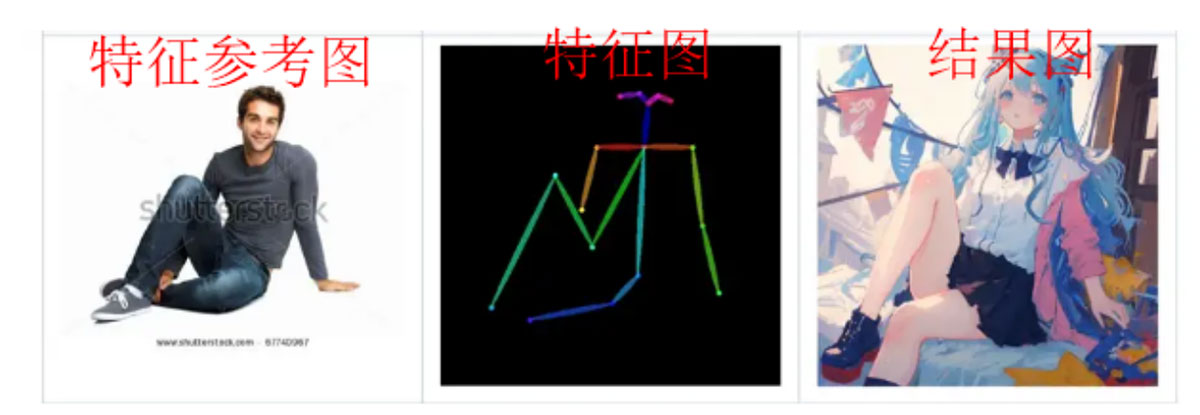
3. Feature reference images are different from image-to-image reference images. AI will not inherit the painting content of the feature image, but will inherit according to the reference conditions
4. For example, if you choose to reference pose, AI will only inherit the pose from the feature image and then generate other characters with the same pose
5. Reference Pose: Refer to character posture
6. Reference Block: Refer to composition layout and segmentation
7. Reference Depth: Refer to the distinction between foreground and background
8. Reference Outline: Refer to the outline features of the image. Weak means loose outline reference, strong means strict outline enforcement
9. Reference Normal: Refer to the bumps, textures, light and shadow of the image
10. Reference Line Art: Refer to the horizontal and vertical lines of the image, suitable for indoor and architectural scenes
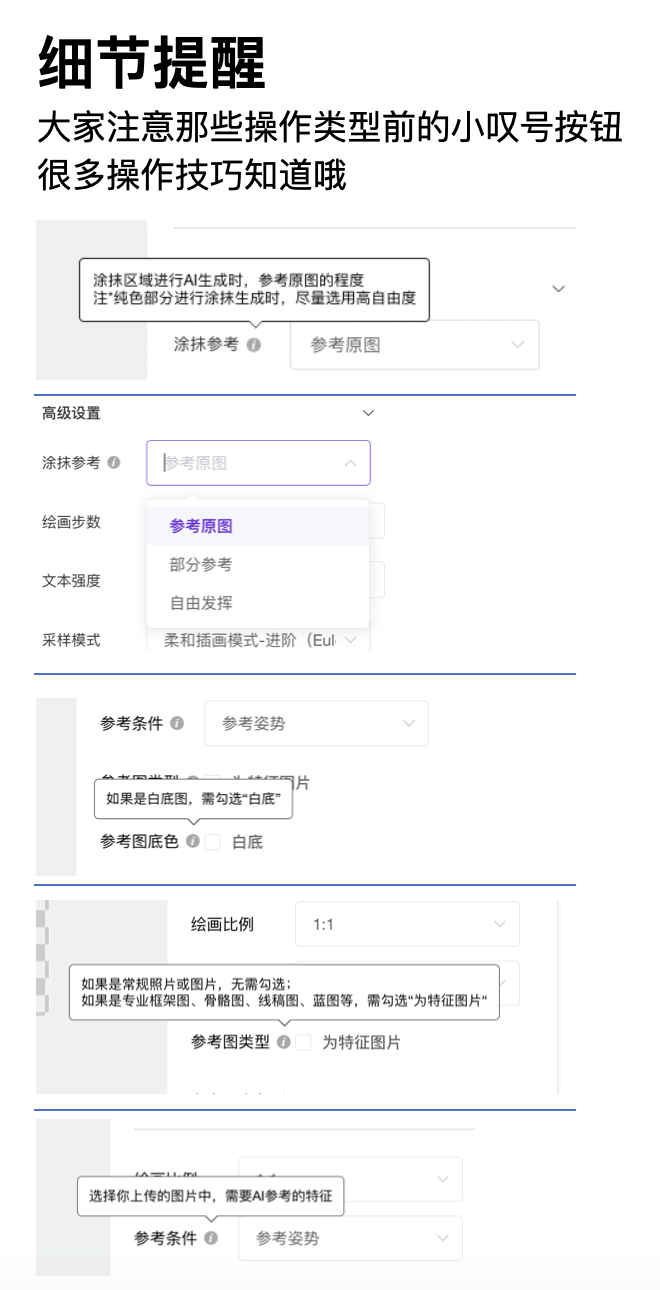
11. If the uploaded image has a white background, you need to check "White Background". For instance, if the example image above has a white background, you need to check it
12. If the uploaded image is a regular image rather than a pure feature image, there is no need to check "As Feature Image". Examples of pure feature images are shown below: