Script Planner Assistant▸
 AI Apps
 AI News
waifu2x Beginner's Guide

waifu2x Beginner's Guide
Preface
Since there are already plenty of waifu2x video tutorials on Bilibili, I won't bother making a video. I'll just write a short article to spread the word about this lesser-known but god-tier tool.
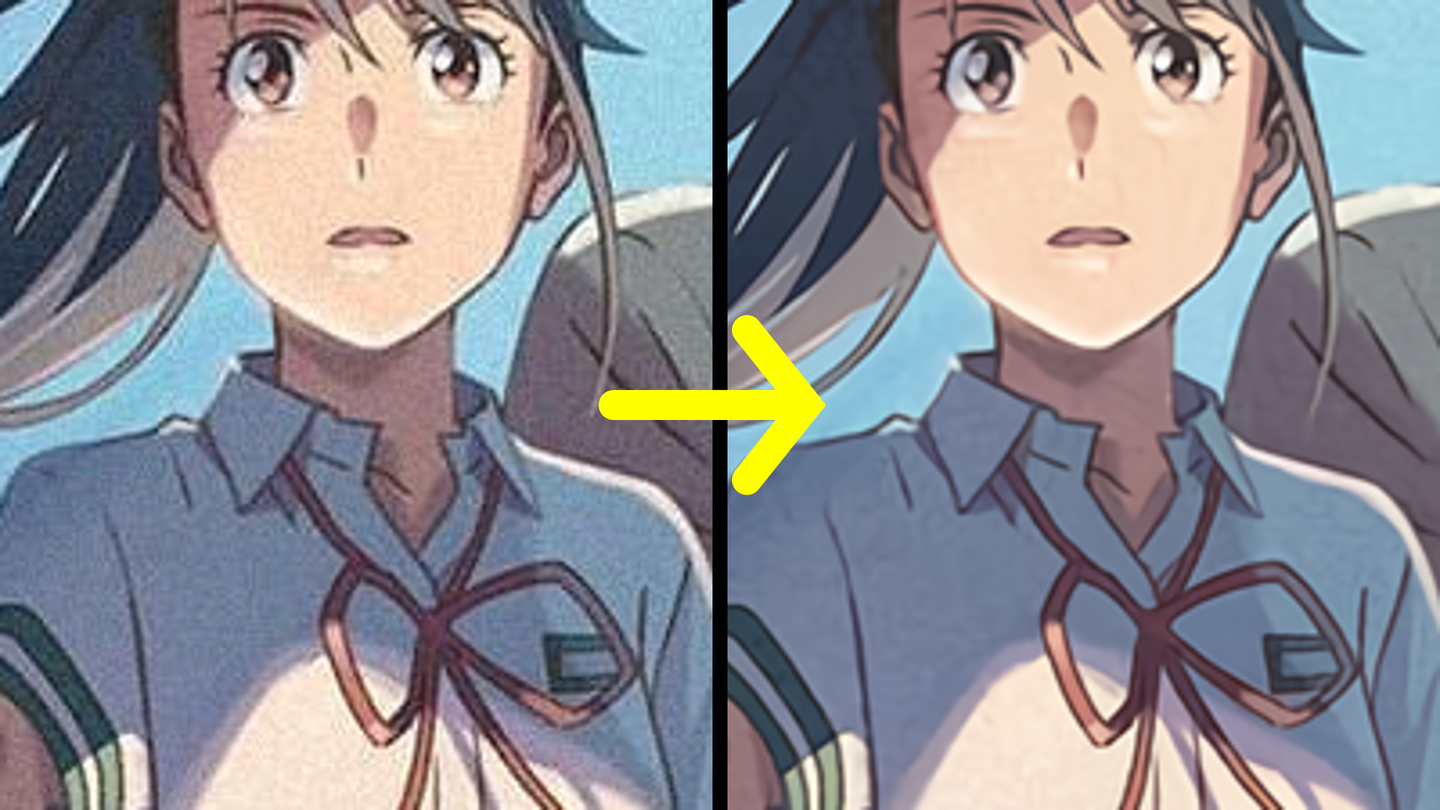
waifu2x is an AI image noise reduction and upscale tool, featuring optimization algorithms specifically tailored for anime-style images. Using the images it processes as wallpapers on your computer or phone feels clean and crisp, making it especially perfect for OCD sufferers like myself who can't stand JPEG lossy compression.
Tutorial
Step 1: Prepare the image to process
Sample image: https://wall.alphacoders.com/big.php?i=1276272 (Image copyright: © 2022 「すずめの戸締まり」製作委員会)
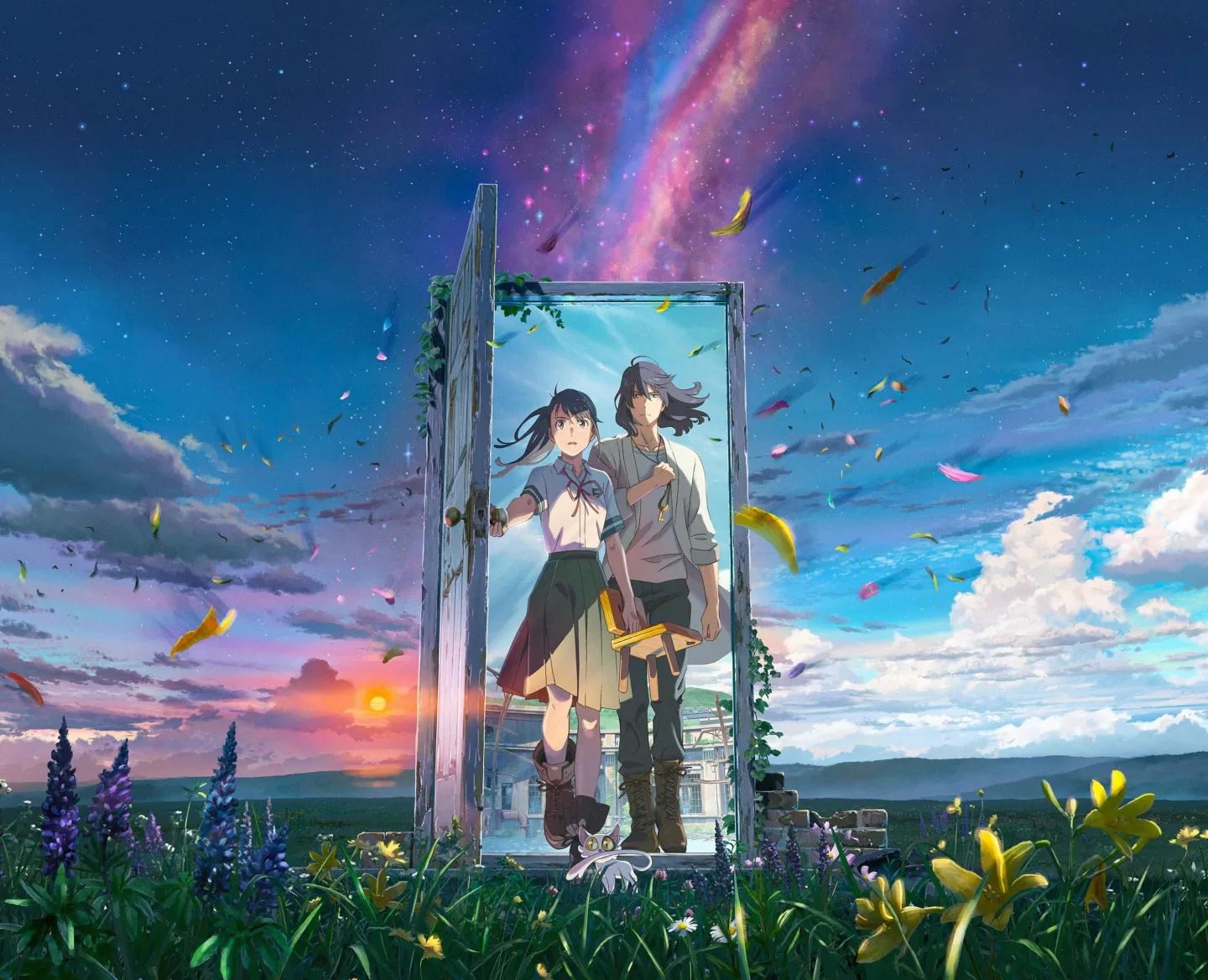
Readers are encouraged to click on the original image above and zoom in significantly to see the very obvious, annoying image noise caused by JPEG lossy compression.
Step 2: Open waifu2x
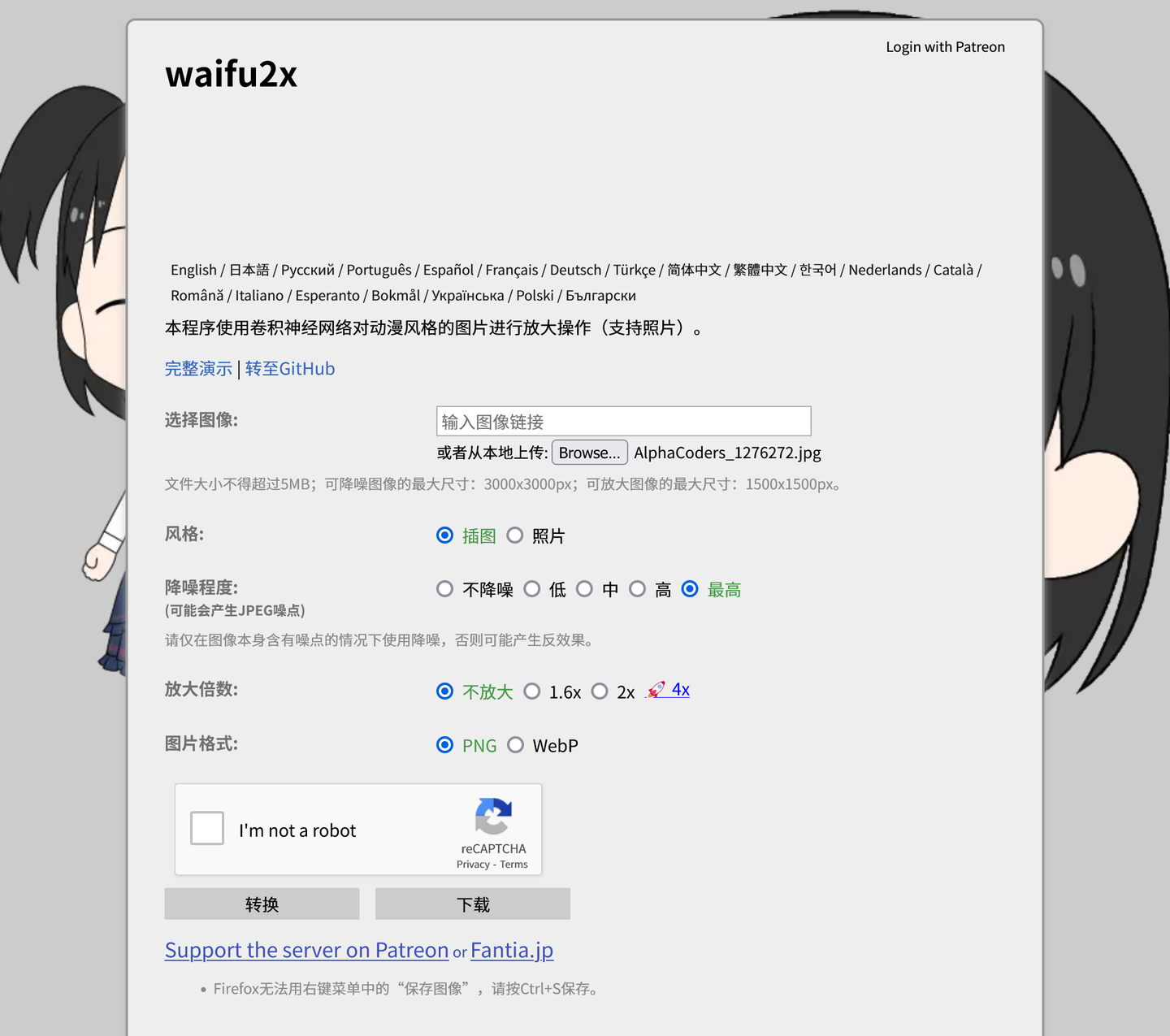
Simplified Chinese version of waifu2x official site: https://waifu2x.udp.jp/index.zh-CN.html
Step 3: Select File
If you know the original link of the image, simply paste the link in the "Image URL" field. Otherwise, click "Browse..." to open the downloaded image and upload it from your local device.
Step 4: Configuration
To prevent server overload, waifu2x imposes limits on the file size and resolution of the original image. Therefore, there are several scenarios and corresponding solutions:
- Original image size exceeds 5MB: First use an image editor to compress the image slightly, then feed it to waifu2x.
- Original image size is under 5MB, resolution exceeds 3000x3000: Same solution as above.
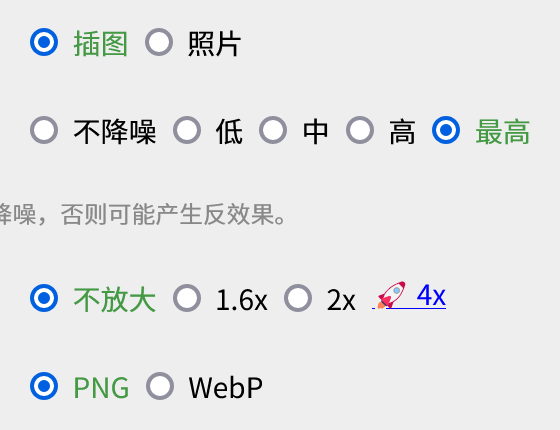
- Original image size is under 5MB, resolution between 1500x1500 and 3000x3000: Select "Illustration", "Highest", "No放大" (No scaling), "PNG".
- Original image size is under 5MB, resolution below 1500x1500: Select "Illustration", "Highest", "2x", "PNG".
The sample image is 1.19MB and 2960x2400, so it falls into the third scenario. Configure it as shown below:
Step 5: Start Processing
Check "I'm not a robot" to complete the CAPTCHA, then click "Download" and wait patiently for about several dozen seconds. When the browser pops up the "Save File" dialog, save the image.
When the network environment is poor, there may be no response for a long time. Readers may use a network speed monitoring tool or Task Manager to determine whether it is actually processing the image. If no network activity is observed, refresh the waifu2x webpage and start over.
Step 6: Set the Wallpaper
On Windows, right-click the processed image in File Explorer and set it as your desktop background.